

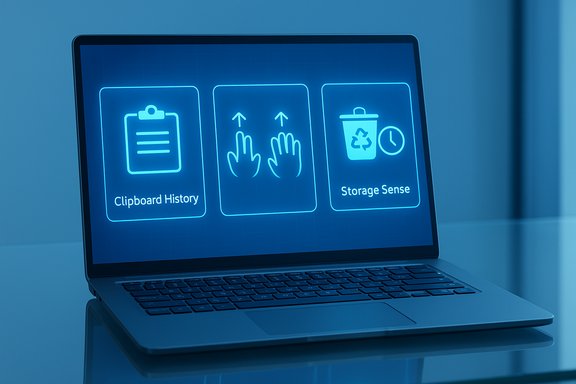
Windows 11 quietly packs dozens of productivity shortcuts and system tools that most users never discover — and that’s a shame, because three of them alone can shave minutes (and frustration) off everyday workflows. Flip on Clipboard history, learn the three- and four‑finger touchpad gestures, and set up Storage Sense correctly, and you’ll find tiny wins stack up into meaningful time saved. Below is a thorough, hands‑on guide to those three hidden Windows 11 features: what they do, how to enable and tune them, practical use cases, and the risks to watch for.
Windows 11 added a lot of visible polish — new visuals, centered taskbar, Snap Layouts — but its real productivity power often lives in settings panels and subtler UI elements. The three features covered here are built‑in, free, and designed to reduce friction:
 . If you need automated cleanup on other data drives, you’ll need to manage those drives separately or use specialized tools; Windows exposes “View storage usage on other drives” for manual management. Many OEM support pages and community docs call this out explicitly. If you store large downloads or archives on secondary drives, Storage Sense will not automatically sweep them in the same way it handles C: by default.
Windows 11’s productivity gains aren’t all in flashy UI changes — many live behind simple toggles in Settings. Enabling Clipboard history, learning three‑ and four‑finger gestures, and making Storage Sense your automatic housekeeper will produce small daily wins that compound into real workflow improvements. Try one today, tune one this week, and you’ll notice how much less time you spend undoing, hunting, or manually cleaning up.
Source: XDA 3 hidden Windows 11 features I wish I knew about years ago
 Background
Windows 11 added a lot of visible polish — new visuals, centered taskbar, Snap Layouts — but its real productivity power often lives in settings panels and subtler UI elements. The three features covered here are built‑in, free, and designed to reduce friction:- Clipboard history turns the clipboard into a multi‑slot tool (no third‑party clipboard manager needed).
- Three‑ and four‑finger touchpad gestures let you switch apps, call up Task View, or hop between virtual desktops with a swipe.
- Storage Sense automates routine housekeeping so your system drive doesn’t fill up with cruft.
Clipboard history: access everything you copied
What it is and why it matters
The classic clipboard is single‑slot: copy once, paste once. Windows 11’s Clipboard history converts that into a short, persistent list of recent text and images you can recall at any time. That change alone eliminates the frantic “undo, re‑copy, paste” routine when you need several snippets from different sources. The feature is accessed with the keyboard and can be pinned, cleared, or synced across devices. This single setting transforms copy‑and‑paste from an annoyance into a workflow utility.How to enable and use it
- Open Settings (Windows + I).
- Go to System > Clipboard and toggle Clipboard history to On.
- Use the shortcut Windows + V to open the clipboard manager anywhere you can paste. The panel shows recent items; click one to paste it.
- To keep an item permanently accessible, click the pin icon beside the item. Pinned items survive restarts; unpinned items cycle out as you copy new content.
- Clipboard history stores mixed content types (text, HTML, images) subject to size limits (items larger than a per‑item cap are not saved). Windows historically limited items to 1 MB and later extended the limit to around 4 MB; expect vendor or build differences. Treat large images or files cautiously.
- The visible count in the manager is up to recent entries; current implementations keep up to 25 items in history (older items are discarded unless pinned). If you rely on many snippets, pin the ones you reuse.
Syncing across devices — automatic or manual
Windows can sync clipboard items to other Windows devices signed into the same Microsoft account. In Clipboard settings you’ll see Sync across your devices with two choices:- Automatically sync text that I copy — immediate sync of text items to the cloud for availability on other PCs.
- Manually sync text that I copy — you selectively sync items from your local clipboard history (open Windows + V and choose Sync on a specific item). Use this when you want control over what leaves your device.
Troubleshooting and tips
- If Win + V shows nothing, confirm Clipboard history is enabled in Settings. A sign‑in with a Microsoft account may be required for sync features to appear.
- To clear everything (except pinned items), open Clipboard settings and use Clear. To remove pinned data, unpin and then clear.
- For longer, searchable history or encrypted local storage, consider a reputable third‑party clipboard manager; built‑in history is great for day‑to‑day use but purpose‑made apps offer search, tagging, and local‑only storage.
Three‑ and four‑finger gestures: multitask without lifting a finger
What gestures can do
On laptops with a precision touchpad, Windows 11 supports a set of multi‑finger gestures that map to useful system actions:- Three‑finger swipe up: Task View (show all open windows).
- Three‑finger swipe down: Show desktop.
- Three‑finger swipe left/right: Switch between open apps.
- Four‑finger swipe left/right: Switch between virtual desktops.
- Taps and other touch gestures can be customized.
How to enable and customize gestures
- Open Settings > Bluetooth & devices > Touchpad.
- Ensure Three and four‑finger touch gestures is switched On.
- Expand Three‑finger gestures and Four‑finger gestures to choose what each swipe or tap does. You can map swipes to Task View, switch apps, mute/unmute audio, or other options.
- If the touchpad is disabled (physically or via driver), the gesture options will be unavailable.
- Some OEMs present their own touchpad control panels; check manufacturer docs or update the precision touchpad driver.
Hardware dependency and compatibility
Not all laptops support the full gesture set. The gestures require a precision touchpad (most modern Windows laptops have one), and OEM drivers sometimes expose additional options. If a gesture doesn’t work, update the touchpad driver or check the vendor’s support page; the built‑in Windows settings page shows whether your device reports a precision touchpad.Practical workflows and examples
- During a research session: use three‑finger swipe left/right to flip between your browser and notes app, then three‑finger swipe up to find a window you need without hunting the taskbar.
- On ultrawide monitors: assign four‑finger swipes to move between virtual desktops dedicated to different projects (email + calendar vs code + terminal).
- Media control: remap a three‑finger tap to play/pause during listening sessions.
Troubleshooting
- If gestures are unresponsive, check Windows Update and the touchpad driver; a vendor driver often fixes missing gestures.
- If gestures conflict with certain apps (e.g., drawing apps), toggle three/four‑finger gestures off temporarily; some apps rely on multi‑finger input.
Storage Sense: automatic cleanup that actually saves space
What Storage Sense does
Storage Sense automates disk housekeeping on Windows 11. It can remove temporary files, purge items in the Recycle Bin after a set interval, and optionally clear old items in the Downloads folder or free up local OneDrive content. Think of it as a smart disk‑cleaner that runs on a schedule you control. Microsoft documents Storage Sense as an administrator‑configurable feature with specific cleanup thresholds.Key defaults and options
From Settings > System > Storage > Storage Sense you can:- Toggle Storage Sense On/Off and choose how often it runs: Every day, Every week, Every month, or During low free disk space.
- Decide how long items sit in the Recycle Bin before deletion: Never, 1 day, 14 days, 30 days, or 60 days (default tends to be 30 days).
- Choose whether to delete downloads that haven’t been opened for a configured number of days.
- Trigger a manual run with Run Storage Sense now.
Important caveat: system drive focus
Storage Sense primarily manages the system drive (the partition where Windows is installed — typically C. If you need automated cleanup on other data drives, you’ll need to manage those drives separately or use specialized tools; Windows exposes “View storage usage on other drives” for manual management. Many OEM support pages and community docs call this out explicitly. If you store large downloads or archives on secondary drives, Storage Sense will not automatically sweep them in the same way it handles C: by default. How I configure it (recommended starting point)
- Turn Storage Sense On and schedule Every week (or “During low free disk space” if you prefer less frequent automatic action).
- Set Delete files in my Recycle Bin if they have been there for over to 30 days.
- Set Delete files in my Downloads folder if they haven’t been opened for more than to 60 days only if you don’t keep important downloads there; otherwise set this to Never.
- Check the Delete temporary files that my apps aren’t using box.
- Run Storage Sense once manually with Run Storage Sense now to see what it removes and confirm behavior.
Risks and guardrails
- Files permanently deleted by Storage Sense are not recoverable via the Recycle Bin. If you use Downloads as a temporary holding area, do not enable aggressive cleanup for that folder.
- OneDrive Files On‑Demand and cloud integrations can complicate behavior: Storage Sense focuses on locally cached items. If you expect cloud files to be targeted, use the OneDrive interface to make items online‑only instead of relying on Storage Sense.
- Storage Sense behavior can vary with Windows builds and OEM images; if the option to clean a location is missing, check Windows Update and your OEM’s support documentation.
Administrative control and enterprise usage
For IT administrators, Storage Sense can be configured via Group Policy or Intune with values up to 365 days for recycle bin and downloads cleanup thresholds. This is useful in environments with compliance or retention requirements. When managed centrally, users can be restricted from changing thresholds locally.Practical combinations and a 7‑day trial plan
Small changes compound. Here’s a short, pragmatic routine to try these three features for one week and evaluate the benefit.- Day 1 — Clipboard setup
- Turn on Clipboard history and try Windows + V for a day. Pin any items you reuse (email signatures, frequent replies).
- If you need cross‑device pasting, enable Sync across devices but set it to manual for the week. Evaluate privacy impact.
- Day 2 — Gesture activation
- Enable touchpad gestures and set three‑finger swipes to switch apps and four‑finger swipes to change desktops.
- Practice switching between three active windows to build muscle memory. If gestures feel accidental, lower touchpad sensitivity or reassign taps.
- Day 3 — Storage Sense baseline
- Turn on Storage Sense, set it to weekly, and default Recycle Bin cleanup to 30 days. Set Downloads to Never (unless you use Downloads only as transient storage).
- Run Run Storage Sense now and review what was removed.
- Days 4–7 — Observe and iterate
- Track time saved when pasting clipped items versus re‑copying.
- Notice whether gestures reduce Alt‑Tab friction.
- Confirm Storage Sense behavior didn’t remove anything you still needed; if it did, adjust thresholds or exclude Downloads.
Advanced tips and power‑user add‑ons
- Combine Clipboard history with a templates file (or Sticky Notes) for semi‑formal text you paste regularly.
- Use PowerToys FancyZones to complement touchpad gestures: gestures move between apps, and FancyZones keeps them arranged predictably. PowerToys is a free Microsoft project that adds window management power.
- For enterprise environments, configure Storage Sense policy via Intune or Group Policy to set retention windows consistent with corporate data policies.
- If you need searchable clipboard history beyond 25 items or encrypted local storage, evaluate specialized clipboard managers; keep in mind the trade‑off between convenience and potential exposure of sensitive content.
Strengths, risks, and final recommendations
Strengths- These three features are built into Windows 11 and require no extra software — low friction, low cost.
- Clipboard history eliminates repetitive copying. Touchpad gestures keep hands on the keyboard/touch surface and moving quickly. Storage Sense prevents the system drive from filling up with temporary cruft.
- All three are configurable to match conservative or aggressive workflows and can be reverted quickly if they don’t fit your habits.
- Privacy risk (Clipboard sync): synced clipboard data travels to Microsoft’s cloud. Avoid automatic sync for sensitive data; prefer manual sync or turn sync off.
- Unintended deletions (Storage Sense): aggressive Downloads cleanup or incorrect thresholds can remove needed files; set conservative defaults and run a manual test clean to confirm behavior.
- Hardware dependency (Gestures): gestures depend on precision touchpad drivers and OEM implementations; if gestures are missing, check drivers or vendor utilities.
Windows 11’s productivity gains aren’t all in flashy UI changes — many live behind simple toggles in Settings. Enabling Clipboard history, learning three‑ and four‑finger gestures, and making Storage Sense your automatic housekeeper will produce small daily wins that compound into real workflow improvements. Try one today, tune one this week, and you’ll notice how much less time you spend undoing, hunting, or manually cleaning up.
Source: XDA 3 hidden Windows 11 features I wish I knew about years ago
