

Deleting a sensitive file and thinking it’s gone because it’s no longer visible is a dangerous assumption—Windows’ Recycle Bin and ordinary Delete operations only remove pointers, not the underlying data, and a handful of faster workflows and built‑in settings will permanently remove files from your view but not necessarily from the disk.
Windows gives you multiple ways to remove files: the standard Delete (which sends items to the Recycle Bin), Shift + Delete (which bypasses the Recycle Bin and removes the file reference immediately), command‑line deletion, drive‑level Recycle Bin configuration, and automated cleanup via Storage Sense. Each method is appropriate in different situations—but they vary drastically in what “permanent” actually means, especially when you consider differences between hard disk drives (HDDs) and solid‑state drives (SSDs), and the availability of secure‑erase tools. This feature explains the practical differences between those delete methods, shows safe step‑by‑step options for each use case, and analyzes the strength and limits of each approach for protecting privacy and irrecoverability. It draws on Microsoft documentation, widely used community how‑tos, and specialized tooling such as Sysinternals’ sdelete.
SSDs behave differently. When a file is deleted, modern SSDs often receive a TRIM command from the operating system which tells the drive those blocks are no longer needed. The SSD controller can then erase or reuse them during garbage collection, making recovery far more difficult or impossible with normal tools. In short: SSD + TRIM = much lower chance of recovery compared with HDD. Caveat: TRIM behavior depends on hardware, interface (e.g., some RAID controllers), and OS support—so it's possible for some SSD setups to remain recoverable for a short window. Always treat data you need to be unrecoverable as if it might be recovered unless you use secure erase or encryption key destruction.
In practice, “don’t send private files to the Recycle Bin” is good advice only when paired with a clear, tested process for what does happen to the data afterward. For everyday privacy and quicker disk management, use Shift + Delete or configure Recycle Bin behavior and Storage Sense. For anything that must be truly unrecoverable, take the extra step: use a vetted secure‑erase tool appropriate for your drive type (Sysinternals sdelete for HDDs, vendor secure‑erase or cryptographic erase for SSDs), validate the result, and when required, escalate to professional destruction with documentation. By combining layered defenses—encryption, disciplined deletion policies, and the right sanitization method—you minimize both accidental data loss and the privacy risk posed by simple “permanent” deletion.
Source: How-To Geek Stop sending private files to the Windows Recycling Bin, do this instead
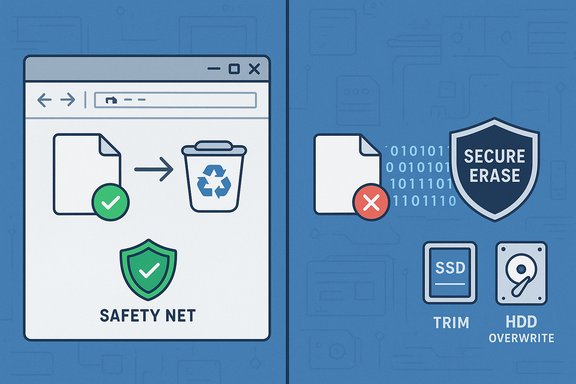 Background / Overview
Windows gives you multiple ways to remove files: the standard Delete (which sends items to the Recycle Bin), Shift + Delete (which bypasses the Recycle Bin and removes the file reference immediately), command‑line deletion, drive‑level Recycle Bin configuration, and automated cleanup via Storage Sense. Each method is appropriate in different situations—but they vary drastically in what “permanent” actually means, especially when you consider differences between hard disk drives (HDDs) and solid‑state drives (SSDs), and the availability of secure‑erase tools. This feature explains the practical differences between those delete methods, shows safe step‑by‑step options for each use case, and analyzes the strength and limits of each approach for protecting privacy and irrecoverability. It draws on Microsoft documentation, widely used community how‑tos, and specialized tooling such as Sysinternals’ sdelete. Why “permanent” deletion is more complicated than you think
What Delete, Shift + Delete, and the Recycle Bin actually do
When you press Delete in File Explorer, Windows usually moves the file to the Recycle Bin so you can restore it later. That removes the file’s entry from its original folder but preserves the data until the Recycle Bin is emptied. When you press Shift + Delete or configure a drive’s Recycle Bin to “Don’t move files to the Recycle Bin,” Windows removes the file’s directory entry immediately and marks the clusters (or pages) as free for reuse. From the user interface perspective the file is gone, but the file’s bytes often remain on disk until overwritten. Important practical points:- Shift + Delete is immediate—Windows prompts for confirmation and then removes the file reference; it does not send the file to the Recycle Bin.
- Recycle Bin settings can be changed per drive so you can make deletions on a particular drive bypass the Bin permanently. Use Recycle Bin → Properties to change this.
- Files deleted this way are often recoverable with specialized recovery tools unless their storage blocks are overwritten, a secure‑erase operation is used, or the SSD controller has used TRIM to purge the blocks.
HDDs vs SSDs: why the medium matters
HDDs (mechanical drives) store data on magnetic platters; deleting a file usually leaves the actual magnetic data intact until new data overwrites those sectors. That means recovery software has a realistic chance of reconstructing deleted content—sometimes even after an empty Recycle Bin.SSDs behave differently. When a file is deleted, modern SSDs often receive a TRIM command from the operating system which tells the drive those blocks are no longer needed. The SSD controller can then erase or reuse them during garbage collection, making recovery far more difficult or impossible with normal tools. In short: SSD + TRIM = much lower chance of recovery compared with HDD. Caveat: TRIM behavior depends on hardware, interface (e.g., some RAID controllers), and OS support—so it's possible for some SSD setups to remain recoverable for a short window. Always treat data you need to be unrecoverable as if it might be recovered unless you use secure erase or encryption key destruction.
Quick, reliable ways to permanently remove files (and when to use them)
1) Fastest: Shift + Delete (single or multiple files)
- Select the files/folders in File Explorer.
- Press Shift + Delete.
- Confirm the prompt to permanently delete.
- Instant and available on every Windows machine.
- Bypasses Recycle Bin UI and saves a step.
- Not a secure wipe—data may be recovered unless you follow up with overwrite or use specialized tools.
2) Use the built‑in command line (Command Prompt / PowerShell) — precise and scriptable
Command Prompt:- Delete a file: del "C:\path\to\file.txt"
- Delete files recursively: del /s /q "C:\path\to\folder."
- Delete a file: Remove-Item "C:\path\to\file.txt" -Force
- Delete recursively: Remove-Item "C:\path\to\folder*" -Recurse -Force
3) Set a drive to bypass the Recycle Bin (permanent by default)
- Right‑click Recycle Bin → Properties.
- Select the drive in the list.
- Check “Don’t move files to the Recycle Bin. Remove files immediately when deleted.”
- Click Apply → OK.
4) Use Storage Sense to keep the Recycle Bin available for a time window
- Settings → System → Storage → Storage Sense.
- Turn Storage Sense on.
- Configure “Delete files in my recycle bin if they have been there for over” to 1/14/30/60 days or Never.
When you need true irrecoverability: secure erasure methods
If the data is sensitive—financial records, passwords, privileged documents—do not rely on Shift + Delete alone. These methods increase your confidence that the data cannot be recovered.1) sdelete (Sysinternals) — secure file and free‑space overwrite
- Download and run Sysinternals SDelete (official Microsoft Sysinternals utility).
- Basic secure delete for a single file (3 overwrites): sdelete -p 3 "C:\path\to\file.txt"
- Securely delete a folder recursively: sdelete -p 3 -s "C:\path\to\folder"
- Clean free space on a volume (overwrite free space): sdelete -p 3 C:
- Designed by Sysinternals for Windows and documented by Microsoft.
- Overwrites file contents and can also sanitize free space on NTFS volumes.
- On SSDs, overwriting free space may be unreliable because the SSD controller may remap and hide physical writes; TRIM and wear‑levelling can interfere with overwrite strategies. For SSDs, vendor secure‑erase or cryptographic erase is preferred.
2) Vendor tools and cryptographic erase for SSDs
- For SSDs, prefer manufacturer utilities (Samsung Magician, Intel® Memory and Storage Tool, Crucial Storage Executive) that support the drive’s built‑in secure‑erase / sanitize commands. These are designed to work with the drive controller and usually provide better guarantees than multi‑pass overwrites.
- If the drive is full‑disk encrypted (BitLocker or hardware encryption), destroying the encryption key (a cryptographic erase) is the fastest way to render data unreadable. For example, disabling or deleting BitLocker keys makes existing ciphertext effectively irrecoverable to anyone without the key.
3) Physical destruction (last resort)
If legal, compliance, or classified requirements demand absolute destruction, physical shredding or degaussing (HDDs) or physical destruction of SSD chips is the only way to guarantee irrecoverability. This is the standard for high‑sensitivity disposal workflows.Practical workflows: actionable playbooks
A. Fast, low‑risk (I want to clear space but keep a safety net)
- Delete files normally (send to Recycle Bin).
- Turn on Storage Sense and set Recycle Bin retention to 14–30 days.
- Manually empty the Recycle Bin for obvious space hogs after verifying no regrets.
B. Moderate risk (I need files gone now but not forensically)
- Use Shift + Delete for files you don’t want in the Recycle Bin.
- If you want a batch approach, run PowerShell Remove-Item with -Recurse -Force (careful).
- Optionally run cipher /w:C: to overwrite free space (Windows built‑in free‑space overwrite) if you are on HDDs. Note: cipher /w is slow and affects only free space. Use it only when you understand the consequences.
C. High sensitivity (I must make this unrecoverable for legal/compliance reasons)
- If SSD: use vendor secure‑erase or perform a cryptographic erase by destroying BitLocker keys.
- If HDD: run sdelete -p 3 -c to securely overwrite free space and then sdelete on specific files.
- Consider professional certified data‑destruction services for chain‑of‑custody or documented certificates of destruction.
Critical analysis — strengths, limits, and risks
Strengths of built‑in Windows options
- Convenience: Delete + Recycle Bin gives an easy, reversible safety net for everyday mistakes. Storage Sense automates cleanup on a schedule or when space runs low.
- Scripting and admin controls: Command line and PowerShell provide repeatable automation for bulk operations and corporate maintenance.
- Vendor support: Microsoft documents and maintains Sysinternals tools (sdelete) and Storage Sense; vendor SSD utilities provide hardware‑level secure‑erase.
Real limitations and risks you must accept
- False sense of security: Many users assume “permanently deleted” equals “unrecoverable.” That is often untrue—especially on HDDs or when deletion is recent. Always assume recoverability until a secure method is used.
- SSD complications: Overwrite tools are hampered by TRIM and controller remapping; vendor secure‑erase or encryption key destruction is the correct approach for SSDs. If you rely on overwrite tools alone on modern SSDs, you may get incomplete sanitization.
- Network and removable drives behave differently: Files deleted over network shares, some removable media, or cloud‑synced folders (OneDrive) may be subject to other retention or server‑side Recycle Bins—so local deletes may not guarantee removal from all locations.
- Tools and speed tradeoffs: Multi‑pass overwrites (three or more passes) increase confidence on HDDs but cost time and wear on SSDs. On SSDs, repeated overwrites also cause extra wear without guaranteed sanitization. Use SSD vendor recommended flows instead.
Governance and compliance considerations
For organisations, follow recognized standards (NIST 800‑88 guidelines or applicable DoD rules) and document your wipe processes. For consumer disposal, vendor secure‑erase plus a factory reset is usually sufficient; for extremely sensitive contexts, certified destruction is appropriate. Community and Windows guidance echoes the same multi‑tier approach: backup, vendor wipe or encryption key removal, confirm, and document.Quick reference: common commands and their intent
- Shift + Delete — Permanently delete selected items (bypass Recycle Bin). Use for quick permanent removes.
- del "C:\path\file.txt" — Command Prompt file deletion. Scriptable; does not securely overwrite.
- Remove-Item "C:\path\folder" -Recurse -Force — PowerShell recursive delete. Scriptable; does not securely overwrite.
- sdelete -p 3 "C:\path\file.txt" — Overwrite file 3 times then delete (Sysinternals sdelete). Use for secure deletion on HDDs; see SSD caveats.
- sdelete -p 3 -s "C:\path\folder" — Securely delete folder and subfolders.
- sdelete -p 3 C: — Overwrite free space on C: (helps prevent recovery of previously deleted files on HDDs).
- cipher /w:C: — Overwrite free space (Windows built‑in). Slower, and does not target specific files. Prefer for HDDs.
Final recommendations — practical, safe, and sensible
- Make a habit of backups and encryption. Backups keep you safe against accidental deletes; full‑disk encryption (BitLocker) converts “deleted but recoverable” into “still encrypted and useless to attackers” unless the key is also recovered. For many users, encryption is the single most effective privacy measure.
- Use the right tool for the right drive. For HDDs, secure overwrite tools like sdelete are practical; for SSDs, prefer vendor secure‑erase or cryptographic erasure.
- Use Storage Sense for safe automated cleanup. If you want an automatic window before permanent deletion, configure Storage Sense to empty the Recycle Bin after 14–30 days rather than never or immediately. That balances safety and hygiene.
- When in doubt, pause. If a file might be needed again, leave it in the Recycle Bin or back it up. Accidental irreversible deletion is the most common regret. Forum experience shows users often enable “remove immediately” and then lose important files. Confirm settings before enabling global “don't move to Recycle” options.
- Document and escalate for high‑sensitivity disposal. If disposing of drives that contain highly sensitive or regulated data, use formal secure‑erase and certified destruction services and keep records. Industry guidance and community audits recommend vendor or certified destruction for legal assurance.
In practice, “don’t send private files to the Recycle Bin” is good advice only when paired with a clear, tested process for what does happen to the data afterward. For everyday privacy and quicker disk management, use Shift + Delete or configure Recycle Bin behavior and Storage Sense. For anything that must be truly unrecoverable, take the extra step: use a vetted secure‑erase tool appropriate for your drive type (Sysinternals sdelete for HDDs, vendor secure‑erase or cryptographic erase for SSDs), validate the result, and when required, escalate to professional destruction with documentation. By combining layered defenses—encryption, disciplined deletion policies, and the right sanitization method—you minimize both accidental data loss and the privacy risk posed by simple “permanent” deletion.
Source: How-To Geek Stop sending private files to the Windows Recycling Bin, do this instead
