

Windows 11 quietly hides a handful of features that, when enabled and learned, can transform how you work — and you don't need extra subscriptions or bloated third‑party utilities to get there.
Windows 11's ongoing evolution has been less about flashy redesigns and more about adding small, high‑impact tools to the operating system itself. Over the last few updates Microsoft has folded accessibility, window management, and productivity helpers into the OS so they’re available out of the box; for many users these features replace single‑purpose apps and subscriptions. The four tools I keep recommending — Voice typing, Live Captions, Snap Layouts / Snap Groups, and Clipboard History — exemplify that strategy: they’re low‑friction, discoverable via a keystroke, and deliver measurable daily gains. These features are core parts of Windows 11’s productivity stack and have been documented across Windows settings and community reports.
Source: MakeUseOf 4 Windows 11 features hiding in plain sight that I can’t stop recommending
 Background
Windows 11's ongoing evolution has been less about flashy redesigns and more about adding small, high‑impact tools to the operating system itself. Over the last few updates Microsoft has folded accessibility, window management, and productivity helpers into the OS so they’re available out of the box; for many users these features replace single‑purpose apps and subscriptions. The four tools I keep recommending — Voice typing, Live Captions, Snap Layouts / Snap Groups, and Clipboard History — exemplify that strategy: they’re low‑friction, discoverable via a keystroke, and deliver measurable daily gains. These features are core parts of Windows 11’s productivity stack and have been documented across Windows settings and community reports.A quick summary of the four features
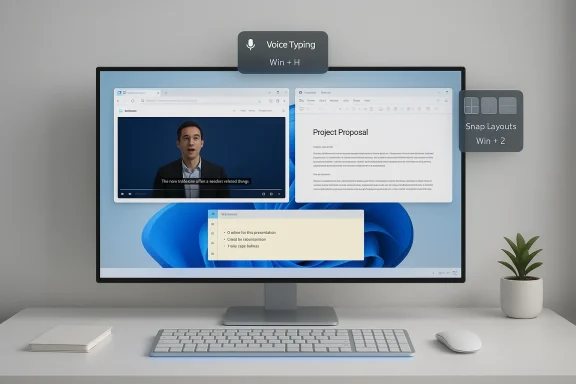
- Voice typing (Win + H) — Desktop dictation built into Windows 11, with improved accuracy and automatic punctuation compared to older versions. It’s designed for drafting and quick notes.
- Live Captions (Win + Ctrl + L) — System‑level, on‑device subtitles for any audio playing on your PC; privacy‑focused because language packs download locally so audio is processed on your machine.
- Snap Layouts / Snap Groups (Win + Z, hover maximize) — Context‑aware window tiling and the ability to restore groups of snapped apps as a single set, especially useful on large monitors.
- Clipboard History (Win + V) — Keeps a ring buffer of copied items (text and images), lets you pin frequently used snippets, and can sync across devices when enabled. The default history holds multiple entries so you don’t lose something you copied earlier.
Voice typing: the drafting hack you already have
What it is and why it matters
Voice typing (Win + H) brings modern speech recognition to the desktop. Where older dictation on Windows felt brittle, the current experience is faster and far more natural for drafting: automatic punctuation, improved recognition accuracy, and broad language support make speaking your first draft a practical way to capture ideas quickly. Users report that it’s excellent for notes, email drafting, brainstorming sessions, and getting words down when typing would interrupt flow.How to use it (brief practical steps)
- Place the cursor in any text field.
- Press Win + H to start voice typing.
- Speak naturally; the system will insert punctuation automatically.
- Press Win + H again (or the microphone button) to stop.
Strengths, limits, and privacy notes
- Strengths: Rapid idea capture, accessibility improvements for those with mobility or RSI concerns, and convenience for hands‑free work.
- Limits: Speech‑to‑text can misinterpret names, acronyms, or technical terms and may require editing. Heavy use for formal or legal text should be followed by careful proofreading.
- Privacy: Some Windows speech features historically have used cloud services for training and extra accuracy. Windows 11 provides local language packs and privacy settings for many speech features, but behaviour depends on your configuration and build — check Settings and the speech/privacy options before dictating sensitive content. Treat dictation as a convenience feature, not a compliance tool.
Live Captions: subtitles for everything you play
What Live Captions delivers
Live Captions is a system overlay that generates real‑time subtitles for any audio playing on your PC — from browser videos, to podcasts, to video calls — and it runs on the device by downloading a language pack the first time you enable it. That makes it fast and privacy‑focused because the audio processing happens locally rather than being streamed to the cloud. The feature is accessible with Win + Ctrl + L and can be moved around the screen so it doesn’t block important content.Where it shines
- Watching muted videos in public places or open offices.
- Participating in calls where a remote speaker’s mic is poor.
- Accessibility: it helps users who are deaf or hard of hearing follow audio content.
- Quick translations on Copilot+ hardware — on compatible machines Live Captions can translate speech into another language locally.
Caveats and verification
- Live Captions is available in current Windows 11 builds (and delivered through feature updates). If you don’t see it, check Windows Update or the Accessibility settings — some features roll out selectively by build or region.
- The “on‑device” promise is important: the first run downloads a small model to your PC so transcription is private. However, some advanced translation or performance features may use hardware acceleration or updated model packages on Copilot+ systems. Confirm what your machine supports before relying on translation in critical meetings.
Snap Layouts & Snap Groups: tidy windows, faster thinking
Why this is a productivity game‑changer
If you’re still manually resizing windows on a large monitor, stop. Snap Layouts (invoke with Win + Z or hover over the maximize button) offers context‑aware layouts — two‑column, three‑column, or more complex grids — and Snap Groups remembers those layouts so you can restore the whole set with a single click. This reduces the friction of arranging research, reference, and composition windows side‑by‑side.Practical workflow examples
- Research workflow: Browser (left), document editor (right), chat or reference app (top small pane) — snapped as a single group you can reopen after a break.
- Design + review: Canvas (large), asset folder (small), notes (right) — restore the group when switching tasks.
- Meeting + notes: Video call (left), transcript or notes app (right) — keep both visible without manual resizing.
Tips, caveats, and device differences
- Large screens get more sophisticated layouts (thirds, 3×3 grids). The available layouts are responsive to monitor size and resolution.
- Snap Groups are particularly useful when interruptions occur: hovering a taskbar icon shows the group thumbnail so you can restore the arrangement quickly.
- Some limited editions of Windows 11 (for education, or OEM‑specific builds) or enterprise policy can modify snap behavior; if an option is missing check Group Policy or your IT admin.
Clipboard History: stop losing what you copied
The problem it solves
Losing a link or text snippet because you copied something else is a constant tiny frustration. Clipboard History (Win + V) makes the clipboard a small temporary database (a ring buffer) where you can recall recent copies, pin favorites, and—optionally—sync snippets across devices. This is the practical tool for writers, coders, and anyone who juggles multiple pieces of content.Key mechanics to know
- Enable it once in Settings → System → Clipboard, then use Win + V to open the history.
- The history retains multiple recent items (commonly cited as up to 25 entries); you can pin up to several items so they persist across reboots.
- Optional sync requires signing in with your Microsoft account and enabling clipboard sync (useful for moving text between devices, but avoid on machines with sensitive data).
Risks and mitigations
- Security risk: syncing clipboard across devices is handy, but it can expose sensitive snippets if your account is shared or if other devices are not secure. Disable sync on machines that handle confidential data.
- Persistence: clipboard entries are temporary unless pinned. Treat pinned items like small files and clear them when no longer needed.
How these four features combine into a “Windows‑only” productivity stack
The cohesion advantage
- System integration: these tools are built into Windows, so they interoperate with other system features (Focus sessions, virtual desktops, and taskbar behavior). That reduces the number of separate apps you need to maintain.
- Low overhead: no subscription fees, fewer background services, and fewer permissions prompts than many third‑party utilities.
- Discoverability via shortcuts: mastering a small set of keys (Win + H, Win + Ctrl + L, Win + Z, Win + V) unlocks outsized value.
Sample daily routine using only Windows tools
- Morning setup: restore a Snap Group for your day’s project (Win + Z + click layout).
- Research and draft: use Voice typing (Win + H) to capture ideas and Clipboard History (Win + V) to collect quotes and links.
- Meeting mode: enable Live Captions (Win + Ctrl + L) for poor audio and take notes in a snapped editor.
- Focus blocks: use virtual desktops and Snap Groups to separate deep work from communication.
Critical analysis: strengths, risks, and what Microsoft still needs to fix
Notable strengths
- Accessibility and inclusivity. Voice typing and Live Captions are powerful accessibility features that benefit many users outside of their original target audience.
- Immediate ROI. Small time savings from Clipboard History and Snap Layouts compound into noticeable daily productivity improvements. These gains are measurable and low risk.
- Privacy‑friendly options. Live Captions’ on‑device processing model is a clear win for users who care about keeping audio local.
Real risks and tradeoffs
- Build and device fragmentation. Feature availability can vary by Windows 11 build, OEM provisioning, and corporate policy. Not every machine will show the same set of options; some features are added via Microsoft Store updates or Insiders first. Test before you standardize a workflow on a fleet.
- Privacy and cloud fallbacks. While many features offer local processing, some experimental or hardware‑accelerated variants rely on cloud models or specialized NPUs (Copilot+ hardware). Verify your device’s behavior and settings before using features with sensitive audio or text.
- Over‑reliance on OS defaults. Built‑in tools are great for most tasks, but power users with specialized needs (high‑fidelity transcription, enterprise compliance, advanced window management macros) may still need third‑party solutions. Treat the OS stack as a solid baseline, not a universal replacement.
What Microsoft should improve
- Better discoverability inside Setup and the Settings app — a short interactive “productivity tour” would help non‑power users find these features.
- Clearer privacy controls and explainers when speech models or translation features use cloud resources or hardware NPUs. Users should be shown exactly what remains local and what may be processed off‑device.
- Enterprise signage: IT admins need enterprise‑grade controls to safely permit or disable clipboard sync and voice features across managed fleets.
Quick verification checklist (what I checked and why)
- Verified the keyboard shortcuts and basic behavior for each feature (Win + H for dictation, Win + Ctrl + L for Live Captions, Win + Z / hover maximize for Snap Layouts, Win + V for Clipboard History) through Windows documentation and community reporting captured in the available archives and threads.
- Confirmed Live Captions’ on‑device model and language‑pack download behaviour; noted Copilot+ hardware accelerations are an additional capability on certain machines.
- Flagged privacy caveats and build/device variability — these are recurring notes in community reports and official guidance and are worth verifying on your device before relying on cloud vs. local guarantees.
Practical rollout advice for individuals and IT teams
For individuals (non‑IT)
- Start by enabling one feature at a time: try Clipboard History for a week, then add Snap Layouts, then experiment with Voice typing. Small habit changes stick better.
- Keep clipboard sync off on machines dealing with sensitive info. Pin frequently used snippets rather than relying on an ever‑growing temporary list.
- Test Live Captions on a low‑stakes meeting to learn how it displays and how much correction you’ll need.
For IT teams and power users
- Audit builds and OEM provisioning to ensure required features are available across your fleet. Feature support can depend on OS build and manufacturer packages.
- Define policy for clipboard sync and dictation — these features are convenient but raise compliance questions in regulated environments. Consider group policies or Intune controls to manage them centrally.
- Document a minimal “Windows productivity baseline” for onboarding: Snap Layouts, Clipboard History, Live Captions, and Voice typing are useful defaults that reduce the need for ad‑hoc third‑party installs.
Conclusion
Windows 11’s most useful productivity upgrades are not always the loudest. The operating system now contains a set of small, well‑integrated features — Voice typing, Live Captions, Snap Layouts / Snap Groups, and Clipboard History — that together let you work faster, with fewer apps and fewer distractions. These tools pay off immediately: they reduce context switching, improve accessibility, and lower the dependency on paid services for everyday workflows. That said, be mindful of build differences, privacy settings, and enterprise policy. Enable one feature, learn the shortcut, and you’ll quickly see why these hidden helpers are worth recommending.Source: MakeUseOf 4 Windows 11 features hiding in plain sight that I can’t stop recommending
