

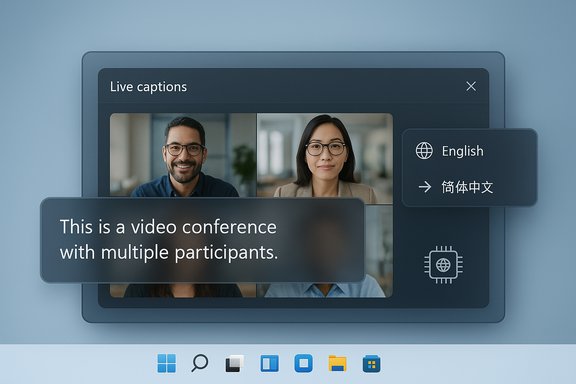
Windows 11’s Live Captions put readable, real‑time subtitles on any audio or video playing on the PC, and the feature now goes beyond accessibility: it can run offline, be repositioned and styled to suit working workflows, and — on Copilot+ hardware — translate spoken content from dozens of languages into English or Simplified Chinese in near real time.
Background
Windows has steadily turned accessibility features into mainstream utilities, and Live Captions is one of the clearest examples. The idea began as an accessibility hackathon project at Microsoft and evolved into a system‑level capability that can caption any audio source on a Windows 11 device. This design choice — moving captioning from app‑specific to OS‑level — was driven by real user needs to multitask and maintain comprehension across meetings, media playback, and mixed‑audio scenarios.More recently, Microsoft folded Live Captions into its broader Copilot+ initiative — a hardware‑aware set of AI features optimized to take advantage of dedicated neural processing (NPUs) on modern laptops. That shift enabled not only on‑device transcription but also the rollout of real‑time translation on Copilot+ PCs, expanding the feature into a multilingual productivity tool that works across apps and video platforms.
Overview: What Live Captions Does Today
Live Captions in Windows 11 is a single, system‑level overlay that:- Captions any audio played by the PC — including video calls, browser streams, local media, and system sounds — without requiring the original content to include subtitles.
- Runs on the device by default, so audio and transcribed text are not sent to Microsoft’s servers; captions are generated locally and are not stored persistently.
- Offers a keyboard shortcut to toggle it quickly: Windows key + Ctrl + L.
- Provides flexible positioning and styling (docked top or bottom, or a floating overlay) and customizable color/size options to improve readability.
- On Copilot+ PCs, can translate spoken audio from over 40 languages into English and from a set of languages into Simplified Chinese, turning Live Captions into a live translation layer for meetings and media.
How Live Captions Works (Technical Snapshot)
On‑device transcription and privacy
The core transcription and caption rendering run on the PC. Microsoft’s documentation is explicit that all processing of audio and caption generation occurs on‑device, and generated captions are not uploaded or stored centrally. That architecture reduces privacy concerns associated with cloud transcription and makes the feature usable offline after language packs are installed.Translation pipeline on Copilot+ hardware
Translation is added as an extra processing layer on Copilot+ machines that meet Microsoft’s NPU and hardware profile requirements. On those devices, live audio is transcribed locally and then translated into the selected output language, with the translated text rendered as captions. Microsoft’s rollout notes emphasize that the initial translation target languages and the set of supported input languages vary by hardware and release channel, with more than 40 input languages supported for translation into English on qualifying Copilot+ PCs.Latency and accuracy considerations
Real‑time transcription and translation require tight optimization to keep latency low. On Copilot+ hardware this is achieved through a mix of local NPU inference and, where necessary, cloud fallback for more complex processing. Accuracy depends on audio quality, speaker accents, background noise, and the domain vocabulary; translation quality is subject to the same caveats that affect any neural machine translation model. Independent reporting and Microsoft’s Insider notes mention occasional glitches and a small set of known issues in early previews — a reminder that real‑time AI workflows are very powerful but not yet flawless.Turning It On and Making It Yours
Quick enable (three fast ways)
- Press Windows key + Ctrl + L to toggle Live Captions instantly. The shortcut opens the Live Caption bar even if you haven’t enabled it in Settings for the first time; the initial enablement will prompt a setup and download of language files.
- Enable via Settings: go to Settings > Accessibility > Captions and toggle Live captions on. The first time you enable it, Windows asks for consent and may download a language pack for on‑device speech recognition.
- Use Quick Settings on the taskbar (the Accessibility control inside Quick Settings exposes Live Captions as a toggle).
Positioning and overlay behavior
- Open the Live Captions window and click Settings > Position. Choose Above screen, Below screen, or Overlaid on screen. When docked to top or bottom, the caption window reserves screen space so it won’t obscure other windows; the floating overlay can be dragged to any location to avoid occluding content.
Styling captions for readability
- From the Live Captions Settings menu select Preferences > Caption style. Choose one of the built‑in themes or Edit to build a custom style: text size, color, background, and opacity can all be tuned. The default style adapts to Windows’ light/dark mode by default.
Capturing your own speech
- If you want other people to see captions of what you say (for example, when demonstrating aloud), turn on Include microphone audio under Preferences. Only one audio source is captioned at a time, so if others are speaking concurrently you’ll typically see captions for the other speakers, not your microphone.
Copilot+ Hardware: What It Means and Why It Matters
Copilot+ is Microsoft’s certified hardware tier that pairs Windows 11 with an NPU and optimized drivers to accelerate local AI inference. Live Captions’ translation functionality was first available on Snapdragon‑powered Copilot+ devices, but Microsoft has expanded testing and early rollouts to Intel and AMD Copilot+ PCs that meet the required hardware profile. Why this matters:- NPUs reduce latency for transcription and translation, improving responsiveness during live calls and streams.
- Hardware gating means not all laptops will deliver the same translation performance; some advanced translation options (for example, Simplified Chinese translation pathways) were initially prioritized on Qualcomm Snapdragons with a specific NPU setup. Microsoft’s staged rollout reflects the complexity of optimizing AI across differing silicon architectures.
Use Cases: Where Live Captions Shines
Accessibility and hearing support
Live Captions is an immediate accessibility win. It extends captioning to any audio source on the PC, enabling people with hearing loss to participate in meetings, follow lessons, or watch media that lacks embedded subtitles. Because the feature is system‑wide, captions remain visible while using other applications, which helps with multitasking and comprehension.Quiet environments and public spaces
When audio must remain silent — in libraries, shared offices, or late at night — Live Captions allows full comprehension without turning the volume up. The docked positioning option is particularly useful for video calls and classroom situations where captions need to remain visible without covering content.Multilingual collaboration and learning
On Copilot+ devices, the translation capability turns any lecture,stream, or meeting in another language into captions in English or Simplified Chinese (depending on the device and settings). That can dramatically reduce friction in multinational meetings, enable language learners to follow along, and help content creators localize material quickly.Faster note‑taking and content capture
Because captions are live and visible while working in other apps, users can skim the caption window to pick up quotes or timestamps, then copy or transcribe key passages manually into their notes. This is helpful for journalists, students, and researchers who need to capture spoken content quickly.Accuracy, Known Issues, and Risks
Accuracy limitations
- Speech‑to‑text accuracy degrades in noisy environments, with overlapping speech, heavy accents, or domain‑specific jargon (technical terms, proper nouns). Machine translation similarly struggles with idioms, sarcasm, and context that requires cultural knowledge. These limitations are expected for any real‑time ASR + NMT pipeline and must be accounted for in critical workflows.
Known bugs and preview caveats
- Microsoft’s Insider documentation highlights a handful of known issues for early releases (e.g., occasional crashes when switching languages mid‑session and build number display glitches after resets). These are most relevant to users trying Dev Channel builds; production branch behavior is typically more stable but will still inherit the general limitations of the technology.
Privacy and data handling
- Live Captions’ on‑device processing reduces cloud exposure: Microsoft states captions and audio processing occur locally and captions are not stored. That design improves privacy compared with cloud‑first transcription services, but users should still consider microphone permissions and whether local speech models are suitable for highly sensitive conversations.
Hardware fragmentation and availability
- Because translation features are tied to Copilot+ certification and driver availability, not every Windows 11 PC will offer the same translation set. This hardware gating can create uneven experiences across organizations and can complicate IT planning for enterprise rollouts.
Practical Tips and Troubleshooting
Keep drivers and Windows updated
- Check Settings > Windows Update and enable “Get the latest updates as soon as they’re available” if testing Copilot+ features in Insider builds, or just keep the system fully patched for production use.
- Install vendor drivers recommended by Microsoft for Copilot+ features (AMD graphics driver packages, Intel NPU drivers) to ensure NPUs and accelerated inference are functioning.
Improve audio quality to boost accuracy
- Use a second microphone close to the primary speaker in meeting rooms, encourage single‑speaker turn‑taking, and reduce background noise. Higher signal‑to‑noise ratio equals better transcription and translation accuracy.
Configure caption settings for different scenarios
- Use Above screen during virtual meetings so the speaker’s face and captions both remain visible. Dock Below screen when watching movies. Use Floating overlays for multi‑monitor workflows where captions must be positioned near active content.
Test with sample content
- Before relying on translations for business meetings, run a short trial in the same room and app environment to see latency, accuracy, and whether the captions obscure critical UI elements.
Report bugs and file feedback
- When testing preview features, report issues via the Feedback Hub (WIN + F) under Accessibility > Live captions so Microsoft receives telemetry and bug reports that help stabilize releases.
What Windows Users Should Expect Next
Microsoft’s staged rollout strategy means Live Captions will continue to receive incremental improvements: more supported languages, refined translation models, and better cross‑platform parity between Snapdragon, Intel, and AMD devices. The company’s Copilot+ narrative points to increased local inference capacity on certified hardware, which should reduce latency and improve offline translation quality over time. At the same time, wider availability in stable Windows builds may lag behind Insider previews as validation and device testing continue.Critical Analysis: Strengths and Potential Risks
Strengths
- System‑level integration: Because Live Captions is an OS feature, it works across apps and media without per‑app support, which is a practical advantage over browser or app‑specific solutions.
- Privacy‑first design: On‑device processing with no persistent storage is a strong privacy posture compared with cloud transcription services.
- Multilingual power on Copilot+: Translation from more than 40 languages into English (and additional Chinese pathways on select hardware) reduces friction for global collaboration and content consumption.
Risks and caveats
- Uneven hardware experience: Reliance on Copilot+ certification and NPUs creates a mixed landscape where not all users will enjoy the same translation performance, and enterprises may face procurement complexity.
- Translation reliability: Machine translation can introduce subtle errors or misinterpretations, which may be unacceptable in high‑stakes meetings (legal, medical, financial). Users should not treat captions as verbatim legal transcripts without validation.
- Preview instability: Early adopter channels (Dev/Beta) still show known issues. Organizations should avoid depending on preview builds for mission‑critical workflows.
Final Verdict and Practical Recommendation
Live Captions in Windows 11 has matured from a pure accessibility convenience to a broadly useful productivity and collaboration tool. Its system‑wide availability, on‑device processing, and Copilot+‑driven translation capabilities make it a powerful feature for everyday users and enterprises alike.For most users, the recommendation is simple:
- Use Live Captions for quiet or noisy environments and for accessibility needs — enable it with Windows + Ctrl + L and personalize the position and style for your workflows.
- If translation matters (multilingual meetings or foreign media), prefer a Copilot+ certified device or ensure your machine has the latest NPU/driver support and is on a supported Windows build before relying on translations in formal contexts.
- Treat translated captions as aides to comprehension, not as definitive transcripts for legal or compliance purposes; verify critical content with human translation or recorded material where accuracy is essential.
Source: PCWorld Windows 11's live captions makes understanding videos so much easier
