

Windows 11’s built‑in Live Captions quietly turns any audio your PC hears into readable text, and it’s capable of more than just on‑screen subtitles — it can caption your microphone, translate dozens of languages on supported hardware, and be customized to fit your workflow.
Windows has shipped an integrated captioning tool since the introduction of Live Captions in Windows 11 (22H2 and later). The feature appears as a floating or docked caption window and can be toggled with the keyboard shortcut Windows key + Ctrl + L. The goal is simple: make spoken content accessible and usable across apps — from web videos to video calls to in‑person conversations — without installing third‑party tools.
Live Captions has evolved from a basic accessibility aid into a richer AI‑assisted capability. Microsoft embeds compact speech models directly on the device to generate captions in real time, and when you run Live Captions on a Copilot+ PC (hardware certified for local AI acceleration), it can also perform live translation from dozens of languages into English or Simplified Chinese. These expansions change Live Captions from an occasional convenience to a practical productivity tool for hybrid meetings and cross‑lingual collaboration.
That future depends on device capabilities, developer uptake, and careful policy design. If Microsoft continues to refine model accuracy, extend language coverage beyond the current sets, and provide clearer enterprise management hooks, Live Captions could become a default expectation for every meeting and video playback session. Right now, it’s a powerful convenience that organizations and individuals should test, understand, and deploy judiciously.
Source: MakeUseOf Windows 11 has a built-in feature that can transcribe your meetings
 Background
Windows has shipped an integrated captioning tool since the introduction of Live Captions in Windows 11 (22H2 and later). The feature appears as a floating or docked caption window and can be toggled with the keyboard shortcut Windows key + Ctrl + L. The goal is simple: make spoken content accessible and usable across apps — from web videos to video calls to in‑person conversations — without installing third‑party tools. Live Captions has evolved from a basic accessibility aid into a richer AI‑assisted capability. Microsoft embeds compact speech models directly on the device to generate captions in real time, and when you run Live Captions on a Copilot+ PC (hardware certified for local AI acceleration), it can also perform live translation from dozens of languages into English or Simplified Chinese. These expansions change Live Captions from an occasional convenience to a practical productivity tool for hybrid meetings and cross‑lingual collaboration.
How Live Captions Works — the essentials
What the feature does
- Real‑time transcription: Any speech routed to the PC’s audio output (or captured by the PC microphone when enabled) can be displayed as captions.
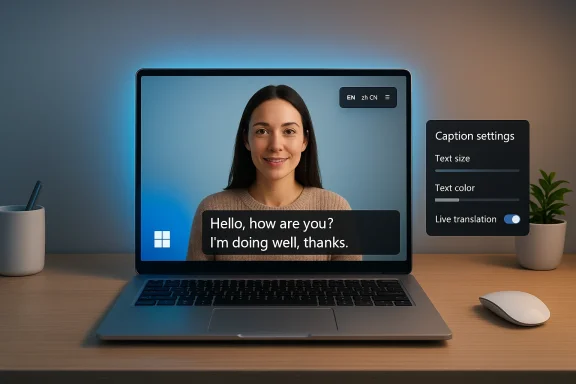
- Flexible placement and style: Captions can be docked above or below the screen or floated as an overlay; styles (font size, colors, background) are adjustable to improve readability.
- Optional microphone inclusion: You can let the PC caption your own voice by enabling the microphone inclusion option; Live Captions will prioritize other audio sources if they’re present, showing your voice only when it is the only detected speech.
- Translation on certified hardware: On Copilot+ PCs running the appropriate Windows 11 update, Live Captions can translate audio from a large set of languages into English and into Simplified Chinese (the counts and exact language sets are subject to Microsoft’s release schedule and vary by platform).
What runs where (privacy and processing)
A key selling point of Live Captions is that speech processing happens on the device. Microsoft’s documentation states that the audio processing and caption generation occur locally and that captions and voice data are not sent to Microsoft by default. The on‑device capability is powered by embedded speech technology — essentially compact versions of Azure Speech models that run locally for low latency and privacy‑conscious operation. Microsoft also supports hybrid modes for developers that can fall back to cloud services in specific scenarios, but the Live Captions experience is designed primarily for local processing.Getting started: turning Live Captions on and customizing it
Quick setup (two minutes)
- Press Windows key + Ctrl + L to toggle Live Captions on or off.
- On first use you’ll be prompted to consent to processing and to download any required language files (speech packs).
- Open the Live Captions settings (the cog on the caption window or Settings > Accessibility > Captions) to personalize style, position, and profanity filtering.
Key personalization options
- Caption style: Choose from built‑in styles or create a custom style (font size, foreground/background colors).
- Window position: Dock Above screen, Below screen, or Floating on screen to avoid obscuring important UI elements.
- Microphone inclusion: Turn on Include microphone audio if you want in‑room speech to be captioned; it defaults to off for privacy.
- Profanity filter: Mask explicit words in captions if you’re using Live Captions in a public or professional setting.
Using Live Captions in meetings and media
Works across apps — with caveats
Live Captions is intentionally app‑agnostic. It listens to whatever audio is routed through your default output device, so it can caption:- Video calls (Microsoft Teams, Zoom, Slack, etc.)
- Web videos (Edge, Firefox; Chrome has its own captioning)
- Media players (VLC, Windows Media Player)
- Local presentations (PowerPoint with live narration)
- In‑person speech via your PC microphone
Translation and Copilot+ PCs — what to expect
- On a Copilot+ PC running the appropriate Windows 11 build, Live Captions can translate from over 40 languages into English and 27 languages into Simplified Chinese (Microsoft provides specific lists in the feature documentation). This is enabled by the device’s AI hardware and localized speech models to keep translation fast and private. Not all Windows 11 devices support these translation features; they are gated by hardware and OS version.
Saving transcripts — the fine print
Live Captions itself does not automatically save captions as a searchable transcript file. To get a downloadable transcript of a meeting, you must use the meeting platform’s transcription or recording features:- Microsoft Teams: The built‑in live captions are ephemeral and not saved. To obtain a transcript you must enable transcription or use meeting recording with transcription; without that, captions are not persisted.
- Zoom: Zoom offers its own live transcription and side‑panel transcript UI; participants or hosts can save the transcript during the meeting or retrieve a transcript from cloud recordings if the host enabled that option. Behavior depends on account settings and host permissions.
Accuracy, latency, and practical limits
What impacts caption quality
- Audio source quality: Headsets and close, directional microphones dramatically improve accuracy. System‑level audio routing can sometimes prevent Live Captions from hearing the call audio (for example, if your default output is an external device not routed through the system mixer).
- Speaker overlap: Live Captions prioritizes system audio over microphone capture, and simultaneous speech results in partial or inconsistent captions. In overlapped speech scenarios, expect dropped segments or misattribution.
- Accents, crosstalk, and noise: Embedded models perform well on clear, single‑speaker audio with standard accents. Accuracy drops with strong accents, cross‑talk, or loud background noise.
- System load and latency: Heavy apps (video capture, virtual backgrounds, GPU‑intensive tasks) can cause caption delays or dropped lines. Closing unused apps improves real‑time behavior.
Measured expectations
Real‑world tests by reviewers and accessibility writers show Live Captions can be highly useful for comprehension in meetings and media playback, but it is not a replacement for professional captioning or human transcripts when legal accuracy or guaranteed accessibility is required. For many knowledge‑work scenarios, it’s “good enough” for capturing action items or clarifying points, but still requires human review before being treated as a record of record.Privacy, compliance, and enterprise considerations
What Microsoft promises
Microsoft explicitly states that live captioning processing and the generated captions occur locally on the device and are not transmitted to Microsoft. Language files (speech packs) are downloaded to the PC, and users can remove them by uninstalling Speech Pack entries. The microphone is off by default to prevent inadvertent capture. These design decisions are intended to align the capability with privacy‑sensitive use cases and enterprise policies.Where things can get tricky
- Local device storage and policies: Language packs and temporary model files are stored on the device. IT teams should account for that storage and manage distribution or removal via enterprise tooling if necessary.
- Regulatory and retention requirements: Because Live Captions doesn’t save transcripts by default, it avoids automatic retention pitfalls. But organizations that require records of meetings for compliance must pair Live Captions with official transcription/recording solutions that meet legal, privacy, and archiving requirements.
- Bring Your Own Device (BYOD) scenarios: Users on personal devices may enable Live Captions and include the microphone; enterprises should educate staff about what local speech processing means and how to avoid accidental capture in shared spaces.
- Workforce consent and notice: Even if processing is local, recording and transcribing speech (or enabling an app that does so) can trigger local consent or notice obligations in regulated industries or jurisdictions. Treat Live Captions as a tool that could surface sensitive content, and build policies accordingly.
Practical tips and best practices
Before your next meeting
- Check your default audio output in Settings > System > Sound so Live Captions receives the correct stream.
- If accuracy matters, prefer a headset with a good microphone and mute other audio sources.
- Encourage single‑speaker turns: short, deliberate pauses between speakers help automatic speech engines identify boundaries and speaker changes.
- If you need a retained transcript, enable the conferencing app’s transcription or arrange a cloud recording. Don’t rely solely on the Live Captions overlay for records.
For in‑room presentations
- Place the microphone close to the presenter and reduce competing audio (projectors, HVAC hum).
- Use the Include microphone audio option in the Live Captions menu and test before presenting.
- If you expect question‑and‑answer sections with overlapping speech, warn audience members that captions may lag or drop during overlap.
Troubleshooting checklist
- Press Windows + Ctrl + L to confirm Live Captions is active.
- Open the Live Captions settings and confirm the correct language/speech pack is installed.
- Confirm the PC’s default audio output is the device producing the meeting sound.
- Close resource‑intensive apps if you see frequent delays or dropped captions.
- If captions won’t start, check microphone privacy settings under Settings > Privacy & security > Microphone and ensure desktop apps can access the mic if you want to include local speech.
Strengths worth calling out
- Universal layer across apps: Because Live Captions works at the system audio level, it can caption content from virtually any app without requiring app‑specific integration or add‑ons.
- On‑device processing and privacy: Local model inference reduces latency and provides an attractive privacy posture compared with cloud‑only transcription services.
- Customization and accessibility: Adjustable styles, placement, and profanity filtering make it flexible for different audiences and presentation environments.
- Translation for multilingual meetings (on supported hardware): Copilot+ PC translation expands the feature’s reach across languages, making ad‑hoc cross‑lingual comprehension feasible without external services.
Risks, limitations, and what to watch
- Accuracy is still imperfect: Expect misrecognitions, especially with nonstandard accents, technical jargon, names, and overlapping talk. Don’t treat Live Captions as a verbatim legal transcript.
- Hardware gating for translation: Translation functionality is tied to specific hardware and OS versions (Copilot+ PCs and Windows 11 updates). Not all users will immediately get the translation benefit.
- False security assumptions: On‑device processing is privacy‑friendly, but users and organizations must still manage expectations: captions are not stored by Microsoft, but local retention, screenshots, or participant‑side saves (via conferencing apps) still create records.
- Accessibility vs. compliance tradeoffs: Live Captions is a great accessibility tool but it doesn’t replace formal captioning services required for public broadcasts, official transcripts, or regulated communications.
Recommendations for individuals and IT teams
For individual users
- Use Live Captions to improve comprehension during noisy calls or when you can’t use audio.
- Combine Live Captions with meeting transcriptions when you need a saved record.
- Customize caption styles and test microphone inclusion in a private call before relying on it for a presentation.
For IT administrators
- Document supported scenarios and recommended hardware for users who require translation or high‑quality on‑device captioning.
- Provide training and a short checklist explaining when Live Captions is appropriate and how to obtain official transcripts for regulatory needs.
- Manage Speech Pack distribution and removals through enterprise‑grade software management tools if storage or policy concerns arise.
- Review privacy notices and consent processes: even with on‑device processing, employees and participants should know if their speech could be locally transcribed or displayed.
The bigger picture: Live Captions in a post‑pandemic workplace
The pandemic normalized remote meetings, and the attention now shifts to making distributed work more inclusive and efficient. Live Captions sits at an interesting intersection: it is both an accessibility feature and a productivity enhancer. When combined with other AI features (local translation, Voice Access, Recall on Copilot+ PCs), it points to a future where many day‑to‑day impediments to communication are handled by the OS rather than by individual apps.That future depends on device capabilities, developer uptake, and careful policy design. If Microsoft continues to refine model accuracy, extend language coverage beyond the current sets, and provide clearer enterprise management hooks, Live Captions could become a default expectation for every meeting and video playback session. Right now, it’s a powerful convenience that organizations and individuals should test, understand, and deploy judiciously.
Conclusion
Windows 11’s Live Captions is a pragmatic, privacy‑focused transcription layer that turns any audio your PC can hear into readable text, and — on properly equipped Copilot+ hardware — adds translation into the mix. It’s useful, low‑friction, and highly customizable, making it an immediate win for accessibility and meeting comprehension. At the same time, it’s not a substitute for official transcripts or human captioners when accuracy, speaker attribution, and legal retention matter. Use Live Captions to capture the gist, follow along in noisy environments, or support multilingual comprehension — but pair it with platform transcription or dedicated services if you need a durable, auditable record.Source: MakeUseOf Windows 11 has a built-in feature that can transcribe your meetings
