

Windows 11 ships with helpful conveniences — cloud sync, personalized recommendations, and AI-driven surfaces — but many of those same features run background tasks, surface promotional content, or increase boot time. Disabling five well-chosen settings right away can produce a noticeably faster, cleaner, and more private desktop without sacrificing security or core functionality.
Windows 11 emphasizes integration with Microsoft services, richer UI effects, and discovery-driven experiences. That design improves convenience for many users, but it also brings extra background I/O, telemetry, and UI surfaces that can distract or slow lower‑spec machines. A conservative cleanup — using supported Settings toggles first and reserving registry/GPO edits for advanced scenarios — yields the best balance between speed, privacy, and maintainability.
This article summarizes the five settings to consider disabling immediately, how to change them (step‑by‑step), the real-world benefits you can expect, and the trade‑offs to watch for. Each recommendation is reversible and calibrated for home users and enthusiasts; enterprise administrators should prefer Group Policy / MDM to enforce changes at scale.
These steps restore control and focus to the desktop without sacrificing essential security. They are pragmatic first moves — perform them, measure results, and then decide whether you need to go deeper. The approach balances speed, privacy, and maintainability so your Windows 11 PC behaves the way you want it to.
Conclusion
A tidy, fast Windows 11 desktop is achievable in minutes. Disable nonessential startup apps, silence Start suggestions, hide Widgets, stop unneeded background sync, and reduce optional diagnostics to reclaim responsiveness, privacy, and attention. These supported, reversible tweaks are the high‑value, low‑risk first steps for any Windows 11 cleanup routine — and they provide a stable foundation before you consider more advanced or aggressive optimizations.
Source: mibolsillo.co https://www.mibolsillo.co/windows-1...-faster-cleaner-experience-t202512300005.html
 Background / Overview
Windows 11 emphasizes integration with Microsoft services, richer UI effects, and discovery-driven experiences. That design improves convenience for many users, but it also brings extra background I/O, telemetry, and UI surfaces that can distract or slow lower‑spec machines. A conservative cleanup — using supported Settings toggles first and reserving registry/GPO edits for advanced scenarios — yields the best balance between speed, privacy, and maintainability.This article summarizes the five settings to consider disabling immediately, how to change them (step‑by‑step), the real-world benefits you can expect, and the trade‑offs to watch for. Each recommendation is reversible and calibrated for home users and enthusiasts; enterprise administrators should prefer Group Policy / MDM to enforce changes at scale.
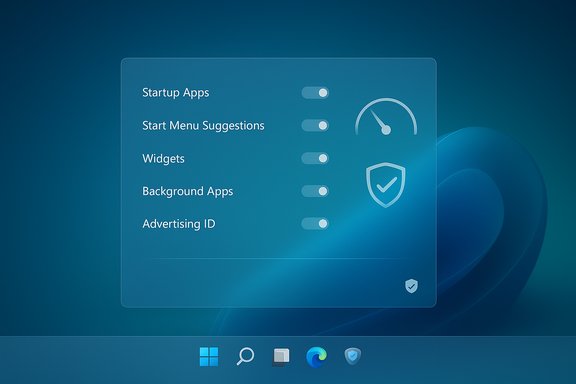
The five settings worth disabling now
- Nonessential Startup apps
- Start menu suggestions & search highlights
- Widgets and taskbar extras
- Background apps and sync/provider notifications (OneDrive folder backups)
- Advertising ID and optional diagnostics (telemetry / tailored experiences)
1. Disable nonessential Startup apps
What this setting does
Startup apps are programs that launch automatically when you sign in. Each added item increases the work Windows must do during boot and immediately after login, consuming CPU, memory, and disk I/O. Modern Windows reports a measured “Startup impact” that helps prioritize which items to disable.Why turn it off
Reducing the number of apps that auto‑start is the single highest‑impact, lowest‑risk change for most machines. It shortens boot time, reduces initial RAM pressure, and often reduces background network activity from auto‑updaters and sync agents. For laptops and older desktops, the change is especially noticeable.How to disable (quick, supported steps)
- Press Ctrl + Shift + Esc to open Task Manager.
- Switch to the Startup tab and sort by Startup impact.
- Right‑click nonessential items (messaging apps, game launchers, auto‑updaters) and choose Disable.
- Alternatively: Settings → Apps → Startup and toggle unwanted apps off.
- Reboot and observe boot time and initial memory usage.
Expected gains and measurement
Typical gains are a faster sign‑in experience and lower memory usage after login. Community tests report boot time improvements ranging from a few seconds to tens of seconds depending on how many high‑impact apps were running; results vary by hardware (SSD vs HDD) and installed software. Measure with Task Manager’s Startup impact and a simple stopwatch for before/after comparisons.Caveats and tips
- Keep security agents (antivirus, disk‑encryption, corporate endpoint tools) enabled. Disabling them can create real risk.
- Some apps re‑add startup entries after updates; recheck periodically.
- If a feature stops working after disabling its startup entry, reenable it.
2. Turn off Start menu suggestions and search highlights
What this setting does
Windows populates the Start menu and search with “recommended” apps, web suggestions, and search highlights that are driven by personalization and online services. These surfaces can cause extra UI lookups and occasional network queries whenever Start or Search is invoked.Why turn it off
Disabling suggestions reduces visual clutter, minimizes background web calls, improves privacy, and can reduce Start/Search UI latency. For privacy‑minded users or those who prefer a minimal Start menu, this is a quick win that’s fully reversible via Settings.How to disable (supported steps)
- Open Settings (Win + I) → Personalization → Start.
- Turn off “Show suggestions” and “Show recently added apps” if you prefer.
- For Search highlights and web results, go to Settings → Privacy & security → Search permissions and turn off “Search highlights” and disable web results if offered; Pro/Enterprise editors can use Group Policy keys to enforce this centrally.
Expected gains and measurement
Expect a cleaner Start menu and marginally faster search behavior. The most noticeable benefit is subjective: fewer promotions and less UI churn. Network traffic from Start/search will also reduce when web suggestions are disabled. Quantifiable improvements in launch latency are scenario‑dependent; measure before/after on your own machine.Caveats and tips
- Registry edits can be used on Home editions but are brittle; prefer Group Policy if you manage multiple devices.
- Major Windows feature updates sometimes reset these toggles; keep a short checklist to re‑validate settings after updates.
3. Hide Widgets and other taskbar extras
What this setting does
Widgets, Copilot buttons, and other taskbar extras run background processes or keep a live UI surface that refreshes news, weather, and personalized content through the network. The Widgets board and similar features often use WebView2 and can wake processes to update their content.Why turn it off
Hiding Widgets and unused taskbar buttons reduces background refreshes, network queries, and the taskbar’s visual noise. On low‑powered hardware this can improve perceived responsiveness and reduce background CPU use.How to disable
- Settings → Personalization → Taskbar → toggle off Widgets, Search, Chat/Copilot, and Task View as desired.
- Optionally set Taskbar behaviors → Automatically hide the taskbar to minimize on‑screen clutter.
Expected gains and measurement
Users often report a calmer desktop and fewer taskbar redraws. Background network traffic tied to widget feeds will decrease. For precise measurement, monitor CPU and network usage in Resource Monitor with Widgets enabled vs disabled.Caveats and tips
- Widgets are low‑risk to disable; they’re exposed via Settings and are fully reversible.
- If you use a specific widget regularly (news or finance), consider keeping only that feature enabled or using a browser bookmark instead to reduce background load.
4. Stop unnecessary background apps and curb OneDrive folder backups / Explorer sync prompts
What this setting does
Many UWP and Win32 apps run background tasks or register sync provider notifications in File Explorer. Additionally, OneDrive’s default OOBE often enables automatic folder backups (Desktop, Documents, Pictures), which can trigger continuous background sync and file indexing.Why turn it off
Reducing background app activity lowers CPU, RAM, and disk I/O. Disabling Explorer sync provider notifications reduces OneDrive‑driven UI prompts. Pausing or disabling automatic folder backup prevents excessive network I/O and unexpected storage use in your cloud account. These changes are especially helpful during heavy tasks (video editing, large compiles) or on metered connections.How to disable background app execution and OneDrive backups
- Settings → Apps → Installed apps → (select app) → Advanced options → Background app permissions → Never for UWP apps you don’t need running.
- File Explorer → three dots → Options → View → uncheck “Show sync provider notifications” to mute provider prompts.
- To stop OneDrive backups: Click the OneDrive cloud icon → Settings → Backup → Manage backup → Stop backup for Desktop/Documents/Pictures. Alternatively, pause sync when doing heavy work.
Expected gains and measurement
Expect reduced disk and network I/O, fewer Explorer prompts, and lower background CPU during steady‑state usage. For metered or low‑bandwidth connections, this lowers unexpected data use. Measure using Resource Monitor and Task Manager to see background I/O drops after changes.Caveats and tips
- Stopping background execution for apps that provide real‑time notifications (messengers, calendar clients) will remove those features. Use selective pausing.
- Don’t stop OneDrive entirely if you rely on cloud backups for disaster recovery; instead, selectively disable automatic folder backup or exclude large folders.
5. Turn off Advertising ID, Tailored experiences, and optional diagnostics
What this setting does
Windows has an Advertising ID per user that apps can use for local personalization, plus diagnostic data levels and Tailored experiences that enable targeted tips and suggestions. Optional diagnostic data and “Tailored experiences” allow Microsoft to provide personalized recommendations and joined telemetry.Why turn it off
Disabling Advertising ID and optional diagnostics reduces personalization surfaces, lowers the volume of optional data sent to Microsoft, and removes many subtle promotional nudges across the OS. It’s a privacy‑forward change with small performance upside (fewer personalization lookups), but the main benefit is a quieter, less targeted experience.How to disable
- Settings → Privacy & security → General → toggle off “Let apps show me personalized ads by using my advertising ID.”
- Settings → Privacy & security → Diagnostics & feedback → set Diagnostic data to the minimum required (if that option is available for your edition) and turn off Tailored experiences and Optional diagnostic data.
Expected gains and measurement
This reduces the personalization pipeline and will remove targeted tips, feature recommendations, and some ad surfaces. The performance gains are modest, but the privacy improvements are meaningful for many users. Validate by watching for a decrease in “Finish setting up your device” and similar prompts.Caveats and tips
- Microsoft Support may request temporarily enabling more diagnostic data during complex troubleshooting. Keep a short note of what you changed so you can revert if required.
- Some personalization features (cross‑device Resume, certain Copilot integrations) may lose context if Tailored experiences are disabled. Evaluate based on your preference for convenience vs privacy.
How to measure improvements (practical tests)
- Boot time: Use a stopwatch from power on to desktop appearance, and corroborate with Task Manager’s Startup tab and Event Viewer boot times.
- Perceived app launch: Time a consistently heavy app (browser with many tabs, IDE) before and after tweaks.
- Resource usage: Monitor Task Manager / Resource Monitor for CPU, Disk and Network activity during idle and representative workloads.
- Background network: Use Task Manager’s Network column or Resource Monitor to spot reduced background transfers after disabling Widgets, OneDrive backups, or search highlights.
Advanced options and enterprise considerations
Group Policy / MDM for scale
For Pro/Enterprise devices, use Group Policy or Intune to enforce Start, Search, telemetry, and Copilot policies. Policy-based controls are more durable than registry edits and easier to audit across fleets. Registry or PowerShell hacks are brittle and may be reverted by feature updates — avoid them in production unless you have a maintenance plan.DISM and component cleanup (advanced)
For reclaiming system storage, DISM’s StartComponentCleanup reclaims superseded component store items safely. Use elevated command prompt: dism.exe /online /cleanup-image /StartComponentCleanup. This is powerful for freeing space but is an advanced maintenance step rather than a routine UI tweak.Third‑party debloaters: caution advised
Community scripts and third‑party “debloaters” can remove built‑in packages quickly, but they run with high privileges and can complicate updates and support. Prefer manual Settings changes, Group Policy, or reputable tools with clear rollback paths. Always create a restore point or full image before aggressive removals.Risks, trade‑offs, and unverifiable claims
- Many tweaks are low‑risk and reversible via Settings. However, registry edits and forced removal of system packages can create supportability problems and are often reset by Windows feature updates. Document any advanced changes and keep a rollback plan.
- Performance percentage claims found in some online pieces (for example, claims of uniform 15–30 second boot time savings) are illustrative, not guaranteed; real gains vary widely with hardware, storage type, and installed software. Treat single‑number improvements as directional and measure your own system.
- Disabling telemetry and diagnostic features reduces personalization and some troubleshooting visibility. Microsoft Support may request re‑enabling optional diagnostics in rare cases during complex support scenarios. Keep that in mind if you need vendor assistance.
Quick 10‑minute cleanup checklist (apply in this order)
- Create a System Restore point.
- Disable nonessential Startup apps (Task Manager → Startup).
- Settings → Personalization → Start: turn off Show suggestions.
- Settings → Personalization → Taskbar: toggle off Widgets, Search, Task View, Copilot.
- Settings → System → Notifications: turn off “Get tips, tricks, and suggestions.”
- File Explorer → Options → View: uncheck “Show sync provider notifications.”
- Settings → Apps → Installed apps → Advanced options: set background app permissions to Never for unused UWP apps.
- Settings → Privacy & security → General: disable Advertising ID; Diagnostics → turn off Tailored experiences.
- Reboot and measure.
Final analysis: is this worth doing?
For most home and enthusiast users the answer is yes. The five settings above are supported, reversible, and deliver a cleaner, quieter Windows experience with measurable or perceivable gains for machines with modest hardware. The biggest single‑change wins remain hardware upgrades (SSD, more RAM), but software cleanup often gives immediate returns with minimal risk. Use Settings and Group Policy where possible, document any registry or package removals, and retest after major Windows updates to ensure your custom configuration persists.These steps restore control and focus to the desktop without sacrificing essential security. They are pragmatic first moves — perform them, measure results, and then decide whether you need to go deeper. The approach balances speed, privacy, and maintainability so your Windows 11 PC behaves the way you want it to.
Conclusion
A tidy, fast Windows 11 desktop is achievable in minutes. Disable nonessential startup apps, silence Start suggestions, hide Widgets, stop unneeded background sync, and reduce optional diagnostics to reclaim responsiveness, privacy, and attention. These supported, reversible tweaks are the high‑value, low‑risk first steps for any Windows 11 cleanup routine — and they provide a stable foundation before you consider more advanced or aggressive optimizations.
Source: mibolsillo.co https://www.mibolsillo.co/windows-1...-faster-cleaner-experience-t202512300005.html
