

If your Windows 11 PC feels sluggish, you’re not imagining it — but the fix is rarely a single magic switch. The 14 quick fixes PCMag laid out provide a practical starting point, and they map well to Windows’ built‑in tools and a handful of safe hardware upgrades; this article expands those tips into a step‑by‑step playbook, verifies the technical claims against vendor documentation, and highlights the trade‑offs and risks you should know before you change anything. ows has grown more capable and more complex. Modern builds add features (Auto HDR, cloud integrations, AI services) that make the OS feel richer — but also create more background work. That means perceived slowdowns often come from background processes, storage pressure, or mismatches between hardware and workload rather than a single broken setting.
This feature synthesizes PCMag’s practical 14 fixes with official Microsoft guidance and independent testing to show what helps most, why it helps, and when you should consider spending money instead of changing settings. Wherever possible I verify behavior against Microsoft support documentation and other independent sources so you can make an informed, low‑risk choice.
There are two sensible ways to approach a slow Windows PC:
Take a methodical approach: measure, change one thing at a time, and record results. A 10–30 minute cleanup often restores most of the snappiness most users miss; a modest SSD or RAM upgrade is the next step when software tweaks reach their limits.
Source: PCMag Is Your PC Running Slow? 14 Quick Fixes to Instantly Speed Up Windows 11
This feature synthesizes PCMag’s practical 14 fixes with official Microsoft guidance and independent testing to show what helps most, why it helps, and when you should consider spending money instead of changing settings. Wherever possible I verify behavior against Microsoft support documentation and other independent sources so you can make an informed, low‑risk choice.
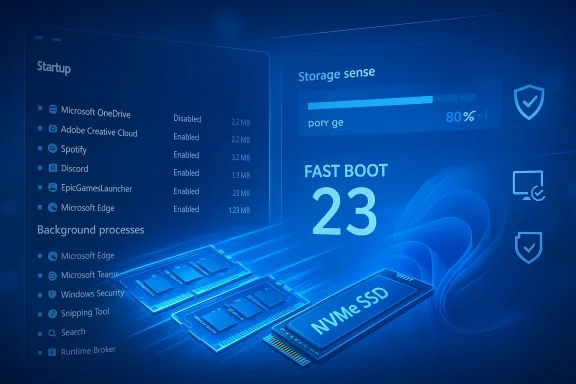 Overview: A two‑track strategy
There are two sensible ways to approach a slow Windows PC:- Short, safe changes that deliver a noticeable, immediate snappier experience.
- Hardware upgrades (RAM, SSD) that cost money but provide the biggest single improvements for older systems.
Quick Wins — the low‑risk, high‑reward checklist
1) Uninstall unwanted apps and OEM “crapware”
Out‑of‑the‑box systems often include dozens of vendor utilities that run in the background. Removing them reduces disk usage, background CPU cycles, and autostart entries.- How to do it: Open Start, right‑click unwanted app entries → Uninstall, or go to Settings > Apps > Installed apps and remove them there. For legacy apps, Control Panel > Programs and Features still works.
- Why it helps: Fewer background services and scheduled tasks mean less contention during boot and lower idle CPU/disk activity.
- Caution: Don’t uninstall drivers or utilities if you’re unsure what they do; check the executable
2) Limit startup processes via Task Manager
Startup items add to the time from power‑on to a usable desktop and consume resources constantly if left enabled.- How to do it: Press Ctrl+Shift+Esc → Startup tab. Sort by Startup impact and disable anything you don’t need at boot.
- What “Startup impact” means: Windows measures startup CPU and disk usage and labels entries High/Medium/Low/Not measured so you can prioritize.
3) Clean up disk space and enable Storage Sense
An almost‑full system drive can choke responsiveness and block updates.- How to do it: Settings > System > Storage. Enable Storage Sense and configure it to remove temporary files and clean the Recycle Bin automatically. Microsoft documents Storage Sense and its options for frequency, Downloads cleanup and OneDrive offloading.
- Why it helps: Free space reduces fragmentation on HDDs and keeps SSD spare area available for wear leveling and performance.
4) Scan for malware — use dedicated tools
Malware remains a common and under‑diagnosed source of slowdowns.- Action: Run Microsoft Defender full scan, and if you suspect infections, run a dedicated on‑demand scanner (for example, Malwarebytes or similar). Different AV products vary in system cost; choose a lightweight reputable option if performance is a concern.
- Why it helps: Malicious processes can consume CPU, I/O and network endlessly; a clean system removes that unpredictable load.
5) Set Power Mode to Best Performance (when practical)
Windows power profiles regulate CPU/thermal management. On laptops, the default power saver behavior can cap CPU speed.- How: Settings > System > Power & battery (set to Best performance or plug in the device when you need full speed).
- Trade‑off: Better performance uses more power and produces more heat; balance this if battery life matters.
6) Keep Windows and drivers updated — selectively
Security and driver updates can fix performance bugs, but major feature upgrades can temporarily change behavior.- How: Settings > Windows Update. Check for updates and driver packages, and consider deferring feature upgrades until they’ve had a short public rollout window if you rely on absolute stability.
- Note: Microsoft’s PC Health Check and Windows Update explain update scheduling and the trade‑offs of “Get me up to date” options.
7) Run built‑in troubleshooters and Maintenance
Windows includes troubleshooters for hardware, Windows Store apps, Search & Indexing, and a daily automated Maintenance task.- How: Search “Troubleshooters” from Start and run recommended checks. Alternatively, use Control Panel > Security and Maintenance > Maintenance → Start Maintenance.
- Benefit: These utilities can fix corrupted indexes, reset services, and repair common problems without manual intervention.
Utilities Microsoft provides — what they do and whether to trust them
Microsoft PC Manager: a one‑click health app
Microsoft offers PC Manager, a utility that bundles disk cleanup, startup management and a health check. It’s an official Microsoft offering but availability varies by region. The app can be helpful for novice users who prefer a single‑pane interface to tidy up temporary files, manage startup apps, and run quick health checks.- What it does: Scans for junk files, suggests startup tweaks, offers a RAM cleanup option and provides a toolbox of shortcuts.
- My read: It’s safe and useful for casual maintenance. It will not deliver dramatic performance jumps on modern hardware — hardware upgrades are the real levers — but it reduces friction for non‑technical users.
- Caveat: PC Manager is a convenience layer, not a miracle‑worker. If you’re comfortable using built‑in Settings or Sysinternals tools, you’ll get the same results without additional installs.
When to upgrade hardware: RAM and SSD
Add more RAM (if you’re running out)
Windows 11 requires a minimum of 4 GB, but modern multitasking benefits strongly from 8–16 GB or more.- Evidence: Microsoft’s minimum system requirements list 4 GB as the baseline; real‑world experience and vendor guidance recommend 8 GB+ for comfortable multitasking and 16 GB for gaming/creativity. If your system is using pagefile heavily (measured as high Pages/sec or high pagefile usage), more RAM will reduce disk paging and stutters.
- When it helps: If memory‑monitoring tools (Task Manager, Performance Monitor) show frequent paging and low Available MBytes, adding RAM will materially improve responsiveness.
- When it won’t help: If you already have enough RAM for your workload, adding more gives little benefit.
Replace a spinning disk with an SSD (best single upgrade for older PCs)
If your system still boots from a mechanical HDD, moving Windows to an SSD produces the largest perceived improvement: faster boot, faster app launches, and smoother multitasking.- Evidence: SSDs offer enormous advantages in random I/O and smaller file reads — precisely the operations that make an OS feel snappy. Independent storage benchmarks and vendor guides quantify large speed gaps between HDD and SATA/NVMe SSDs. SSDs reduce boot time from minutes to seconds in typical comparisons.
- Options: Internal SATA or NVMe SSD for the fastest results; an external USB 3.0 / Thunderbolt SSD is an alternative if internal replacement isn’t feasible.
- Caveat: SSDs don’t increase raw CPU or GPU power — they improve I/O‑bound tasks and the “feel” of the system. For gaming, SSDs reduce level load times and stutter caused by texture streaming, but they rarely change average FPS much.
Visual effects, performance options, and perceived speed
Adjust Windows visual effects only when necessary
Windows’ visual flourishes (animations, shadows, window contents while dragging) add CPU/GPU work and can be disabled for older machines.- How: Type “Adjust the appearance” in Start → Performance Options → Adjust for best performance or pick individual effects to keep (for example, keep font smoothing but drop animations).
- Trade‑off: You’ll lose polish but regain responsiveness on tight systems.
Turn off Search Indexing for low‑powered devices
Search indexing improves search speed, but on low‑end hardware it can consume I/O and CPU while building the index.- How to pause or disable: Settings > Privacy & Security > Searching Windows > Advanced indexing options, or disable the Windows Search (WSearch) service via services.msc. Microsoft documents how Storage Sense and search indexing behave; community testing shows it can be a worthwhile trade‑off on older laptops or when on battery.
- Risk: Disabling indexing makes Start menu and Explorer searches slower and less featureful (no advanced indexing metadata). Consider pausing indexing temporarily to measure impact before disabling permanently.
Settings that reduce distraction and may improve perceived speed
Turn off tips, suggestions and app notifications
Windows’ suggestion popups and app notifications can interrupt workflows and — on some systems — consume background resources.- How: Settings > System > Notifications → scroll to Additional settings and uncheck “Get tips and suggestions when using Windows”. Use Do Not Disturb for temporary quiet. Microsoft documents notification controls and how to disable the tips.
- Why this matters: Removing frequent UI popups reduces perceived lag and cognitive interruption; on low‑end devices it also avoids extra CPU spikes from rendering and building suggestion content.
Gaming: Game Mode and Optimizations for Windowed Games
Game Mode — useful but variable
Windows’ Game Mode tries to preserve resources for games by limiting background work and suppressing updates/notifications.- Where to find it: Settings > Gaming > Game Mode. It’s enabled by default for detected games.
- What to expect: Some titles show measurable improvements; others do not. Benchmarking websites and Microsoft documentation note that results vary by hardware and game. If you’re tuning a gaming rig, test with Game Mode on and off to see the actual difference.
Optimizations for Windowed Games
A newer Windows 11 feature transitions compatible windowed and borderless games to a modern presentation model (flip‑model), lowering frame latency and enabling Auto HDR and VRR for supported displays.- How to enable: Settings > System > Display > Graphics > Change default graphics settings → toggle Optimizations for windowed games. You can also set per‑game options. Microsoft’s support article explains the feature and per‑app opt‑out.
- Caveat: Some older or non‑V‑sync games may see screen tearing after enabling this; Microsoft and community guides recommend per‑game testing and opt‑out where necessary.
What not to do — and why
Don’t rely on registry cleaners or “one‑click optimizer” snake oil
Microsoft explicitly does not support the use of third‑party registry cleaning utilities; they can introduce instability that is hard to undo and, in some cases, require a full OS reinstall. Their benefits are largely anecdotal and rarely justified.- Safe alternatives: Use built‑in Tools (Disk Cleanup / Storage Sense, Task Manager, Settings) or trusted utilities from Sysinternals when diagnosing problems.
- Risk summary: Registry cleaners can remove required keys, break activations, or interfere with updates — the cost is rarely worth the small upside.
Avoid aggressive “debloat” scripts without backups
Community debloat scripts can remove nuisance apps, but they sometimes delete components needed by OEM tools or restore points.- Do this first: Create a full image backup or at least a System Restore point before running aggressive removals.
- Better plan: Remove well‑identified apps manually; document what you remove so you can reinstall if necessary.
A practical, prioritized repair plan (15–30 minutes)
- Reboot and open Task Manager (Ctrl+Shift+Esc). Note CPU, memory and disk hot spots.
- Disable obvious high‑impact startup entries on the Startup tab. Reboot and measure time to usable desktop.
- Run a full malware scan with Defender; run an on‑demand Malwarebytes scan if suspicious processes remain.
- Enable Storage Sense or run a manual disk cleanup (Settings > System > Storage). Remove large unused apps.
- If on battery and performance is important temporarily, set Power & battery to Best performance or plug in the laptop.
- Pause Search Indexing temporarily and retest common actions (file search, opening Explorer) to decide whether to keep it disabled.
- If performance remains poor and task manager shows heavy paging or low available memory, consider a RAM upgrade. If the system uses an HDD, plan an SSD replacement — it’s the single biggest perceptible improvement.
Advanced diagnostics: what to measure before spending money
- Boot time (BIOS to desktop) — Task Manager shows Last BIOS time; use a stopwatch for “usable desktop” measurement.
- Pages/sec and Committed Bytes — Performance Monitor counters that indicate memory pressure; high sustained values suggest a RAM bottleneck. Microsoft’s documentation explains how to interpret these counters.
- Disk Queue Length and I/O wait — high values on HDDs indicate storage bottlenecks and argue strongly for an SSD upgrade.
- Frame latency and hitching for games — measuring tools like PresentMon or in‑game stats show whether storage or GPU is the limiting factor.
Strengths and risks summarized
- Strengths of this approach:
- Most changes are reversible and safe (disabling startup apps, toggling notifications, Storage Sense).
- Hardware upgrades (RAM, SSD) produce the largest, long‑lasting improvements.
- Microsoft’s built‑in tools (PC Health Check, Storage Sense, Task Manager) provide reliable, supported paths to diagnose and improve performance.
- Risks and caveats:
- Registry cleaners are explicitly unsupported and can cause serious issues. Avoid them.
- Disabling Windows Search indexing degrades search features. Pause first to measure effects.
- Aggressive debloat scripts can remove needed components. Always backup first.
- Game Mode and some gaming optimizations vary by title and hardware; benchmark before assuming gains.
Final verdict and recommended checklist
If you want the fastest path from sluggish to snappy, follow these prioritized steps:- Remove obvious bloatware and disable high‑impact startup apps.
- Run full malware and Defender scans.
- Enable Storage Sense and clear temporary files.
- Use Task Manager and Performance Monitor to measure memory and disk pressure. If paging and I/O are high, upgrade RAM or replace an HDD with an SSD.
- If you game, test Game Mode and optimizations for windowed games per title, and enable per‑game opt‑out if visual artifacts appear.
Take a methodical approach: measure, change one thing at a time, and record results. A 10–30 minute cleanup often restores most of the snappiness most users miss; a modest SSD or RAM upgrade is the next step when software tweaks reach their limits.
Source: PCMag Is Your PC Running Slow? 14 Quick Fixes to Instantly Speed Up Windows 11
