

If your PC is flagged “incompatible” by Microsoft but you’re not ready — or not willing — to buy new hardware, there are practical, well-documented ways to run Windows 11 on older machines; they work, but they transfer long-term update and security risk from Microsoft and your OEM to you.
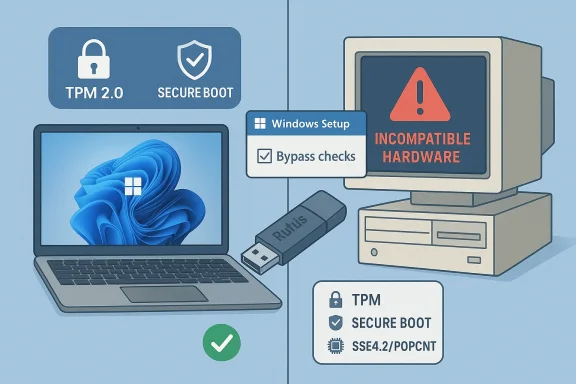
Microsoft tightened the Windows 11 minimums at launch to raise the platform’s security baseline. The headline checks are a supported 64‑bit CPU (on Microsoft’s approved list), TPM 2.0 (or firmware equivalents such as Intel PTT / AMD fTPM), UEFI with Secure Boot, at least 4 GB RAM and 64 GB storage, and a DirectX 12‑capable GPU. Those checks are enforced by the installer and the PC Health Check tool, and they’re the reason many perfectly usable Windows 10 PCs were labeled “incompatible.”
Microsoft offers three supported upgrade routes for PCs that meet the baseline: Windows Update (the staged rollout), the Windows 11 Installation Assistant, and creating media with the Media Creation Tool or an official ISO. Those are the safest, manufacturer‑friendly options because they preserve update entitlement and minimize compatibility headaches.
But there are also two widely used community‑driven approaches to install Windows 11 on otherwise blocked machines: a small registry override that allows an in-place upgrade, and a Rufus-created installer that builds a relaxed USB image which disables specific compatibility checks. Both use Microsoft’s official installation media but intentionally remove the compatibility gates. That makes the upgrade possible today — with trade‑offs you must understand.
Key points to remember:
Caution: Mistakes in the registry can break the system. Always export any keys you change so you can restore them.
Caveat: Rufus uses the official ISO; it does not ship modified Windows builds. It automates the bypass logic, which simplifies the process but does not remove the update and security trade-offs.
That said, the trade‑offs are real and measurable: possible denial of updates, lack of vendor support, and reduced hardware‑anchored security. For business, compliance, and any system that holds sensitive data, the recommended path is clear — either meet Microsoft’s baseline, migrate to supported hardware, or use official extended‑support offerings while planning a transition.
If you choose to proceed on an unsupported machine, do it with a recovery plan, a tested backup image, and a timetable to move to supported hardware. That approach balances the practical desire to keep using existing devices with the disciplined steps necessary to protect data and reduce operational risk.
The options are there: supported upgrades that preserve security and updates, and well‑documented community workarounds that extend device life at the cost of guaranteed servicing. Choose the path that fits your risk tolerance, back up ruthlessly, and plan for replacement if continued updates and vendor support matter to you.
Source: PCMag Australia Yes, You Can Upgrade Your PC to Windows 11, Even If It's Incompatible. Here's How
 Background / Overview
Microsoft tightened the Windows 11 minimums at launch to raise the platform’s security baseline. The headline checks are a supported 64‑bit CPU (on Microsoft’s approved list), TPM 2.0 (or firmware equivalents such as Intel PTT / AMD fTPM), UEFI with Secure Boot, at least 4 GB RAM and 64 GB storage, and a DirectX 12‑capable GPU. Those checks are enforced by the installer and the PC Health Check tool, and they’re the reason many perfectly usable Windows 10 PCs were labeled “incompatible.”Microsoft offers three supported upgrade routes for PCs that meet the baseline: Windows Update (the staged rollout), the Windows 11 Installation Assistant, and creating media with the Media Creation Tool or an official ISO. Those are the safest, manufacturer‑friendly options because they preserve update entitlement and minimize compatibility headaches.
But there are also two widely used community‑driven approaches to install Windows 11 on otherwise blocked machines: a small registry override that allows an in-place upgrade, and a Rufus-created installer that builds a relaxed USB image which disables specific compatibility checks. Both use Microsoft’s official installation media but intentionally remove the compatibility gates. That makes the upgrade possible today — with trade‑offs you must understand.
Why Microsoft enforces these checks (and why it matters)
Microsoft’s compatibility rules are not arbitrary PR red tape: they’re meant to ensure Windows 11 can rely on firmware‑level protections and modern CPU features that underpin important security features (BitLocker keys tied to TPM, virtualization‑based security, kernel protections, etc.). Enforcing a common platform reduces the attack surface against firmware and low‑level compromise. If you remove these protections, the platform can still run, but it may be more vulnerable — and Microsoft will not guarantee feature or security updates for such installs.Key points to remember:
- TPM 2.0 and Secure Boot are core to many modern security features.
- Some older CPUs lack instruction sets (for example, SSE4.2/POPCNT) that later Windows servicing has assumed are present; missing these cannot be fixed by an installer tweak and can block future updates.
- Microsoft’s published position is explicit: installs on unsupported hardware are possible, but updates (including security updates) may not be guaranteed. Treat this as a technical workaround, not an endorsement.
Quick compatibility checklist (what to confirm before you touch anything)
- Run PC Health Check to see the exact compatibility reasons (TPM, Secure Boot, CPU). Many machines are blocked by firmware settings, not missing hardware.
- Confirm whether TPM is available as firmware (fTPM / PTT) and whether Secure Boot can be enabled in UEFI. If a firmware toggle fixes the problem, use it and follow Microsoft’s supported upgrade path.
- Check whether your CPU lacks required instruction sets (SSE4.2/POPCNT). If it does, no installer trick will make that CPU receive future Windows servicing reliably.
- Back up everything and create a full system image. If you proceed and want to return to a prior state, an image is the fastest rollback method. This is not optional.
Supported upgrade paths (the recommended options)
If your PC is compatible — or can be made compatible by enabling firmware options — use one of these three supported methods. They preserve update entitlement and are recommended for daily drivers and business machines.1. Windows Update (safest)
- Settings → Update & Security → Windows Update.
- Click Check for updates; if Microsoft has staged the upgrade for your device you’ll see “Upgrade to Windows 11 — Download and install.”
- Proceed and allow the upgrade to run.
2. Windows 11 Installation Assistant
- Download Microsoft’s Windows 11 Installation Assistant and run Windows11InstallationAssistant.exe.
- Accept and install; the tool downloads the upgrade and performs an in‑place upgrade while you continue to use your PC.
- Restart when prompted to finalize.
3. Media Creation Tool or ISO (flexible)
- Use Microsoft’s Media Creation Tool to create a bootable USB, or download the official ISO.
- If creating USB media, use at least an 8 GB flash drive.
- Open the USB in File Explorer and double-click setup.exe (or mount the ISO and run setup.exe).
- Choose whether to keep files/apps or perform a clean install.
How to upgrade an unsupported PC — the practical routes
If firmware toggles and BIOS updates won’t make your PC eligible, the following community approaches are widely used. They rely on official Windows media but intentionally bypass Microsoft’s compatibility checks. Proceed only if you understand and accept the trade‑offs.Option A — Registry override (in‑place upgrade)
This is the simplest approach when your CPU is the only thing being blocked, and you’d like to do an in-place upgrade that keeps apps and settings.- Backup: create a full system image and a file backup. Do not skip this.
- Open Registry Editor: Press Win + R, type regedit, and press Enter.
- Navigate to: HKEY_LOCAL_MACHINE\SYSTEM\Setup\MoSetup.
- Create a new DWORD (32-bit) value named: AllowUpgradesWithUnsupportedTPMOrCPU.
- Set its value to: 1.
- Download and mount the official Windows 11 ISO (or run setup.exe from a MediaCreationTool USB).
- Run setup.exe and follow the upgrade prompts; choose to keep files/apps if desired.
Caution: Mistakes in the registry can break the system. Always export any keys you change so you can restore them.
Option B — Rufus “relaxed” installer (clean install recommended)
Rufus, the popular USB creation utility, added an option to build a Windows 11 installer that relaxes checks for TPM 2.0, Secure Boot and minimum RAM. This is the preferred route when the machine lacks TPM/Secure Boot or you want a clean install:- Download the official Windows 11 ISO from Microsoft and save it.
- Install and run Rufus on a working PC.
- Insert an 8GB+ USB drive (it will be reformatted).
- In Rufus: SELECT the Windows 11 ISO.
- Under Image option, choose Standard Windows installation.
- Before creating the USB, check the box or select the option that removes the requirements for TPM 2.0, Secure Boot, and 4GB+ RAM (Rufus exposes these options explicitly).
- Click START and let Rufus create the bootable media.
- Boot the target PC from the Rufus USB (for a clean install, choose to boot the USB and follow the Windows setup).
- During setup, choose the install option you want; a clean install is often less error‑prone on unsupported hardware.
Caveat: Rufus uses the official ISO; it does not ship modified Windows builds. It automates the bypass logic, which simplifies the process but does not remove the update and security trade-offs.
Additional techniques and considerations
- Insider Preview channel: Microsoft’s Insider Program sometimes allows earlier builds on a wider set of hardware. That can let you test whether Windows 11 works on your system without permanent changes. Insider builds are experimental and may be unstable.
- Community scripts and modified ISOs: There exist scripts and debloated builds (Tiny11 and similar) created by third parties. These can improve performance on low‑end hardware but introduce additional security and trust concerns and almost always break update paths. Use them only if you fully trust the author and understand the consequences.
- Virtual machines: Running Windows 11 in a VM lets you test the experience without touching the host. Performance won’t match native installs, but it’s safe for experimentation.
Risks, limits, and long‑term maintenance
You can often get Windows 11 running on older PCs, but understand the likely and known downsides:- Update uncertainty: Microsoft’s policy states that unsupported devices may not receive updates (including security updates). Real‑world experience has shown update delivery can be inconsistent and may change over time; you should not rely on an unsupported installation for sensitive or business workloads.
- Driver and stability issues: Older hardware may lack modern drivers; some OEMs will not support problems on unsupported OS installs. That can lead to performance quirks, crashes, or broken features (Wi‑Fi, audio, video acceleration).
- Instruction‑set block: If your CPU lacks SSE4.2/POPCNT (or other required instructions), you may be unable to receive future updates; no installer tweak can add missing CPU instructions. Machines with those limitations are poor candidates for a long‑term Windows 11 migration.
- Security posture: Bypassing TPM and Secure Boot reduces hardware‑anchored protections like credential isolation and BitLocker reliability. This increases the risk that firmware-level or boot‑level attacks could compromise the system.
- Warranty and vendor support: OEM warranties and vendor support agreements may not cover problems caused by installing unsupported OS versions. Expect vendors to recommend hardware replacement when support questions arise.
Practical hardening and mitigation if you proceed
If you decide the benefits outweigh the costs, take these pragmatic steps to reduce risk:- Full image backup: Use an image tool (Acronis, Macrium Reflect, or the built‑in System Image backup) so you can rollback quickly. Test the image recovery process before you upgrade.
- Separate user data: Keep important documents on an external drive or cloud backup (OneDrive, as Microsoft mentions for certain extended coverage options), not just on the system partition.
- Fresh drivers: After installation, go to the OEM web site for drivers rather than relying solely on Plug and Play; older Windows 10 drivers can sometimes work better than generic ones shipped with the installer.
- Minimal privileges: Don’t run sensitive tasks (banking, corporate VPN) on an unsupported machine. Treat it as a secondary or hobby system unless you can verify updates are intact.
- Monitoring plan: Maintain a replacement calendar — if you choose an unsupported install as a stopgap, identify a realistic replacement timeframe so you aren’t left with an insecure, unpatchable machine.
What if you’re not ready to upgrade?
If you need more time, Microsoft offers limited consumer options to buy time:- Extended Security Options: Microsoft has previously provided consumer Extended Security Updates (ESU) or other mechanisms that extend key protections for a finite period; one documented route was syncing Windows Backup to OneDrive or using Microsoft Rewards points for a limited extension. These programs change over time; check Microsoft’s guidance if you want to avoid an unsupported upgrade.
- Keep using Windows 10 for non‑mission‑critical tasks and lock down the system with driver and OS hardening tools.
- Use a VM on current hardware to run apps that require Windows 11 while keeping the host on a supported baseline.
- Buy a low‑cost, modern replacement if security and updates are mandatory for your use case.
Clear decision guide — when to use which path
- If PC Health Check says you’re compatible (or a firmware toggle will fix it): use Windows Update or the Installation Assistant. Lowest risk.
- If TPM/Secure Boot is merely disabled and your motherboard supports fTPM/PTT: enable it and re-run Microsoft’s tools — often the official path will then work.
- If the CPU is unsupported but the machine otherwise meets specs, and you accept the risk: consider the registry override for an in‑place upgrade (back up first) or a Rufus‑clean install if you prefer a fresh start. Understand Microsoft’s unsupported status applies.
- If the CPU lacks required instruction sets (SSE4.2/POPCNT): do not attempt a long‑term migration — plan to replace hardware or enroll in ESU-like programs if available.
Final analysis — balancing pragmatism with prudence
Installing Windows 11 on an “incompatible” PC is both more feasible and more common than many casual observers expect. The community has converged on two practical, repeatable methods — the MoSetup registry override and a Rufus‑created relaxed USB — and both rely on official Windows media. For hobbyists, lab machines, and non‑critical secondary PCs they are legitimate options that extend hardware life and let you run the latest OS features without shopping for new gear.That said, the trade‑offs are real and measurable: possible denial of updates, lack of vendor support, and reduced hardware‑anchored security. For business, compliance, and any system that holds sensitive data, the recommended path is clear — either meet Microsoft’s baseline, migrate to supported hardware, or use official extended‑support offerings while planning a transition.
If you choose to proceed on an unsupported machine, do it with a recovery plan, a tested backup image, and a timetable to move to supported hardware. That approach balances the practical desire to keep using existing devices with the disciplined steps necessary to protect data and reduce operational risk.
The options are there: supported upgrades that preserve security and updates, and well‑documented community workarounds that extend device life at the cost of guaranteed servicing. Choose the path that fits your risk tolerance, back up ruthlessly, and plan for replacement if continued updates and vendor support matter to you.
Source: PCMag Australia Yes, You Can Upgrade Your PC to Windows 11, Even If It's Incompatible. Here's How
