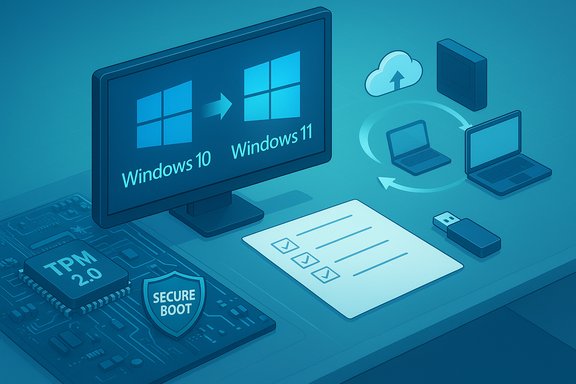
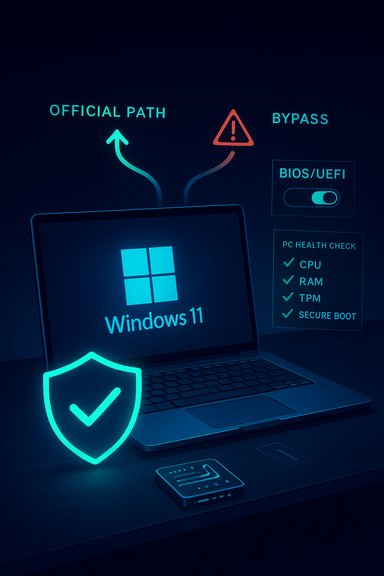
• Thread Author
Microsoft’s Windows 11 is still free for qualifying Windows 10 PCs, but the company’s strict hardware checks have left a large installed base officially “incompatible.” For many users the answer isn’t necessarily “buy new hardware” — there are well‑documented, practical ways to move to Windows 11 anyway (official tools for compatible machines, a Microsoft‑sanctioned registry escape hatch for narrow cases, and community tools that build relaxed installers). That reality brings trade‑offs: immediate functionality versus long‑term security, update entitlement, and supportability. This feature pulls the best, verified guidance together, verifies the key technical claims against Microsoft and independent reporting, and lays out step‑by‑step options so you can choose a safe, informed path forward.

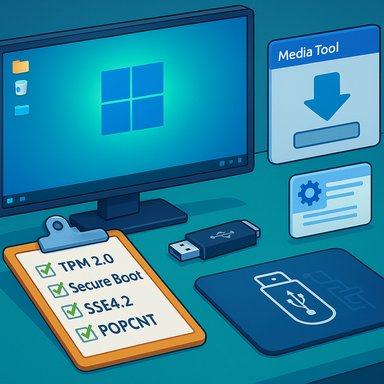
Windows desktop with a security checklist showing TPM 2.0, Secure Boot, SSE4.2, POPCNT and USB tools.Background / Overview​

Why this matters now​

Microsoft ended mainstream support for Windows 10 on October 14, 2025. After that date, default Windows 10 installations stopped receiving free security and feature updates; Microsoft published guidance advising migration to Windows 11 or enrollment in a consumer Extended Security Updates (ESU) bridge for eligible devices. That deadline is the practical force driving users to evaluate upgrade options now. At the same time, Windows 11 enforces a higher security baseline than Windows 10: a compatible 64‑bit CPU on Microsoft’s supported list, UEFI firmware with Secure Boot, and a Trusted Platform Module (TPM) version 2.0 are central requirements. Microsoft documents these minimum system requirements on its official requirements pages.

The compatibility friction and what “incompatible” actually means​

A machine flagged as “incompatible” usually fails one of three checks: TPM 2.0 not present or disabled, Secure Boot not enabled (or the system uses legacy BIOS), or the CPU/CPU features are not on Microsoft’s supported list — in recent releases that includes explicit instruction‑set requirements such as POPCNT / SSE4.2 for certain Windows 11 builds (notably 24H2+). That last category is a hard technical limit: no registry hack or installer trick can add missing CPU instructions. Independent reporting and community testing have confirmed the SSE4.2/POPCNT enforcement introduced in later feature releases can prevent some machines from booting even after a successful install. Microsoft’s official position is consistent: installing Windows 11 on hardware that does not meet the published minimum system requirements is not recommended and devices installed that way “won’t be entitled to receive updates.” The company’s support pages explain the risks and provide rollback steps if issues occur.

The supported upgrade paths (what Microsoft recommends)​

If your PC meets the requirements, Microsoft provides three supported, free upgrade routes. These are the safest options because they preserve update entitlement, driver servicing, and vendor support.

1) Windows Update (the simplest, lowest‑risk path)​

  • Settings → Update & Security → Windows Update → Check for updates. If Microsoft has staged the free offer, you’ll see “Upgrade to Windows 11 — Download and install.”
  • This path is fully supported and preserves apps, settings and Windows Update entitlement.

2) Windows 11 Installation Assistant (official guided upgrade)​

  • Download the Windows 11 Installation Assistant from Microsoft’s Download Windows 11 page and run Windows11InstallationAssistant.exe. The tool checks compatibility, downloads the new OS, and performs an in‑place upgrade while preserving files and most apps. It is x64‑only and does not run on Arm64 devices.

3) Media Creation Tool or direct ISO (flexible: multi‑PC, clean installs)​

  • Use Microsoft’s Media Creation Tool to create a USB installer or download the multi‑edition ISO directly from Microsoft’s site and run setup.exe from a mounted image for an in‑place upgrade, or boot the USB for a clean install. This is the standard method for technicians and power users.
Note: a small number of community and press reports picked up on intermittent bugs in the Media Creation Tool on certain dates; those incidents were handled as regressions and the clean ISO download remains the reliable fallback. If you encounter tool problems, download the ISO directly and create media with another utility or burn the ISO yourself. That community observation was described in walkthrough coverage and user reports; I could not find a persistent Microsoft KB that mirrors every press claim about a particular Media Creation Tool crash on Oct. 10 — flagging that claim as community‑reported and not universally verified.

How to check compatibility (preflight)​

Before doing anything, confirm the specific reason your PC fails the check:
  • Run the PC Health Check app to see which elements fail the Windows 11 compatibility scan. Microsoft documents how to use the tool.
  • Check for TPM: press Win+R → tpm.msc — the TPM management console shows “Specification version: 2.0” if present and enabled.
  • Check BIOS mode: Win+R → msinfo32 → look for “BIOS Mode” (UEFI required) and confirm Secure Boot status.
  • Confirm CPU features: tools like Coreinfo or CPU‑Z list instruction flags; look specifically for POPCNT / SSE4.2 if you plan to install a later Windows 11 build. Independent reporting shows SSE4.2 (and POPCNT) are enforced in some 24H2 builds.
If the only blockers are TPM or Secure Boot, a BIOS/UEFI firmware change often resolves the problem — many desktop and laptop systems offer firmware TPM (fTPM on AMD or Intel PTT on Intel boards) that is simply disabled by default. Update your firmware before attempting a reinstall.

If your PC is compatible: how to upgrade now (step‑by‑step)​

Use the supported route that matches your comfort and goals.
  • Back up everything (full disk image recommended) and verify the backup.
  • Fully update Windows 10 to the latest servicing build (Windows 10 22H2 or later where required).
  • Try Windows Update first — if the staged offer is present, accept and follow prompts.
If Windows Update hasn’t offered the upgrade:
  • Download the Windows 11 Installation Assistant from Microsoft’s Download Windows 11 page, run it, click Accept and install, and follow the guided prompts. This keeps apps and most settings intact.
If you want installation media or need to upgrade other machines:
  • Use the Media Creation Tool to create a USB installer, or download the multi‑edition ISO from Microsoft and mount/run setup.exe for an in‑place upgrade. Choose “Keep personal files and apps” when prompted to preserve your environment.

If your PC is flagged “incompatible”: practical bypass options​

There are two commonly used, community‑documented techniques that technically work for many machines: a registry-based in‑place upgrade bypass and a Rufus‑based relaxed installer. Both rely on official Windows media but modify installer behavior to skip certain checks. Important: these are unsupported by Microsoft and carry explicit caveats about updates and stability. Microsoft’s support page and community guidance both emphasize the risks.

Option A — Registry override for in‑place upgrades (MoSetup)​

  • What it does: when you set a specific registry DWORD (AllowUpgradesWithUnsupportedTPMOrCPU = 1 under HKEY_LOCAL_MACHINE\SYSTEM\Setup\MoSetup), Windows Setup will permit an in‑place upgrade from Windows 10 even if the PC fails some compatibility checks. This approach often preserves applications and settings.
  • How to apply (conservative steps):
  • Create a full system image and verify backups.
  • On Windows 10, open regedit as administrator.
  • Navigate to HKEY_LOCAL_MACHINE\SYSTEM\Setup\MoSetup. Create the MoSetup key if missing.
  • Create a 32‑bit DWORD named AllowUpgradesWithUnsupportedTPMOrCPU and set Value = 1.
  • Mount the official Windows 11 ISO or use the Installation Assistant, then run setup.exe and choose to keep files and apps.
  • Limitations and risks: this does not add missing hardware features (TPM or CPU instructions). Microsoft explicitly warns that devices upgraded this way may not be entitled to updates and may display a watermark and a “system requirements not met” message.

Option B — Rufus: build a relaxed USB installer (recommended for missing TPM/Secure Boot)​

  • What Rufus does: recent Rufus releases added a “Windows User Experience” dialog while creating bootable Windows 11 media that exposes explicit checkboxes to remove (at install time) requirements for TPM 2.0, Secure Boot, and certain RAM checks. Rufus automates the same registry wrapper and LabConfig modifications the community used to apply manually. It does not “create” TPM or add CPU instructions; it changes installer logic so Setup proceeds on hardware that would otherwise be rejected.
  • Step‑by‑step (safe flow):
  • Back up your system (full image + file copy).
  • Download the official Windows 11 ISO from Microsoft’s Download Windows 11 page. Do not use modified ISOs from untrusted sources.
  • Download Rufus from its official distribution channel (use the latest stable build). Prefer the portable executable for one‑off jobs.
  • Insert an empty USB drive (8 GB+; 16 GB recommended). Rufus will format it.
  • In Rufus, click SELECT and choose the Windows 11 ISO. Leave the Image option at “Standard Windows installation.” Click START.
  • When the Windows User Experience dialog appears, check “Remove requirement for 4GB+ RAM, Secure Boot and TPM 2.0” (and any other options you intentionally need). Confirm and let Rufus build the USB.
  • To perform an in‑place upgrade, plug the Rufus USB into the running Windows 10 machine, open the drive in File Explorer, and run setup.exe (choose to keep files and apps). For a clean install, boot from the USB.
  • Practical notes:
  • Rufus automates registry and wrapper edits that would otherwise be manual; it simplifies the process and reduces the chance of human error.
  • Boot‑from‑USB clean installs benefit most from Rufus’ bypasses; running setup.exe from a mounted ISO does not always use the same boot‑time checks the Rufus media changes.

The technical and operational downsides you must accept​

Installing Windows 11 on unsupported hardware is not just a single‑session inconvenience — it changes your long‑term maintenance posture. Understand these concrete risks before proceeding.
  • Update entitlement is uncertain. Microsoft’s official guidance says unsupported installs “aren’t guaranteed to receive updates, including but not limited to security updates.” In practice this has been inconsistent: many unsupported installs have continued to get cumulative updates for months, while others have been selectively excluded or blocked by safeguard holds. Treat update continuity as fragile and changeable.
  • Hardware instruction‑set blocks are absolute. If your CPU lacks required instructions (POPCNT / SSE4.2 for some 24H2+ builds), later feature updates may not boot on your machine regardless of any installer bypass. No registry hack or Rufus trick can add CPU microarchitecture features. That is a hard technical limit.
  • Drivers and firmware may be unavailable or unsupported. Older vendor drivers may not work correctly under Windows 11, producing functional regressions (audio, networking, graphics). You may need to hunt for third‑party drivers or fallback drivers, which increases operational risk and troubleshooting time.
  • Security posture is weakened if TPM/Secure Boot are actually missing or disabled. Feature isolation (like virtualization‑based security and HVCI), BitLocker key protection and measured boot are all materially improved with TPM 2.0 and Secure Boot enabled. Bypassing these checks means you lose those hardware‑anchored protections.
  • Vendor warranty and official support are at risk. OEMs and Microsoft may decline to troubleshoot issues caused by running Windows 11 on unsupported hardware; this can complicate repair or replacement scenarios.

Practical, conservative checklist before you attempt any bypass​

  • Full offline backup: create a verified full disk image (Acronis, Macrium Reflect, or built‑in image) and also a file‑level cloud/ejected copy. Verify you can mount and read the image.
  • Record licenses and recovery keys: Windows activation status, BitLocker recovery key, and any OEM driver packages.
  • Update firmware: check and apply the latest UEFI/BIOS and chipset firmware from your PC/laptop vendor — this often exposes fTPM/PTT toggles.
  • Verify CPU instruction support: run Coreinfo or similar tools to confirm POPCNT/SSE4.2 support if you plan to install modern 24H2 builds. If your CPU lacks those instructions, do not expect future updates to boot.
  • Try enabling firmware TPM and Secure Boot first — many “incompatible” results vanish after this step.
  • Prefer a clean ISO + Rufus approach for machines missing TPM/Secure Boot; prefer the Microsoft Installation Assistant for machines that are fully compatible and just haven’t been offered the staged upgrade yet.

A short decision guide (which path to pick)​

  • If your PC is shown as compatible by PC Health Check → use Windows Update or the Installation Assistant. This keeps updates and minimizes headaches.
  • If only TPM/Secure Boot is disabled → update UEFI and enable fTPM/PTT and Secure Boot; then re‑run the check. Often the upgrade then proceeds officially.
  • If the CPU is unsupported but the machine otherwise works and you accept the risk → use the MoSetup registry trick for an in‑place upgrade or create a Rufus relaxed USB (clean install recommended). Make a full image and be prepared to rollback.
  • If the CPU lacks SSE4.2/POPCNT → do not attempt long‑term migration; buying supported hardware or migrating to a supported OS (or using ESU) is the realistic path. No installer tweak will add missing instruction support.

Final analysis — when these hacks are a good idea (and when they aren’t)​

  • Good candidates:
  • Hobbyist or test machines where downtime and manual fixes are acceptable.
  • Secondary PCs used for non‑sensitive tasks that need a modern UI or particular app compatibility.
  • Scenarios where you plan to replace hardware long term and need an interim working Windows 11 environment.
  • Poor candidates:
  • Business / compliance / production machines that handle sensitive data.
  • Devices where security and guaranteed updates are non‑negotiable.
  • Machines with CPUs that lack required instruction sets (POPCNT/SSE4.2) — these are effectively blocked.
Community tools and registry workarounds extend useful life for many older PCs, and they do so using official Windows media. But they also transfer long‑term maintenance risk to the owner. Microsoft’s pages, enterprise guidance, and independent reporting are consistent: unsupported installs are possible but carry real and sometimes irreversible consequences. If you proceed, do so with full backups, a rollback plan, and a calendar for replacement or migration within a defined timeframe.

Conclusion​

Windows 11 is accessible to many users who were initially told their machines are “incompatible.” Official, supported paths exist and remain the recommended approach for most users: Windows Update, the Windows 11 Installation Assistant, or the Media Creation Tool/ISO. For machines that fail the official checks, two widely used community routes exist — a MoSetup registry override for in‑place upgrades, and a Rufus‑generated relaxed USB that automates installer bypasses — and both work on many systems today. Those options rely on official Windows media but intentionally remove Microsoft’s compatibility gates; they should be treated as technical workarounds rather than long‑term support solutions. The decisive trade‑offs are clear: immediate access to Windows 11 versus uncertain update entitlement, possible driver or boot failures (especially on CPUs missing POPCNT/SSE4.2), and loss of some hardware‑anchored security features.
If you value predictable security updates and vendor support, fix firmware toggles or buy supported hardware. If you prefer to extend a machine’s life and are comfortable troubleshooting, the registry method and Rufus route are practical, well‑documented, and commonly used — but only after careful backups, firmware updates, and acceptance of the long‑term maintenance burden.
Source: PCMag Here's How to Upgrade Your PC to Windows 11, Even If It's Incompatible
 

Microsoft’s official upgrade paths are straightforward: if your Windows 10 PC meets the baseline, you can move to Windows 11 for free through Windows Update, the Windows 11 Installation Assistant, or by using installation media — but for the many machines Microsoft marks as “incompatible,” well‑documented community workarounds exist that let you install Windows 11 today at the cost of update guarantees, certain hardware‑anchored protections, and long‑term reliability.

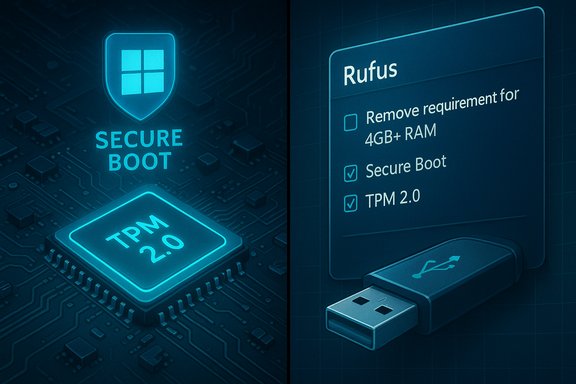
Split image: TPM 2.0 and Secure Boot on the left, Rufus USB checklist on the right.Background / Overview​

Microsoft tightened Windows 11’s minimum system requirements to raise the platform’s security floor. The key checks are: a supported 64‑bit processor on Microsoft’s CPU list, Trusted Platform Module (TPM) 2.0 (discrete or firmware/fTPM), UEFI with Secure Boot, 4 GB RAM, 64 GB storage, and a GPU with DirectX 12 / WDDM 2.x support. These rules are enforced by the installer and the PC Health Check tool. That stricter baseline put many functional Windows 10 PCs on the wrong side of Microsoft’s compatibility gates. If your PC passes Microsoft’s checks, the upgrade is supported and preserves update entitlement. If it doesn’t, you have three broad choices:
  • Enable firmware features (if present) and use Microsoft’s supported upgrade routes.
  • Enroll in Microsoft’s consumer Extended Security Updates (ESU) to buy time.
  • Accept a community workaround (registry tweak or tweaked install media) to install Windows 11 now — with caveats.
This article walks through each path, verifies the technical facts against official and independent sources, explains exactly how popular workarounds like Rufus function, and assesses the practical risks so you can choose responsibly.

What Microsoft requires — and why it matters​

The minimum technical baseline​

Microsoft’s published minimums emphasize hardware‑anchored security. The installer looks for:
  • A compatible 64‑bit CPU (1 GHz 2+ cores, and on Microsoft’s supported list).
  • TPM 2.0 (or firmware equivalents such as Intel PTT or AMD fTPM).
  • UEFI firmware with Secure Boot enabled.
  • At least 4 GB RAM and 64 GB storage.
  • Graphics that support DirectX 12 / WDDM 2.x and a display ≥720p.
These checks are not arbitrary: TPM and Secure Boot provide protections at the firmware level that reduce the risk of low‑level compromise and help secure features such as BitLocker and virtualization‑based security. Microsoft’s official guidance and the PC Health Check app both surface specific reasons a machine fails the check and offer remediation steps where possible.

Common, fixable blockers​

Many “incompatible” results are caused by firmware toggles that are simply disabled:
  • TPM present but disabled in UEFI (enable fTPM/PTT in BIOS).
  • Secure Boot disabled or the system uses legacy BIOS/MBR (switch to UEFI + GPT).
  • Missing CPU entry on Microsoft’s supported list (not fixable by firmware).
If toggling fTPM/PTT and enabling Secure Boot solves the issue, you can then use the supported upgrade paths and keep update entitlement.

Official upgrade methods — verified, step‑by‑step​

Below are the supported, Microsoft‑sanctioned ways to get Windows 11 on a compatible PC. These preserve update entitlement and minimize risk.

1. Windows Update (recommended when offered)​

  • Open Settings > Update & Security > Windows Update.
  • Click Check for updates. If Microsoft has staged the offer, you’ll see “Upgrade to Windows 11 — Download and install.”
  • Follow the prompts; the in‑place upgrade preserves apps, files, and settings.

2. Windows 11 Installation Assistant​

  • Download the Windows 11 Installation Assistant (Windows11InstallationAssistant.exe) from Microsoft’s Download Windows 11 page and run it.
  • The assistant verifies compatibility, downloads the upgrade package, and upgrades your system while preserving apps and files; you’ll restart to complete setup. This is the official “force now” option if Windows Update hasn’t offered the upgrade.

3. Media Creation Tool or ISO​

  • Use the Media Creation Tool to create a bootable USB or download the Windows 11 ISO directly from Microsoft and mount it.
  • Run setup.exe from the mounted ISO or created USB to perform an in‑place upgrade, or boot from the USB to do a clean install. Note: keep a full backup before a clean install.
Practical note: Microsoft occasionally documents issues with a specific Media Creation Tool build; when that happens the ISO direct download is a robust fallback. Treat the official ISO as the canonical source for installer media.

The Windows 10 sunset and short‑term safety valves​

Microsoft ended mainstream support for Windows 10 on October 14, 2025. After that date, regular security and quality updates stop for un‑enrolled consumer devices. Microsoft introduced a consumer Extended Security Updates (ESU) program that provides a one‑year bridge — security‑only updates through October 13, 2026 — and multiple enrollment routes. Consumer ESU enrollment options (verified):
  • Free if you enable Windows Backup / settings sync to a Microsoft Account (OneDrive) on eligible devices.
  • Free by redeeming 1,000 Microsoft Rewards points.
  • Paid one‑time purchase (reported around $30 USD; local pricing & taxes may apply), which can cover multiple devices tied to one Microsoft Account.
These ESU pathways are a legitimate, Microsoft‑supported way to buy time if you cannot upgrade immediately. They are security‑only and do not replace the long‑term need to run a supported OS.

How people install Windows 11 on “incompatible” PCs — the practical methods​

There are two widely used, community‑documented approaches to get Windows 11 running on hardware Microsoft blocks: a supported‑scope registry override and a modified install media approach (often built with Rufus).

Method A — Registry override (MoSetup trick)​

  • Create a registry DWORD at HKEY_LOCAL_MACHINE\SYSTEM\Setup\MoSetup named AllowUpgradesWithUnsupportedTPMOrCPU and set it to 1.
  • Mount Microsoft’s official Windows 11 ISO in File Explorer and run setup.exe from within your existing Windows installation.
  • This method suppresses certain CPU/TPM checks for in‑place upgrades launched from inside Windows, and it can preserve apps and files.
Limitations and caveats:
  • This is explicitly an unsupported workaround; Microsoft may restrict updates to such installs and behavior can change in future builds.
  • It does not add missing CPU instruction support (e.g., SSE4.2/POPCNT) — if the CPU lacks required instructions, some installer builds may fail to boot.

Method B — Rufus: create tweaked USB install media​

Rufus, a widely used bootable‑media utility, added an “extended” install option that can remove enforcement of specific checks when building Windows 11 USB media. When you select the proper options, Rufus will present a checkbox such as “Remove requirement for 4GB+ RAM, Secure Boot and TPM 2.0” and other toggles like skipping Microsoft account enforcement or privacy questions. How the Rufus workflow works (high level):
  • Download Microsoft’s official Windows 11 ISO.
  • Launch Rufus, select your USB device and the ISO.
  • On Start, choose the “Standard Windows installation” image option and then enable the Extended options (the dialog shows checkboxes to remove TPM/Secure Boot/RAM, etc..
  • Click Start and Rufus writes a modified installer to the USB.
  • For a clean install, boot from the USB; for an in‑place upgrade, plug the USB into the running Windows 10 system and run setup.exe from the USB.
Technical reality: Rufus does not create physical TPM, nor does it add CPU instructions. It modifies the installer environment — injecting LabConfig flags or altering the boot/wim payload — so the installer’s pre‑flight checks are skipped during booted installs. That is why Rufus works reliably for bypassing TPM/Secure Boot/4GB checks in many cases but cannot fix fundamental hardware incompatibilities such as missing CPU instruction sets.

Step‑by‑step: using Rufus to create bypass media (concise)​

  • Download the official Windows 11 ISO from Microsoft and the latest Rufus binary from Rufus’ official site.
  • Insert an 8 GB+ USB drive (it will be reformatted).
  • In Rufus, choose the ISO and the target USB device.
  • Set Image option to Standard Windows installation and confirm the device.
  • Click Start; when the Windows User Experience dialog appears, check Remove requirement for 4GB+ RAM, Secure Boot and TPM 2.0 (and other toggles you accept).
  • Confirm and wait until Rufus reports Ready. Then either boot from the USB (clean install) or open the drive in File Explorer on the target PC and double‑click setup.exe (in‑place upgrade).
Important: always create a full disk image and file backups before attempting these steps.

Risks, tradeoffs, and practical post‑install tasks​

Installing Windows 11 on unsupported hardware is feasible — but it transfers real, measurable risk to the end user.

Key risks​

  • Update uncertainty: Microsoft warns unsupported installs may be ineligible for updates. Historically, behavior has been inconsistent; some bypassed systems received updates for a time while others have been blocked as enforcement changed. Plan for manual patching or a managed migration.
  • Security limitations: Without hardware‑anchored protections (TPM, Secure Boot), some Windows 11 security features are degraded or unavailable, increasing exposure to low‑level attacks.
  • Driver and stability issues: Older hardware may lack Windows 11 drivers; Device Manager warnings and manual driver installs from OEM sites are common after an unsupported upgrade.
  • Warranty and vendor support: Manufacturers and Microsoft explicitly disavow support for devices that are converted to unsupported configurations.
  • Potential bricking: If the CPU lacks required instruction sets (POPCNT, SSE4.2, etc., a later build may not boot; recovery could require restoring a full system image.

Essential post‑install checklist​

  • Verify Windows activation.
  • Run Windows Update and re‑install OEM drivers from manufacturer pages.
  • Confirm BitLocker and other security controls (note that BitLocker may require TPM to operate with the strongest protections).
  • Create a fresh full disk image once stable.
  • Isolate any unsupported device on the network for sensitive tasks and consider limiting administrative access.

Who should use workarounds — and who should not​

  • Good candidates:
  • Hobbyists, testers, and secondary machines where downtime and manual maintenance are acceptable.
  • Machines with modern CPUs that are merely blocked by TPM or Secure Boot (and where enabling fTPM/PTT is impossible because the OEM left it off by default).
  • Not good candidates:
  • Business, compliance, or production systems that require guaranteed security updates.
  • Machines with CPUs lacking required instruction sets (a hardware replacement is the realistic path).
  • Non‑technical users who cannot recover from an installation failure.

Critical verification and a few flagged claims​

  • Verified facts:
  • Windows 10 end of support date: October 14, 2025. Microsoft’s lifecycle pages and support notices confirm this.
  • Consumer Extended Security Updates (ESU) coverage window runs through October 13, 2026, and Microsoft published consumer enrollment options including the free OneDrive/Windows Backup sync route, Microsoft Rewards redemption, and a paid option. Details and mechanics vary by region.
  • Rufus provides an option to remove TPM/Secure Boot/4GB checks while creating Windows 11 installation media; that option has been present in recent Rufus releases and is documented by independent outlets and Rufus changelogs.
  • Flagged / cautionary claims:
  • Specific bug reports about the Media Creation Tool on a particular date have circulated in press and community posts; Microsoft sometimes acknowledges regressions, but a specific “doesn’t work on Arm64 and closes unexpectedly” claim should be confirmed against Microsoft’s known issues page for the currently used Media Creation Tool build before acting. Treat one‑off tool failures as transient; prefer direct ISO downloads when in doubt.

Practical recommendation — risk‑aware decision tree​

  • Run Microsoft’s PC Health Check to see why your PC is blocked. If it suggests enabling firmware toggles, update UEFI and enable fTPM/PTT and Secure Boot first. Re‑check afterwards.
  • If the system is compatible after toggles, use Windows Update or the Installation Assistant to upgrade and remain supported.
  • If the CPU is unsupported or firmware fixes aren’t available:
  • If you need time, enroll in the consumer ESU program (free or paid option) to receive security updates through Oct 13, 2026.
  • If you accept the maintenance burden and have backups, consider the Rufus route or the registry override for a home‑lab or secondary PC — but treat the installation as unsupported and prepare a rollback plan.
  • For business or critical systems, prioritize hardware replacement, ESU for the short term, or managed virtualization/hosted desktop solutions over unsupported installs.

Closing analysis: strengths, tradeoffs, and the long view​

The PCMag primer and the broad community guidance are accurate and pragmatic: Microsoft provides supported upgrade paths for compatible PCs and a narrowly scoped, consumer ESU bridge for those who need time; community tools offer practical ways to extend the useful life of older machines but transfer support and security risk to the owner.
Strengths of the supported approach:
  • Preserved update entitlement and warranty alignment.
  • Lower maintenance overhead and higher reliability.
  • Retained hardware‑anchored security features.
Strengths of community workarounds:
  • Cost savings — a way to keep functional hardware in service.
  • Flexibility — control over installation process and options for local accounts and telemetry choices (for example, Rufus can suppress certain OOBE prompts).
But the tradeoffs are real: unsupported installs are inherently fragile over time, rely on community tools that may need updating, and sacrifice some of the very firmware protections Windows 11 is designed to enforce. For that reason, the safest, future‑proof recommendation remains to prefer official upgrade paths when possible and to use ESU as an orderly bridge when a hardware refresh is necessary. If you choose to run an unsupported installation, treat it as a stopgap, not a permanent substitute for supported hardware.

If you decide to proceed, follow the safety essentials: back up everything to multiple locations, create a full disk image before any change, test the upgrade on non‑critical hardware or a VM first, and document every step so you can recover quickly if needed. The technical tricks are mature and well‑documented, but the responsibilities they shift onto the user are substantive and ongoing.

Source: PCMag UK Here's How to Upgrade Your PC to Windows 11, Even If It's Incompatible
 

Attachments

  • windowsforum-windows-11-upgrade-paths-official-routes-and-incompatible-pc-workarounds.webp
    windowsforum-windows-11-upgrade-paths-official-routes-and-incompatible-pc-workarounds.webp
    2.2 MB · Views: 0
Windows 11 isn’t just a cosmetic refresh — it represents Microsoft’s strategic pivot toward hardware‑rooted security, AI‑enhanced productivity, and a modern servicing model, and for most users and organizations the practical risk of staying on Windows 10 now outweighs the short‑term convenience of delay.

A laptop surrounded by neon blue TPM 2.0, Copilot, and security icons with an upgrade roadmap.Background / Overview​

Microsoft formally ended mainstream support for Windows 10 on October 14, 2025, meaning ordinary consumer devices running Windows 10 no longer receive routine feature updates, technical support, or monthly security patches. Microsoft’s lifecycle guidance directs customers toward Windows 11 where possible, or to limited Extended Security Update (ESU) options for eligible devices as a short‑term bridge. That shift underpins the core message many outlets and community posts have echoed: upgrading to Windows 11 is less about aesthetics and more about staying current with security protections, application compatibility, and the new capabilities Microsoft is building around AI and hardware acceleration. Community analyses and migration guides have repeatedly emphasized the TPM 2.0, Secure Boot, and UEFI requirements, along with the minimum memory and storage baseline, as the technical gatekeepers for a supported Windows 11 installation. This article consolidates the facts, verifies technical claims, examines the benefits and trade‑offs, and offers a practical migration roadmap for home users and IT teams. It highlights where vendor claims are solid and where figures need caution or further verification.

Why the change matters: Security, support, and risk​

Windows 10 end of support — what it actually means​

End of support is more than a calendar date. After October 14, 2025, Microsoft will not provide free security updates, quality fixes, feature updates, or standard technical assistance for most editions of Windows 10. Devices will continue to boot and run, but their continuing operation becomes a risk management decision: without patches, newly discovered vulnerabilities will remain exploitable. Microsoft’s guidance explicitly recommends upgrading eligible devices to Windows 11 or enrolling in ESU where available. For businesses this also creates compliance and audit exposure: regulated environments frequently require supported platforms for acceptable risk posture. For home users, the main practical impacts are increased exposure to malware, reduced compatibility over time with modern apps, and no vendor troubleshooting to resolve system failures.

Hardware‑backed security is now baseline​

Windows 11 raises the baseline security posture by making hardware features part of the supported platform:
  • TPM 2.0 (Trusted Platform Module) for secure storage of keys and support for features like BitLocker and Windows Hello.
  • UEFI firmware with Secure Boot to prevent unsigned or tampered boot components.
  • Virtualization‑based security (VBS) and hypervisor‑protected code integrity (HVCI) on capable hardware to isolate sensitive OS components.
These elements materially reduce many classic attack vectors (firmware bootkits, credential theft, and some kernel compromises). Microsoft and security agencies have promoted hardware‑rooted protections as a defense posture for modern threats.

What you get on Windows 11: Features and benefits​

Stronger, hardware‑anchored security​

Windows 11 is intentionally built to leverage TPM, Secure Boot, and virtualization features to enable:
  • Disk encryption tied to a hardware root of trust (BitLocker).
  • Passwordless sign‑in with Windows Hello and passkeys.
  • Reduced attack surface for kernel‑level exploitation via HVCI and VBS.
For organizations concerned about ransomware and advanced persistent threats, these protections lower risk and simplify compliance. However, the protections are only effective when enabled and kept current, which is why staying on a supported OS matters.

AI and productivity: Copilot and Copilot+ PCs​

Windows 11 integrates Microsoft Copilot system‑wide and introduces a tier of Copilot+ PCs with on‑device NPUs (neural processing units) capable of 40+ TOPS (trillions of operations per second) for local AI workloads. On supported hardware, that enables faster, offline, and privacy‑preserving AI experiences such as local image/video processing, Recall, and faster language models running near the device. Copilot’s system integration extends to File Explorer, the taskbar, and OS‑level assistance features. Note: the full Copilot+ experience requires specific silicon (examples include AMD Ryzen AI 300 series and Intel Core Ultra 200V series) and higher RAM/storage thresholds; baseline Windows 11 still provides cloud‑assisted Copilot features on many devices.

Modern gaming and media platform​

Gamers and media creators benefit from platform features prioritized on Windows 11:
  • DirectStorage for faster texture streaming and reduced load times on NVMe systems.
  • Auto HDR and other DirectX 12 Ultimate enhancements for image quality and performance.
  • System improvements that prioritize foreground apps and improve scheduling on modern CPUs.
These features are hardware‑dependent, but when present they deliver measurable improvements to load times and visual fidelity.

Usability, accessibility, and productivity improvements​

Windows 11 refines the UI with centered taskbar, Snap Layouts, virtual desktops, and Widgets that can speed workflow on wide or multi‑monitor setups. Accessibility improvements (live captions, improved voice access, high‑contrast themes) broaden inclusivity for a wider set of users. These are real, incremental gains that improve day‑to‑day comfort and productivity.

Verified technical specifications and minimum requirements​

Microsoft’s published minimum requirements for a supported Windows 11 installation remain consistent: a 64‑bit processor with 1 GHz or faster and at least two cores, 4 GB RAM, 64 GB storage, UEFI firmware with Secure Boot, TPM 2.0, a DirectX 12‑capable GPU with WDDM 2.0, and a 720p+ display larger than 9 inches. The PC Health Check tool is the supported path to check eligibility. Copilot+ PCs require a significantly higher hardware bar (40+ TOPS NPU, more RAM and faster storage), and are a distinct category for advanced on‑device AI workloads. These are not requirements for the general Windows 11 experience; they are an optional, premium tier.

Critical analysis: Strengths and concrete benefits​

Strengths​

  • Tangible security gains: Requiring TPM 2.0, Secure Boot, and enabling VBS by default on capable systems raises the bar against modern threats. These are not theoretical — hardware‑anchored keys and boot integrity measurably impede many classes of attacks.
  • Ongoing vendor support: Windows 11 receives regular security and feature updates under Microsoft’s modern servicing model (consumer Home/Pro builds typically have a ~24‑month servicing window), which simplifies planning for IT teams.
  • AI integration that scales: Microsoft’s Copilot and Copilot+ strategy creates a clear upgrade path for users who want local AI acceleration without shipping sensitive data to the cloud unnecessarily. For workflows that benefit from on‑device inference (audio transcription, image editing, recall), this is a meaningful productivity gain.
  • Platform consolidation: For ISVs and enterprise software vendors, having a single actively‑maintained consumer OS reduces fragmentation and helps future‑proof applications.

Measured outcomes and caution on vendor claims​

Some published figures in community or vendor material (for example, dramatic percentage reductions in “security incidents” or specific productivity uplift numbers) are convenient shorthand but often originate from vendor telemetry or commissioned studies. Treat precise percentage claims (e.g., “62% fewer security incidents”) as directional unless corroborated by independent telemetry studies or peer‑reviewed research. Community files raise the same caution: these figures are useful conversation starters but not incontestable proof.

Risks, trade‑offs, and realistic limitations​

Hardware incompatibility and cost​

One of the most tangible frictions is that a large installed base remains on hardware that doesn’t meet Windows 11’s mandatory checks. Estimates suggest hundreds of millions of Windows 10 machines are either capable of upgrading but haven’t, or are too old and incompatible. Upgrading those devices may require firmware changes, TPM enabling, or outright hardware replacement — a non‑trivial cost for households and enterprises alike.

Unsupported workarounds and malware risk​

Third‑party “bypass” tools that remove TPM/CPU checks exist and have proliferated. They can appear attractive, but they create an unsupported state where you are not entitled to Windows Update and where the installer itself can be repackaged by malicious actors. Recent reports highlight malware‑laden copycats targeting these bypassing tools. Using such workarounds can increase risk rather than reduce it.

Early adopter stability concerns​

Early in a major OS cycle driver and app compatibility issues can cause headaches for certain niche hardware (specialized peripherals, older printers, audio interfaces). Enterprises with regulated or bespoke software stacks should pilot upgrades in a controlled test phase before enterprise‑wide rollout. Community threads from migration guides repeatedly advise pilot groups and phased deployments.

Copilot privacy and telemetry considerations​

AI features that rely on cloud processing involve data sent to Microsoft services unless explicitly performed on‑device (Copilot+). Organizations handling sensitive information need to map data flows and apply appropriate controls (DLP, endpoint encryption, tenant policies). Copilot+ on‑device features reduce cloud exposure, but those require premium hardware.

Practical migration roadmap: Steps for individuals and IT teams​

  • Check compatibility now
  • Run Microsoft’s PC Health Check tool and confirm TPM, Secure Boot, and CPU support. If the tool flags issues, consult your PC manufacturer for firmware updates or instructions to enable TPM.
  • Back up everything
  • Create a full image and file backups (cloud and offline) before attempting any system upgrade. Include product keys and application installers for recovery.
  • Pilot and test
  • For businesses, pick a small representative group (different hardware, job roles) and run the upgrade, tracking drivers, performance, and application compatibility.
  • Plan hardware refreshes where necessary
  • Evaluate cost of firmware fixes, TPM modules, and SSD/RAM upgrades versus replacing the device. Consider trade‑in programs, refurbished inventory, or staged refresh cycles.
  • Deploy in phases
  • Use a phased approach with rollbacks and support windows. For Pro/Enterprise, leverage Windows Update for Business to control deployment timing.
  • Harden configurations post‑upgrade
  • Enable BitLocker, enforce Windows Hello or passkeys, enable VBS/HVCI where supported, and ensure endpoint protection is current.
  • Consider ESU or alternatives if you can’t upgrade yet
  • If hardware replacement is infeasible immediately, enroll eligible devices in the Consumer ESU program for a limited safety net while planning migration. Microsoft documents the ESU pathway for short‑term protection.

Special guidance for common user profiles​

Home users and casual consumers​

  • If your PC is eligible: upgrade sooner rather than later — Windows 11 keeps your device receiving security updates and modern app compatibility.
  • If your PC is not eligible: consider converting the device into a dedicated offline media machine, using ChromeOS Flex, or installing a modern Linux distro for web‑centric tasks until you can replace hardware. Community migration guides cite ChromeOS Flex and Linux Mint as pragmatic options for breathing new life into older hardware.

Gamers and creators​

  • Many gaming benefits are hardware-dependent (fast NVMe, DirectStorage support). If your rig meets the requirements, Windows 11 can materially improve load times and graphical features. Test critical titles and GPU drivers on a pilot machine before full migration.

Small business and IT decision makers​

  • Create an inventory of devices and map them against Windows 11 compatibility lists.
  • Prioritize critical machines (servers, POS systems, regulatory devices) and verify third‑party app compatibility.
  • Consider staged refresh or lease cycles; weigh ESU as a short reprieve while you budget replacements.

What to watch and verify (claims that need scrutiny)​

  • Vendor headlines that quote specific percentage improvements (e.g., “62% fewer incidents,” or precise productivity percentages) should be treated with caution unless reproduced by independent, third‑party telemetry or peer‑reviewed studies. Those numbers often reflect selected datasets or marketing tests. Community summaries call this out explicitly.
  • The practical impact of Copilot on privacy depends heavily on configuration and whether features run locally (Copilot+) or in the cloud. Confirm data residency and telemetry options in organizational policies before enabling enterprise‑wide AI features.

Final assessment: When being on Windows 11 matters most​

For the majority of connected users and most organizations, moving to Windows 11 is the safer, more future‑proof option because it restores the flow of security updates and aligns devices with a modern security baseline (TPM, Secure Boot, VBS). The alternative — running Windows 10 beyond support with no patches — becomes an increasingly expensive risk in terms of potential breaches, degraded compatibility, and regulatory exposure. Microsoft’s official lifecycle guidance and the community migration playbooks converge on the same practical advice: evaluate compatibility, plan carefully, and migrate on a controlled timetable. That said, the transition is not cost‑free. Hardware requirements and the premium tier for on‑device AI (Copilot+ PCs) create real financial and logistical barriers for many. Where immediate replacement isn’t feasible, ESU, alternative OSes, or device repurposing are valid stopgaps — but they are stopgaps, not long‑term solutions.

Action checklist (quick, SEO‑friendly summary)​

  • Check Windows 11 compatibility with PC Health Check and enable TPM 2.0 if available.
  • Back up your system image and personal files before upgrading.
  • Pilot the upgrade on representative machines to validate drivers and apps.
  • Consider Copilot+ only if on‑device AI and offline models are critical to your workflow; otherwise standard Windows 11 still delivers core Copilot features.
  • Avoid unofficial bypass tools that remove hardware checks; they can introduce malware and leave you unsupported.

Being on Windows 11 is, in practical terms, about risk reduction and future readiness: it restores the security updates and vendor support that keep systems resilient, enables a platform that will receive Microsoft’s innovation investments (particularly in AI), and aligns devices with modern security architectures. The migration path requires planning, measured rollout, and an honest cost assessment — but for most users the benefits outweigh the short‑term hurdles introduced by hardware requirements and upgrade logistics.
Source: Fernandina Observer https://www.fernandinaobserver.org/stories/why-its-important-to-be-on-windows-11,86291/
 

Windows 11 PC on a desk with holographic security icons and an AI Copilot display.
Upgrading your PC to Windows 11 is no longer a decorative choice: it has become a security, compatibility, and strategic business decision that affects everything from ransomware risk to how, and whether, AI features will run on your machine.

Background / Overview​

Microsoft officially ended mainstream support for Windows 10 on October 14, 2025, which means the operating system stopped receiving routine security and feature updates on that date. Microsoft’s guidance is clear: moving eligible devices to Windows 11 is the recommended path for keeping systems supported and secure. The push to migrate is driven by three converging forces: a higher security baseline in Windows 11 (backed by hardware features such as TPM 2.0, UEFI Secure Boot, and Virtualization‑Based Security (VBS)), Microsoft’s plans and incentives around AI (notably Copilot and Copilot+ PCs), and the natural lifecycle economics of software support where continued use of an unsupported OS increases operational and compliance risk. Community and industry coverage — and forum threads discussing migration playbooks and ESU options — reflect this reality and the practical concerns organizations and consumers face.

Why Windows 11 matters now: the core arguments​

1. Security: a materially higher baseline​

Windows 11’s most defensible claim is a security baseline that is explicitly tied to hardware. Built-in and default-enabled features on eligible devices include:
  • TPM 2.0 for hardware-rooted key storage and stronger encryption key protection.
  • UEFI Secure Boot to prevent tampered boot loaders and firmware attacks.
  • Virtualization‑Based Security (VBS) and Hypervisor‑Protected Code Integrity (HVCI) to isolate critical OS components from normal user-mode processes.
  • Credential Guard and other mitigations that make credential-theft and kernel-level attacks harder.
These are not marketing talking points — Microsoft documents the requirements and technical mechanisms and has stated that VBS/Credential Guard are enabled by default on modern devices that meet the platform criteria. The result is an operating system that raises the attacker’s cost to succeed, which matters when ransomware and credential-theft remain dominant threats.

2. Support lifecycle and regulatory/compliance exposure​

After October 14, 2025, Windows 10 ceased receiving free security updates from Microsoft. That has practical consequences: systems that no longer receive patches are a higher liability for organizations subject to regulatory controls, insurance underwriting, or contractual security obligations. Microsoft’s official pages, lifecycle announcements, and migration guidance underscore upgrading as the recommended remediation. For organisations that cannot move immediately, Microsoft offers Extended Security Updates (ESU) as a temporary stopgap, with enrollment options and explicit program end dates.

3. AI and productivity: Microsoft’s roadmap centers on Windows 11​

Microsoft is embedding AI into Windows (Copilot in Windows, on‑device AI runtimes, and Copilot+ hardware features). Many of the most integrated AI scenarios rely on Windows 11 experiences and hardware that support low-latency local models and new Copilot runtimes. While some Copilot features are also available on select Windows 10 devices, Microsoft’s product direction prioritises the Windows 11 platform and Copilot+ PCs built to accelerate AI workflows. This matters for organizations planning to adopt AI-driven productivity or automation at scale.

What Microsoft requires (and why it matters)​

Minimum technical requirements — verified​

Microsoft’s minimum Windows 11 requirements are explicit and enforced for standard upgrades:
  • 64‑bit processor, 1 GHz or faster with 2+ cores (compatible CPU families validated by Microsoft).
  • 4 GB RAM (practical use cases and modern configurations typically recommend 8 GB+).
  • 64 GB storage (more for ongoing updates and feature work).
  • UEFI firmware with Secure Boot capability.
  • TPM version 2.0.
  • DirectX 12 compatible graphics with WDDM 2.x.
Microsoft’s PC Health Check app and Learn documentation are the authoritative references for compatibility checks and for enabling TPM on systems where it’s present but disabled. Attempting to install or run Windows 11 on unsupported hardware is possible through unofficial workarounds, but those configurations carry long-term risks (blocked updates, unsupported status, and exposure to unmitigated vulnerabilities).

Why TPM 2.0 and Secure Boot are enforced​

TPM 2.0 stores private keys, supports biometric sign‑on protections (Windows Hello), and underpins BitLocker and other disk encryption systems. Secure Boot reduces low-level firmware compromise. Microsoft positions these as necessary building blocks for modern threat models; the enforced baseline is intended to reduce the “attack surface” at the platform level. Security engineering trade-offs are involved, but the technical case for hardware-backed protections is strong.

Migration realities: costs, options, and timelines​

The hard dates and options​

  • Windows 10 end of support: October 14, 2025. After that point Microsoft no longer issues free security updates.
  • Consumer ESU: Microsoft provided enrolment options (including free enrollment for users who sync PC settings or redeem Microsoft Rewards points) to extend critical security updates up to a program-defined date; commercial ESU pathways exist for enterprise customers. ESU is a bridge, not a long-term fix.
For businesses and institutions, three practical migration paths exist:
  1. Upgrade eligible devices to Windows 11 where hardware supports it.
  2. Replace incompatible machines with Windows 11 (or Copilot+) PCs.
  3. Enroll critical holdouts in ESU while implementing network segmentation and mitigations.
Each path carries trade-offs: upgrading yields the security baseline and future feature compatibility, replacing hardware has capital cost and supply-chain timing, and ESU reduces immediate risk at a cost (and with administrative overhead). Forum and industry playbooks stress inventory-driven planning as the single most important step.

Cost pressures and hidden overheads​

Upgrades are not purely technical: they are financial and organizational. ESU pricing and the eventual need for hardware refreshes can add surprising budget pressure. Beyond purchase price, factor in:
  • Migration labor and project management.
  • Application compatibility testing and remediation.
  • Peripheral and driver replacement for legacy hardware.
  • Training and support for users adapting to UI and workflow differences.
  • Potential privacy and policy changes when using cloud-enabled migration tools and Microsoft accounts for ESU enrollment.

Practical migration roadmap (recommended)​

  1. Inventory now: record hardware models, OS versions, TPM status, firmware type (UEFI vs BIOS), and critical application dependencies.
  2. Run PC Health Check (or an enterprise-equivalent tool) to identify devices eligible for direct upgrade to Windows 11. Enable TPM in firmware where available and safe.
  3. Pilot upgrade on representative machines and apps; include heavy-scope workloads and legacy peripherals.
  4. Decide per-device: upgrade, replace, or enroll in ESU. Apply network segmentation for Windows 10 holdouts and tighten endpoint controls.
  5. Communicate broadly: give users timelines, self-service guides for migration, and access to backup and recovery resources.
  6. Post-migration: enable modern security features (VBS, Credential Guard, BitLocker, Windows Defender for Endpoint or equivalent EDR) and monitor for compatibility issues.

Benefits beyond security: productivity and platform parity​

  • Multitasking and UI improvements: Snap Layouts, Virtual Desktops, Widgets, and a refreshed Start/Taskbar aim to reduce friction in multi-window workflows. Depending on user role, these features can provide measurable time savings. Forum threads and hands-on reviews note small but cumulative productivity gains.
  • Gaming and graphics: DirectStorage and Auto‑HDR are examples of features that can improve game load times and visuals on compatible hardware.
  • Accessibility: Windows 11 includes live captions, improved voice access, and other accessibility investments for inclusive computing.
  • AI integration: Copilot and the Windows Copilot Runtime provide in-context assistance — document generation, summarization, and multi-modal interactions that are more integrated on Windows 11. Organizations that plan to use AI tools widely will find Windows 11 the more future-proof platform.

Risks, trade-offs, and pushback (a balanced look)​

Compatibility and legacy software​

Not all line-of-business or legacy applications migrate cleanly. Some industrial devices and diagnostic tools depend on older drivers or unsupported APIs. These cases require special handling: virtualization, containerization, or maintaining isolated Windows 10 endpoints (with ESU and network controls) for as short a period as possible. Forum discussions and institutional migration notes emphasize careful compatibility testing.

Economic inequality and device churn​

Windows 11’s hardware requirements mean many still‑functional PCs are formally ineligible. For consumers and cash‑constrained organizations, forced refresh expectations create equity concerns. Microsoft’s ESU and trade‑in programs mitigate but do not eliminate the economic cost. Industry commentary has flagged the social and environmental challenge of mass device replacement as a consequence to monitor.

Privacy and telemetry concerns with AI​

AI features that scan local content or connect to cloud services raise genuine privacy considerations. The Copilot model and related runtime components can access files and application contexts to provide help; while Microsoft documents controls and consent flows, the integration of on‑device and cloud components warrants review by security and privacy teams. Recent reporting and community discussions have noted hallucination risks and prompt injection attack surfaces in AI agents — real technical risks that need policy and operational guardrails. Treat claims about “AI magic” with pragmatic caution and configure controls accordingly.

Unsupported workarounds: false economy​

Third‑party bypass tools that let Windows 11 install on unsupported hardware proliferated in earlier upgrade waves. Those hacks may enable a UI change but leave machines unsupported for updates, limit functionality, and expose systems to maliciously altered bypass installers. Community advisories and security reporting have repeatedly flagged malware-laced copies of popular bypass tools. For serious environments, those workarounds are a high-risk, low-reward tactic.

What to expect if you delay​

  • Increased exposure to unpatched vulnerabilities.
  • Growing incompatibility with new Microsoft and third‑party apps that optimize for Windows 11.
  • Higher long‑term costs for emergency refreshes or incident response.
  • Potential regulatory non‑compliance for environments with strict security or data protection obligations. Community migration planning guidance frames the post‑support period as a managed risk that must be actively mitigated rather than passively accepted.

Quick checklist for users and IT teams​

  • Inventory all devices and apps today. Prioritize business‑critical systems.
  • Run PC Health Check and verify TPM and Secure Boot status.
  • Pilot Windows 11 on representative hardware and workflows.
  • Budget for replacements where needed; consider refurbished or OEM trade‑in options to reduce cost and environmental impact.
  • If you must keep Windows 10 devices, enrol in ESU and segment them until migration completes.
  • Update policies to manage AI features, define data access rules, and control telemetry settings.

Claims to treat cautiously (flagged)​

  • Performance multipliers cited in vendor marketing (for example, claims like “up to 5x speed on Copilot+ PCs”) are highly scenario-dependent. Treat these as directional marketing claims rather than guaranteed outcomes; validate with benchmarks on your actual workloads before forecasting productivity gains.
  • Large installed-base numbers (for example, “500 million PCs eligible but not upgraded”) come from OEM statements and analyst syntheses; they are useful directional indicators but should not replace device-level inventories for procurement planning. Cross-check public numbers against your own asset data.

Final analysis and recommendation​

Windows 11 is now the supported Windows desktop platform, and Microsoft has structured product, security, and commercial incentives around that reality. For most organizations and individual users, the clearest risk-management posture is to:
  • Treat Windows 11 migration as a near-term operational priority and start with device inventory and application compatibility testing.
  • Use ESU and network segmentation as a deliberate, time‑boxed bridge when immediate upgrade or replacement is infeasible.
  • Apply modern endpoint protections (EDR, VBS/Credential Guard where supported), strengthen identity controls (multifactor and passkeys), and review AI feature exposure and data access policies.
The benefits — a higher security baseline, ongoing feature and update support, and a platform aligned with future AI and productivity investments — are compelling for entities that must minimize risk and maintain compliance. The practical reality is that migration takes time, test cycles, and budget; start planning now, pilot early, and move methodically rather than in reaction to a breached endpoint or emergency hardware replacement.

Windows 11 adoption will continue to be a mixed picture — some users will upgrade quickly to benefit from security and AI features, others will delay due to hardware constraints or budget pressures. The responsible approach is data‑driven planning: measure your own estate, weigh the costs of migration versus the risks of running unsupported software, and adopt a phased, documented migration runway so security and business continuity are preserved while you modernize.
Conclusion: being “on Windows 11” is not about fashion or FOMO — it’s a risk management and strategic platform decision. For organizations and individual power users who rely on security, continuity, and evolving AI workflows, upgrading or adopting a clear interim protection strategy is now essential rather than optional.

Source: Fernandina Observer https://fernandinaobserver.com/stories/why-its-important-to-be-on-windows-11,86291/
 

Microsoft and OEM guidance have made one thing clear: Windows 10’s support lifecycle has reached its end, and the safe, supported path forward for most users is migration to Windows 11 — a process that requires planning, backups, and a check of hardware requirements before you click “Upgrade.”

Isometric illustration of upgrading Windows 10 to Windows 11, featuring TPM 2.0 and Secure Boot.Background / Overview​

Microsoft formally ended mainstream support for most consumer and business editions of Windows 10 on October 14, 2025. After that date, default Windows 10 installations stop receiving routine security updates and feature servicing unless a device is enrolled in Microsoft’s time‑boxed Extended Security Updates (ESU) program. That change has both practical and compliance implications for households and organizations alike. HP’s regional upgrade guidance mirrors Microsoft’s core recommendations: verify device compatibility, update Windows 10 before attempting an in‑place upgrade, create robust backups, and choose the most appropriate installation path (Windows Update, Installation Assistant/Media Creation Tool, or clean install). HP’s walkthroughs also include local advice for enabling TPM/Secure Boot on supported models and suggest practical backup strategies for users in bandwidth‑constrained regions.

Why the deadline matters​

Running an unsupported operating system increases exposure to newly discovered vulnerabilities, reduces vendor troubleshooting options, and — for businesses — can create regulatory and insurance problems. Microsoft’s lifecycle policy means that, absent ESU coverage, Windows 10 machines no longer receive fixes for new kernel or platform vulnerabilities after October 14, 2025. Treat this as a risk‑management decision: continue on Windows 10 only with compensating controls, or migrate to Windows 11. Key operational consequences:
  • No routine security updates for non‑ESU Windows 10 devices.
  • No new feature or quality updates.
  • Microsoft support will direct users toward upgrade or ESU enrollment.
  • Over time, third‑party vendors may de‑prioritize or drop support for Windows 10 in drivers and applications.

Windows 11: minimum requirements and what blocks most upgrades​

Before attempting any upgrade, verify that your PC meets Microsoft’s published minimum requirements for Windows 11. These are not suggestions — they determine upgrade entitlement and, in some cases, whether the installer allows an in‑place upgrade at all. The core minimums are:
  • Processor: 64‑bit, 1 GHz or faster with 2 or more cores, and on Microsoft’s approved CPU list.
  • RAM: 4 GB minimum (8 GB recommended for everyday use).
  • Storage: 64 GB minimum (plan for more free space during upgrade and future updates).
  • System firmware: UEFI with Secure Boot capability.
  • TPM: Trusted Platform Module (TPM) version 2.0 (discrete or firmware fTPM / Intel PTT).
  • Graphics: DirectX 12 compatible GPU with WDDM 2.x.
  • Display: 9”+ diagonal, 720p or greater.
The three most common blockers are TPM 2.0 being disabled or unexposed in firmware, Secure Boot not enabled (or legacy BIOS), and an older CPU not on Microsoft’s compatibility list. In many cases the first two are resolved by a firmware/UEFI setting or a BIOS/UEFI update from the OEM; the CPU list is a hard limit for instruction‑set capability in many Windows 11 builds.

Upgrade paths (what Microsoft and HP recommend)​

There are three supported, official routes to move eligible Windows 10 PCs to Windows 11. Each has a specific use case and risk profile. HP’s guide and Microsoft documentation recommend picking the path that matches your technical comfort and deployment scale.

Method 1 — Windows Update (recommended for most users)​

  • Settings → Update & Security → Windows Update.
  • Select Check for updates.
  • If Microsoft has validated your device for the staged rollout, you will see “Windows 11 is ready.” Click Download and install.
This is the safest, lowest‑risk route for single PCs because it preserves apps, settings, and activation entitlement. It also ensures Windows Update will continue delivering drivers and firmware updates in the usual way.

Method 2 — Windows 11 Installation Assistant / Media Creation Tool​

  • Use the Windows 11 Installation Assistant for a guided in‑place upgrade when Windows Update doesn’t offer the upgrade.
  • Or use the Media Creation Tool to create USB installation media (Microsoft recommends a blank USB flash drive with at least 8 GB of space). Bootable USB media is ideal for multiple‑PC upgrades or when you need a clean installer.
Steps for Media Creation Tool:
  • Download MediaCreationTool.exe from Microsoft’s Download Windows 11 site.
  • Run it and choose USB flash drive (or ISO).
  • If using USB, the tool will download Windows 11 and create bootable media; a blank 8 GB drive is required.

Method 3 — Clean installation (advanced / technicians)​

  • Boot from the USB installer (may require changing boot order in UEFI/BIOS).
  • Choose Custom: Install Windows only (advanced).
  • Note: Clean installs erase the drive. Back up everything first.
HP’s documentation includes model‑specific notes for firmware configuration; follow OEM instructions rather than guessing UEFI toggles to avoid inadvertent configuration mistakes.

Preparation checklist — do this before you upgrade​

Careful preparation reduces the risk of rollback or data loss. Use this checklist as a minimum:
  • Inventory: Run the Windows PC Health Check app or equivalent and record CPU, RAM, disk, TPM and Secure Boot state.
  • Backups: Create at least three copies — one cloud backup and two physical backups (one stored off‑site if possible). Verify restore integrity. HP recommends this “3‑copy” approach for business continuity.
  • Update Windows 10: Install the latest cumulative and servicing‑stack updates before upgrading; this can reduce migration errors.
  • Firmware: Update BIOS/UEFI and OEM drivers, then enable TPM (fTPM/PTT) and Secure Boot if available. Follow HP/your OEM instructions to avoid misconfiguration.
  • App compatibility: Test critical applications in a pilot group. While most modern Windows 10 apps work on Windows 11, specialized software and hardware dongles can require vendor updates.
  • Schedule: Plan upgrades during off‑peak hours and create a rollback/recovery plan. For businesses, use staged rollouts and Microsoft Endpoint Manager or equivalent for automation.

Timing and rollout planning — practical advice​

Don’t wait until the last minute. Although the official end‑of‑support date is past, the practical reality is that a large installed base remained on Windows 10 at the time of the cutoff, creating support bottlenecks for upgrade help and driver updates. HP and industry reporting both advise starting early with inventory and pilot groups. For businesses:
  • Inventory and classify devices by compatibility and business criticality.
  • Pilot on representative endpoints (1–3 devices per application group).
  • Stagger rollouts: low‑risk endpoints first, then critical systems.
  • Use Microsoft Endpoint Manager (or similar) for automated, policy‑based upgrades at scale.
For households and small offices:
  • Start with a single non‑critical PC and validate backup/restore and app compatibility.
  • Consider replacing older, incompatible hardware rather than forcing an unsupported upgrade.
Estimated upgrade time: Most in‑place upgrades complete in roughly 20–40 minutes on modern hardware, though times vary by CPU, storage type (SSD vs HDD), installed apps, and internet download speed. In bandwidth‑constrained regions, downloading the installation files can dominate total time; creating USB media once and reusing it may be faster for multiple PCs. Treat the 20–40 minute figure as an estimate, not a guarantee.

Extended Security Updates (ESU): a temporary bridge​

Microsoft offered a consumer Windows 10 ESU option to provide critical and important security updates through October 13, 2026. ESU is explicitly security‑only and time‑boxed; it does not include feature updates or normal support. Enrollment methods included a cloud‑backed Microsoft Account route, Microsoft Rewards points redemption, and a paid option. ESU is intended as short breathing room while organizations and individuals complete their migrations. Caution: prices and regional availability for paid ESU routes vary; any dollar figures seen in third‑party coverage should be verified through Microsoft for your country before budgeting. Treat ESU as a contingency, not a long‑term strategy.

Security advantages of moving to Windows 11​

Windows 11 enforces a higher hardware security baseline and includes platform improvements that reduce attack surface and improve resilience:
  • Hardware‑backed protections (TPM 2.0) for secure key storage and attestation.
  • Secure Boot prevents unauthorized boot‑time components from loading.
  • Built‑in Microsoft Defender improvements and virtualization‑based protections (VBS) can be used for kernel isolation and credential protection.
  • Regular security updates and feature servicing that continue beyond Windows 10’s lifecycle.
These features matter especially for businesses that process customer data, financial information, or sensitive intellectual property. The migration strengthens compliance posture and reduces the probability of a high‑impact breach tied to an unpatched OS.

Common questions — concise answers​

  • Is the upgrade free? Yes. Upgrading eligible Windows 10 devices to Windows 11 is free; no new license is required for qualifying devices. Microsoft’s lifecycle pages confirm the free upgrade path for devices running the correct Windows 10 baseline and meeting the hardware requirements.
  • What if my PC doesn’t meet requirements? If a device fails the CPU list, you cannot officially upgrade; the pragmatic options are ESU (short term, if eligible), purchase a new Windows 11‑compatible PC, or repurpose the device (e.g., ChromeOS Flex or a Linux distribution) if replacement is not immediately possible. Enabling firmware TPM or Secure Boot when the hardware supports it may make an otherwise “incompatible” machine eligible.
  • Can I roll back after upgrading? Windows keeps a copy of the previous Windows installation for a default period of 10 days, during which you can use Settings → System → Recovery → Go back to return to Windows 10. After that period the system removes the Windows.old recovery files to free space and rolling back requires a clean install, which erases user data unless you have independent backups.
  • How long does an upgrade take? Expect roughly 20–40 minutes on modern hardware for the OS upgrade itself, but plan for longer when including downloads, backups, and driver updates. Slow internet connections (or large fleets in a business) will extend total time significantly. Treat time estimates as provisional and validate on a pilot machine.
  • Will my apps work? Most Windows 10 apps will work on Windows 11, but test critical line‑of‑business software and proprietary drivers before wide deployment. Issues are typically driver or vendor‑certification related.

Troubleshooting and recovery notes​

  • If Windows Update doesn’t offer the upgrade, run the Windows PC Health Check app to confirm compatibility. If compatible, use the Windows 11 Installation Assistant for a guided path, or create USB media with the Media Creation Tool for manual installs.
  • If the PC Health Check flags TPM or Secure Boot as missing, reboot into UEFI/BIOS and look for firmware options labeled fTPM (AMD), PTT (Intel), or TPM. OEM firmware updates sometimes expose these toggles. Follow OEM guidance rather than random online instructions.
  • If the built‑in rollback option disappears (after 10 days), a clean reinstall is required to return to Windows 10 — which is why verified backups (including a system image) are essential. Administrators can proactively extend the uninstall window using DISM during the immediate post‑upgrade period if more rollback time is needed for testing.

Business impact — compliance, insurance, and operations​

For Malaysian and regional businesses (and equally for enterprises globally), the end of Windows 10 support has measurable implications:
  • Compliance: regulators and auditors expect supported, patched platforms for systems that handle regulated data. Unsupported endpoints can become audit findings.
  • Insurance: some cyber insurance policies require supported software stacks; insurers may limit coverage for breaches tied to unpatched systems.
  • Productivity and vendor support: software vendors increasingly target Windows 11 for feature parity and testing; prolonged use of Windows 10 can create driver and application compatibility gaps.
Enterprises should treat the migration like any other infrastructure project: inventory, risk‑rank, pilot, deploy with monitoring and rollback plans, and document everything for compliance and audit trails. Using Microsoft Endpoint Manager or similar tooling reduces manual effort and speeds remediation of exceptions.

Practical device choices and when to replace hardware​

If a device cannot upgrade due to CPU compatibility, weigh the cost of:
  • Replacing the device with a modern Windows 11‑capable PC (often the best long‑term value for business endpoints).
  • Repurposing the old device with a lightweight OS (ChromeOS Flex or a Linux distro) for limited usage.
  • Enrolling in ESU only as a short‑term stopgap while budgeting and staging replacements.
HP and other OEMs offer trade‑in, recycling and business refresh programs designed to simplify hardware refresh cycles; for many businesses, a phased hardware refresh is an opportunity to standardize images and reduce legacy driver debt.

Final assessment — strengths, risks and recommended next steps​

Strengths of upgrading to Windows 11:
  • Hardware‑rooted security (TPM 2.0, Secure Boot, virtualization protections).
  • Continued vendor support and feature development.
  • Improved platform features (gaming, productivity, Copilot/AI integrations on qualifying hardware).
Risks and operational challenges:
  • Unsupported hardware and the temptation to “patch around” by using installers or registry workarounds — these create unsupported, insecure endpoints.
  • Underestimating app and driver testing overhead, especially for niche devices using specialized peripherals.
  • Overreliance on ESU as a long‑term solution — ESU is a temporary bridge, not a destination.
Recommended immediate actions:
  • Inventory all Windows 10 devices and run PC Health Check.
  • Back up each device (cloud + image + local copy) and verify restores.
  • Pilot upgrades on non‑critical machines and validate app and driver compatibility.
  • Use Windows Update or the Installation Assistant for in‑place upgrades where available; use Media Creation Tool/USB for multi‑PC deployments or clean installs.
  • For incompatible hardware, budget replacements or plan for repurposing. Use ESU only as a short, temporary bridge.

Conclusion​

The formal end of Windows 10 support is a concrete operational milestone: remaining on an unsupported system increases security, compliance, and operational risk. For most users, upgrading to Windows 11 is the safest, supported path forward. If your device meets Microsoft’s hardware requirements you can take the in‑place route via Windows Update or the Installation Assistant; for multiple machines, the Media Creation Tool and USB‑based installs are practical. Create robust backups, test critical applications, and adopt a phased rollout plan — that is how the migration moves from a crisis into a controlled modernization project. HP’s regional guidance provides useful, practical steps for Malaysian users and businesses, and Microsoft’s lifecycle pages remain the authoritative reference for dates, ESU enrollment, and upgrade tools. Cautionary note: where the article references pricing, local enrollment methods, or region‑specific ESU options, verify the details in Microsoft’s support pages for your country; these items vary by region and over time.

Source: HP Windows 10 Support Ending: Windows 11 Upgrade Guide
 

Windows 11’s upgrade path is still free for qualifying Windows 10 PCs, but the process and the consequences have been reframed by a strict compatibility baseline, a set of official tools, and a lively ecosystem of community workarounds — some safe, some risky. This guide pulls the latest facts together, verifies the technical requirements, walks every practical upgrade route (official and unofficial), and evaluates the trade‑offs so you can decide whether to take the jump — or buy time instead.

Windows 11 laptop with neon security icons, illustrating a bypass path and BIOS/UEFI toggle.Background / Overview​

Microsoft set Windows 11 apart from prior Windows upgrades by making hardware‑anchored security a first‑class requirement: UEFI + Secure Boot, TPM 2.0 (or firmware fTPM/PTT), and processors from Microsoft’s supported list are the core gates to a supported upgrade. Those gates matter because devices that meet them get the usual Windows Update servicing and support; devices that do not meet them can still be upgraded in practice, but Microsoft explicitly warns that unsupported installs “won’t be entitled to receive updates.” The company also reaffirmed that it will not relax the TPM 2.0 requirement. The policy context is urgent: Windows 10 reached end of support on October 14, 2025, which means standard free security and feature updates stopped on that date for consumer Windows 10. Microsoft documents upgrade options (move to Windows 11, enroll in a limited Extended Security Update program, or replace the device). That calendar is why many users are evaluating any path that keeps a device secure and supported. This article verifies the technical facts against Microsoft’s published guidance and independent technology coverage, then details each upgrade method — including the official Windows Update paths and the common community bypasses (registry trick, Rufus‑crafted media, LabConfig edits) — followed by a frank assessment of benefits, risks and realistic recommendations. For an accessible primer of the same procedures as commonly circulated in consumer media, see the community‑compiled upgrade walkthroughs.

Windows 11 system requirements — the technical baseline​

What Microsoft requires (the supported minimums)​

At a minimum for a supported upgrade Microsoft lists:
  • 64‑bit processor on Microsoft’s supported CPU list (practical floor: Intel 8th‑gen / AMD Ryzen 2000 / Qualcomm equivalent or newer), 1 GHz or faster and 2+ cores.
  • 4 GB RAM minimum (practical recommendation: 8 GB or more).
  • 64 GB storage minimum.
  • UEFI firmware with Secure Boot capability.
  • TPM version 2.0 (discrete TPM or firmware fTPM / Intel PTT).
  • DirectX 12 / WDDM 2.x capable graphics and a 720p display or better.
Independent coverage confirms the same baseline and highlights that many failures are fixable by firmware/UEFI toggles (enable fTPM/PTT, enable Secure Boot) or a BIOS/UEFI update from the OEM; only some systems actually lack hardware support at all. That is why the first troubleshooting step is to run the PC Health Check app and inspect UEFI settings.

Instruction‑set and later build caveats​

Beyond the basics, recent Windows 11 feature releases (for example, the 24H2 era and later) introduced instruction requirements (SSE4.2 and POPCNT) used by some installer builds. Those are hardware‑level constraints: you cannot add CPU instruction support by software or registry edits, and some very old CPUs will be unable to boot later Windows 11 installer images. If a device lacks required instruction support, there is no workaround other than newer hardware or running the OS in a VM. This is an important technical non‑negotiable.

Official, supported upgrade routes (the safest choices)​

If your PC passes Microsoft’s checks, use one of the official, supported upgrade methods — they preserve update entitlement and minimize risk.

1. Windows Update — the simplest, recommended path​

  • Open Settings → Windows Update → Check for updates.
  • If Microsoft has staged the upgrade for your device you’ll see “Upgrade to Windows 11 — Download and install.”
  • This in‑place upgrade preserves apps, files and settings and keeps your machine on the normal update channel.
Why this route: it’s the lowest risk and ensures driver and cumulative updates continue seamlessly.

2. Windows 11 Installation Assistant (official guided upgrade)​

  • Download the Windows 11 Installation Assistant from Microsoft’s Download Windows 11 page and run it.
  • The tool verifies compatibility, downloads the upgrade files, and performs an in‑place upgrade while you use your PC; a final reboot completes the install.
This is the official “force now” option if Windows Update hasn’t offered the upgrade yet.

3. Media Creation Tool or ISO (clean install or multi‑PC)​

  • Use Microsoft’s Media Creation Tool to build a bootable USB, or download the Windows 11 ISO directly.
  • You can run setup.exe from a mounted ISO to do an in‑place upgrade, or boot from USB for a clean install.
  • Clean installs wipe the system partition — back up first.
Why choose this: flexibility (clean installs, multi‑PC deployment) and it uses official Microsoft media.

When your PC is “incompatible”: what that actually means​

Microsoft’s label “This PC can’t run Windows 11” typically means the installer detected one or more of:
  • TPM missing or disabled,
  • Secure Boot disabled or system running legacy BIOS/MBR,
  • CPU not on Microsoft’s supported model list or lacking required instruction sets.
Many incompatibilities are fixable: check and enable fTPM/PTT in UEFI, convert MBR→GPT and enable UEFI/Secure Boot if the hardware supports it, and install a firmware/BIOS update. But if the CPU is too old or missing SSE4.2/POPCNT, there’s no firmware fix. In short: fix firmware toggles first; only then consider workarounds.

Unofficial / community workarounds: what they are and how they work​

For users who accept the trade‑offs, three practical approaches have been widely used: Microsoft’s registry escape for in‑place upgrades, Rufus’ modified USB media, and installer‑time registry LabConfig edits for clean installs. Each technique is effective in many cases — but none convert unsupported hardware into officially supported hardware.

A. Microsoft’s documented registry override (MoSetup trick)​

  • Create the registry key HKEY_LOCAL_MACHINE\SYSTEM\Setup\MoSetup and add a DWORD (32‑bit) named AllowUpgradesWithUnsupportedTPMOrCPU = 1.
  • This officially documented (Community / support guidance) trick allows certain in‑place upgrades from Windows 10 to ignore CPU/TMP 2.0 checks (it can reduce the TPM requirement to TPM 1.2 in practice).
  • Important: Microsoft warns this is an unsupported configuration and may affect update eligibility. It’s intended as a narrow escape hatch.
Practical notes:
  • This method generally works when you start setup from inside Windows (mount ISO and run setup.exe) and you already have some TPM (even v1.2) and UEFI present. It does not magically add missing CPU instructions or invent TPM hardware.

B. Rufus — create a custom USB that removes checks​

Rufus added an “extended” installer option that automates the bypass:
  • Download the Windows 11 ISO (official Microsoft copy), run Rufus, select the ISO, and when prompted check the box such as “Remove requirement for 4GB+ RAM, Secure Boot and TPM 2.0” (wording varies by release).
  • Rufus writes a tweaked boot image that either allows an in‑place upgrade or a clean install without the pre‑flight TPM/secure‑boot checks.
Practical notes on Rufus:
  • Rufus simplifies the process and reduces manual editing errors. It does not add CPU instructions or invent TPM hardware: if a CPU lacks required instruction support (SSE4.2/POPCNT), some installer builds may still fail. Rufus’ removal toggles are most useful when the only blocks are TPM/Secure Boot or an installer’s RAM check.

C. LabConfig / installer‑time registry edits (clean install bypass)​

During a clean installer, advanced users can press Shift+F10 to open a command prompt, run regedit in the installer environment, and create a LabConfig key with DWORDs such as:
  • BypassTPMCheck = 1
  • BypassSecureBootCheck = 1
  • BypassRAMCheck = 1
  • BypassCPUCheck = 1
This instructs the installer not to enforce those checks and allows progression of a clean install. Community guides and reputable how‑tos document this approach. Again: it’s an installer bypass — it does not change underlying hardware capabilities.

Step‑by‑step: practical upgrade flows (kept concise and safe)​

Below are practical flows for the three most common real‑world scenarios. These steps assume you backed up everything and read the warnings above.

Flow 1 — Supported PC → Windows 11 (recommended)​

  • Back up files and create a system image (quick restore safety net).
  • Run PC Health Check; resolve firmware toggles (enable fTPM/PTT, enable Secure Boot) and update BIOS if needed.
  • Use Windows Update; if not offered, run Windows 11 Installation Assistant.
  • After upgrade, run Windows Update and update drivers. Create a fresh restore point.

Flow 2 — In‑place upgrade on an “blocked” but UEFI/TPM present PC (registry trick)​

  • Full backup + system image.
  • Create HKEY_LOCAL_MACHINE\SYSTEM\Setup\MoSetup and set AllowUpgradesWithUnsupportedTPMOrCPU = 1 (DWORD = 1).
  • Download official Windows 11 ISO or run the Windows 11 Installation Assistant and run setup.exe from the mounted ISO.
  • Choose the option to keep files/apps (if desired). Proceed through install and reboot.
  • After upgrade, run Windows Update repeatedly; be prepared for missing driver updates or unexpected behavior.
Caveat: this method may not work on every machine and can leave update entitlement ambiguous; monitor Windows Update behavior and be ready to rollback if needed.

Flow 3 — Clean install on legacy hardware or non‑UEFI board (Rufus method)​

  • Full backup and export activation keys where needed.
  • Download the official Windows 11 ISO from Microsoft.
  • Download Rufus from its official site and create a bootable USB, selecting the “Remove requirements” option for TPM/Secure Boot/RAM as required.
  • Boot from the Rufus USB and perform a clean install (Custom → format the Windows partition).
  • After installation, install drivers manually from OEM sites and run Windows Update.
Caveat: clean installs remove data and may return an unsupported configuration that Microsoft could treat differently for future cumulative or feature updates.

What you gain — and what you risk​

Gains (why people upgrade)​

  • Access to Windows 11 features: UI refresh, Snap Layouts, improved virtual desktops, Windows Copilot and integrated AI features (depending on edition and build), and platform improvements such as DirectStorage and Auto HDR for gaming.
  • For supported devices, an upgrade preserves update entitlement and ensures continued security patches.
  • For older hardware, the experience can be pleasantly functional — many “incompatible” machines run Windows 11 fine for basic tasks.

Risks and measurable downsides​

  • Update entitlement and support: Microsoft’s position is explicit — devices installed outside the supported baseline may not be guaranteed updates. That affects both security and feature updates and may change over time. Unsupported installs are effectively on borrowed time.
  • Stability & drivers: hardware vendors test drivers against supported platforms. Unsupported machines can exhibit driver incompatibilities, unexplained crashes, or reduced performance.
  • Security exposure: bypassing TPM 2.0 and Secure Boot reduces hardware‑rooted protections for encryption keys, Secure Boot‑based integrity checks and virtualization‑based security features.
  • Warranty and enterprise risk: Manufacturer warranties and corporate compliance policies may be void or noncompliant if you run an unsupported OS image on disallowed hardware.
  • No CPU miracle: if the CPU lacks required instructions (SSE4.2/POPCNT), the installer or later feature updates may refuse to run; there’s no software patch for missing instruction sets.

The hard choices: recommended decision flow​

  • If your device can meet the official requirements by toggling firmware options or updating BIOS, do that first — it gives you the best outcome.
  • If your PC is supported, use Windows Update or the Installation Assistant — do not rely on community workarounds.
  • If your device is unsupported but critical (work PC, business machine), prefer the Windows 10 Consumer ESU or hardware refresh — unsupported installs are not a long‑term enterprise strategy.
  • If you’re upgrading a secondary, experimental or test machine and accept the risk, the registry trick or Rufus method can be used — but back up and be prepared to restore a Windows 10 image if needed.

Security and long‑term support options if you don’t upgrade now​

  • Windows 10 Consumer ESU: Microsoft offered a limited Extended Security Updates (ESU) program to bridge the gap for consumers who cannot immediately move to Windows 11; availability, price and enrollment mechanics may vary by region (EEA consumers received special handling recently). ESU is a short‑term bridge — plan hardware upgrades or migration.
  • Consider alternatives: For very old hardware, a lightweight Linux distribution or repurposing the machine as a network appliance or VM host may be better than forcing a partially supported Windows 11 install.

Troubleshooting common problems​

  • PC Health Check fails but UEFI has fTPM/PTT available: update your BIOS/UEFI and re‑run the tool; OEM firmware updates often reveal missing toggles.
  • “This PC doesn’t currently meet Windows 11 system requirements” after applying the registry trick: ensure you started setup from within Windows (mounted ISO → setup.exe) and confirm TPM presence via tpm.msc. If the CPU lacks required instruction support, the trick cannot help.
  • Rufus media fails to boot on Secure Boot systems: certain Rufus bypass modes alter boot images and may conflict with Secure Boot; prefer the in‑place upgrade path (run setup.exe from the USB while Windows 10 is running) to preserve Secure Boot where possible.

Transparency and unverifiable claims — what to watch for​

  • Community reports about whether an unsupported install continues to receive every cumulative or security update are mixed and can change with new Windows builds or policy changes. Treat assurances that “it will continue to receive updates forever” as unverifiable; Microsoft’s official stance is the authoritative statement: unsupported machines are not guaranteed updates. If you need a firm update guarantee, rely on supported hardware or ESU.
  • Tools and scripts on third‑party sites vary in quality and safety. Always use the Windows 11 ISO from Microsoft and Rufus from its official distribution channel if you plan that route. Avoid downloading modified ISOs from untrusted sources — they can contain malware. Community‑made hacks are useful for education and testing but carry higher risk.

Final verdict — the responsible path forward​

For most users the best approach is straightforward: if your PC can be made compliant by enabling fTPM/PTT, enabling Secure Boot and installing a BIOS update, do that and take the free, supported upgrade via Windows Update or the official Installation Assistant. That gives you Windows 11’s features plus the security and servicing advantages of being on Microsoft’s supported channel. If your device is older and you simply can’t meet the official baseline, the honest options are:
  • Enroll in ESU while planning hardware replacement (the safest short‑term path).
  • Use Rufus or the registry trick only on non‑critical machines where you accept potential loss of updates and support, and only after making a complete backup.
  • Consider alternative OS options (lightweight Linux, ChromeOS Flex, or virtualization) for devices that will never meet the hardware floor.

Windows 11 is free for qualifying Windows 10 PCs and there are proven ways to get it running on many “incompatible” machines — including Microsoft’s own registry escape and community tools like Rufus — but the central fact remains unchanged: hardware‑rooted security requirements are the design intent, and installing outside the supported path trades long‑term support and system guarantees for short‑term functionality. Back up first, prefer official routes where possible, and treat bypasses as temporary, experimental, or hobbyist solutions rather than enterprise strategies.
This guide synthesizes Microsoft’s documentation and independent testing, and it tracks the same practical steps many community guides use to get Windows 11 installed on older hardware. For a concise how‑to with step‑by‑step screenshots and alternative flows, community walkthroughs and the Microsoft support pages remain the best companion references when you're ready to act.
Source: thedailyjagran.com Windows 11 Installation Guide: How To Upgrade Windows 11 For Free: Even If Your PC Isn’t Officially Supported
 

Back
Top