

When Windows feels sluggish on an otherwise capable PC, the instinct is to reach for the wallet — a faster SSD, more RAM, a new GPU. Those hardware upgrades help in obvious, measurable ways, but they’re not the only levers you can pull. Six Windows settings — power plans, startup app control, Storage Sense, background app permissions, search/indexing scope, and Delivery Optimization — routinely change perceived system performance more than incremental hardware upgrades. Tweak them carefully and you can make a well-balanced machine feel noticeably snappier without buying a single component.
Modern Windows is a complex orchestration of processes, services, scheduled tasks, and device firmware. When CPU, memory, or disk are sat on by unnecessary background activity, the experience becomes jerky: apps open slower, searches lag, and the system can feel less responsive even with a fast NVMe drive and plenty of RAM.
Hardware upgrades — for example moving from a SATA SSD to NVMe, or adding 8–16 GB of RAM — will usually deliver a clear, single-purpose benefit. But once a PC crosses a practical threshold of capability, system configuration and resource allocation determine the day-to-day responsiveness more than marginal hardware improvements. This is especially true for multi-tasking, file indexing, and boot responsiveness, where software behavior decides how often hardware is allowed to operate at peak throughput. Microsoft's own documentation and independent analysis make clear that configuration choices — from power mode to indexing scope — influence how Windows prioritizes CPU, I/O, and network resources.
Source: MakeUseOf These 6 Windows settings affect performance more than hardware upgrades
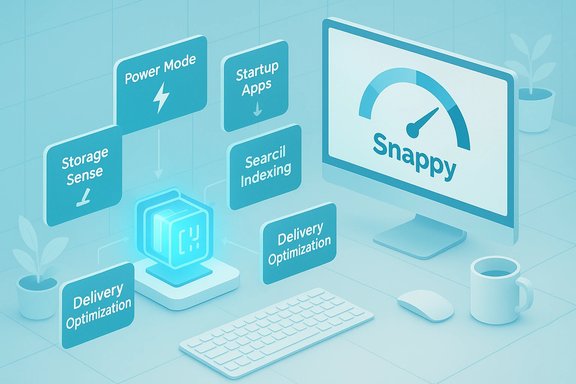 Background: why settings often beat small hardware upgrades
Modern Windows is a complex orchestration of processes, services, scheduled tasks, and device firmware. When CPU, memory, or disk are sat on by unnecessary background activity, the experience becomes jerky: apps open slower, searches lag, and the system can feel less responsive even with a fast NVMe drive and plenty of RAM.Hardware upgrades — for example moving from a SATA SSD to NVMe, or adding 8–16 GB of RAM — will usually deliver a clear, single-purpose benefit. But once a PC crosses a practical threshold of capability, system configuration and resource allocation determine the day-to-day responsiveness more than marginal hardware improvements. This is especially true for multi-tasking, file indexing, and boot responsiveness, where software behavior decides how often hardware is allowed to operate at peak throughput. Microsoft's own documentation and independent analysis make clear that configuration choices — from power mode to indexing scope — influence how Windows prioritizes CPU, I/O, and network resources.
1. Power plans: never underestimate power mode
Why power mode matters more than you think
Windows offers multiple power profiles that balance energy use and performance. On desktops, the default Balanced plan can introduce micro-latencies by keeping CPU frequencies and other device power states more conservative. Switching to a more aggressive power mode lets the CPU and peripherals respond faster to demand, reducing UI jank and application latency. Microsoft documents the Power Mode controls in Windows 11 and explains how they trade battery life for responsiveness, while independent Windows guides demonstrate how “High performance” and the hidden “Ultimate Performance” plan can be enabled and customized.Practical steps (desktop-first)
- Open Settings > System > Power & battery > Power mode and choose Best performance (or equivalent on older builds).
- For finer control, open Control Panel > Hardware and Sound > Power Options and select or create a plan, then click Change plan settings > Change advanced power settings.
- If you need the absolute maximum and you’re on a desktop or workstation class machine, consider the Ultimate Performance plan — it’s hidden on many installs but can be enabled via powercfg if desired. Use it only when thermal and power budgets are adequate.
Caveats and risks
- Power and heat: forcing higher frequencies raises power draw and fan activity; thermally constrained systems will throttle anyway, which can make results marginal or even negative.
- Battery life on laptops: sacrificing battery for performance is reasonable for desktop use, but on battery you’ll sacrifice hours of runtime for a small responsiveness gain.
- Hardware longevity: sustained higher power use can increase thermal stress; ensure good cooling before running Ultimate Performance as a permanent profile.
2. Startup apps: don’t let everything wake at once
The real cost of too many autostarts
Every app that registers itself to start with Windows adds to boot time and reserves memory and CPU cycles immediately after login. Many modern apps also maintain background helper services or update checkers that stay resident indefinitely. Disabling unnecessary startup apps often yields the most straightforward, measurable boot-time improvements and frees RAM for foreground apps. Microsoft and major Windows help sites document Task Manager and Settings as the recommended places to manage startup behavior.How to trim startup load (simple, safe)
- Press Ctrl + Shift + Esc to open Task Manager.
- Click the Startup tab, sort by Status or Startup impact, and right-click items you don’t need to launch at sign-in > Disable.
- For Microsoft Store apps or to inspect where an entry points, use Settings > Apps > Startup or right-click > Open file location to validate the binary. Use Autoruns from Sysinternals if you want comprehensive control over every autostart mechanism.
Long-term housekeeping
- Review startup entries after installing new software; many utilities add themselves by default.
- Watch scheduled tasks and services — some software uses the Task Scheduler or Windows services to re-enable components at boot.
- Consider a clean boot to diagnose which service or program is causing slowdowns.
3. Storage Sense and keeping SSDs healthy — free space matters
Why free space isn’t just about capacity
Modern SSDs need "breathing room" for garbage collection, wear leveling, and TRIM operations. As an SSD fills, write performance and sustained throughput can degrade because the controller has fewer empty blocks to rearrange data efficiently. Microsoft’s Storage Sense automates cleanup tasks, while performance analyses from independent sources agree that maintaining a buffer of free space (commonly around 10–20% depending on the drive and workload) helps preserve responsiveness. That guideline is not absolute — manufacturers and specific SSD controllers behave differently — but keeping at least 10% free is a practical starting rule for general use.Use Storage Sense to automate cleanup
- Open Settings > System > Storage > Storage Sense.
- Turn Storage Sense on and configure options: run when low on storage, delete temporary system files, and clear Recycle Bin items older than X days.
- Be conservative with automatic Downloads folder cleanup; that folder often contains files users intend to keep.
Best practices
- Keep at least 10% free on consumer SSDs; for heavy write workloads or older controllers, aim for 15–20%. This mimics over-provisioning and helps steady sustained writes.
- Use vendor tools (Samsung Magician, Crucial Storage Executive, etc. for drive-specific diagnostics and controlled over-provisioning if available.
- If you regularly near full capacity, upgrade to a larger drive — free space is as much an operational requirement as raw capacity.
Caveats
- The “10%” rule is a pragmatic guideline, not a hard specification; modern NVMe controllers handle fullness better than older SATA SSDs, but behavior varies by model and firmware. Flag this as a variable factor in your planning.
4. Background app permissions: stop unnecessary background work
How background apps drain resources silently
Universal Windows Platform apps and some Store-installed programs are allowed to run in the background for updates, live tile refreshes, and notifications. Each background process can consume CPU cycles, memory, and network bandwidth. Removing background permissions for apps you rarely use reduces noise and reserves resources for the apps you actually care about. Microsoft documents how to set Background app permissions per app under Installed apps.Steps to restrict background activity
- Settings > Apps > Installed apps.
- Click the three-dot menu next to the app > Advanced options > Background app permissions and choose Never (or Power optimized for a compromise).
- For widespread control in enterprise or pro environments, Group Policy or a registry tweak can force global background restrictions, but those approaches are more intrusive and require testing.
Trade-offs
- You’ll lose live push updates and some notification behaviors for apps set to Never. This is acceptable for many non-essential apps (third-party music stores, some chat clients, minor utilities).
- Not all apps obey these settings; legacy Win32 apps and many browser processes are unaffected and need separate management.
5. Search indexing and “Find my files”: scope matters for responsiveness
Why index scope affects system performance
Windows Search builds an index to accelerate file and content lookups. Indexing the entire disk returns thorough results but uses CPU and I/O while the index builds and when files change. Choosing a narrower index scope (Classic) makes searches faster and keeps indexing overhead lower for everyday users who store documents in predictable places. Microsoft explains the Classic vs. Enhanced modes and how indexing impacts both responsiveness and search completeness.Recommended configuration
- Settings > Privacy & security > Searching Windows.
- Choose Classic mode if you typically use Documents, Pictures, Music, and Desktop folders; choose Enhanced only if you need full-machine indexing.
- Add large folders you never search to the “excluded folders” list to reduce indexing load.
Why this beats hardware upgrades in practice
Indexing creates background disk and CPU activity that competes with foreground tasks. A trimmed index reduces I/O spikes during file writes and search updates, producing a smoother interactive experience compared to the single-dimension gains from a marginal hardware upgrade. If search responsiveness is the primary annoyance, scope adjustment trumps adding a little extra RAM.6. Delivery Optimization: peer-to-peer updates can cost you
The hidden network and CPU costs
Delivery Optimization is Windows’ peer-to-peer mechanism that distributes parts of updates to and from other PCs — either on your local network or over the internet. While this lowers aggregate bandwidth usage in multi-device homes and can increase update reliability on flaky connections, it also means your machine may be sending and receiving chunks of update files in the background. For single users with capped bandwidth or who want to minimize background network and I/O activity, restricting Delivery Optimization to local network only — or turning it off entirely — reduces background resource contention. Microsoft’s documentation outlines how Delivery Optimization works and how to limit its scope.How to limit Delivery Optimization
- Settings > Windows Update > Advanced options > Delivery Optimization.
- Toggle Allow downloads from other devices off, or choose Devices on my local network if you want local sharing but not Internet-wide sharing.
- Use the Activity Monitor on that page to see how much your PC is uploading or downloading via Delivery Optimization.
When to turn it off
- If you have a metered or low-capacity internet plan.
- If your PC is a laptop on a limited hotspot.
- If you see unexplained upload traffic that interferes with video calls or uploads.
Putting it all together: a short optimization checklist
- Switch to a higher power mode for desktops or when plugged in, but monitor thermals.
- Trim startup apps via Task Manager and Settings; use Autoruns for deep cleanup.
- Enable Storage Sense with conservative settings and keep at least ~10% of your SSD free as a practical buffer.
- Revoke background permissions for non-essential apps.
- Use Classic search indexing unless you need Enhanced full-disk indexing. Exclude very large folders.
- Limit Delivery Optimization to local network or disable it to avoid background uploads.
Advanced: when to combine settings with hardware upgrades
There’s no rule that settings alone replace hardware in every scenario. High-impact tasks — large video rendering, heavy scientific computation, or gaming at high frame rates — will always benefit from stronger hardware. The point is sequence and ROI: for a modern system with a healthy SSD and reasonable RAM (16 GB is a common sweet spot for multitasking), the low-cost, high-return changes are nearly always configuration tweaks before more expensive hardware upgrades.- Start with settings: power mode, startup cleanup, Storage Sense, and search indexing.
- Measure and observe. Use Task Manager, Resource Monitor, and drive benchmarking tools to verify impact.
- If bottlenecks persist (sustained 100% disk usage, frequent paging, or GPU-limited workloads), then plan targeted hardware changes.
Common pitfalls and how to avoid them
- Changing too many things at once: make one change, test for a day, then proceed. This isolates cause and effect.
- Over-aggressive cleanup: remove startup entries you’re unfamiliar with without validating; a disabled antivirus updater or sync client can cause more trouble than it saves. Use “Open file location” and inspect publishers before disabling.
- Believing one-size-fits-all guidelines: SSD free-space rules depend on controller, workload, and firmware. Treat percentages as rules of thumb and verify with vendor tools. Flag any precise percentage recommendation as variable.
Real-world examples: the kind of improvements to expect
- Boot time reductions: disabling heavy startup items and switching to a more aggressive power mode often cuts time-to-responsive by several seconds, depending on the number and impact of startup apps.
- Smoother multi-tab browsing and video playback: freeing background-resident memory and limiting background activity lowers the likelihood of paging and stutter.
- Faster search and fewer I/O spikes: narrowing index scope reduces the frequency of heavy indexing I/O, especially immediately after upgrades or large file changes.
When a settings tweak can hurt performance
- Enabling Ultimate Performance on a thin laptop with inadequate cooling can produce thermal throttling, reducing long-term performance.
- Turning off Delivery Optimization on an environment with multiple Windows devices on a slow link may increase download times and disrupt update reliability. Balance your bandwidth profile and update needs.
- Overly aggressive exclusion of indexing can make searches incomplete and slow in apps that depend on the index (Outlook, for example).
Conclusion: squeeze the most out of Windows without spending more
A fast, responsive Windows experience is rarely the result of a single tweak or a single upgrade. It comes from layering small, targeted settings changes that cut background noise, reserve system resources for foreground tasks, and align Windows behavior with how you use your PC. For most users with reasonably modern hardware, the six settings discussed here deliver the most immediate and cost-effective performance gains:- Power mode selection
- Startup app management
- Storage Sense and free-space discipline
- Background app permissions
- Search indexing scope
- Delivery Optimization limits
Source: MakeUseOf These 6 Windows settings affect performance more than hardware upgrades
