

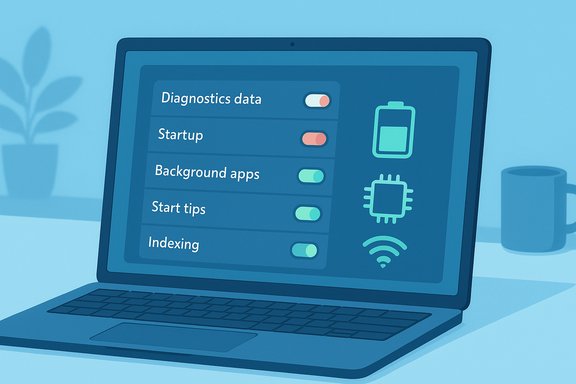
After a fresh Windows install you should turn off a handful of defaults that drain battery, chew CPU cycles, clutter the interface, and quietly share extra diagnostics — doing so will usually make a laptop feel faster, extend battery life, and reduce telemetry without breaking core functionality.
Windows ships with numerous convenience and discovery features enabled by default: telemetry tiers, Start menu recommendations, background app permissions, web‑driven search highlights, and indexing services that continuously scan your drives. For most users these are harmless conveniences, but on resource‑constrained laptops or privacy‑minded setups they add measurable background activity and increase the volume of data leaving the device. Multiple independent audits and community guides recommend a short, safe checklist of toggles to disable immediately after installation to reclaim performance, battery life, and privacy.
These are not radical changes — they are supported Settings toggles in consumer Windows editions and reversible via the Settings app or Group Policy on managed devices. That said, some advanced changes (registry edits, third‑party debloaters) carry more risk and may be reverted by major feature updates; proceed cautiously and create a restore point before making sweeping edits.
Windows collects diagnostic data to improve reliability and to personalize features. Microsoft groups this into Required (minimum device health and security signals) and Optional (richer usage, enhanced crash reports, and personalization signals). Optional telemetry powers features like Tailored experiences and helps Microsoft diagnose obscure bugs, but it also increases background uploads and broadens the data surface.
Where to change it (supported)
Open Settings → Privacy & security → Diagnostics & feedback. Set Send optional diagnostic data to Off (or choose the Required/minimum level where presented) and disable Tailored experiences if you don’t want diagnostic signals used for personalization. Use Delete diagnostic data to purge previously collected records on the device.
Benefits
Many installers and Windows itself register utilities — cloud sync agents, game launchers, update helpers — to run at sign‑in. Each autostarting program adds to boot time and consumes RAM and CPU right after login. For most users, trimming autostart items produces the single largest immediate improvement in perceived responsiveness.
Where to change it (safe)
Open Task Manager (Ctrl + Shift + Esc) → Startup tab, review entries, and disable any nonessential applications. Alternatively, open Settings → Apps → Startup and toggle items off. Keep protections such as antivirus, disk‑encryption clients, and essential cloud backups enabled.
Benefits
Many Microsoft Store apps and some desktop apps are allowed to run tasks in the background — fetching updates, syncing, sending notifications. While modern Windows distinguishes between Always, Power‑optimized, and Never, default settings often permit more background activity than necessary. On laptops this can meaningfully affect battery life.
Where to change it
Open Settings → Apps → Installed apps. For each app, use the three‑dot menu → Advanced options → Background app permissions → set to Never or Power optimized depending on needs. For classic Win32 programs, check their internal settings or remove them from Startup if they auto‑launch.
Benefits
Windows surfaces “tips”, “recommendations”, and promotional cards in the Start menu and Notifications center. These are designed to promote apps or features, but they also cause additional UI redraws, background lookups, and can be noisy or distracting. Disabling these improves interface responsiveness and produces a cleaner Start experience.
Where to change it
Open Settings → Personalization → Start and toggle Show recommendations for tips, shortcuts, new apps, and more to Off. For notification tips, open Settings → System → Notifications → expand Additional settings and uncheck Get tips, tricks, and suggestions as you use Windows.
Benefits
Windows Search indexing keeps a background index of files to produce fast local results. Search Highlights and web‑fed Start/search suggestions cause periodic network calls and render curated content in the search UI. Continuous indexing can keep disks active and, on older HDDs or small SSDs, introduce noticeable I/O and power overhead.
Where to change it
If a particular claim here seems version‑dependent on your build, verify the exact Settings path on your device before making changes — Windows occasionally reorganizes Settings across feature updates, and advanced registry/Group Policy edits should be treated with caution.
Source: Новини Live These Windows settings strain your system — 5 features worth disabling
 Background
Windows ships with numerous convenience and discovery features enabled by default: telemetry tiers, Start menu recommendations, background app permissions, web‑driven search highlights, and indexing services that continuously scan your drives. For most users these are harmless conveniences, but on resource‑constrained laptops or privacy‑minded setups they add measurable background activity and increase the volume of data leaving the device. Multiple independent audits and community guides recommend a short, safe checklist of toggles to disable immediately after installation to reclaim performance, battery life, and privacy.These are not radical changes — they are supported Settings toggles in consumer Windows editions and reversible via the Settings app or Group Policy on managed devices. That said, some advanced changes (registry edits, third‑party debloaters) carry more risk and may be reverted by major feature updates; proceed cautiously and create a restore point before making sweeping edits.
What to disable — the five priorities
Below are the five settings to consider disabling right after a clean Windows installation. Each section covers what the setting does, where to change it, the practical benefits, and potential trade‑offs.1) Activity tracking & telemetry (Diagnostic data)
What it doesWindows collects diagnostic data to improve reliability and to personalize features. Microsoft groups this into Required (minimum device health and security signals) and Optional (richer usage, enhanced crash reports, and personalization signals). Optional telemetry powers features like Tailored experiences and helps Microsoft diagnose obscure bugs, but it also increases background uploads and broadens the data surface.
Where to change it (supported)
Open Settings → Privacy & security → Diagnostics & feedback. Set Send optional diagnostic data to Off (or choose the Required/minimum level where presented) and disable Tailored experiences if you don’t want diagnostic signals used for personalization. Use Delete diagnostic data to purge previously collected records on the device.
Benefits
- Reduced background network upload (useful on metered connections).
- Smaller telemetry surface for privacy‑minded users.
- Minimal impact on core security updates and required health telemetry.
- Support staff or Microsoft automated diagnostics may ask you to temporarily re‑enable optional telemetry to reproduce or diagnose issues.
- Enterprise/managed devices may block changes with Group Policy; do not attempt to override corporate policies.
2) Unnecessary startup programs
What they doMany installers and Windows itself register utilities — cloud sync agents, game launchers, update helpers — to run at sign‑in. Each autostarting program adds to boot time and consumes RAM and CPU right after login. For most users, trimming autostart items produces the single largest immediate improvement in perceived responsiveness.
Where to change it (safe)
Open Task Manager (Ctrl + Shift + Esc) → Startup tab, review entries, and disable any nonessential applications. Alternatively, open Settings → Apps → Startup and toggle items off. Keep protections such as antivirus, disk‑encryption clients, and essential cloud backups enabled.
Benefits
- Faster boot and quicker return to a usable desktop.
- Lower memory use immediately after login.
- Reduced background CPU and network activity from auto‑updaters and launchers.
- Some apps expect to run at startup for correct behavior (sync clients, messaging apps). If you disable one and lose functionality, re‑enable it.
- Don't disable security software startup unless you have an alternative in place.
3) Background apps (UWP/Store apps and some Win32 helpers)
What they doMany Microsoft Store apps and some desktop apps are allowed to run tasks in the background — fetching updates, syncing, sending notifications. While modern Windows distinguishes between Always, Power‑optimized, and Never, default settings often permit more background activity than necessary. On laptops this can meaningfully affect battery life.
Where to change it
Open Settings → Apps → Installed apps. For each app, use the three‑dot menu → Advanced options → Background app permissions → set to Never or Power optimized depending on needs. For classic Win32 programs, check their internal settings or remove them from Startup if they auto‑launch.
Benefits
- Longer battery life on laptops by stopping background polling.
- Lower CPU and network usage when the system is idle.
- Cleaner Task Manager with fewer background entries.
- Apps that rely on background access (mail, calendar, messaging) will not deliver real‑time notifications if restricted. Use Power‑optimized where some background activity is useful.
4) Start menu tips, recommendations and notification nudges
What they doWindows surfaces “tips”, “recommendations”, and promotional cards in the Start menu and Notifications center. These are designed to promote apps or features, but they also cause additional UI redraws, background lookups, and can be noisy or distracting. Disabling these improves interface responsiveness and produces a cleaner Start experience.
Where to change it
Open Settings → Personalization → Start and toggle Show recommendations for tips, shortcuts, new apps, and more to Off. For notification tips, open Settings → System → Notifications → expand Additional settings and uncheck Get tips, tricks, and suggestions as you use Windows.
Benefits
- Cleaner Start menu with fewer promoted tiles.
- Fewer intrusive popups and on‑screen interruptions.
- Slight improvement in shell responsiveness because the OS skips rendering promotional content.
- You will not see some guided tips that could help discover features; weigh convenience against distraction. This is a user‑experience trade‑off, not a security one.
5) File indexing and Search features (indexing service, web results/search highlights)
What they doWindows Search indexing keeps a background index of files to produce fast local results. Search Highlights and web‑fed Start/search suggestions cause periodic network calls and render curated content in the search UI. Continuous indexing can keep disks active and, on older HDDs or small SSDs, introduce noticeable I/O and power overhead.
Where to change it
- To adjust indexing: Control Panel → Indexing Options → Modify (remove folders you rarely search) or pause/disable the service if you seldom use the built‑in search.
- To stop online Search Highlights: Settings → Privacy & security → Search permissions → turn Show search highlights to Off.
- To remove web results in Start: Settings → Search → More settings → disable online results (build‑dependent).
- Less disk activity and better responsiveness on older drives.
- Reduced background network traffic from search highlights.
- A more focused, local search experience.
- Search will be slower for infrequently used files unless you manually search the target folders.
- Some productivity features (like organization‑wide Search Highlights on managed accounts) may be useful in business environments; consult IT before disabling.
Advanced options and durable controls
For power users and administrators who need enduring control across updates, Group Policy and registry changes can enforce many of the toggles described above. However, these are version‑dependent and can be reversed by major Windows feature updates. Always:- Create a System Restore point or full image backup before making registry or Group Policy edits.
- Prefer the Settings UI for consumer machines to avoid breaking updates.
- For enterprise environments, use MDM and Group Policy to apply changes centrally and document each policy for IT support.
A safe, 6‑step post‑install checklist (do this first)
- Create a System Restore point and ensure your backup solution is running.
- Disable unnecessary Startup apps via Task Manager → Startup.
- Set Diagnostics & feedback → Send optional diagnostic data to Off and turn off Tailored experiences.
- Trim Background app permissions for Store apps (Settings → Apps → Installed apps → Advanced options).
- Turn off Show recommendations in Start and disable tips in Notifications.
- Revisit Indexing Options to remove rarely searched folders or disable indexing on older HDDs. Reboot and measure.
How to measure the impact
To validate gains after disabling these features, use a few quick checks:- Boot time: measure from power on to a usable desktop by timing with a stopwatch or using a cold‑boot script. Disabling heavy startup items typically yields the largest improvement.
- Task Manager: compare the number of background processes and the memory/CPU footprint before and after changes (Processes and Startup Impact columns are helpful).
- Power reports: on laptops run powercfg /batteryreport and compare estimated battery life before/after changes to see real battery gains over a typical usage session. (Note: battery profiling requires real‑world testing.
Strengths of this approach — and remaining risks
Strengths- Immediate user benefits: faster boot, less noise in the UI, lower background CPU/network use, and improved battery life on laptops.
- Privacy improvements without sacrificing required security telemetry.
- Reversible, supported controls: Most changes live in Settings so you can revert them easily after troubleshooting.
- Support implications: If you encounter a complex bug, support channels may request you re‑enable optional telemetry temporarily.
- Managed environments: Corporate policies may prevent changes or reapply defaults. Do not fight organizational controls.
- Windows updates: Major feature updates occasionally reset some promotional defaults; it’s prudent to re‑check your key toggles after such updates.
Practical example: lightweight laptop tune‑up (realistic expectations)
On a typical budget laptop (4–8 GB RAM, eMMC/slow SSD), following the checklist usually yields:- Noticeably faster login and application launch immediately after boot.
- A measurable reduction in background processes and a few hundred megabytes of RAM freed.
- Improved battery life in the order of tens of minutes, depending on workload and original defaults.
Final verdict
Disabling the five defaults outlined here — optional telemetry, unnecessary startup apps, background app permissions, Start menu tips and recommendations, and aggressive indexing/web search features — is a practical, low‑risk way to make Windows feel faster, quieter, and more private after a clean install. Use the Settings app for supported toggles, document changes, create restore points, and recheck after major Windows updates. For managed or enterprise devices, coordinate changes with IT policies. The cumulative effect of these small fixes often outweighs the time required to apply them, delivering a noticeably better user experience with minimal downside.If a particular claim here seems version‑dependent on your build, verify the exact Settings path on your device before making changes — Windows occasionally reorganizes Settings across feature updates, and advanced registry/Group Policy edits should be treated with caution.
Source: Новини Live These Windows settings strain your system — 5 features worth disabling
