

If you’ve just finished a clean install or an in-place upgrade to Windows 11, the first hour you spend on basic configuration will pay dividends in performance, privacy, and recoverability — treat it as triage rather than decoration.
A fresh Windows 11 setup or upgrade leaves you with a working system, but the default settings and OEM images are optimized for broad compatibility and convenience, not necessarily for your personal needs. That means you should verify security controls, tune power and performance, remove bloatware, and make sure recovery paths are in place before you trust the machine with important work or personal data. Practical migration guides and vendor checklists consistently push the same priorities: back up first, confirm hardware and firmware readiness, apply updates and drivers, and create a recovery image — ideally within the first 24–72 hours.
Windows 11 enforces a higher security baseline than previous versions (TPM 2.0, Secure Boot and virtualization-based protections on many machines). Those choices improve platform security but also mean you need to be deliberate about enabling encryption and preserving recovery keys, especially when you perform firmware updates or significant hardware changes. For many readers, linking a Microsoft account and enabling cloud-backed protections will simplify recovery; for organizations and power users, an image-based backup strategy is essential.
This article expands on three immediate, high-impact actions you should take after installing or upgrading to Windows 11, and then walks through an extended post‑install checklist, troubleshooting pointers, and practical security trade-offs.
Practical tip: after changing power mode, run a quick workload (browser tabs, light office tasks or a short video encode) and watch Task Manager’s CPU and power usage columns to confirm the results.
Step-by-step pointers:
If you see any vendor recommendations for ESP size or special partition configurations (especially when cloning disks), follow them — enabling encryption on a poorly prepared partition layout can complicate recovery.
However, the setup also contains friction points and trade-offs. OEM images still bundle bloatware, default settings can be noisy, and encryption without a saved recovery key can permanently lock users out of their data. Community workarounds to run Windows 11 on unsupported hardware exist, but they bring long-term update and security uncertainty; treat those as temporary measures rather than permanent solutions. Vendor and community guidance strongly recommend preparing robust backups and imaging strategies as insurance against these risks.
Practical, defensible philosophy: in the first hour, do the vital hygiene — updates, backups, key recovery, basic privacy hardening, and a restore image. Decide whether you want convenience (complete OOBE then prune) or complete control (clean install and curated configuration) and follow the runbook consistently for every machine you maintain. That discipline reduces long-term headaches and keeps your Windows 11 experience fast, private, and reliably recoverable.
If you follow the prioritized steps in this guide, you’ll cover the three most dangerous gaps users leave after installing or upgrading to Windows 11 — power/policy mismatches, notification overload, and unrecoverable encryption — and you’ll set a strong foundation for a stable, secure system moving forward.
Source: Tech Junkie Critical Steps to Setting Up Windows 11 After a Fresh Install or Upgrade
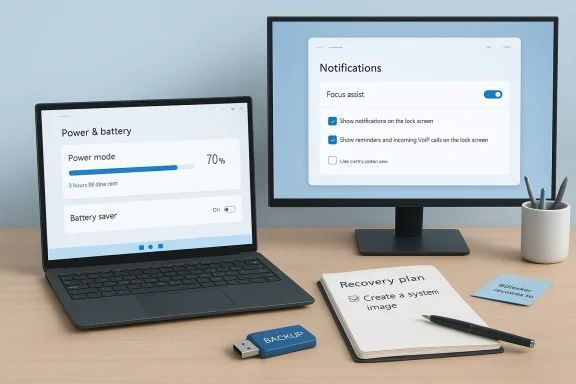 Background / Overview
A fresh Windows 11 setup or upgrade leaves you with a working system, but the default settings and OEM images are optimized for broad compatibility and convenience, not necessarily for your personal needs. That means you should verify security controls, tune power and performance, remove bloatware, and make sure recovery paths are in place before you trust the machine with important work or personal data. Practical migration guides and vendor checklists consistently push the same priorities: back up first, confirm hardware and firmware readiness, apply updates and drivers, and create a recovery image — ideally within the first 24–72 hours.Windows 11 enforces a higher security baseline than previous versions (TPM 2.0, Secure Boot and virtualization-based protections on many machines). Those choices improve platform security but also mean you need to be deliberate about enabling encryption and preserving recovery keys, especially when you perform firmware updates or significant hardware changes. For many readers, linking a Microsoft account and enabling cloud-backed protections will simplify recovery; for organizations and power users, an image-based backup strategy is essential.
This article expands on three immediate, high-impact actions you should take after installing or upgrading to Windows 11, and then walks through an extended post‑install checklist, troubleshooting pointers, and practical security trade-offs.
The three must‑do steps right after install
These three items are the best return-on-effort actions to complete in your first session with a newly installed or upgraded Windows 11 PC: adjust power settings, streamline notifications, and back up your BitLocker recovery key (or enable device encryption). Each one addresses an area that often trips users later — battery and performance behavior, overwhelming or intrusive notifications, and irrevocable data loss if encryption locks you out.No. 1 — Adjust your Power Settings (performance vs battery life)
Windows 11 includes a simple "Power Mode" selector that changes how the OS balances CPU performance, thermal targets, and battery longevity. On laptops especially, the default Balanced mode suits most users, but power behavior after an upgrade or fresh install may not match what you expect.- Open Settings (Windows key + I).
- Go to System > Power & battery.
- Under Power mode, choose the setting that matches your priorities:
- Best performance — pushes CPU and GPU behavior for speed; useful for heavy workloads and gaming.
- Balanced — the default compromise for most users.
- Best power efficiency — reduces power draw for long battery life.
- If you use a laptop, configure separate profiles for On battery and Plugged in so the system behaves optimally in both scenarios.
Practical tip: after changing power mode, run a quick workload (browser tabs, light office tasks or a short video encode) and watch Task Manager’s CPU and power usage columns to confirm the results.
No. 2 — Streamline Notifications
By default, Windows surfaces notifications liberally — system messages, app updates, and third-party app toasts can all push onto your screen. A noisy desktop reduces productivity and can mask important alerts.- Open Settings → System > Notifications.
- Use the master toggle to pause notifications temporarily, then review the list of apps below.
- Turn off non-essential notifications (games, trialware, bundled apps). Keep notifications for security alerts or communications apps you rely on.
- Fine-tune priority and focus behavior via Focus assist so critical alerts pass through during work sessions or presentations.
No. 3 — Back up your BitLocker recovery key (and enable device encryption)
If you plan to enable BitLocker (Windows 11 Pro) or use the built-in Device encryption available on many consumer devices, backing up the recovery key before you rely on the device is non-negotiable. Losing the recovery key after enabling encryption can mean permanent loss of access to files.- If your device used a Microsoft account during setup, Windows will often offer to save the recovery key to your Microsoft account. Confirm that the key is present in your account’s recovery keys area.
- For local/account-less setups, export the recovery key and store copies in multiple safe locations: a password manager that supports secure notes, an offline encrypted backup, or a secured company key escrow if in enterprise.
- If you’re using BitLocker with a hardware change planned (disk, motherboard, TPM firmware), export the key first — hardware changes commonly trigger recovery requests.
Step-by-step pointers:
- Open Settings → Privacy & security → Device encryption (or search for “BitLocker” on Pro editions).
- Turn on Device encryption / BitLocker.
- Confirm the recovery key has been saved to your Microsoft account or export it to secure storage off-device.
- Record the recovery key in at least two independent safe locations.
Post-install checklist: the next 20–90 minutes
After the three core actions above, work through this prioritized checklist to lock down the machine, ensure drivers and updates are correct, and make restorability painless.1. Apply Windows Update and OEM drivers (repeat until clean)
- Run Windows Update and install everything. Reboot and repeat until no pending updates remain.
- Then check your OEM or component vendor (GPU, Wi‑Fi) for manufacturer drivers if you need the very latest versions for performance or stability.
- Critical device and firmware updates are frequently the cause of post-upgrade issues; the consensus advice is to do updates and driver installs immediately after the first boot.
2. Create a restore point and an image backup
- Create a System Restore point (Control Panel → Recovery → Configure System Restore → Create).
- For full recoverability, create a bootable recovery USB and a full disk image using tools such as Macrium Reflect, built-in system image, or any trusted imaging solution.
- Maintain an offline copy of the image on a fast external drive — that image is your fastest rollback path if a feature update or driver causes instability. Multiple migration guides and vendor checklists recommend image capture within the first 24 hours.
3. Link your digital license to your Microsoft account (if available)
If your PC uses a digital license, sign in with the associated Microsoft account and confirm activation. This simplifies re‑activation after hardware changes and is especially helpful when you rely on Microsoft’s account-based recovery flows.4. Configure OneDrive PC folder backup (Desktop, Documents, Pictures)
For most users, enabling OneDrive’s PC folder backup protects Desktop, Documents, and Pictures without manual syncing. Confirm Files On‑Demand if disk space is tight. Multiple guides recommend this as a low‑friction first-line backup for user data.5. Remove OEM bloatware and unwanted apps
- Use Settings → Apps → Installed apps to uninstall unnecessary applications.
- Tools like O&O AppBuster can help identify safe removals for preinstalled apps without breaking systems.
- Remove vendor trial software you don’t use; it’s low-hanging fruit for improving responsiveness.
6. Harden privacy and security settings
- Open Windows Security and confirm Real‑time protection, Firewall, and other protections show green.
- In Settings → Privacy & security, review camera, microphone and location permissions for installed apps.
- Disable telemetry or tailored experiences only if you understand the trade-offs for personalization and diagnostics. Security-first guidance is a recurring theme in vendor checklists.
7. Check Device Manager and confirm critical device drivers
Open Device Manager and confirm no devices show errors. If something’s missing (audio, fingerprint sensor, Wi‑Fi), download vendor drivers and keep them on a USB for emergency reinstalls. Many upgrade troubleshooting threads point to missing drivers as the main culprit behind peripheral problems.8. Configure Sign-in options (Windows Hello, PIN)
Set up Windows Hello face recognition or fingerprint for faster secure login, and enable a PIN as a reliable fallback. For enterprise users, consider security key options and conditional access controls.Troubleshooting and known post‑install hazards
No migration is risk-free. Here are the most common failure modes and how to handle them.- Installer or upgrade failures: if Setup fails early, run the PC Health Check and review firmware settings (TPM, Secure Boot). Some setup errors are resolved by disabling staged update downloads during Setup, then re-running the installer.
- Driver regressions: roll back problematic drivers in Device Manager and install vendor-supplied packages rather than relying solely on Windows Update where necessary. Keep vendor drivers saved offline to avoid being stuck without a network driver.
- Lost BitLocker key: if the device requests recovery and you don’t have the key, the only practical options are to restore a backup or reimage and lose the encrypted data. That is why saving the key externally before enabling encryption is emphasized repeatedly.
- Unsupported hardware installs and future updates: community workarounds can let Windows 11 run on unsupported machines, but Microsoft warns such systems may not receive future cumulative or feature updates. Treat these installs as experimental and maintain a robust offline backup plan.
Power users: optional but recommended tweaks
If you want deeper control after the immediate checklist, consider these measured optimizations:- Enable TRIM and confirm SSD alignment for best disk performance.
- Keep a small pagefile even if you have lots of RAM; entirely disabling it can break some applications and crash dump collection.
- Use a package manager (winget / Chocolatey) to script installs of essential apps for repeatable setups.
- Install PowerToys for productivity enhancements (FancyZones, PowerRename, Quick Accent).
- Consider a clean install (cloud download + remove everything) if you need to eliminate OEM telemetry and bloat completely — but back up first. Clean installs produce the most reproducible, long-term reliable systems for power users and IT deployments.
Security trade‑offs and the BitLocker decision
Encryption protects your data if the device is lost or stolen, but it introduces a crucial dependency: the recovery key. The balanced guidance is:- For most users on modern devices, enable device encryption or BitLocker and back up the recovery key to a Microsoft account or enterprise key escrow.
- For machines that will be frequently reprovisioned, or for imaging workflows, plan BitLocker enablement after you have a validated image and documented recovery paths.
- For enterprise deployments, integrate BitLocker key escrow into your management tooling (Intune, Active Directory) to avoid helpdesk escalations.
If you see any vendor recommendations for ESP size or special partition configurations (especially when cloning disks), follow them — enabling encryption on a poorly prepared partition layout can complicate recovery.
A suggested first‑hour runbook (quick checklist)
- Back up critical files (external disk + cloud).
- Install pending Windows updates; reboot and repeat until clean.
- Set Power mode to your preferred profile.
- Prune notifications and enable Focus assist rules.
- Enable Device encryption / BitLocker and confirm recovery key is backed up.
- Create a System Restore point and capture a full disk image.
- Remove obvious bloatware and install essential apps.
- Link your Microsoft account and confirm activation.
Final analysis: strengths, remaining risks, and recommended philosophy
Windows 11’s setup experience balances convenience and modern security. The strengths are clear: a security-first design (TPM, Secure Boot), integrated cloud features (OneDrive, Microsoft account), and a generally well-streamlined upgrade path when you use the supported tools. These factors make Windows 11 a strong platform for most users and enterprises.However, the setup also contains friction points and trade-offs. OEM images still bundle bloatware, default settings can be noisy, and encryption without a saved recovery key can permanently lock users out of their data. Community workarounds to run Windows 11 on unsupported hardware exist, but they bring long-term update and security uncertainty; treat those as temporary measures rather than permanent solutions. Vendor and community guidance strongly recommend preparing robust backups and imaging strategies as insurance against these risks.
Practical, defensible philosophy: in the first hour, do the vital hygiene — updates, backups, key recovery, basic privacy hardening, and a restore image. Decide whether you want convenience (complete OOBE then prune) or complete control (clean install and curated configuration) and follow the runbook consistently for every machine you maintain. That discipline reduces long-term headaches and keeps your Windows 11 experience fast, private, and reliably recoverable.
If you follow the prioritized steps in this guide, you’ll cover the three most dangerous gaps users leave after installing or upgrading to Windows 11 — power/policy mismatches, notification overload, and unrecoverable encryption — and you’ll set a strong foundation for a stable, secure system moving forward.
Source: Tech Junkie Critical Steps to Setting Up Windows 11 After a Fresh Install or Upgrade
