

If your conversations with an AI assistant ever felt a little too familiar, there’s a very good reason: most consumer chatbots keep a persistent file on you — your chat transcripts, distilled “memories,” and sometimes even the right to use those words to train future models. What started as an obvious convenience (remembering your preferences, finishing where you left off) has become a broad data-collection pipeline that fuels personalization, product development and, in some cases, advertising. This feature article walks through exactly what those files contain, the concrete settings you should change today across the big assistants, how to verify the changes actually took effect, and the trade-offs you’ll accept in return. The recommendations below are practical and can be completed in about 15 minutes; they are grounded in vendor settings and recent reporting and flag claims that require extra caution.
AI chat services collect three distinct kinds of data that together form a persistent file on users.
Why this matters: stored chats and memories can be reused in ways you wouldn’t expect — for personalization, for safety reviews that involve human reviewers, and, in a worrying development, in advertising systems. Some vendors now tie AI interactions into broader advertising or content personalization flows, which makes chat data economically valuable and legally interesting. That’s why a small sweep of privacy toggles can materially reduce your exposure.
This article summarized vendor controls and practical actions you can take immediately, then analyzed the strengths and limits of those controls. Where reporting or vendor behavior was ambiguous, the article flagged the ambiguity and advised cautious, defensive steps (rotate secrets, uninstall suspect extensions, prefer enterprise contracts). For readers who want to prioritize privacy over personalization, these steps are simple, effective and within reach — and they remove most of the obvious ways your assistant builds a file about you.
Source: Diamond Fields Advertiser Your chatbot keeps a file on you. Here’s how to delete it
 Background
AI chat services collect three distinct kinds of data that together form a persistent file on users.- Chat history (transcripts): the literal messages you send and the assistant’s replies. These are often stored in your account and shown in a timeline.
- Memories / Personalization: structured facts the assistant extracts (your name, preferences, recurring projects) so it can personalize future responses.
- Training telemetry / model-improvement data: data sampled for model training. Some vendors use customer interactions to tune or train models unless you explicitly opt out.
Why this matters: stored chats and memories can be reused in ways you wouldn’t expect — for personalization, for safety reviews that involve human reviewers, and, in a worrying development, in advertising systems. Some vendors now tie AI interactions into broader advertising or content personalization flows, which makes chat data economically valuable and legally interesting. That’s why a small sweep of privacy toggles can materially reduce your exposure.
Quickest privacy win: use Temporary / Incognito chats
There’s one action that improves privacy with near-zero setup cost: use the assistant’s temporary or incognito chat mode for anything sensitive. Temporary chats typically:- Do not save the conversation to your history.
- Do not write to persistent memories.
- Are excluded from training pipelines.
Platform-by-platform: settings you should change now
Below are practical, verified steps for the major consumer assistants. Each sub-section explains the relevant toggles, why they matter, and what to expect after you flip them. Vendor UIs change frequently; the steps below map to the specific controls and names users will usually see.ChatGPT (OpenAI)
What to change:- Delete past chats: Settings → Data controls → Delete all. This removes visible conversation history from your account. Note that memories created from past chats may persist and must be deleted separately.
- Turn off Memory: Settings → Personalization → toggle off Reference saved memories. That prevents the assistant from pulling previously stored facts into replies.
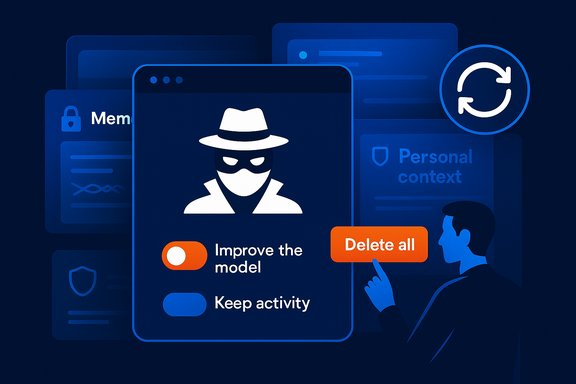
- Stop model training on your data: Settings → Data controls → toggle Improve the model to off. This opt-out prevents OpenAI from sampling your conversations to improve models.
- Use Temporary Chat for sensitive sessions. Temporary chats block history, memory writes and training for that session.
Claude (Anthropic)
What to change:- Delete past chats: From the conversation list choose All chats and bulk delete. Claude supports bulk operations but does not provide scheduled auto-delete options for all accounts.
- Stop model training: Settings → Privacy → toggle Help improve Claude to off. Anthropic asks permission before using account data for training in many configurations.
- Disable memory (paid accounts): Settings → Capabilities → toggle off Generate memory from chat history. On paid plans, memory creation can be turned off explicitly.
Gemini (Google)
What to change:- Auto-delete or stop keeping activity: Settings & help → Activity → toggle Keep activity to off or set an auto-delete interval (e.g., 3 months). By default, Gemini may retain activity for up to 18 months unless you change this.
- Turn off memory / Personal context: Settings & help → Personal context → toggle off Your past chats with Gemini. That prevents Gemini from referencing prior conversations when responding.
- Decide about Gemini in Gmail/Docs: Gemini integrated into Gmail/Docs may not use email content for training in some modes, but it is deeply integrated with Workspace smart features. If you prefer isolation, turn off Google Workspace smart features via Gmail → Settings → Google Workspace smart features → Manage Workspace smart feature settings → switch off.
Meta AI (Facebook / Instagram / WhatsApp)
What to change:- Delete past chats: Meta.ai app or website → Settings → Data & privacy → Manage your information → Delete all chats and media. This removes visible conversation history.
- Remove public posts: Settings → Data & privacy → Manage your information → Remove all public posts to ensure AI outputs you generated aren’t accidentally public.
- Delete memories: Settings → Memory → review and delete stored memories. You cannot globally stop Meta from building memories in all markets if the company has enabled certain personalization features, but you can remove individual memories.
Microsoft Copilot (consumer and enterprise)
What to change (consumer Copilot and Microsoft 365 subscribers):- Delete chat history: Microsoft account → Privacy → Copilot → Copilot apps → Delete all activity history. This clears your visible Copilot history.
- Stop ad personalization based on chats: Microsoft account → Privacy → Personalized ads & offers → set to off. This prevents Microsoft from using account activity (including Copilot activity in some flows) for personalized consumer ads.
- Turn off personalization & memory: Copilot website → profile → Privacy → toggle Personalization and memory off, then tap Delete memory to clear stored facts.
- Disable model training: Copilot website → profile → Privacy → switch model training (text and voice) to off.
- Assume admin visibility: Enterprise memories for M365 Copilot live in Exchange mailboxes and can be accessed via admin eDiscovery tools. Deleting local history may not remove admin-accessible copies. Use tenant settings and consult your IT admin for governance. Do not type anything into an enterprise Copilot you wouldn’t want your employer to see.
A 15-minute privacy sweep — concrete checklist
Follow these steps in order across all assistants you use. Doing this will remove visible history, stop immediate memory growth, and opt you out from common training pipelines.- Log in to each assistant (ChatGPT, Claude, Gemini, Meta AI, Microsoft Copilot).
- Find Settings → Data / Privacy / Personalization for each service.
- Toggle off any setting labelled Improve the model, Help improve X, Keep activity, or similar wording. Confirm the toggle remains off.
- Delete existing chat history (use Delete all where available). Export anything you want to save first.
- Delete saved Memories or Personal context entries separately — deleting history alone is often insufficient.
- Enable or use Temporary / Incognito chats for sensitive topics. If the assistant lacks one, use the service while logged out or avoid it.
- Revoke or rotate any credentials or API keys you pasted into a chat — assume they were captured. This is non-negotiable for security.
- Turn off personalized consumer ads in account privacy dashboards (Microsoft and others) where applicable.
Threats many users underestimate
- Pasted secrets are immediately high-risk. Anything you paste — API keys, passwords, legal text — should be treated as compromised unless using an explicitly private, non-cloud assistant. Vendor guidance and independent security writeups repeatedly emphasize rotation for any pasted secrets.
- Browser extensions can exfiltrate chats. Malicious or compromised browser extensions with broad site access have been shown to siphon content from AI web interfaces to third‑party analytics endpoints. If you use any questionable extensions, uninstall them, clear cookies/site data for AI domains, and rotate tokens.
- Enterprise contexts are different. In M365 tenants, Copilot artifacts (memories) can live in Exchange and be discoverable by administrators through compliance tooling. Corporate usage requires different governance and a higher bar for what to input into the assistant.
- Human review is still a thing. Many vendors disclose human-in-the-loop review for safety and quality; disabling history can reduce but not always eliminate the chance of human review exposure. Enterprise contracts and 'no human review' clauses are viable mitigations for sensitive workflows.
Trade-offs: what you lose when you turn things off
Privacy controls are rarely free. Here are the practical trade-offs to consider:- Less personalization. Turning off memory and personalization means the assistant won’t remember preferences or ongoing projects. For many users this is an acceptable cost; for others it reduces convenience.
- Richer functionality may require consent. Some features (cross-session summarization, anchored context in Docs/Gmail, enterprise knowledge capture) rely on persistent storage. Disable those and you may need to re-provide context in each session.
- Export vs. privacy: If you export conversations for safekeeping, those exports lose protections like private-mode restrictions and must be secured separately (encrypted at rest/in transit).
Verification and what to watch for
After flipping toggles, confirm they actually stuck:- Revisit each service’s privacy page and refresh to see if the toggles remain off. Some settings propagate slowly; confirm within 24–72 hours.
- Check your visible chat list — deletion should remove visible transcripts, though backend logs may linger briefly for safety monitoring.
- If you used extensions during the time of a reported exfiltration incident, follow extension removal and credential rotation steps immediately. Uninstallation is the only sure way to stop an extension’s runtime behavior.
For power users and IT teams: governance and stronger options
- Enterprise contracts matter. If your work data is sensitive, insist on enterprise offerings that explicitly prohibit training on customer data and that contractually ban human review without consent. M365 Copilot tenant controls and contracts provide stronger guarantees than consumer products.
- Prefer managed clients and allowlists for browser extensions. Enterprises should enforce allowlists for browser extensions and block unknown add-ons via Group Policy, Intune, or browser enterprise settings.
- Use local or self-hosted models when confidentiality is required. For absolute control, self-hosted or on-device models (where practical) eliminate cloud telemetry, at the cost of maintenance and sometimes capability. This is the true privacy-as-a-service option for organizations with the resources to run models themselves.
Final verdict: practical posture for everyday Windows users
- Assume that consumer assistants record chats by default. Use temporary/incognito chats for anything sensitive.
- Turn off model-training toggles (labels vary: Improve the model, Help improve X, Keep activity) in each assistant you use — it’s a low-cost privacy win. Confirm toggles remain off.
- Delete chat history and memories separately. Export what you need first, and secure exports properly.
- Rotate any credentials pasted into chat windows. Treat pasted secrets as immediately compromised and act accordingly.
- For corporate work, prefer managed, enterprise-grade assistants and follow your IT policy: do not paste regulated or proprietary data into consumer assistants.
This article summarized vendor controls and practical actions you can take immediately, then analyzed the strengths and limits of those controls. Where reporting or vendor behavior was ambiguous, the article flagged the ambiguity and advised cautious, defensive steps (rotate secrets, uninstall suspect extensions, prefer enterprise contracts). For readers who want to prioritize privacy over personalization, these steps are simple, effective and within reach — and they remove most of the obvious ways your assistant builds a file about you.
Source: Diamond Fields Advertiser Your chatbot keeps a file on you. Here’s how to delete it
