

Bottles makes running Windows applications on Linux far less mystifying: it wraps Wine and Proton runtimes in a modern GUI, isolates each app in its own “bottle,” and automates common dependency fixes so productivity software and many games can run with minimal manual fiddling. This deep-dive explains what Bottles is, how it works, how to install and configure it across major Linux distributions, and pragmatic workflows for getting legacy Windows apps and game launchers working reliably — with clear troubleshooting, performance notes, and security guidance for production use.
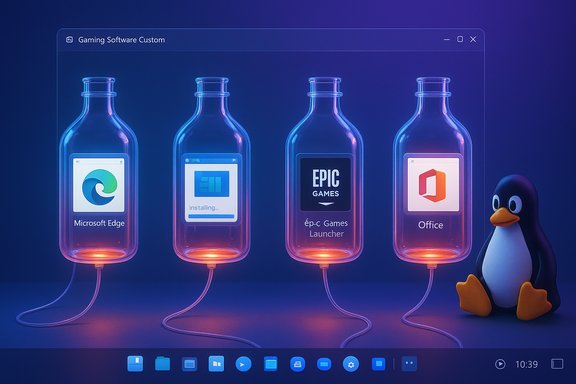
Bottles is a modern front-end for the Wine ecosystem that focuses on per-application isolation, dependency automation, and an approachable GUI workflow. It combines pre-configured environments (Gaming, Software, Custom) with a packageable runner mechanism that can use Wine or Proton builds, and it ships in multiple formats including Flatpak, AppImage and distribution packages. The project is developed in the open and distributed under GPLv3. This article assumes you want a practical recipe: install Bottles, create a bottle for your Windows program, add necessary libraries (DirectX, Visual C++ runtimes, etc., choose a runner (Wine or Proton), and then optimize for performance and integration. It also compares Bottles to alternative approaches (raw Wine, Proton inside Steam, virtual machines and containerized Windows solutions) so you can pick the right tool for the job. Community experience and editor testing also show that Bottles is the friendliest pathway for most users who want Wine-like compatibility with less manual setup.
Use Bottles as your first line of approach: install via Flatpak for a secure, updatable experience; create a bottle per app; install dependencies via Bottles’ UI; and fall back to Proton or a VM only when the app demands it. Keep snapshots, keep your GPU drivers current, and treat license and security boundaries as part of any deployment plan. With those practices, Bottles will reliably reduce friction and unlock many Windows applications on the Linux desktop.
Source: LXer: Linux News LXer: Linux News
 Background / Overview
Bottles is a modern front-end for the Wine ecosystem that focuses on per-application isolation, dependency automation, and an approachable GUI workflow. It combines pre-configured environments (Gaming, Software, Custom) with a packageable runner mechanism that can use Wine or Proton builds, and it ships in multiple formats including Flatpak, AppImage and distribution packages. The project is developed in the open and distributed under GPLv3. This article assumes you want a practical recipe: install Bottles, create a bottle for your Windows program, add necessary libraries (DirectX, Visual C++ runtimes, etc., choose a runner (Wine or Proton), and then optimize for performance and integration. It also compares Bottles to alternative approaches (raw Wine, Proton inside Steam, virtual machines and containerized Windows solutions) so you can pick the right tool for the job. Community experience and editor testing also show that Bottles is the friendliest pathway for most users who want Wine-like compatibility with less manual setup.What Bottles Does and Why It Matters
The core idea
Bottles introduces the “bottle” concept: each bottle is an isolated environment (a Wine prefix) with its own configuration, dependencies, and runtime. That isolation reduces conflicts, lets different apps run with different Wine/Proton versions, and makes rollbacks and backups straightforward. Bottles also automates many repetitive tasks: installing common DLLs and redistributables, enabling DXVK/VKD3D for DirectX translation, and applying environment tweaks tailored for games or productivity software.Key features at a glance
- Per-app isolation — Keep one app’s tweaks from breaking another.
- Automated dependency management — Install DirectX, Visual C++ redistributables, Mono, and other common components on demand.
- Multiple runners — Switch between Wine and Proton runtimes to leverage different compatibility layers and patches.
- Pre-configured environments — Gaming and Software templates provide sensible defaults.
- Backups and restore — Snapshot a bottle before risky changes, and roll back if necessary.
Install Bottles — recommended methods
Bottles is available in several packaging formats. The recommended and most portable option is the Flatpak from Flathub, but AppImage, AUR and distro packages are also used in the wild. Choose the installer that best matches your distribution and security posture.1) Flatpak (recommended — best sandboxing and updates)
Flatpak is the preferred distribution channel for Bottles because it provides consistent runtimes, easy updates via Flathub, and improved sandboxing. To install via Flatpak:- Ensure Flatpak is installed on your system (most modern distros have Flatpak available).
- Install from Flathub: flatpak install flathub com.usebottles.bottles.
- Launch Bottles from your desktop environment menu or flatpak run com.usebottles.bottles.
2) AppImage
AppImage provides a portable single-file application. You download the Bottles AppImage, mark it executable (chmod +x Bottles*.AppImage), and run it. This is handy for testing or running Bottles on distributions without Flatpak. The AppImage build includes helper tooling to fetch Wine and required drivers.3) Distribution packages and AUR
Arch-based users can use the AUR package for Bottles (bottles or bottles-git for bleeding-edge). Some distributions offer Bottles in their repositories or as a downloadable package, but maintainers vary in freshness. If you prefer system packages, verify the package source and version.4) Building from source
Developers and contributors can build Bottles from the GitHub repository. The project provides Flatpak-based build instructions. Building yourself is useful for testing pre-release features but requires developer tooling. The project follows GNOME code of conduct and is hosted openly on GitHub.Creating and Configuring Bottles
Choose the right environment
When creating a new bottle, Bottles asks you to pick an environment:- Gaming — Enables gaming optimizations (esync/fsync, DXVK, VKD3D), friendly defaults for game stores, and common gaming dependencies. Use this for games and launchers.
- Software — Focuses on stability and common productivity app dependencies. Use this for Office suites, legacy business apps, and utilities.
- Custom — Gives you granular control over installed libraries, DLL overrides, environment variables, and runner selection. Use this when you must mirror a Windows environment precisely.
Runners: Wine vs Proton
Bottles supports multiple “runners” — the actual compatibility engines that execute Windows binaries.- Wine: The classic compatibility layer; broadly compatible and the most tested path for non-gaming software.
- Proton: A gaming-focused Wine fork maintained by Valve, bundled with DXVK and other game patches that improve compatibility for many DirectX titles. Bottles can install Proton runners and let you switch per-bottle. Use Proton when Valve-specific patches or performance tweaks are required.
Installing dependencies
Bottles includes an automated dependency installer that covers common redistributables (DirectX libraries, Visual C++ redistributables, .NET/Mono, MSXML, etc.. Use the “Dependencies” pane inside a bottle to let Bottles download and install these components. If dependency installation fails (common on unusual distributions or when network resources are blocked), the UI provides logs to guide manual fixes.Step-by-step: Quickstart (Create a bottle & run an .exe)
- Install Bottles (Flatpak recommended).
- Launch Bottles and click “New Bottle.” Choose Gaming, Software, or Custom.
- Name the bottle and let Bottles create the prefix. The app will initialize Wine/Proton and generate a bottle config.
- Open the bottle, go to Dependencies, and install required redistributables (e.g., d3dx9, vcrun2019) if the app requires them.
- In the Files or Applications tab, run the installer (.exe or .msi) or use the contextual menu from your file manager to “Run with Bottles.”
- After installation, use the bottle’s Run button to launch the app. If it fails, check the integrated task manager and logs for errors, then try switching runners or toggling DXVK/VKD3D.
Troubleshooting common issues
Bottles reduces manual workload, but some problems still require hands-on fixes. Below are frequent failure modes and practical remedies.1) Installer hangs or fails during dependency installation
- Check the Bottles logs in the bottle UI to identify which dependency failed. Common culprits include DirectX installers and specific d3dx packages. Some distributions’ sandboxing or network blockers can interfere.
- Try switching the runner (Wine → Proton or a different Wine version) and recreate the bottle if the problem persists.
2) DX9/DX11/DX12 rendering errors in games
- Ensure DXVK or VKD3D is enabled in the bottle if the game uses DirectX 9/11/12. Bottles can install and toggle these libraries automatically. For Vulkan-backed translation to work, your GPU drivers must have good Vulkan support (Mesa for AMD/Intel or vendor drivers for NVIDIA).
- If performance is poor, check that you’re not using the Flatpak sandboxed GPU path with older GPU drivers; on some distros a Flatpak-specific GPU workaround is required. Flathub notes and Bottles release notes may include specific guidance.
3) App crashes at startup with opaque errors
- Use Bottles’ integrated task manager and logs to copy stderr/stdout output. Search WineHQ AppDB and community forums for the specific error text — many fixes are per-app DLL overrides or registry tweaks.
4) Filesystem and integration quirks
- Bottles maps the bottle’s virtual C: drive and can expose host folders. If file associations or drag-and-drop fail, double-check permission and Flatpak sandbox rules (if installed via Flatpak). AppImage installs can avoid some sandbox complications but may need additional libraries.
Performance, GPU and gaming considerations
Bottles does a lot to improve gaming compatibility, but it’s constrained by the same limitations that apply to Wine and Proton.- Vulkan-based translation: DXVK and VKD3D translate Direct3D calls to Vulkan. For best performance you need up-to-date GPU drivers with robust Vulkan support (Mesa or vendor drivers). Bottles can install and enable DXVK/VKD3D automatically.
- Anti-cheat and kernel modules: Titles that rely on kernel-mode anti-cheat drivers or vendor-signed kernel modules are often incompatible with Wine/Proton and will not run under a Bottles prefix. Expect to use a native Windows install or a VM for such titles.
- Flatpak sandboxing and GPU path: Flatpak’s sandbox can complicate GPU access on some distros. Flathub and Bottles documentation provide guidance on GPU permissions and recommended workarounds. If you need maximum GPU performance or passthrough, consider native packages or VMs with GPU passthrough.
Security, Sandboxing and Licensing
Sandboxing
- Flatpak: When installed via Flatpak, Bottles runs in a sandbox with constrained permissions. This improves host safety but can occasionally interfere with device access and GPU integration. AppImage and native packages run without Flatpak sandboxing, which changes both risk and integration behavior. Choose the format that balances security and functionality for your environment.
Data and Snapshot safety
- Bottles supports backups and restores for bottles. Use snapshots before major upgrades, runner changes, or dependency installations to avoid losing a working configuration. This is particularly valuable when testing experimental runners or RC builds.
Licensing and legal considerations
- Bottles uses Wine/Proton — these tools do not include a Windows license. If you run a real Windows installer or require licensed Windows-only features, ensure you comply with Microsoft’s licensing terms. For containerized or VM approaches that use genuine Windows images, a valid Windows license is generally required. Bottles itself is GPL-3.0 licensed.
Alternatives: When to use Bottles vs other approaches
Bottles is not the only way to run Windows apps on Linux. Use this decision guide:- Use Bottles when: you want per-app isolation, GUI automation, and easier dependency management for productivity apps and many games. Great for users who prefer a graphical workflow over command-line Wine tweaking.
- Use Steam + Proton when: you’re focused on gaming and want the Steam integration, overlay, controller support and Proton’s game-specific patches. Proton is often the smoothest route for Steam titles.
- Use raw Wine or winetricks when: you need low-level control and are comfortable with manual prefix manipulation — ideal for edge-case compatibility or detailed debugging.
- Use a VM (QEMU/VirtualBox/Quickemu) when: the app needs kernel drivers, vendor-signed modules, or absolute Windows fidelity. VMs are heavier but provide the highest compatibility.
- Consider containerized Windows projects (experimental) when: you want a real Windows guest exposed as per-app windows via RDP-like techniques — these solutions can offer real Windows compatibility with tighter integration, but they carry heavier prerequisites and licensing questions. Community projects and experiments exist, and they require KVM/Docker and other kernel modules.
Advanced tips and best practices
- Keep separate bottles per app or per major component to avoid dependency conflicts. This protects your working setups and makes rollbacks easier.
- Use Bottles’ backup/restore before trying experimental Proton or pre-release runner builds. Bottles supports pre-release runners for testing but they can be unstable.
- Prefer Flatpak for consistent updates, but if you need maximum hardware access (GPU passthrough, special drivers), test AppImage or native packages.
- Keep GPU drivers up to date and use the vendor’s recommended packages for best Vulkan support — Mesa for AMD/Intel and the vendor driver for NVIDIA where required. Vulkan maturity is crucial for DXVK/VKD3D performance.
- If an app fails unpredictably after a system update, try creating a fresh bottle and migrating data rather than blindly copying a broken prefix. Some forum reports show a fresh bottle resolves hard-to-diagnose regressions.
Critical analysis — strengths and risks
Bottles’ strengths are clear: it lowers the technical bar to run Windows software on Linux, reduces prefix-management headaches, and stitches together Wine/Proton, DXVK/VKD3D, and dependency installers into a coherent GUI. For many users, that UX and the per-bottle isolation are decisive improvements over raw Wine. Community and documentation corroborate Bottles’ approach as the right tradeoff for convenience and manageability. However, there are risks and limitations:- Not a magic bullet for every app: Bottles inherits Wine’s fundamental limitations. Apps requiring kernel-mode drivers, advanced anti-cheat, or vendor-signed components will likely fail and may require a VM or native Windows. Always treat Bottles as part of a larger compatibility toolkit, not a universal solution.
- Sandbox/packaging quirks: Flatpak sandboxing improves security but can complicate GPU and device access. AppImage or system packages may avoid some sandbox constraints at the cost of reduced isolation. Test the format that best fits your use case.
- Version and runner drift: Wine and Proton evolve quickly. A working bottle today may break after an OS or driver update. Use Bottles’ snapshot features and keep a documented test matrix for critical apps.
- Edge-case instability: Community reports show occasional installer failures (DirectX/d3dx installs) and random regressions depending on distribution updates. Where reliability matters, a VM with a validated Windows image may be the better operational choice.
Conclusion
Bottles is the most approachable path today for running Windows apps on Linux without surrendering to a heavy VM workflow. Its per-app bottles, integrated dependency manager, and multi-runner support simplify the long-standing pain points of Wine. For most home users and many professionals who need occasional Windows tools or games, Bottles turns a formerly fiddly process into a repeatable, GUI-driven workflow. That said, Bottles is not a universal replacement for native Windows when kernel drivers, anti-cheat, or absolute performance are required — in those cases, a virtual machine or a native Windows installation remains the fallback.Use Bottles as your first line of approach: install via Flatpak for a secure, updatable experience; create a bottle per app; install dependencies via Bottles’ UI; and fall back to Proton or a VM only when the app demands it. Keep snapshots, keep your GPU drivers current, and treat license and security boundaries as part of any deployment plan. With those practices, Bottles will reliably reduce friction and unlock many Windows applications on the Linux desktop.
Source: LXer: Linux News LXer: Linux News
