

After years away from the Wine ecosystem, a recent community thread revived a familiar ritual: installing Wine (or Proton) on a source-driven Gentoo machine to run a GOG copy of The Outer Worlds — with the usual mix of triumph, hair-pulling, and practical workarounds that have defined Windows-on-Linux gaming for more than a decade. The conversation distilled what many veteran Linux gamers already know: the technical path is clearer and more automated than it used to be, but success still depends on careful host preparation, picking the right compatibility runner, and knowing when to fall back to virtual machines. This feature walks through the why, the how, and the sharp edges — with actionable steps tailored for Gentoo enthusiasts who want to run GOG’s The Outer Worlds with Wine/Proton while staying true to source-based control.
Wine, Proton, Proton forks and GUI front-ends have evolved into a small ecosystem that allows many Windows apps and games to run on Linux without a full Windows VM. At the heart of modern compatibility workflows are three interlocking elements:
Proton is explicitly targeted at gaming: it bundles DXVK, VKD3D and a number of Valve-provided patches that improve compatibility for Direct3D-based titles. For many games, Proton is the faster route to a working result; for others, upstream Wine or community Proton forks (such as GE-Proton) are a better fit. The community ecosystem — ProtonDB, Lutris recipes, and project forks — remains a critical part of the success story.
When the goal is a single commercial game like GOG.com’s The Outer Worlds, the practical approach is to treat the game as a case study: pick the compatibility runner that best matches community reports, ensure the host Vulkan and 32-bit stacks are healthy, and test in a disposable bottle or prefix so you can iterate quickly without risking your working environment. Bottles and other GUIs automate many of the repetitive steps, but the deeper constraints — kernel drivers, vendor-signed anti-cheat, or low-level hardware dependencies — remain outside what Wine can solve.
Key Gentoo concerns to account for:
Note: exact package names, USE flags and ebuilds vary by Gentoo tree and overlays. All Gentoo-specific commands and package names mentioned below are conceptual — double-check Portage and the Gentoo Wiki before executing system-level changes.
Practical implications:
For Gentoo users who relish tuning: this is an opportunity to combine the distro’s performance advantages with the convenience of GUI compatibility tooling. For those who prefer a quicker path, Bottles or Lutris will take much of the grunt work off your plate. In every case, prepare to iterate: run tests, snapshot your bottle, and be ready to swap Proton builds until you find the combination that makes The Outer Worlds sing on your hardware.
Source: TechPowerUp Another try to get Wine running after years // wine-proton // Gnu...
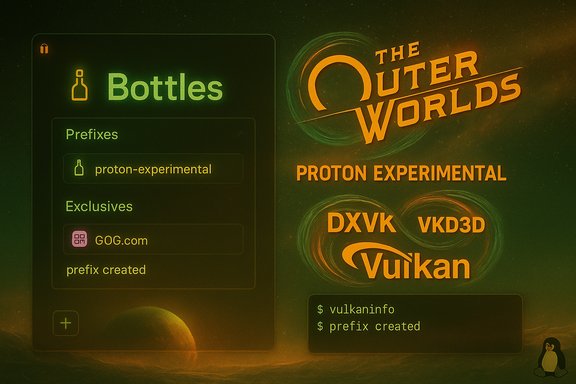 Background / Overview
Wine, Proton, Proton forks and GUI front-ends have evolved into a small ecosystem that allows many Windows apps and games to run on Linux without a full Windows VM. At the heart of modern compatibility workflows are three interlocking elements:- The compatibility engines: Wine (upstream) and Proton (Valve’s game-focused fork).
- Translation layers: DXVK and VKD3D that convert Direct3D calls into Vulkan.
- Management tooling: front-ends like Bottles, Lutris, and Heroic which automate prefixes, runtimes, and dependency installs.
Proton is explicitly targeted at gaming: it bundles DXVK, VKD3D and a number of Valve-provided patches that improve compatibility for Direct3D-based titles. For many games, Proton is the faster route to a working result; for others, upstream Wine or community Proton forks (such as GE-Proton) are a better fit. The community ecosystem — ProtonDB, Lutris recipes, and project forks — remains a critical part of the success story.
When the goal is a single commercial game like GOG.com’s The Outer Worlds, the practical approach is to treat the game as a case study: pick the compatibility runner that best matches community reports, ensure the host Vulkan and 32-bit stacks are healthy, and test in a disposable bottle or prefix so you can iterate quickly without risking your working environment. Bottles and other GUIs automate many of the repetitive steps, but the deeper constraints — kernel drivers, vendor-signed anti-cheat, or low-level hardware dependencies — remain outside what Wine can solve.
Why Gentoo Requires Extra Care
Gentoo’s appeal — compile-time control and minimalism — is also its source of friction when running Windows games. With Gentoo you control compiler flags, USE flags, and kernel configuration, which is powerful but means there are more places where a missing build option or unbuilt multilib can cause runtime breakage.Key Gentoo concerns to account for:
- Multilib / 32-bit support: Many Windows games and supporting runtimes require a healthy 32-bit environment. Gentoo’s multilib setup needs to be enabled and consistent across libraries.
- Vulkan and GPU drivers: DXVK and VKD3D depend on Vulkan drivers that properly expose both 64-bit and 32-bit ICDs. Mesa (for AMD/Intel) and the NVIDIA proprietary driver both have Gentoo-specific install notes; confirm that the 32-bit Vulkan libraries are installed and that your chosen USE flags didn’t exclude required features.
- Build-time choices: USE flags for OpenGL, Vulkan, ALSA/PulseAudio/PipeWire, and pulseaudio-compatibility (if relevant) influence runtime behavior. Some distributions ship default 32-bit Vulkan support more readily than a source-based Gentoo install does, so verification is required.
- Kernel and compositor interactions: Wayland vs X11, compositor quirks, and kernel modesetting are all things to test when performance or input capture behaves oddly.
Note: exact package names, USE flags and ebuilds vary by Gentoo tree and overlays. All Gentoo-specific commands and package names mentioned below are conceptual — double-check Portage and the Gentoo Wiki before executing system-level changes.
The Outer Worlds: What to Expect
The Outer Worlds is primarily a Direct3D-based single-player title that historically runs well under DXVK-driven translations. It does not rely on kernel-mode anti-cheat subsystems, which makes it a good candidate for Wine/Proton compared with multiplayer titles that integrate strict anti-cheat drivers.Practical implications:
- DX11 translation: Expect to use DXVK (or equivalent) for Direct3D 11 translation to Vulkan. For DX12 titles, VKD3D (or VKD3D-Proton) is the analogous translator.
- No kernel-mode anti-cheat: Because The Outer Worlds is single-player and does not rely on low-level anti-cheat hooks, compatibility is likely higher and less risky than competitive multiplayer games.
- Game-specific tweaks: Per-title community reports may recommend specific Proton builds (e.g., Proton Experimental or GE-Proton) or environment tweaks such as setting fullscreen modes, steam emulation flags, or controller mapping.
Step-by-step: Practical Gentoo-Friendly Workflow
Below is a distilled workflow that balances Gentoo’s source-driven control with the convenience of modern runtime tooling. Treat each numbered step as a checkpoint — don’t skip host verification before debugging the prefix.- Prepare the Gentoo host (verify multilib and Vulkan)
- Ensure a working multilib environment (32-bit libs). On Gentoo, confirm that your system is configured for multilib and that critical 32-bit libraries are present.
- Install or verify GPU drivers:
- For AMD/Intel: confirm you have a recent Mesa release with 32-bit Vulkan ICDs installed.
- For NVIDIA: install the official driver and ensure the 32-bit compatibility libraries and Vulkan ICD are present.
- Test Vulkan on the host with a simple utility (vulkaninfo or vulkan-tools) for both 64-bit and 32-bit contexts.
- Choose your launcher: Bottles, Lutris, or Heroic
- Bottles: GUI-first, per-bottle isolation, automated dependency installer and integrated logs. Bottles supports switching between Wine and Proton runners per-bottle and is recommended for users who value a streamlined UI. Bottles ships via Flatpak, AppImage, or distro packages and automates many of the dependency installs you’d otherwise do manually.
- Lutris: script-driven installer with wide community recipes. Great for gamers who want more control and for running non-Steam titles with fine-grained per-runner options.
- Heroic: a convenient front-end for GOG and Epic titles and integrates Proton runners for non-Steam libraries.
- Create a disposable bottle / prefix and select a runner
- Create a new bottle and choose Gaming or Custom as appropriate.
- Install a Proton runner (Proton Experimental or a specific Proton build), or select Wine if you prefer to try upstream first.
- Use a disposable bottle: it’s trivial to destroy and recreate and prevents wasted time on a broken prefix.
- Install dependencies inside the bottle
- Install common redistributables: d3dx9, vcrun2019 (or the vcrun required by the title), dotnet/Mono if necessary.
- Enable DXVK for DX9–11 games and VKD3D for DX12 titles; Bottles can toggle and install these automatically.
- If a dependency installer fails, check the bottle logs — they often show which package failed and why. Bottles provides integrated logs and a task manager to capture stderr/stdout for deeper debugging.
- Install the GOG installer and run the game
- Download the GOG offline installer (setup .exe) for The Outer Worlds and run it inside the bottle.
- After install, run the game via the bottle UI. If you prefer a launcher like Heroic or Lutris, those front-ends can download the GOG installer and automate the install inside a configured runner.
- Tweak and iterate: common runtime adjustments
- Try different Proton builds: official Proton, Proton Experimental, and community forks (GE-Proton) often change compatibility.
- Toggle DXVK/VKD3D and test with and without FSR or Vulkan-based upscalers if available.
- Adjust Wine/Proton environment variables; where relevant, enable logging to capture module-loading errors and missing DLLs. Use snapshots before risky changes.
Troubleshooting: Common Failure Modes and Remedies
Even with the right runners and a healthy Vulkan stack, a handful of persistent issues appear across users. Here’s a practical troubleshooting checklist distilled from community experience.- Installer hangs or fails during dependency installation:
- Check Bottles’ logs to identify the failing component (typically DirectX installers or d3dx packages).
- Try switching the runner (Wine → Proton) and recreate the bottle if the problem persists.
- DX9/DX11/DX12 rendering errors:
- Ensure DXVK or VKD3D is enabled. Verify the host’s Vulkan support is present and that both 32-bit and 64-bit ICDs are installed for your GPU drivers.
- Crashes with opaque errors:
- Copy the stderr/stdout from the bottle logs and search WineHQ AppDB and community threads for the exact error text. Many fixes are specific DLL overrides or registry tweaks.
- File system and integration quirks:
- If file associations or drag-and-drop fail, check Flatpak sandbox rules (if using Flatpak) and bottle permissions. AppImage installs can avoid some sandbox complications.
- Performance problems:
- Confirm you are not running inside a Flatpak sandbox that lacks optimal GPU permissions on your distribution. When in doubt, test with a native package or AppImage to see if performance improves.
Proton vs Wine: Which to Use for The Outer Worlds?
- Use Proton when community compatibility reports show a clear advantage or when Proton-specific patches fix game-breaking issues. Proton bundles DXVK and VKD3D and often has game-specific patches that upstream Wine lacks.
- Use Wine (raw) when you need fine-grained control, are troubleshooting non-gaming apps, or when a particular Proton build introduces regressions.
- Try community Proton forks (GE-Proton) if a known fix exists in the fork but hasn’t landed upstream.
Performance, Risks and Final Notes
Performance will vary by hardware, driver maturity, and exact configuration. Important risks and caveats:- Anti-cheat and kernel modules: Titles that require kernel-mode anti-cheat drivers are often incompatible with Wine/Proton. The Outer Worlds is less risky in this respect, but always check each title’s anti-cheat status.
- Flatpak sandboxing: Convenient but can complicate GPU access on certain distributions. If you encounter puzzling performance drops, try an AppImage or native package to isolate whether the sandbox is the culprit.
- Version-specific claims: If you depend on a particular Bottles or Proton release for compatibility, verify release notes directly from the projects — single blog posts or forum threads can be incomplete or become outdated after patches land. Treat single-thread anecdotes as starting points for verification.
- Back up frequently: Snapshot your bottles before major changes so you can rollback when switching runners or installing dependencies. Bottles’ snapshot/backup features are useful here.
Recommended Quick Checklist for Gentoo Users
- Verify multilib and install 32-bit Vulkan ICDs for your GPU.
- Test Vulkan with vulkaninfo (64-bit and 32-bit).
- Install Bottles via Flatpak or AppImage (or choose Lutris/Heroic if you prefer).
- Create a disposable Gaming bottle and install a Proton runner.
- Inside the bottle, install required redistributables (d3dx, vcrun, dotnet if needed).
- Enable DXVK/VKD3D; install the GOG installer for The Outer Worlds.
- Run, collect logs on failure, and try alternate Proton builds if needed.
- Snapshot working bottles and document any per-title tweaks.
Conclusion
“Another try to get Wine running after years” is not just nostalgia — it’s a reminder that the landscape improved dramatically: automated tools like Bottles, mature translation layers like DXVK/VKD3D, and Proton’s game-focused patches give modern Linux gamers real options for getting titles like The Outer Worlds running on Gentoo. The journey remains hands-on: verify the host Vulkan/32-bit stack, choose the right runner, and test in disposable prefixes. When things fail, detailed logs and community resources — AppDB, ProtonDB, and project-specific issue trackers — are the fastest way to the solution.For Gentoo users who relish tuning: this is an opportunity to combine the distro’s performance advantages with the convenience of GUI compatibility tooling. For those who prefer a quicker path, Bottles or Lutris will take much of the grunt work off your plate. In every case, prepare to iterate: run tests, snapshot your bottle, and be ready to swap Proton builds until you find the combination that makes The Outer Worlds sing on your hardware.
Source: TechPowerUp Another try to get Wine running after years // wine-proton // Gnu...
