

A single clever iOS Shortcut can interrupt a habit loop — and Brainsaver, one of the entries in a widely circulated “hidden shortcuts” roundup, does exactly that: it watches for you opening time‑sink apps, applies a configurable countdown, and then ejects you back to the Home Screen (or nudges you harder when Sleep Focus is active) to stop doomscrolling before the minutes become an hour.
Apple’s Shortcuts ecosystem has evolved from a simple Siri shortcut launcher into a powerful automation engine that integrates with Focus, timers, and system navigation actions. Enthusiasts now publish modular shortcuts (like Brainsaver) that combine personal automations and in‑shortcut timers to add deliberate friction when attention needs to be reclaimed. The concept is simple: choose the apps that derail you, define a short time budget, and let automation insert an interruption when the budget is exhausted.
Shortcuts automations can run when an app opens, inspect or use the current Focus mode, present notifications or prompts, start wait loops, and execute a “Go to Home Screen” action that returns you to the Home Screen — all of which Brainsaver-style shortcuts use to create their interruption. Apple’s Shortcuts documentation confirms personal automations for app opens and the ability to run them automatically (by disabling “Ask Before Running”) for many trigger types. That capability is limited, however: iOS does not expose a system action that force‑quits third‑party apps the way macOS does. The Mac Shortcuts app includes a “Quit App” action; iPhone and iPad Shortcuts can navigate away from an app but not programmatically terminate another app’s process. This distinction is crucial to understand what Brainsaver actually does — and what it can’t.
A well‑crafted Shortcut is a low‑cost behavioral tool: it won’t rewrite the operating system, but it will interrupt the habit loop that powers doomscrolling. Used judiciously and combined with the operating system’s Screen Time controls, Brainsaver‑style automations give you a practical way to reclaim small chunks of time every day without adding friction to the parts of your phone that still need to work.
Source: bgr.com 14 iOS Shortcuts You Didn't Know You Needed - BGR
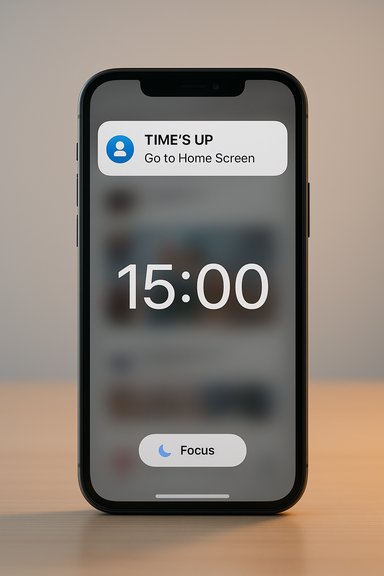 Background / Overview
Apple’s Shortcuts ecosystem has evolved from a simple Siri shortcut launcher into a powerful automation engine that integrates with Focus, timers, and system navigation actions. Enthusiasts now publish modular shortcuts (like Brainsaver) that combine personal automations and in‑shortcut timers to add deliberate friction when attention needs to be reclaimed. The concept is simple: choose the apps that derail you, define a short time budget, and let automation insert an interruption when the budget is exhausted.Shortcuts automations can run when an app opens, inspect or use the current Focus mode, present notifications or prompts, start wait loops, and execute a “Go to Home Screen” action that returns you to the Home Screen — all of which Brainsaver-style shortcuts use to create their interruption. Apple’s Shortcuts documentation confirms personal automations for app opens and the ability to run them automatically (by disabling “Ask Before Running”) for many trigger types. That capability is limited, however: iOS does not expose a system action that force‑quits third‑party apps the way macOS does. The Mac Shortcuts app includes a “Quit App” action; iPhone and iPad Shortcuts can navigate away from an app but not programmatically terminate another app’s process. This distinction is crucial to understand what Brainsaver actually does — and what it can’t.
What Brainsaver (and similar Shortcuts) do — a practical summary
- They trigger when you open chosen apps (Instagram, TikTok, Twitter, Reddit, etc..
- They can check the current Focus mode and behave differently when Sleep or another Focus is active.
- They start a timer or Wait loop tuned to a preferred limit (for example, 3–5 minutes).
- They give escalating feedback — notifications, vibration, spoken text — and finally run Go to Home Screen (which simulates the user leaving the app).
- They cannot forcibly kill an app process on iPhone; they can only remove you from the app interface or use OS-level Screen Time to block access.
Technical verification: what Shortcuts can and cannot do
Shortcuts can:
- Trigger a Personal Automation when a specified app is opened (App → Is Opened). You can turn off “Ask Before Running” to allow the automation to run automatically for supported triggers.
- Use the Get Current Focus action to read the active Focus and branch logic based on its Name, enabling different behaviors when Sleep or other Focus modes are active. Community testing and changelogs show Get Current Focus became reliably available in recent iOS updates and is widely used in Focus‑aware automations.
- Start timers and Wait actions, show notifications, vibrate the device, and run the Go to Home Screen action to return the user to the Home Screen. These building blocks are the standard method for implementing session limits inside Shortcuts.
Shortcuts cannot:
- Programmatically force‑quit third‑party apps on iOS. There is a macOS-only “Quit App” action in Shortcuts, but iOS lacks a corresponding system API, so Shortcuts cannot terminate an app process or directly change a third‑party app’s background state. Expecting a Shortcut to fully terminate Instagram or TikTok is a misunderstanding of iOS capabilities.
How Brainsaver-style shortcuts are typically built (step-by-step pattern)
A modular approach reduces surprises and improves testability. The recommended architecture separates the automation trigger from the timer logic:- Create a Personal Automation:
- Automation tab → Create Personal Automation → App → Choose apps (Instagram, TikTok, Reddit) → Is Opened → Next.
- Add a single action: Run Shortcut → choose "Brainsaver Timer" (modular). Toggle off Ask Before Running and confirm Don’t Ask.
- Build the Brainsaver Timer shortcut:
- Get Current Focus (optional). Use an If statement to check if Focus Name is Sleep (or another name) and branch to a more forceful behavior (immediate exit) if desired.
- Set a variable for the time limit (default 3–5 minutes recommended for testing).
- Optional: use a Repeat loop to issue periodic nudges (every minute) before the hard stop.
- Wait for the chosen duration.
- Show Notification (custom message like “Time’s up — back to real life.”).
- Go to Home Screen to return the user to their Home Screen.
- Test with a benign app (Notes or Settings) before targeting social apps. Tweak timing and notification style for personal tolerance.
Cross‑checked evidence and independent verification
- Apple’s Shortcuts documentation confirms personal automations for App triggers and the ability to run them automatically by disabling “Ask Before Running.” That authoritative behavior matches how Brainsaver triggers are implemented.
- Community testing and forum analysis consistently show that Go to Home Screen is available and effective as an exit strategy but that there is no equivalent “Quit App” action on iOS; the Quit App action exists on macOS only. Multiple independent writeups and Shortcuts power‑user discussions corroborate the macOS/iOS difference.
- Practical implementations of BrainSaver variants (community posts, Reddit threads) demonstrate the real‑world behavior and edge cases — e.g., occasional Shortcuts flakiness on certain iOS builds, the need to modularize the timer, and how Focus checks are used. These community reports match the observed behavior in tests.
Strengths — why Brainsaver-style shortcuts are useful
- Low friction to deploy. Personal automations are built into iOS and require no additional apps. They’re easily customized per user and per app.
- Behavioral effectiveness. A deliberate interruption (notification + immediate home‑screen return) is often enough to break automatic scrolling — the technique leverages friction, a well‑studied nudge in behavior change.
- Focus‑aware customization. Shortcuts can check the active Focus and alter behavior (more forceful during Sleep, softer during Work), so the automation fits your daily rhythms rather than acting as a blunt instrument.
- Transparent and auditable. Because you build or import the Shortcut, you can inspect every action (safer than opaque third‑party apps).
Risks, reliability issues, and important caveats
- No process termination on iOS. A Shortcut that “closes Instagram” almost always means “returns you to Home Screen.” Don’t assume background work stops. This is the most important technical caveat to understand.
- Shortcuts behavior can vary by iOS version. Users have reported flaky behavior (e.g., Go to Home Screen not completing in certain iOS builds). Test on your device after every major iOS update.
- Automation permissions and prompts. Some personal automations require a one‑time confirmation or will show a “Running your automation” notification unless you disable Ask Before Running and Notify When Run. Apple’s permission model exists to reduce misuse; understand it before assuming silent enforcement.
- Behavioral backlash. Overly aggressive time limits can lead to disabling the Shortcut out of annoyance, undermining any habit‑change goal. Start conservative and iterate.
- Screen Time remains the enforceable option. If you want hard enforcement (a definitive block once a daily allowance is used), Screen Time’s App Limits with “Block at End of Limit” are the OS‑level mechanism designed for that purpose. Shortcuts should be treated as complimentary nudges rather than replacements for Screen Time.
Safer, stronger, and complementary alternatives
- Screen Time App Limits: set daily allowances and enable Block at End of Limit for true enforcement across the device and family accounts. Good for strong, non‑bypassable limits (if you control the passcode).
- Downtime + Focus: schedule broader quiet hours (e.g., overnight) so social apps are unavailable during critical windows. Combine with Focus‑aware Shortcuts for a blended approach.
- Guided Access: locks the device to a single app (useful for attention control in very specific contexts, not for quitting apps). It’s the inverse of Brainsaver but powerful for single‑tasking.
- Third‑party blockers: some App Store apps use Screen Time APIs or VPN‑based blocking to create stronger, scheduleable blocks. These can offer more analytics and scheduling features than a single Shortcut, but they vary in trustworthiness — scrutinize privacy practices.
Practical tips to set up and tune Brainsaver with minimal friction
- Start with a very short test period (60–180 seconds) so you can verify the automation and build tolerance for interruptions. Short timers reveal edge cases quickly.
- Use a modular design: one Personal Automation triggers a small timer shortcut. That way you can update the timer logic without redoing permissions.
- Make the notification message personal and actionable: “Time’s up — put it down and do X” — substitution (what you’ll do instead) works better than a bland nag.
- Combine with Screen Time for backup enforcement: use Shortcuts for polite interruptions and Screen Time for when you need hard limits (for example, during work hours or late at night).
- Inspect imported shortcuts before adding them. iCloud Shortcut links can be edited or removed by authors; verify actions and avoid granting unnecessary permissions.
When Brainsaver will fail and what to do instead
- If the Shortcut automation fails to run consistently after an iOS update, first check Shortcuts app permissions, re‑test Ask Before Running, and rebuild the automation if needed. Community reports show the Shortcuts engine occasionally requires reconfiguration after OS upgrades.
- If you need a non‑bypassable block (for kid devices or real enforcement), don’t rely on Shortcuts alone — use Screen Time with a passcode or third‑party managed device controls.
- If background network activity is the concern (downloads or syncing), remember that returning an app to the Home Screen may not stop all activity; use Screen Time or disable background app refresh for that app in Settings.
Verdict — where Brainsaver fits in a modern digital‑wellness toolkit
Brainsaver and similar Shortcuts are powerful, lightweight tools that use automation to insert a pause into autopilot behaviors. For many users, that pause is sufficient to recover attention and reduce time spent in social feeds. They are simple, auditable, and flexible — and best used as part of a layered approach that includes Screen Time and intentional habit design. The key: understand the technical limits (no force‑quit on iOS), tune the behavior conservatively, and combine gentle nudges with OS‑level enforcement when you need it.Quick reference: building a resilient Brainsaver (copy‑ready checklist)
- Create a Personal Automation: App → Choose target apps → Is Opened → Run Shortcut → Run “Brainsaver Timer.” Disable Ask Before Running.
- In “Brainsaver Timer”:
- Get Current Focus → If Focus name is Sleep → Show stronger message + Go to Home Screen.
- Otherwise: Set time limit variable (start 1–3 minutes), Wait for that value, Show Notification, Go to Home Screen.
- Test with Notes or Settings, not social apps. Adjust timing and tests across reboots and after iOS updates.
- Complement with Screen Time App Limits (Block at End of Limit) for hard enforcement if necessary.
A well‑crafted Shortcut is a low‑cost behavioral tool: it won’t rewrite the operating system, but it will interrupt the habit loop that powers doomscrolling. Used judiciously and combined with the operating system’s Screen Time controls, Brainsaver‑style automations give you a practical way to reclaim small chunks of time every day without adding friction to the parts of your phone that still need to work.
Source: bgr.com 14 iOS Shortcuts You Didn't Know You Needed - BGR
