
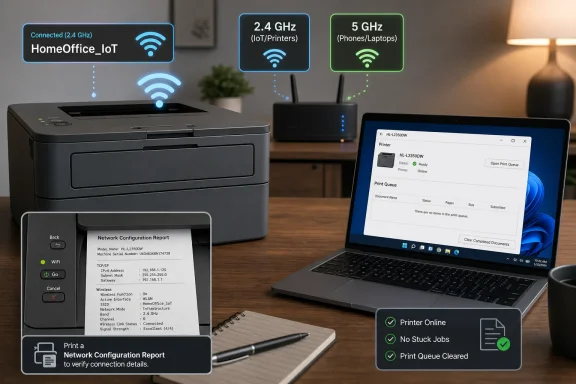
Brother’s HL-L2350DW commonly stops working after a mesh Wi-Fi upgrade because the printer supports 2.4 GHz wireless networking but not 5 GHz, while many mesh systems combine both bands under one network name and steer devices automatically. The practical fix is not exotic: give the 2.4 GHz band its own SSID, connect the printer to that network, and then repair any stale printer queue or driver settings left behind on Windows or macOS. The frustration is that a printer which appears to have “Wi-Fi problems” is often behaving exactly as designed. Mesh networking has simply made that design harder for ordinary users to see.
The Brother HL-L2350DW remains a perfectly useful monochrome laser printer in 2026 because it does the core job well: it prints quickly, cheaply, and without the inkjet drama of dried cartridges and app-dependent maintenance rituals. But its wireless hardware belongs to a more modest era of home networking. The printer supports 802.11 b/g/n wireless and Wi-Fi Direct, but its ordinary infrastructure Wi-Fi connection is a 2.4 GHz affair.
That detail used to be almost invisible. Older routers commonly exposed separate 2.4 GHz and 5 GHz network names, or users simply connected everything to the slower, longer-range network by default. A printer could sit in a corner for years, wake up when needed, grab the same network, and do its job.
Mesh systems changed the experience. They are designed to hide complexity, not reveal it. The whole sales pitch is that the user should see one Wi-Fi name, roam through the house, and let the system decide which radio, band, and node is best.
That is usually good for phones, tablets, laptops, and streaming boxes. It is less forgiving for older printers, smart plugs, cameras, thermostats, and other devices that only speak 2.4 GHz. When the network abstraction leaks, the user sees a familiar failure: the printer is online one moment, missing the next, and “offline” in Windows even though nothing obvious has changed.
That is sensible for a modern laptop. A laptop close to the router should often prefer 5 GHz or 6 GHz because those bands can deliver higher throughput and avoid some of the congestion that plagues 2.4 GHz. Move farther away, and the system may push the client to another node or band.
The Brother HL-L2350DW is not that kind of client. It cannot join a 5 GHz network. It needs a 2.4 GHz SSID, a compatible security mode, and enough signal stability to stay attached while sleeping and waking.
Brother’s own guidance for mesh and dual-band setups points directly at the issue: separate the mesh network name into different bands and connect the Brother machine to the 2.4 GHz network. That advice may feel like a step backward from the mesh ideal, but it is the cleanest fix because it removes ambiguity. The printer no longer has to live behind a network name that represents radios it cannot use.
The name matters. If both 2.4 GHz and 5 GHz bands share the same SSID, the printer may appear to connect during setup and then become unreliable later. If the 5 GHz band has a distinct name and the 2.4 GHz band has a distinct name, there is no mystery about where the printer belongs.
This is also where many users get tripped up by mesh terminology. Some systems call this an “IoT network,” “legacy network,” “2.4 GHz only network,” or “compatibility mode.” Others make it annoyingly hard to split bands at all. In that case, look for options that temporarily disable 5 GHz during setup, create a separate guest or IoT SSID limited to 2.4 GHz, or turn off band steering for specific devices.
The goal is not to make the whole house slower. The goal is to give the printer a stable lane. Your phone and laptop can keep using the fast band; the printer just needs a radio it understands.
Restart the router or mesh nodes first. Wait until the Wi-Fi network is fully available again. Then restart the computer, followed by the printer.
That sequence matters because printers often hold on to stale network assumptions longer than users expect. A mesh upgrade may change DHCP leases, IP ranges, node associations, or the way devices discover one another. If the computer comes back before the network is stable, or the printer wakes before the 2.4 GHz SSID is ready, Windows or macOS can cache the wrong state and call the device offline.
Placement is the other unglamorous fix. The HL-L2350DW does not need gaming-router bandwidth, but it does need a stable 2.4 GHz signal. Keep it away from thick walls, metal shelving, microwaves, and the dead zone between mesh nodes where a client may be passed back and forth.
From the printer’s control panel, use the arrow keys to choose Print Reports, select Network Config, press OK, and then press Go. The report should show the printer’s IP address, subnet mask, wireless node name, and MAC address.
The IP address is the first thing to inspect. If your computer is on a 192.168.1.x network and the printer is on 192.168.50.x, they may not see each other depending on the router configuration. If the printer has no useful IP address, the Wi-Fi connection is not really established.
The node name can also help confirm that you are looking at the wireless interface. Brother wireless nodes often appear with a BRW-style identifier. If that report points to the wrong SSID, an unexpected address, or no valid network at all, the problem is not Windows being fussy. The printer is not properly attached.
This step is tedious because the printer’s small control panel is not built for pleasant password entry. Still, doing it directly avoids a common trap: assuming the printer will automatically reinterpret the old network after the mesh system changes. It may not.
Use the exact SSID and password configured in the mesh app. Avoid clever characters in a temporary test network name if the printer refuses to join; once the connection works, you can decide whether to keep the simpler SSID permanently.
If the printer connects successfully, print another Network Configuration Report. A valid IP address on the same network as the computer is the dividing line between Wi-Fi troubleshooting and operating-system troubleshooting.
On Windows 11, open Settings, go to Bluetooth & devices, choose Printers & scanners, select the Brother printer, and open the print queue. Cancel stuck jobs and make sure the device is not paused. On Windows 10, the older Devices and Printers path may still expose the familiar “See what’s printing” queue, where “Use Printer Offline” and “Pause Printing” should be unchecked.
If the printer is reachable by IP address but Windows will not print, the driver port is the next suspect. Mesh routers often assign a new IP address after a network rebuild. Windows may still be trying to send jobs to the address the printer used last week.
Brother’s Network Connection Repair Tool exists for exactly this kind of failure. It locates the printer and updates the IP address inside the printer driver. That is not magic; it is housekeeping. But it is the right housekeeping for a printer that moved addresses while the operating system was not paying attention.
The first check is the same: verify that the Mac and printer are on the same Wi-Fi network or at least the same routed local network. If the Mac is on a guest network and the printer is on the main network, discovery may fail even if both have internet access. Guest networks frequently isolate clients from one another by design.
Then remove and re-add the printer in macOS. This forces the Mac to rediscover the device rather than relying on a stale entry. If the printer appears through AirPrint, that may be enough. If Brother’s driver package is needed for fuller functionality, install the current package from Brother rather than reusing an old download from a previous router era.
As with Windows, do not skip the printer’s own report. macOS discovery can be elegant when it works and opaque when it fails. An IP address on the wrong subnet is still an IP address on the wrong subnet, no matter how polished the settings panel looks.
The reset path is straightforward: open Network from the control panel, choose Network Reset, confirm Yes, and let the machine restart. After that, use the Setup Wizard to join the dedicated 2.4 GHz network again.
This is the point where many users finally succeed because the printer is no longer clinging to an old SSID, old password, or old DHCP lease. But the reset only helps if the network it rejoins is compatible. Resetting the printer and then sending it back into the same merged-band mesh configuration just recreates the conditions that caused the failure.
If a clean reset and fresh setup still cannot hold a connection, the likely causes narrow quickly: weak signal, router compatibility settings, security-mode mismatch, defective wireless hardware, or a mesh system that refuses to provide a usable 2.4 GHz-only path.
But USB is not a real replacement for network printing in a household or small office. It ties the printer to one machine unless that computer is left on and configured to share the printer. That adds its own failure points, especially across Windows and macOS clients.
Ethernet would be the cleaner fallback, but this model does not provide wired Ethernet. That distinction matters because users often assume every “DW” Brother model includes a network jack. The HL-L2350DW does not; wireless and USB are the practical connection choices.
That makes the 2.4 GHz Wi-Fi setup more than a preference. For shared printing without a host computer, it is the path.
If the phone is on the 5 GHz band and the printer is on 2.4 GHz, that can still be fine as long as both bands belong to the same local network and the router allows devices to talk across them. The printer does not need the phone to be on 2.4 GHz; it needs the printer itself to be on 2.4 GHz and reachable.
Wi-Fi Direct is different. It lets a device connect directly to the printer rather than going through the router. That can be useful for quick jobs or temporary setups, but it is less convenient as the default mode in a home or office where multiple devices need to print.
The app question is also worth getting right. For this model, Brother iPrint&Scan remains the relevant mobile path. Newer Brother app branding can confuse users, but app support depends on the model list, not the age of the phone.
The safer setting for this printer class is usually WPA2-Personal with AES. Mixed WPA2/WPA3 modes may work, but if setup fails repeatedly, temporarily testing WPA2-only on the 2.4 GHz SSID is reasonable. WEP should be avoided; it is obsolete and insecure.
Do not disable security just to make the printer happy, except for a brief diagnostic test in a controlled environment. A printer is not worth an open network. If the router’s “IoT network” feature isolates devices from the main LAN, also check whether that isolation prevents computers from reaching the printer.
Mesh vendors increasingly treat IoT devices as untrusted clients, which is not irrational. But printing requires local communication. A perfectly isolated printer is secure in the same way a locked filing cabinet at the bottom of a lake is secure.
That creates a support gap. The router app tells the user everything is fine. The printer says it is offline. Windows shrugs. The actual issue lives between them: an SSID abstraction that is too clever for a single-band client.
For sysadmins and IT pros, none of this is surprising. Separate SSIDs, DHCP reservations, known-good security profiles, and static printer ports are old tools. What is new is how often home users now need enterprise-style network hygiene just to print a shipping label.
The best long-term setup is boring: a dedicated 2.4 GHz SSID for legacy and IoT devices, a sensible WPA2-compatible security profile, a DHCP reservation for the printer, and a freshly installed driver or repaired port on each computer. Once that is done, the printer can go back to being invisible in the good way.
 The Mesh Router Did Not Break the Printer — It Exposed Its Age
The Brother HL-L2350DW remains a perfectly useful monochrome laser printer in 2026 because it does the core job well: it prints quickly, cheaply, and without the inkjet drama of dried cartridges and app-dependent maintenance rituals. But its wireless hardware belongs to a more modest era of home networking. The printer supports 802.11 b/g/n wireless and Wi-Fi Direct, but its ordinary infrastructure Wi-Fi connection is a 2.4 GHz affair.That detail used to be almost invisible. Older routers commonly exposed separate 2.4 GHz and 5 GHz network names, or users simply connected everything to the slower, longer-range network by default. A printer could sit in a corner for years, wake up when needed, grab the same network, and do its job.
Mesh systems changed the experience. They are designed to hide complexity, not reveal it. The whole sales pitch is that the user should see one Wi-Fi name, roam through the house, and let the system decide which radio, band, and node is best.
That is usually good for phones, tablets, laptops, and streaming boxes. It is less forgiving for older printers, smart plugs, cameras, thermostats, and other devices that only speak 2.4 GHz. When the network abstraction leaks, the user sees a familiar failure: the printer is online one moment, missing the next, and “offline” in Windows even though nothing obvious has changed.
One Network Name Is Convenient Until a Single-Band Device Joins
The central problem is the single SSID. Many mesh routers broadcast one friendly network name across 2.4 GHz, 5 GHz, and sometimes 6 GHz bands. The router then uses band steering to nudge clients toward the band it thinks is most appropriate.That is sensible for a modern laptop. A laptop close to the router should often prefer 5 GHz or 6 GHz because those bands can deliver higher throughput and avoid some of the congestion that plagues 2.4 GHz. Move farther away, and the system may push the client to another node or band.
The Brother HL-L2350DW is not that kind of client. It cannot join a 5 GHz network. It needs a 2.4 GHz SSID, a compatible security mode, and enough signal stability to stay attached while sleeping and waking.
Brother’s own guidance for mesh and dual-band setups points directly at the issue: separate the mesh network name into different bands and connect the Brother machine to the 2.4 GHz network. That advice may feel like a step backward from the mesh ideal, but it is the cleanest fix because it removes ambiguity. The printer no longer has to live behind a network name that represents radios it cannot use.
The Official Fix Is Boring, Which Is Why It Works
The most reliable repair starts in the router or mesh app, not on the printer. Create a dedicated 2.4 GHz network name — for example, a main network for modern devices and a clearly marked 2.4 GHz network for printers and other legacy hardware. Then connect the HL-L2350DW only to that 2.4 GHz SSID.The name matters. If both 2.4 GHz and 5 GHz bands share the same SSID, the printer may appear to connect during setup and then become unreliable later. If the 5 GHz band has a distinct name and the 2.4 GHz band has a distinct name, there is no mystery about where the printer belongs.
This is also where many users get tripped up by mesh terminology. Some systems call this an “IoT network,” “legacy network,” “2.4 GHz only network,” or “compatibility mode.” Others make it annoyingly hard to split bands at all. In that case, look for options that temporarily disable 5 GHz during setup, create a separate guest or IoT SSID limited to 2.4 GHz, or turn off band steering for specific devices.
The goal is not to make the whole house slower. The goal is to give the printer a stable lane. Your phone and laptop can keep using the fast band; the printer just needs a radio it understands.
Restarting Still Matters, but Only After the Network Makes Sense
Power cycling is over-prescribed in tech support because it sometimes works for reasons nobody wants to document. Here, it has a more concrete role. Once the mesh network is configured properly, restarting devices in the right order helps the printer rejoin a clean environment.Restart the router or mesh nodes first. Wait until the Wi-Fi network is fully available again. Then restart the computer, followed by the printer.
That sequence matters because printers often hold on to stale network assumptions longer than users expect. A mesh upgrade may change DHCP leases, IP ranges, node associations, or the way devices discover one another. If the computer comes back before the network is stable, or the printer wakes before the 2.4 GHz SSID is ready, Windows or macOS can cache the wrong state and call the device offline.
Placement is the other unglamorous fix. The HL-L2350DW does not need gaming-router bandwidth, but it does need a stable 2.4 GHz signal. Keep it away from thick walls, metal shelving, microwaves, and the dead zone between mesh nodes where a client may be passed back and forth.
The Network Configuration Report Is the Printer’s Confession
Before tearing out drivers or resetting everything, print the Network Configuration Report. It is the fastest way to tell whether the printer is actually on the network you think it is on.From the printer’s control panel, use the arrow keys to choose Print Reports, select Network Config, press OK, and then press Go. The report should show the printer’s IP address, subnet mask, wireless node name, and MAC address.
The IP address is the first thing to inspect. If your computer is on a 192.168.1.x network and the printer is on 192.168.50.x, they may not see each other depending on the router configuration. If the printer has no useful IP address, the Wi-Fi connection is not really established.
The node name can also help confirm that you are looking at the wireless interface. Brother wireless nodes often appear with a BRW-style identifier. If that report points to the wrong SSID, an unexpected address, or no valid network at all, the problem is not Windows being fussy. The printer is not properly attached.
Rejoin Wi-Fi from the Printer, Not from Memory
Once the 2.4 GHz SSID exists, use the printer’s built-in Setup Wizard to connect from scratch. On the HL-L2350DW, open Network, choose WLAN or Wi-Fi, select Setup Wizard, enable WLAN when prompted, and pick the 2.4 GHz network name from the SSID list. Enter the network key carefully.This step is tedious because the printer’s small control panel is not built for pleasant password entry. Still, doing it directly avoids a common trap: assuming the printer will automatically reinterpret the old network after the mesh system changes. It may not.
Use the exact SSID and password configured in the mesh app. Avoid clever characters in a temporary test network name if the printer refuses to join; once the connection works, you can decide whether to keep the simpler SSID permanently.
If the printer connects successfully, print another Network Configuration Report. A valid IP address on the same network as the computer is the dividing line between Wi-Fi troubleshooting and operating-system troubleshooting.
Windows May Keep Arguing After Wi-Fi Is Fixed
Windows can make a solved network problem look unsolved. If the printer went missing during the router upgrade, the print queue may still contain stuck jobs, the printer may be marked offline, or the driver may point to an old IP address.On Windows 11, open Settings, go to Bluetooth & devices, choose Printers & scanners, select the Brother printer, and open the print queue. Cancel stuck jobs and make sure the device is not paused. On Windows 10, the older Devices and Printers path may still expose the familiar “See what’s printing” queue, where “Use Printer Offline” and “Pause Printing” should be unchecked.
If the printer is reachable by IP address but Windows will not print, the driver port is the next suspect. Mesh routers often assign a new IP address after a network rebuild. Windows may still be trying to send jobs to the address the printer used last week.
Brother’s Network Connection Repair Tool exists for exactly this kind of failure. It locates the printer and updates the IP address inside the printer driver. That is not magic; it is housekeeping. But it is the right housekeeping for a printer that moved addresses while the operating system was not paying attention.
macOS Has a Different Failure Mode, but the Same Network Truth
On a Mac, the failure is often less theatrical. The printer may simply disappear from Printers & Scanners, sit idle with old jobs, or fail to show up as an AirPrint destination after the network change.The first check is the same: verify that the Mac and printer are on the same Wi-Fi network or at least the same routed local network. If the Mac is on a guest network and the printer is on the main network, discovery may fail even if both have internet access. Guest networks frequently isolate clients from one another by design.
Then remove and re-add the printer in macOS. This forces the Mac to rediscover the device rather than relying on a stale entry. If the printer appears through AirPrint, that may be enough. If Brother’s driver package is needed for fuller functionality, install the current package from Brother rather than reusing an old download from a previous router era.
As with Windows, do not skip the printer’s own report. macOS discovery can be elegant when it works and opaque when it fails. An IP address on the wrong subnet is still an IP address on the wrong subnet, no matter how polished the settings panel looks.
The Network Reset Is the Last Resort, Not the First Ritual
A network reset on the HL-L2350DW returns the printer’s network settings to factory defaults. It clears saved wireless credentials, IP configuration, and related network state. That makes it useful, but it also means you should not do it casually before you have created a proper 2.4 GHz SSID.The reset path is straightforward: open Network from the control panel, choose Network Reset, confirm Yes, and let the machine restart. After that, use the Setup Wizard to join the dedicated 2.4 GHz network again.
This is the point where many users finally succeed because the printer is no longer clinging to an old SSID, old password, or old DHCP lease. But the reset only helps if the network it rejoins is compatible. Resetting the printer and then sending it back into the same merged-band mesh configuration just recreates the conditions that caused the failure.
If a clean reset and fresh setup still cannot hold a connection, the likely causes narrow quickly: weak signal, router compatibility settings, security-mode mismatch, defective wireless hardware, or a mesh system that refuses to provide a usable 2.4 GHz-only path.
USB Is the Escape Hatch, but Not a Network Strategy
The HL-L2350DW has Hi-Speed USB 2.0, and that can save the day if the printer sits next to a desktop. A direct USB cable bypasses mesh entirely. For one computer, it is the simplest possible answer.But USB is not a real replacement for network printing in a household or small office. It ties the printer to one machine unless that computer is left on and configured to share the printer. That adds its own failure points, especially across Windows and macOS clients.
Ethernet would be the cleaner fallback, but this model does not provide wired Ethernet. That distinction matters because users often assume every “DW” Brother model includes a network jack. The HL-L2350DW does not; wireless and USB are the practical connection choices.
That makes the 2.4 GHz Wi-Fi setup more than a preference. For shared printing without a host computer, it is the path.
Mobile Printing Works Best When the Network Is Already Stable
Mobile printing does not escape the same physics. Brother iPrint&Scan, AirPrint, Mopria, Cortado Workplace, and Wi-Fi Direct all give users ways to print from phones and tablets, but they are not substitutes for a stable LAN configuration.If the phone is on the 5 GHz band and the printer is on 2.4 GHz, that can still be fine as long as both bands belong to the same local network and the router allows devices to talk across them. The printer does not need the phone to be on 2.4 GHz; it needs the printer itself to be on 2.4 GHz and reachable.
Wi-Fi Direct is different. It lets a device connect directly to the printer rather than going through the router. That can be useful for quick jobs or temporary setups, but it is less convenient as the default mode in a home or office where multiple devices need to print.
The app question is also worth getting right. For this model, Brother iPrint&Scan remains the relevant mobile path. Newer Brother app branding can confuse users, but app support depends on the model list, not the age of the phone.
Security Settings Can Quietly Sabotage the Fix
A split 2.4 GHz SSID is the headline repair, but security settings can still trip up the printer. Older devices may not behave well with the newest router defaults, especially if a mesh system is configured for WPA3-only security or an aggressive compatibility profile.The safer setting for this printer class is usually WPA2-Personal with AES. Mixed WPA2/WPA3 modes may work, but if setup fails repeatedly, temporarily testing WPA2-only on the 2.4 GHz SSID is reasonable. WEP should be avoided; it is obsolete and insecure.
Do not disable security just to make the printer happy, except for a brief diagnostic test in a controlled environment. A printer is not worth an open network. If the router’s “IoT network” feature isolates devices from the main LAN, also check whether that isolation prevents computers from reaching the printer.
Mesh vendors increasingly treat IoT devices as untrusted clients, which is not irrational. But printing requires local communication. A perfectly isolated printer is secure in the same way a locked filing cabinet at the bottom of a lake is secure.
The Real Lesson Is That Printers Are Infrastructure Now
The HL-L2350DW mesh problem is easy to dismiss as a cheap-printer nuisance, but it points to a larger home-networking shift. Mesh routers have turned consumer Wi-Fi into managed infrastructure. They make good decisions automatically most of the time, but they also hide the knobs that legacy devices still need.That creates a support gap. The router app tells the user everything is fine. The printer says it is offline. Windows shrugs. The actual issue lives between them: an SSID abstraction that is too clever for a single-band client.
For sysadmins and IT pros, none of this is surprising. Separate SSIDs, DHCP reservations, known-good security profiles, and static printer ports are old tools. What is new is how often home users now need enterprise-style network hygiene just to print a shipping label.
The best long-term setup is boring: a dedicated 2.4 GHz SSID for legacy and IoT devices, a sensible WPA2-compatible security profile, a DHCP reservation for the printer, and a freshly installed driver or repaired port on each computer. Once that is done, the printer can go back to being invisible in the good way.
The Fix Is a Network Design Decision, Not a Printer Superstition
The reliable path through this problem is short, but the order matters. Do the network work first, then the printer setup, then the operating-system cleanup.- Create a separate 2.4 GHz SSID in the mesh router or enable a 2.4 GHz-only IoT network that still allows local printing.
- Connect the Brother HL-L2350DW to that 2.4 GHz network using the printer’s control-panel Setup Wizard.
- Print the Network Configuration Report and confirm the printer has a valid IP address on the same local network as the computer.
- Clear stuck print jobs and make sure Windows or macOS has not paused the printer or marked it offline.
- Use Brother’s Network Connection Repair Tool on Windows if the printer is online but the driver is still pointing at an old IP address.
- Reset the printer’s network settings only after the 2.4 GHz network is ready, then reconnect it from scratch.
References
- Primary source: Technobezz
Published: 2026-06-23T02:10:08.532208
Loading…
www.technobezz.com - Related coverage: support.brother.com
Loading…
support.brother.com - Related coverage: brother-usa.com
Brother HL-L2350DW| Monochrome Laser Printer with Duplex
The compact Brother HL-L2350DW laser printer is a great choice for the busy home or small office. It delivers class leading print speeds of up to 32 pages per minut and automatic duplex www.brother-usa.com
- Related coverage: support.brother.ca
Loading…
support.brother.ca - Related coverage: store.brother.nl
Loading…
store.brother.nl - Related coverage: store.brother.de
Loading…
store.brother.de