

Windows 11 ships with a slick, modern coat of paint—and with it a surprising amount of visual noise that can puncture concentration minutes after first boot. The three low-friction hacks that follow — declutter the taskbar, disable built-in ads and recommendations, and hide or remove desktop clutter — are practical, reversible, and will transform an overstimulating Windows 11 desktop into a calm, work-ready environment in under 10 minutes.
Microsoft positioned Windows 11 around a design language that emphasizes clarity, calm and immediate usability, but product defaults often favor discovery and service integration over minimalism. That paradox leaves many fresh installs feeling busier than they need to be: a crowded taskbar, rotating Start menu recommendations, Widgets feeds, and tips that pop up in the lock screen and notifications center. These surfaces are intentionally active—designed to surface content and services—but they also generate cognitive friction for people who want a distraction-free workspace. Practical, built-in controls exist to turn most of this down or off, and using them is the fastest way to reclaim attention.
The hacks below lean on supported Settings toggles rather than brittle registry edits or third‑party shell replacements. That keeps the approach safe, reversible, and suitable for both individual users and IT admins piloting changes at scale.
These are not ideological tweaks; they’re pragmatic ones. They trade some “helpful discovery” for a stable, distraction‑free workspace. For anyone who spends hours on a PC each day, that trade is often the most valuable productivity upgrade available—free, immediate, and fully reversible.
Quick reference checklist (one‑page)
Source: Pocket-lint 3 hacks I found to quiet Windows 11's most overstimulating elements
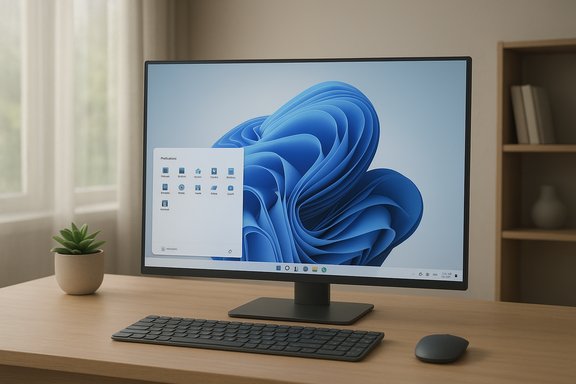 Background / Overview
Microsoft positioned Windows 11 around a design language that emphasizes clarity, calm and immediate usability, but product defaults often favor discovery and service integration over minimalism. That paradox leaves many fresh installs feeling busier than they need to be: a crowded taskbar, rotating Start menu recommendations, Widgets feeds, and tips that pop up in the lock screen and notifications center. These surfaces are intentionally active—designed to surface content and services—but they also generate cognitive friction for people who want a distraction-free workspace. Practical, built-in controls exist to turn most of this down or off, and using them is the fastest way to reclaim attention.The hacks below lean on supported Settings toggles rather than brittle registry edits or third‑party shell replacements. That keeps the approach safe, reversible, and suitable for both individual users and IT admins piloting changes at scale.
Hack 1 — Declutter the taskbar: hide the things that scream for attention
Why the taskbar matters
The taskbar is the desktop’s primary anchor point; it’s where the eye naturally scans for status and cues. By default, Windows 11 surfaces several active elements (Search, Widgets, Task View, app badges) and system tools that compete for attention. Removing the unnecessary ones not only reduces visual noise, it speeds up scanning and reduces the number of micro‑interruptions per hour.What to hide (my minimal set)
- Search
- Task View
- Widgets
- Pen menu
- Touch keyboard / Virtual Touchpad
- Language bar
- Hidden icon menu (only if you never use it)
- App labels (turn off to keep icons compact)
- Badges and flashing on taskbar apps (if you don’t need immediate status from messaging apps)
Step-by-step: the quick path
- Open Settings → Personalization → Taskbar.
- Under Taskbar items, toggle off Search, Widgets, and Task view.
- Expand the Taskbar corner overflow and hide seldom‑used system tools like Pen menu and Touch keyboard.
- Open Taskbar behaviors and:
- Set alignment (Center or Left) to your preference.
- Enable Automatically hide the taskbar to keep the screen visually clean.
- Uncheck Show badges on taskbar apps and Show flashing on taskbar apps to stop attention-grabbing cues.
Benefits and caveats
Benefits:- Immediate reduction in micro‑interruptions and visual clutter.
- Faster visual scanning and less cognitive load.
- Non‑destructive: icons and services remain functional if you need them.
- Hiding badges delays a visual cue for messages—if you need instant awareness of incoming chats or calls, whitelist those apps or leave badges enabled.
- Auto‑hide can be awkward on touch‑only devices if you prefer persistent, always‑visible controls.
Hack 2 — Disable ads, “tips & tricks,” and Start recommendations
The problem: subtle system-level promotion
Windows 11 surfaces recommendations and promotional content in multiple places: the Start menu, the lock screen, notification suggestions, and even Spotlight/Widgets feeds. For users paying for a desktop OS and wanting a controlled environment, this feel of being suggested-to can be jarring. The good news: you can disable the majority of these behaviors using supported Settings toggles.Turn off the common promotional surfaces
- Turn off Start recommendations:
- Settings → Personalization → Start → Toggle off Show recommendations for tips, shortcuts, new apps, and more.
- Remove lock screen promotional content:
- Settings → Personalization → Lock screen → Toggle off Get fun facts, tips, tricks, and more on your lock screen.
- Remove notification tips:
- Settings → System → Notifications → Toggle off Get tips and suggestions when using Windows.
Additional privacy-oriented removals
For users who want to go further and reduce personalization-driven prompts, consider:- Settings → Privacy & Security → General → Turn off the Advertising ID or Let apps show me personalized ads by using my advertising ID.
- Settings → Privacy & Security → Diagnostics & Feedback → Turn off Send optional diagnostic data and Tailored experiences (note: some cloud features will be less personalized if you do this).
What won’t be fully killed easily
Some service integrations—deep Copilot/Edge/Store suggestions or new AI surfaces—may be surfaced in multiple places and can reappear after feature updates or in certain device/region configurations. For enterprise environments, Group Policy or MDM profiles offer more durable controls, but home users should expect that staged rollouts or updates can change behavior and require re-checking settings after major feature updates. Flag these as maintenance rather than one‑and‑done tasks.Hack 3 — Delete, relocate, or hide desktop items for a clean canvas
Why the desktop matters
The desktop is the screen’s visual foreground. Filling it with temporary files, installer shortcuts, and visual badges turns it from a workspace into a distraction board. The easiest wins are either to remove nonessential icons or to hide them entirely when you want a clean canvas.Quick approaches
- Hide all desktop icons:
- Right‑click any empty space on the desktop → View → Toggle Show desktop icons. Use this when you need distraction‑free time and you want the desktop to act like a blank sheet.
- Move frequently used shortcuts into folders or to the Start menu:
- Drag-and-drop icons into categorized folders (e.g., Work, Creative, Tools) so the desktop presents a tidy grid rather than a scatter of files.
- Pin Recycle Bin (or other frequently used locations) to the File Explorer sidebar for one-click access without desktop clutter.
Use Virtual Desktops to separate contexts
Virtual Desktops let you isolate work from leisure: one desktop for productivity apps, one for communication, one for reading or media. This reduces cross‑context visual baggage and improves focus when switching tasks. Create a new desktop with Win + Tab → New Desktop, and switch with Ctrl + Win + Left/Right. ﹙This is an additive way to manage visual stimuli rather than a removal action.﹚Reduce motion and sound: quieting micro‑interactions
Turn off animations and transparency
Small animations and transparency effects create many tiny visual events that collectively pull attention. Windows 11 provides accessibility toggles for this:- Settings → Accessibility → Visual effects:
- Turn off Animation effects.
- Turn off Transparency effects.
Use Do Not Disturb and Focus Sessions
- Settings → System → Notifications → Turn on Do not disturb (and set automatic rules).
- Use the Clock app’s Focus sessions to schedule work blocks; Focus automatically enables Do Not Disturb and can hide badges and flashing icons while a session runs.
Practical checklist — three minute, ten minute, admin rollout
3‑minute “calm the shell” checklist
- Settings → Personalization → Taskbar: toggle off Widgets, Search, Task view.
- Settings → Personalization → Start: toggle off recommendations.
- Right‑click desktop → View → uncheck Show desktop icons.
10‑minute “deep calm” checklist
- Follow the 3‑minute checklist.
- Settings → System → Notifications: enable Do Not Disturb, configure priority apps.
- Settings → Accessibility → Visual effects: turn off animations and transparency.
- Privacy → Diagnostics & Feedback: disable tailored experiences and optional diagnostics (if privacy matters to you).
Rolling this out across a fleet (IT guidance)
- Pilot on a small group: confirm apps like remote‑support tools and MFA prompts still work.
- Use MDM (Intune) or Group Policy to set and lock desired values for Start, taskbar, and notification behavior.
- Document and provide a restore procedure—and keep a short user education note that explains how to temporarily re-enable any change. Aggressively suppressing notifications without whitelist rules can block urgent alerts (e.g., 2FA prompts, support messages).
Risks, tradeoffs, and things to watch
- Discovery vs. stability: Turning off recommendations and widgets reduces serendipitous discovery of new apps or helpful tips. That tradeoff benefits steady workflows but may frustrate casual users who value discovery.
- Missing urgent prompts: Over-zealous notification silencing risks hiding high-priority messages (two‑factor codes, remote support). Use priority lists to allow essential apps through Do Not Disturb.
- Update drift: Microsoft occasionally moves or changes settings between builds; a cleanup that works today might need revalidation after a major feature update. Administrators should pin configurations with GPO/MDM and test updates in a lab.
- Perception vs. function: Hiding the UI doesn’t stop background processes (hidden tray icons still run). If background activity is your concern, audit startup apps and background permissions in Settings → Apps and Task Manager.
Why these small actions matter more than a reinstall
A fresh OS install usually still carries the same attention-taxing defaults. The perceived improvements most users seek — a calmer UI, fewer pings, faster perceived performance — come from attention management, not from reinstalling the OS. Tuning the taskbar, silencing recommendations, and hiding desktop clutter produces immediate, measurable improvements in focus and user satisfaction with minimal technical overhead. These are low-risk, reversible tweaks that pay dividends in daily productivity.Final verdict — minimal, practical, and reversible
Windows 11 gives you a surprisingly capable control set for reigning in overstimulation; those controls are simply not the default. The three practical hacks above—declutter the taskbar, disable recommendations and ads, and hide desktop clutter—are the fastest path to a calmer machine. Layer in Do Not Disturb, Focus sessions, and reduced visual effects for deeper quiet. For organizations, codify these settings via Group Policy or MDM after pilot testing, and for home users, keep a short checklist to reapply after major updates.These are not ideological tweaks; they’re pragmatic ones. They trade some “helpful discovery” for a stable, distraction‑free workspace. For anyone who spends hours on a PC each day, that trade is often the most valuable productivity upgrade available—free, immediate, and fully reversible.
Quick reference checklist (one‑page)
- Taskbar: Settings → Personalization → Taskbar → toggle off Search, Widgets, Task view; hide corner overflow.
- Start: Settings → Personalization → Start → turn off Show recommendations.
- Notifications: Settings → System → Notifications → enable Do Not Disturb and set priority apps.
- Desktop: Right‑click desktop → View → uncheck Show desktop icons.
- Visual effects: Settings → Accessibility → Visual effects → turn off animations/transparency.
Source: Pocket-lint 3 hacks I found to quiet Windows 11's most overstimulating elements
