

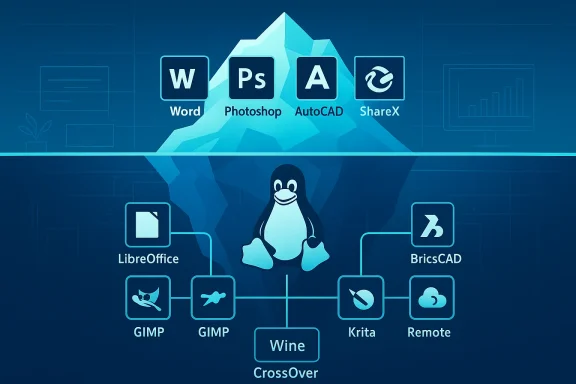
Microsoft Word remains the single most consequential app keeping many users tethered to Windows, but it’s only the tip of a larger compatibility iceberg that still makes Windows essential for specific professional workflows.
Linux has matured rapidly as a desktop platform over the last decade, closing gaps in hardware support, driver ecosystems, and day‑to‑day usability. Still, the application landscape—particularly for proprietary, high‑feature desktop software—has not shifted as decisively. Some apps simply aren’t offered as native Linux binaries, others intentionally limit their browser‑based alternatives, and a few are so tightly coupled to Windows‑specific frameworks (like .NET, DirectX, or proprietary SDKs) that porting would be a major engineering effort with limited commercial payoff.
A recent BGR roundup highlighted five widely used Windows programs that currently have no native Linux desktop equivalents: Microsoft Word, Adobe Photoshop, AutoCAD, Paint.NET, and ShareX. The article frames these not as impossible to replace, but as practically essential on Windows for users who rely on specific, non‑replicable functionality.
This feature drills into that claim: it verifies which features are Windows‑exclusive, explains why they matter, compares cross‑platform alternatives, and outlines pragmatic migration or mitigation strategies for Linux adopters. The intent is practical: map risk, describe trade‑offs, and give readers a realistic toolkit to decide whether and when Linux can be a true replacement.
[*]Vendor focus and business models. Proprietary vendors prioritize the platforms that generate the most revenue or easiest distribution paths. For many commercial desktop tools that means Windows (and macOS), not Linux.
[*]Feature differential between desktop and web. Vendors increasingly offer browser versions of flagship apps, but the web builds commonly exclude advanced features—macros, scripting, certain file‑format behaviors, and deep automation remain desktop‑only in many cases. This product segmentation preserves reasons to buy the paid desktop app. Evidence on feature gaps is explicit for Word: Microsoft’s own platform comparison shows significant differences between the desktop and web versions.
[*]Platform dependencies. Apps tied to Windows‑only frameworks (DirectX, certain Windows kernel APIs, or .NET/WPF constructs) are expensive to port and may perform poorly under translation layers.
[*]Enterprise workflows. Large teams rely on complex templates, macros, or toolchains that depend on behaviour guaranteed only on Windows desktop builds. That operational lock‑in keeps Windows around even when much else could move.
[/LIST]
Microsoft’s pricing structure also matters: the fully featured desktop apps are bundled with Microsoft 365 subscriptions, which in the U.S. are marketed at consumer tiers starting at $9.99/month for Personal (pricing updated during Microsoft’s 2025 consumer plan changes). That pricing shift—and Microsoft’s visible addition of AI features to paid tiers—reinforces the business incentive to differentiate the web and desktop experiences. For consumers and organizations, reliable pricing confirmation is available from Microsoft and mainstream news coverage of the 2025 price changes.
Why it matters in practice
Alternatives and tradeoffs
Alternatives worth considering
Linux alternatives
Linux capture alternatives
For users and teams considering Linux, the right strategy is pragmatic: inventory the essential capabilities you need, pilot alternatives and compatibility layers, and maintain small, secure Windows fallbacks for those last‑mile tasks that simply won’t translate. That hybrid approach preserves the productivity of mission‑critical workflows while unlocking the long‑term benefits of Linux where it actually saves time, money, or gives greater control.
When the question becomes “can I use Linux instead of Windows?”, the honest answer is: sometimes — but not yet universally. For now, a careful, workload‑by‑workload migration plan paired with tested fallbacks is the professional way forward.
Source: bgr.com 5 Essential Windows Apps You Won't Find On Linux - BGR
 Background / Overview
Linux has matured rapidly as a desktop platform over the last decade, closing gaps in hardware support, driver ecosystems, and day‑to‑day usability. Still, the application landscape—particularly for proprietary, high‑feature desktop software—has not shifted as decisively. Some apps simply aren’t offered as native Linux binaries, others intentionally limit their browser‑based alternatives, and a few are so tightly coupled to Windows‑specific frameworks (like .NET, DirectX, or proprietary SDKs) that porting would be a major engineering effort with limited commercial payoff.A recent BGR roundup highlighted five widely used Windows programs that currently have no native Linux desktop equivalents: Microsoft Word, Adobe Photoshop, AutoCAD, Paint.NET, and ShareX. The article frames these not as impossible to replace, but as practically essential on Windows for users who rely on specific, non‑replicable functionality.
This feature drills into that claim: it verifies which features are Windows‑exclusive, explains why they matter, compares cross‑platform alternatives, and outlines pragmatic migration or mitigation strategies for Linux adopters. The intent is practical: map risk, describe trade‑offs, and give readers a realistic toolkit to decide whether and when Linux can be a true replacement.
Why a few apps still anchor users to Windows
[LISTT][*]Vendor focus and business models. Proprietary vendors prioritize the platforms that generate the most revenue or easiest distribution paths. For many commercial desktop tools that means Windows (and macOS), not Linux.
[*]Feature differential between desktop and web. Vendors increasingly offer browser versions of flagship apps, but the web builds commonly exclude advanced features—macros, scripting, certain file‑format behaviors, and deep automation remain desktop‑only in many cases. This product segmentation preserves reasons to buy the paid desktop app. Evidence on feature gaps is explicit for Word: Microsoft’s own platform comparison shows significant differences between the desktop and web versions.
[*]Platform dependencies. Apps tied to Windows‑only frameworks (DirectX, certain Windows kernel APIs, or .NET/WPF constructs) are expensive to port and may perform poorly under translation layers.
[*]Enterprise workflows. Large teams rely on complex templates, macros, or toolchains that depend on behaviour guaranteed only on Windows desktop builds. That operational lock‑in keeps Windows around even when much else could move.
[/LIST]
The five Windows apps BGR named — what’s true, and what to watch
1. Microsoft Word — the productivity wedge
At the center of the debate is Microsoft Word: the desktop build contains advanced layout, view modes, macro automation, content controls and other features that the browser (Word for the web) does not replicate. Microsoft’s own feature‑comparison documentation and community support threads make this clear: many features—macros included—are viewable but not editable in the web interface, and deeper automation (VBA macros, ActiveX, content controls) requires the desktop app. For teams that use those capabilities day‑to‑day, the web fallback is not a replacement.Microsoft’s pricing structure also matters: the fully featured desktop apps are bundled with Microsoft 365 subscriptions, which in the U.S. are marketed at consumer tiers starting at $9.99/month for Personal (pricing updated during Microsoft’s 2025 consumer plan changes). That pricing shift—and Microsoft’s visible addition of AI features to paid tiers—reinforces the business incentive to differentiate the web and desktop experiences. For consumers and organizations, reliable pricing confirmation is available from Microsoft and mainstream news coverage of the 2025 price changes.
Why it matters in practice
- If your job uses macros, custom forms, content controls, or complex templates, only the desktop app guarantees fidelity and script execution.
- The web app is a good read/edit fallback for many tasks, but it intentionally omits features that some industries treat as required (legal templates, contract automation, publishing layouts).
- Google Docs is b option with offline sync for individual editing, but it won’t reproduce Word‑desktop macros or all layout quirks.
- LibreOffice Writer is the best native cross‑platform replacement for many offline workflows; it offers strong DOCX import/export and is available on Linux. However, macro compatibility and advanced Word template fidelity can be imperfect—test mission‑critical documents before migrating.
2. Adobe Photoshop — industry standard with no native Linux build
Adobe develops Photoshop for Windows and macOS; the desktop releases are optimized for those platforms and the Creative Cloud model. Adobe’s Creative Cloud system requirements and product pages do not list Linux as a supported desktop OS for Photoshop direction has emphasized macOS and Windows feature parity and performance. The consequence: professional Photoshop workflows—plugins, performance‑sensitive tooling, and some proprietary features—remain Windows/macOS‑centric.Alternatives and tradeoffs
- GIMP, Krita, and Darktable are mature, open‑source alternatives with strong capabilities, but they do not replicate every Photoshop feature or third‑party plugin ecosystem 1:1. For many hobbyists and some professionals they’re sufficient; for studios that depend on proprietary Photoshop plugins or exact color management behaviors, migration is nontrivial.
3. AutoCAD — specialized CAD systems remain Windows‑first
AutoCAD’s platform story has long been Windows‑centric, with a macOS variant that historically lacks a subset of Windows features and APIs. Autodesk does not provide a native Linux AutoCAD client, and most heavy CAD toolchains expect Windows servers or workstations. For architecture, engineering, and construction (AEC) workflows that rely on AutoCAD or its Windows‑only plug‑ins and custom scripts, Linux is an impractical host unless you rely on virtualization or remote Windows workstations.Alternatives worth considering
- BricsCAD and other vendors offer Linux builds; many firms choose these when cross‑platform support is required. But switching CAD ecosystems is a major project—file formats, toolchains, and certification requirements differ. Proceed only with detailed pilot testing and vendor support agreements.
4. Paint.NET — lightweight, Windows‑native image editor
Paint.NET is explicitly built for the Windows platform (modern releases target Windows 10/11 and 64‑bit) and depends on Windows APIs and .NET. Its design makes it fast and low‑overhead for quick edits and plugin‑driven workflows; that tight Windows integration is why it’s not available as a native Linux app.Linux alternatives
- Pinta (inspired by Paint.NET), GIMP, or Krita can replicate many use cases, but each carries a different UI paradigm and sometimes higher resource or learning costs. For users who specifically value Paint.NET’s speed and UI, the native experience remains Windows‑only.
5. ShareX — power user screen capture and automation for Windows
ShareX is open source but intentionally Windows‑focused today: it’s written in C#/.NET and integrates deeply with Windows capture APIs and workflows. The project’s repositories and documentation list Windows as the target OS; community discussions have explored cross‑platform ports, but no official Linux desktop build exists. For advanced screenshot/workflow automation on Windows, ShareX offers a level of convenience and integration difficult to match with a single Linux tool.Linux capture alternatives
- Flameshot, Ksnip, and OBS Studio (for recording/streaming) fill specific needs, and users can compose similar workflows, but a single‑app parity for ShareX’s breadth of upload destinations, custom actions, and automation hooks is not common.
Verifying the core claims (cross‑referenced evidence)
- Word’s desktop features exceed the web app: Microsoft’s platform comparison documents list features available only in desktop Word and note limitations in Word for the web; community threads and technical writeups confirm macros and many document automation features do not run in the browser. This is corroborated in Microsoft’s official feature comparison and community discussion.
- Microsoft 365 subscription positioning and pricing: Microsoft’s store pages and independentonsumer Microsoft 365 Personal and Family pricing (the Personal tier listed at $9.99/month after the 2025 adjustment) and illustrate the company’s tendency to reserve certain advanced features and AI enhancements for paid plans—an economic driver behind maintaining desktop paywalls. Pricing announcements and coverage are available from Microsoft and major outlets.
- Photoshop and AutoCAD are not offered as native Linux desktop applications: Adobe’s Creative Cloud system requirements and Autodesk’s AutoCAD platform support documents list Windows and macOS (AutoCAD lacks a Linux client), supporting the BGR assertion that those flagship tools keep some users on Windows.
- Native alternatives (LibreOffice, GIMP, Krita, Darktable, BricsCAD, etc.) are real and production‑ready in many contexts, but they have documented differences that matter in enterprise workflows—these differences are documented and discussed across open‑source project pages and community articles. For example, LibreOffice’s feature comparison matrix shows where compatibility is excellent and where gaps remain.
Practical options for Linux users who must run Windows‑only apps
If moving away from Windows is a goal but you rely on one of the five apps above, here are realistic mitigation strategies ranked by fidelity and complexity.- Run Windows full‑desktop in a virtual machine
- Pros: Near‑perfect fidelity for desktop apps; integrates with Linux host (shared folders, clipboard).
- Cons: Requires licensed Windows, consumes CPU/RAM, adds management overhead.
- When to use: Complex apps that require full desktop features (Word macros, Photoshop plugins, AutoCAD).
- Remote Windows workstation / RDP
- Pros: Centralizes Windows instances on a server; lower local resource requirements; easy enterprise provisioning.
- Cons: Requires network connectivity and server/desktop licensing; possible display/latency tradeoffs for graphics heavy workloads.
- When to use: Teams with centralized toolchains who can tolerate remote latency.
- Compatibility layers: Wine / CrossOver / Proton
- Pros: Can run many Windows apps directly on Linux without a Windows license; lightweight compared with VMs.
- Cons: Fragmented support; edge cases and plugin incompatibilities are common; Microsoft’s desktop apps (and the latest versions) are variably supported.
- Evidence: CrossOver (commercially supported Wine fork) lists Office compatibility and maintains guides; community reports show mixed success for Photoshop and newer Office builds—test before depending on it.
- Browser/web versions where feasible
- Pros: Works on any OS with a capable browser; Google Docs and Word for the web support many workflows and have offline capabilities in certain browsers.
- Cons: Desktop‑only automation (macros), precise layout fidelity, certain file formats and printing workflows may break.
- When to use: Lightweight editing, real‑time collaboration, and situations where desktop features aren’t essential.
- Pivot to cross‑platform alternatives
- Pros: Eliminates the platform lock; often free or lower cost; simplifies updates.
- Cons: May require retraining, introduces fidelity risk when exchanging files with legacy Windows users.
- When to use: New projects, or environments where document interchange is controlled and conversion testing is feasible (LibreOffice, GIMP, Krita, BricsCAD).
Risks and operational considerations
- Fidelity risk when exchanging documents. Even well‑tested DOCX workflows can break when complex macros, content controls, or non‑standard templates are used. If you routinely exchange files with Windows‑centric collaborators, maintain access to a validated Windows environment for quality control.
- Licensing and legal issues. Running Microsoft Office under Wine/CrossOver still requires a valid Office license. Enterprises should confirm license terms with Microsoft before deploying compatibility layers at scale.
- Security posture. Virtual machines and remote desktops should be patched and managed like any production Windows endpoint; don’t mistake Linux host security for immunity.
- Long‑term vendor lock‑in. Some vendors intentionally keep the most compelling features on Windows to protect their monetization model. That means migration is not just a technical project but a negotiation with vendor roadmaps and licensing models.
- Support and helpdesk implications. Moving to Linux while keeping a Windows fall‑back can increase support complexity. Provide documented escalation paths and maintain a small Windows image for triage.
Recommendations for IT teams and power users
- Inventory features, not apps. Create a feature map: which exact features in Word/Photoshop/AutoCAD are mission‑critical? Rare edge features may be the real blocker—not the app name itself.
- Pilot conversions with real documents. For any ing a representative set of documents, macros, templates, and plug‑ins. Confirm round‑trip fidelity and printing behavior.
- Adopt a hybrid support model. Keep a small fleet of Windows VMs or a shared remote desktop farm for the handful of Windows‑only workflows while running Linux for the majority of daily work.
- Document fallback procedures. When collaboration requires Windows‑only features, create an agreed fallback path: “finalize in Windows, then export to cross‑platform format,” or “use the designated remote Windows workstation for final production steps.”
- Try CrossOver/Wine carefully. For small teams or individuals, CrossOver can sometimes run Word or older Photoshop editions acceptably. But treat this as a pre‑migration test—not a guaranteed universal solution.
- Negotiate with vendors. If you’re in a regulated or enterprise setting, contact your vendors about Linux or cloud alternatives, and ask for official guidance on cross‑platform workflows and supported configurations.
Strengths and opportunities for Linux adoption
- Cost: for many organizations, Linux reduces licensing and lifecycle costs for general‑purpose desktops.
- Choice and transparency: open‑source stacks provide auditability and customization unmatched by closed ecosystems.
- Rapid improvement: gaming advances (Proton) and broader distribution packaging have improved the Linux desktop usability dramatically in recent years, shrinking the friction for many users. The open ecosystem also yields productive cross‑platform apps like LibreOffice, GIMP, Krita, and numerous developer tools.
Conclusion
The BGR piece is correct to flag Microsoft Word and four other widely used Windows apps as practical anchors for Windows deployment decisions: their combination of desktop‑only advanced features, proprietary plugin ecosystems, or Windows‑specific frameworks creates real operational friction for Linux migration. That does not mean Linux is a dead end—far from it—but the reality is nuanced.For users and teams considering Linux, the right strategy is pragmatic: inventory the essential capabilities you need, pilot alternatives and compatibility layers, and maintain small, secure Windows fallbacks for those last‑mile tasks that simply won’t translate. That hybrid approach preserves the productivity of mission‑critical workflows while unlocking the long‑term benefits of Linux where it actually saves time, money, or gives greater control.
When the question becomes “can I use Linux instead of Windows?”, the honest answer is: sometimes — but not yet universally. For now, a careful, workload‑by‑workload migration plan paired with tested fallbacks is the professional way forward.
Source: bgr.com 5 Essential Windows Apps You Won't Find On Linux - BGR
