

I reached the point of reinstalling Windows twice in one week before I finally stopped arguing with the Settings app and handed the reins back to a third‑party tool: O&O ShutUp10++.
Windows has always been a balance between convenience features and telemetry. Over the last several years that balance has shifted toward more cloud‑connected experiences, tighter integration with Microsoft services, and growing numbers of background subsystems that collect diagnostic and usage data. For many users this is invisible and even helpful; for others it has become an erosion of control — settings scattered across Settings pages, Group Policy, scheduled tasks, and registry keys that are both confusing and easy to miss. O&O ShutUp10++ is a free, portable utility that centralizes those controls into a single interface and presents them as simple toggles.
The app’s basic promise is straightforward: show every relevant telemetry, privacy, and background‑behavior toggle in one place, label each with a safety indication, and let you choose what to disable. It’s not an uninstall tool, it’s not a “one‑click magic fix,” and it doesn’t install a persistent agent. Instead, it edits policies, registry keys, and services on demand and offers a path to revert each change. That design — manual, transparent, reversible — is the core appeal for power users who distrust opaque debloat scripts.
Strengths:
Source: XDA I got so mad at Windows I downloaded this free utility app to disable all its spyware
 Background
Windows has always been a balance between convenience features and telemetry. Over the last several years that balance has shifted toward more cloud‑connected experiences, tighter integration with Microsoft services, and growing numbers of background subsystems that collect diagnostic and usage data. For many users this is invisible and even helpful; for others it has become an erosion of control — settings scattered across Settings pages, Group Policy, scheduled tasks, and registry keys that are both confusing and easy to miss. O&O ShutUp10++ is a free, portable utility that centralizes those controls into a single interface and presents them as simple toggles.The app’s basic promise is straightforward: show every relevant telemetry, privacy, and background‑behavior toggle in one place, label each with a safety indication, and let you choose what to disable. It’s not an uninstall tool, it’s not a “one‑click magic fix,” and it doesn’t install a persistent agent. Instead, it edits policies, registry keys, and services on demand and offers a path to revert each change. That design — manual, transparent, reversible — is the core appeal for power users who distrust opaque debloat scripts.
Overview: what ShutUp10++ actually does
ShutUp10++ consolidates a long, often bewildering list of system settings into readable sections and clear toggles. Here’s the practical feature map:- Portable executable — runs without a traditional installer or background service, leaving no autorun entries unless you explicitly create them. This makes it convenient for testing and for portable use across machines.
- Granular controls — exposes many registry, policy, service, and scheduled‑task edits grouped into categories like Privacy, Activity History, App Privacy, Windows AI/Copilot, and Telemetry.
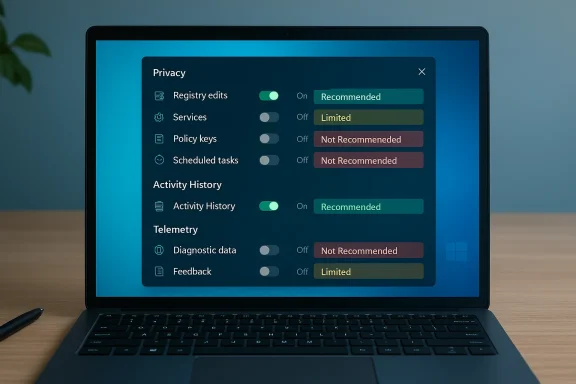
- Safety labeling — each toggle is flagged as Recommended, Limited, or Not Recommended, giving users a quick sense of the risk vs. reward of flipping it.
- In‑UI explanations — every item expands to show what it does, how it’s implemented, and what might break if you disable it.
- Export/import config — you can export a chosen configuration to a file and reapply it later, which is critical for rebuilding a privacy posture after updates or reinstalls.
- Undo and restore — changes are reversible individually and the app integrates with Windows' restore mechanisms; it can create a restore point before applying mass changes.
Why people reach for ShutUp10++
There are three practical drivers behind the tool’s popularity:- Centralization of scattered controls. Windows buries important privacy choices in multiple places, and toggling one option often leaves other channels untouched. ShutUp10++ surfaces them in one read‑throughable checklist.
- Transparency and reversibility. Unlike black‑box debloaters that execute dozens of opaque scripts, ShutUp10++ requires confirmation, shows what it will change, and allows reversal. That lowers the risk for cautious users.
- Defense against “drift.” Major Windows updates, feature upgrades, or even routine quality updates can re‑enable settings you previously disabled. Exporting your configuration creates a restoreable snapshot you can reapply after an update. Users report this as a lifesaver for staying on their privacy footing.
Hands‑on: best practices before you touch any toggles
If you decide to use ShutUp10++, don’t treat it like a game of whack‑a‑mole. A careful, staged approach is essential.- Create a full system restore point — not optional. Windows configurations are massively variable: different OEM drivers, custom vendor components, different update histories, and different feature flags mean that one person’s safe toggle can be another person’s show‑stopper. A restore point is your eject lever if you need to revert quickly. The app itself can initiate a restore point before bulk changes, but creating one manually first is wise.
- Export your configuration immediately after tuning. Once you’ve picked a set of toggles that suits your workflow, export the profile. This is the fastest way to recover the same privacy posture after feature updates or reinstallation. Users report that Windows updates will occasionally push settings back to defaults, so having an exported file saves time and reduces error.
- Apply in stages. Start with the items labeled Recommended; these typically disable diagnostic telemetry and advertising IDs without affecting core functionality. If you need to preserve certain Microsoft services, postpone the Limited items and never enable the Not Recommended group unless you fully understand the consequences.
- Test critical workflows. After you apply changes, test the apps and features you rely on for work, games, or hardware functionality. Pay particular attention to drivers, the Microsoft Store, OneDrive sync, and remote‑assist logs — these are the areas most likely to be impacted by conservative privacy hardening.
The label system: Recommended, Limited, Not Recommended — what do they mean?
ShutUp10++’s three‑tiered labeling is a simple but effective UX decision:- Recommended (green): Safe to disable for most users. These options commonly remove routine telemetry, advertising IDs, and background services that offer little practical benefit in daily usage. Disable them first for an immediate privacy boost with minimal risk.
- Limited (amber): These toggles trade some convenience or cloud‑integrated features for privacy. Examples include online search integration and certain OneDrive or cloud sync behaviors. If you use cloud features heavily, evaluate these individually.
- Not Recommended (red): Potentially disruptive changes that can break updates, security features, or troubleshooting workflows. They may prevent Windows from applying drivers, accepting diagnostics, or participating in Microsoft’s support channels. Use them only in controlled scenarios and with a tested rollback plan.
What ShutUp10++ changes under the hood
The app does not invent new magic; it manipulates the same controls an administrator or power user would change manually, but it documents and packages them. Typical mechanisms include:- Registry edits (HKLM and HKCU) that disable telemetry endpoints or alter service behavior.
- Group Policy equivalents via local policy updates for functions that are exposed to Windows via policy keys.
- Service configuration changes (disabling or setting services to manual).
- Scheduled task toggles that stop background agents from running on a schedule.
Benefits: what you gain
- Immediate visibility. Seeing every privacy‑related toggle in one place is an educational moment for many users who didn’t realize how many distinct channels existed.
- Speed and portability. It’s faster than hunting through settings or scripting registry edits, and the portable EXE model is convenient for admins who manage multiple machines.
- Non‑destructive control. Because changes are reversible and documented, you can iterate until you find the right balance for your workflow.
- Practical defense against “reset.” Exported configs and the ability to reapply them minimize the annoyance of Windows updates resetting user choices.
Risks and downsides: what to watch out for
ShutUp10++ is powerful — and with power comes responsibility. Here are the main risks:- Breaking supportability. Some Not Recommended toggles disable telemetry that Microsoft or support engineers might request during diagnostic sessions. If you need vendor support, be ready to re-enable those channels temporarily.
- Interference with security features. Certain privacy hardening can interact poorly with security tooling or Windows Update mechanisms. For business environments or machines managed by IT, policy conflicts can also occur when local changes contradict domain Group Policy.
- Windows unraveling things. Major updates — especially feature updates — have a history of reactivating features and settings. While an exported profile makes recovery easier, relying solely on a third‑party tool to maintain long‑term settings is brittle. That process is part of why some users prefer system imaging and scripted config automation in enterprise contexts.
- Third‑party trust and provenance. While O&O Software is a recognized toolmaker and the app is widely used, running any tool that edits system policies requires trust. Always validate the binary checksum if you can, and prefer official distribution channels. If you run the app from an unvetted mirror, you increase risk. (I flag this as a general best practice; specific checksum claims should be verified against the publisher at the time you download.)
- Edge cases and hardware variance. Because Windows machines vary wildly — from vendor drivers to OEM customizations — there will always be settings that behave differently on different hardware. That’s another reason to use system restore and to test carefully.
Practical walkthrough: a conservative, safe sequence
- Create a system restore point and, if you have disk‑imaging software, take a full image backup.
- Run ShutUp10++ as Administrator to allow system‑level changes.
- Review the Recommended list and apply those toggles first.
- Export the configuration immediately (use a descriptive filename).
- Reboot and check day‑to‑day functions: gaming, printing, drivers, OneDrive, Microsoft Store, and remote support tools.
- If all is well, consider selective Limited toggles for features you don’t use (e.g., voice typing telemetry if you never use that feature).
- Leave Not Recommended toggles for specific scenarios where you understand and accept the consequences.
- After any major Windows feature update, reimport your exported profile and retest.
Where ShutUp10++ fits in a long‑term privacy strategy
ShutUp10++ is one tool in a larger privacy toolkit. It addresses local OS settings, which is important, but it does not:- Replace network‑level privacy measures like a privacy‑respecting DNS, firewall rules, or router blocking.
- Stop application‑level telemetry inside individual apps (e.g., Chrome, Office when signed in, Slack).
- Substitute for comprehensive backup and restore policies.
- Regular exported configs and versioned backups.
- An image‑based recovery plan for quick rollback.
- A documented change log of what you alter and why, enabling audits later.
- Consideration of migration to an OS that matches your threat model if Windows continues to feel unsuitable for your needs.
Critical analysis: strengths and where it falls short
ShutUp10++’s greatest strength is also its greatest limitation: it makes Windows’ privacy controls visible and tractable. For users who want control without scripting, it’s an excellent compromise.Strengths:
- Transparent and reversible control model. You see precisely what will change.
- Portable and low‑impact. No resident agent, no persistent background tasks.
- Active maintenance. The app’s changelog shows updates for new Windows features and runtime modernizations, which is important as Microsoft ships new telemetry surfaces.
- Reactive, not preventative. It fixes the symptoms (enabled telemetry paths) but cannot stop Windows updates or feature changes from reintroducing telemetry. You must be vigilant and reapply configs after updates.
- Not a silver bullet for privacy. Application‑level tracking and cloud services still need separate attention.
- Potential to break supportability and some security functions. Users who disable red‑flagged items may find themselves unable to use certain Microsoft support options or automated troubleshooting.
Final verdict: who should use it and who should not
Use O&O ShutUp10++ if:- You are a power user who wants a readable, consolidated privacy control panel.
- You prefer manual, documented edits over hidden scripts and automated debloaters.
- You maintain your own backups and can recover from unexpected breakage.
- You are on company‑managed devices where Group Policy must remain authoritative.
- You cannot create or restore backups or lack the confidence to reverse changes.
- You rely on Microsoft support that may require enabling telemetry for troubleshooting.
Conclusion
O&O ShutUp10++ is not a fix for Windows’ design decisions, but it is a well‑crafted tool that brings clarity and agency back to the user. It exposes the many places Windows collects data, packages the controls with sensible labeling, and gives you the ability to lock down privacy quickly — and to restore it after Microsoft reasserts default behavior via updates. Treated as a careful, documented layer in a broader privacy strategy, it is one of the best free tools available right now for reclaiming control over a Windows desktop.Source: XDA I got so mad at Windows I downloaded this free utility app to disable all its spyware
