

Chris Titus Tech’s Windows Utility is a free, open-source PowerShell-based Windows cleanup and configuration tool that users can launch from an elevated PowerShell prompt with
There was a time when Windows tweaking lived in the slightly risky suburbs of computing culture. You disabled services, edited the registry, ran mysterious
A fresh Windows 11 machine can arrive with pinned apps, cloud service nudges, Start menu recommendations, widgets, Microsoft account pressure, Edge persistence, Copilot positioning, telemetry defaults, and notification prompts that blur the line between helpful onboarding and advertising. Microsoft often calls these things suggestions, recommendations, tips, or experiences. Users tend to call them ads.
That linguistic split matters. To Microsoft, Windows is now the front door to Microsoft 365, OneDrive, Bing, Edge, Copilot, Game Pass, and the broader account-driven ecosystem. To many WindowsForum readers, Windows is still supposed to be the quiet layer underneath their work, games, scripts, drivers, VMs, and weird PCIe cards. The conflict is not cosmetic; it is architectural.
That is why a How-To Geek piece about running a de-bloating PowerShell command lands with such force. It describes a ritual many enthusiasts already know: install Windows, open PowerShell as Administrator, run the Chris Titus utility, choose a sane preset, remove the noise, and then begin using the PC as if it were yours.
In PowerShell terms,
The appeal is obvious. Instead of hunting through Settings, Control Panel remnants, registry keys, Group Policy entries, scheduled tasks, and winget commands, Windows Utility wraps a great deal of post-install housekeeping into a single graphical interface. It can install common applications, apply system tweaks, adjust privacy-related settings, remove consumer-facing extras, and change update policy.
But the mechanism deserves respect. “Open source” does not magically make remote code execution safe. It makes the code auditable, forkable, and accountable in a way closed tweakware is not. It also means the project’s reputation, maintainer hygiene, release process, and community scrutiny become part of the trust model.
That is the right way to think about WinUtil: not as magic, not as malware, and not as a toy. It is a powerful administrative tool that happens to be friendly enough for ordinary enthusiasts to use. The more Windows pushes users toward tools like this, the more important it becomes to understand what they are actually doing.
The tool’s layout is part of the story. It separates app installation, tweaks, configuration, and updates into distinct areas. That sounds mundane until you compare it with the fractured reality of Windows 11 itself, where settings are scattered across the modern Settings app, legacy Control Panel, optional features dialogs, Windows Security, Microsoft Store, Edge policy, and account pages.
For a clean install, the workflow is seductive. Install the OS, run the utility, use the Install tab to grab browsers, runtimes, compression tools, terminals, media players, and utilities, then move to Tweaks and strip away the defaults you do not want. For many home users, this is faster than restoring a hand-built checklist. For IT pros handling personal machines, lab systems, or small deployments, it is a repeatable baseline.
The How-To Geek walkthrough emphasizes the Standard preset rather than the more aggressive options, and that is the right instinct. The point of a good de-bloat pass is not to win a purity contest by deleting every Microsoft-branded component. It is to remove the obvious irritants while leaving the OS serviceable, patchable, and boring.
The Standard preset focuses on changes most enthusiasts will recognize: reducing telemetry, disabling consumer features, turning off activity history, cleaning temporary files, and removing some of the promotional behavior that makes Windows 11 feel noisy. These are not exotic hacks. They are largely automations of choices Microsoft could expose more clearly or default more respectfully.
The Advanced section is where the risk changes. Disabling Copilot, modifying Edge behavior, changing Storage Sense assumptions, or blocking software update mechanisms may be reasonable on one machine and harmful on another. A gaming rig, a domain-joined workstation, a developer laptop, and a parent’s PC should not receive the same aggressive treatment.
That distinction is often lost in de-bloating culture. A tweak that makes Windows feel cleaner today can create support debt six months later. Remove too much and you may break search, widgets, Store app dependencies, update flows, authentication prompts, or features that future Windows builds assume are present. The art is not removing the most; it is removing only what you can explain.
Microsoft has publicly committed to improving Windows 11 quality in 2026, with emphasis on performance, reliability, and craft. That framing is telling. The company is not merely promising more features; it is trying to persuade users that the fundamentals matter again. The promise arrives after years of complaints about inconsistent UI, sluggish File Explorer behavior, buggy updates, intrusive prompts, and the steady expansion of Microsoft service placement inside the shell.
The trust deficit did not appear overnight. Windows 11 launched with stricter hardware requirements and a redesigned interface that removed or buried familiar controls. It then accumulated more account integration, more web-connected surfaces, more AI positioning, and more promotional real estate. Each individual decision was defensible from Microsoft’s product strategy. Together, they made the OS feel less like a tool and more like a channel.
That is why “Microsoft says it will fix Windows” and “run this community script after setup” can coexist in the same week without contradiction. The first is a roadmap. The second is relief.
Microsoft would likely object to the word ads in many of these contexts. Some are recommendations. Some are tips. Some are suggested apps. Some are service notifications. But users do not experience taxonomy; they experience interruption. If a paid operating system suggests a product the user did not ask for, in a system surface the user cannot easily replace, the distinction becomes academic.
This is why de-bloating tools feel empowering. They turn a vague irritation into a checklist of actions. Disable this. Remove that. Stop these suggestions. Clean these packages. The user gets agency in a system that increasingly feels managed by someone else’s growth metrics.
There is a business reality here that Microsoft cannot wish away. Windows is no longer the center of Microsoft’s profit universe in the way it once was, but it remains the company’s most valuable distribution surface. Every prompt for Edge, Bing, Microsoft 365, OneDrive, Copilot, or Game Pass is a small attempt to monetize that surface. Every one also spends a bit of user goodwill.
For a home enthusiast, delaying feature churn can be sensible. Nobody wants a working DAW, sim rig, Plex server, or development laptop destabilized by a feature release they did not need. Security updates are non-negotiable; feature updates are a scheduling problem.
For enterprise IT, the calculus is more formal. Update rings, Windows Update for Business policies, Intune, WSUS, Autopatch, and staged deployments exist precisely because “disable updates” is not a strategy. Admins need compliance, reporting, rollback planning, and a known support state. A one-click utility may be helpful on a test box, but it is not a substitute for managed policy.
Still, the popularity of the update-taming workflow should worry Microsoft. When users increasingly see feature updates as something to defend against, the continuous innovation model has lost part of the room. The ideal Windows update is boring, predictable, and obviously beneficial. Too many users now see it as a dice roll.
That does not mean WinUtil is unsafe by definition. It means trust must be earned every time this pattern is used. The open-source repository, public maintainer identity, community review, and years of visibility all help. So does the fact that users can inspect the script, run it from the GitHub release path, or download and review code before execution.
The problem is that convenience usually wins. Most people will not audit the script. They will copy the command, paste it into an elevated terminal, and press Enter because a trusted article or video told them to. That behavior is rational at human scale and terrifying at security scale.
The better recommendation is not “never use it.” It is: know what class of action you are taking. You are granting a remote script administrative authority over your Windows installation. If that sentence makes you uncomfortable, it should. If it does not, it should at least make you careful.
A hardened Windows machine is configured around threat models: credential protection, attack surface reduction, patch compliance, application control, least privilege, BitLocker, Defender settings, firewall posture, browser isolation, logging, and backup. A de-bloated Windows machine is configured around user experience and resource control. Sometimes those goals align. Sometimes they collide.
For example, disabling background services can reduce noise, but it can also break management, recovery, or security features. Removing Store components may feel cleaner, but some app update paths and dependencies rely on the Store ecosystem. Turning off cloud integration may be desirable, but in a Microsoft 365 workplace it may also create friction with identity and data protection policies.
This is where WinUtil’s value depends on the operator. In the hands of someone who understands the switches, it is a time-saver. In the hands of someone chasing a mythical “zero bloat” screenshot, it can become a support ticket generator.
There are good reasons to customize images. Enterprises do it to standardize deployments, remove consumer experiences, preload drivers, enforce policy, and reduce setup time. Enthusiasts do it to avoid the first-run clutter and produce a cleaner default environment. In both cases, the motivation is understandable: why remove the same junk after every install if you can prevent it from landing in the first place?
But custom ISOs raise the stakes. Remove the wrong component and Windows servicing may fail later. Strip app frameworks and something unrelated may break. Use an untrusted third-party ISO and the question shifts from “did this tweak break Windows?” to “what exactly did I install?” The safest custom Windows image is one you build yourself from known media with documented changes.
For most users, post-install tools remain the better compromise. They are easier to reverse, easier to understand, and less likely to produce obscure servicing problems months later. The clean ISO is tempting because it feels definitive. Windows, unfortunately, is a moving target.
But Windows lock-in is not imaginary. Creative tools, line-of-business apps, anti-cheat systems, firmware utilities, CAD packages, audio plugins, device management tools, and enterprise identity stacks still keep many users anchored. Even where Linux alternatives exist, the migration cost can be real. Time is part of the bill.
The deeper point is not that everyone should flee Windows. It is that Microsoft has made the comparison easier to entertain. When users must spend an hour suppressing ads, account prompts, telemetry settings, bundled apps, and AI surfaces before they feel at home, the friction that once protected Windows weakens.
Linux does not need to be perfect to benefit from that. It only needs Windows to keep feeling less like the user’s machine.
Disable consumer features. Reduce telemetry. Remove unwanted apps. Change update behavior. Restore legacy access points. Disable Copilot. Clean temporary files. Install the software you actually wanted. Taken together, this is not customization for fun; it is an attempt to subtract Microsoft’s priorities until the user’s priorities reappear.
That does not mean every default is bad. Windows 11 remains a capable, broadly compatible, security-conscious operating system with an enormous hardware and software ecosystem. Its driver model, gaming support, enterprise manageability, accessibility work, and backward compatibility are not trivial achievements. The tragedy of Windows 11 is that those strengths are increasingly buried under avoidable annoyance.
A great OS earns invisibility. It gets out of the way until needed, then behaves predictably. Windows 11 too often asks to be noticed.
But Microsoft’s challenge is not messaging. It is restraint. The company has to decide that not every shell surface should be a conversion funnel, not every user action should feed an engagement loop, and not every new strategic priority deserves a permanent seat on the taskbar.
If Microsoft wants fewer people running de-bloat scripts, it should make those scripts boring. Give users a clean install mode. Offer explicit consumer promotion controls during setup. Separate security updates from feature experiments more cleanly. Make Copilot and cloud integrations opt-in where practical. Stop treating local-account and offline workflows as edge cases to be hidden.
The company does not need to turn Windows into a minimalist Linux distribution. It just needs to remember that the PC is personal before it is profitable.
Source: How-To Geek The de-bloating PowerShell command I run on every Windows install
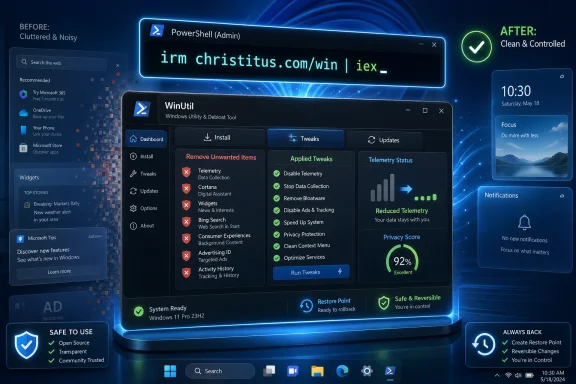
irm christitus.com/win | iex to remove unwanted Windows 11 components, reduce telemetry, install apps, and change update behavior. The command has become a kind of folk remedy for the modern Windows experience: one line copied into a terminal to claw back a desktop Microsoft keeps trying to turn into a services billboard. That popularity says less about one script than it does about Windows 11 itself. When the first step after installing an operating system is to run a community de-bloating tool, the problem is no longer “power users being picky”; it is a trust gap.
 Windows 11 Has Made the Cleanup Script Feel Mainstream
There was a time when Windows tweaking lived in the slightly risky suburbs of computing culture. You disabled services, edited the registry, ran mysterious .reg files from forums, and hoped you remembered what you changed. Today, that impulse has moved closer to the center of the Windows experience because Microsoft has made the out-of-box install feel less like a neutral platform and more like a negotiation.A fresh Windows 11 machine can arrive with pinned apps, cloud service nudges, Start menu recommendations, widgets, Microsoft account pressure, Edge persistence, Copilot positioning, telemetry defaults, and notification prompts that blur the line between helpful onboarding and advertising. Microsoft often calls these things suggestions, recommendations, tips, or experiences. Users tend to call them ads.
That linguistic split matters. To Microsoft, Windows is now the front door to Microsoft 365, OneDrive, Bing, Edge, Copilot, Game Pass, and the broader account-driven ecosystem. To many WindowsForum readers, Windows is still supposed to be the quiet layer underneath their work, games, scripts, drivers, VMs, and weird PCIe cards. The conflict is not cosmetic; it is architectural.
That is why a How-To Geek piece about running a de-bloating PowerShell command lands with such force. It describes a ritual many enthusiasts already know: install Windows, open PowerShell as Administrator, run the Chris Titus utility, choose a sane preset, remove the noise, and then begin using the PC as if it were yours.
The Command Is Simple; the Implications Are Not
The command itself is almost comically short:irm christitus.com/win | iexIn PowerShell terms,
irm is shorthand for Invoke-RestMethod, and iex is shorthand for Invoke-Expression. Put plainly, the command downloads code from the web and immediately executes it. That is exactly why security professionals wince when they see it, and exactly why users love it when they trust the source.The appeal is obvious. Instead of hunting through Settings, Control Panel remnants, registry keys, Group Policy entries, scheduled tasks, and winget commands, Windows Utility wraps a great deal of post-install housekeeping into a single graphical interface. It can install common applications, apply system tweaks, adjust privacy-related settings, remove consumer-facing extras, and change update policy.
But the mechanism deserves respect. “Open source” does not magically make remote code execution safe. It makes the code auditable, forkable, and accountable in a way closed tweakware is not. It also means the project’s reputation, maintainer hygiene, release process, and community scrutiny become part of the trust model.
That is the right way to think about WinUtil: not as magic, not as malware, and not as a toy. It is a powerful administrative tool that happens to be friendly enough for ordinary enthusiasts to use. The more Windows pushes users toward tools like this, the more important it becomes to understand what they are actually doing.
Why This Tool Won the Windows Enthusiast Primary
Chris Titus Tech’s Windows Utility did not become popular because it invented de-bloating. Windows users have been stripping down installs since the nLite and vLite days, and corporate admins have been removing consumer features from images for decades. WinUtil won attention because it packages that instinct in a way that feels current, visible, and reversible enough for the post-Windows-10 era.The tool’s layout is part of the story. It separates app installation, tweaks, configuration, and updates into distinct areas. That sounds mundane until you compare it with the fractured reality of Windows 11 itself, where settings are scattered across the modern Settings app, legacy Control Panel, optional features dialogs, Windows Security, Microsoft Store, Edge policy, and account pages.
For a clean install, the workflow is seductive. Install the OS, run the utility, use the Install tab to grab browsers, runtimes, compression tools, terminals, media players, and utilities, then move to Tweaks and strip away the defaults you do not want. For many home users, this is faster than restoring a hand-built checklist. For IT pros handling personal machines, lab systems, or small deployments, it is a repeatable baseline.
The How-To Geek walkthrough emphasizes the Standard preset rather than the more aggressive options, and that is the right instinct. The point of a good de-bloat pass is not to win a purity contest by deleting every Microsoft-branded component. It is to remove the obvious irritants while leaving the OS serviceable, patchable, and boring.
The Best De-Bloat Is Boring
The most responsible thing about the recommended WinUtil workflow is also the least dramatic: it creates a restore point by default. That single detail separates useful maintenance from reckless system surgery. Windows tweaking has always attracted maximalists who believe every background service is an enemy and every scheduled task is a conspiracy; the restore point is a quiet admission that PCs are complicated and rollback matters.The Standard preset focuses on changes most enthusiasts will recognize: reducing telemetry, disabling consumer features, turning off activity history, cleaning temporary files, and removing some of the promotional behavior that makes Windows 11 feel noisy. These are not exotic hacks. They are largely automations of choices Microsoft could expose more clearly or default more respectfully.
The Advanced section is where the risk changes. Disabling Copilot, modifying Edge behavior, changing Storage Sense assumptions, or blocking software update mechanisms may be reasonable on one machine and harmful on another. A gaming rig, a domain-joined workstation, a developer laptop, and a parent’s PC should not receive the same aggressive treatment.
That distinction is often lost in de-bloating culture. A tweak that makes Windows feel cleaner today can create support debt six months later. Remove too much and you may break search, widgets, Store app dependencies, update flows, authentication prompts, or features that future Windows builds assume are present. The art is not removing the most; it is removing only what you can explain.
Microsoft’s Real Problem Is That Users Believe the Script More Than the OS
The existence of WinUtil is not embarrassing for Microsoft. Power users will always customize operating systems. The embarrassing part is that so many users now treat community de-bloating as the rational first step after installing a mainstream commercial OS.Microsoft has publicly committed to improving Windows 11 quality in 2026, with emphasis on performance, reliability, and craft. That framing is telling. The company is not merely promising more features; it is trying to persuade users that the fundamentals matter again. The promise arrives after years of complaints about inconsistent UI, sluggish File Explorer behavior, buggy updates, intrusive prompts, and the steady expansion of Microsoft service placement inside the shell.
The trust deficit did not appear overnight. Windows 11 launched with stricter hardware requirements and a redesigned interface that removed or buried familiar controls. It then accumulated more account integration, more web-connected surfaces, more AI positioning, and more promotional real estate. Each individual decision was defensible from Microsoft’s product strategy. Together, they made the OS feel less like a tool and more like a channel.
That is why “Microsoft says it will fix Windows” and “run this community script after setup” can coexist in the same week without contradiction. The first is a roadmap. The second is relief.
Ads Became the Symbol Because They Are Easy to Understand
Technically, the most important problems in Windows 11 may be reliability, servicing, hardware compatibility, driver quality, and performance regressions. Emotionally, the ads are the problem people can point to. A Start menu app promotion or OneDrive upsell is visible in a way a background reliability improvement is not.Microsoft would likely object to the word ads in many of these contexts. Some are recommendations. Some are tips. Some are suggested apps. Some are service notifications. But users do not experience taxonomy; they experience interruption. If a paid operating system suggests a product the user did not ask for, in a system surface the user cannot easily replace, the distinction becomes academic.
This is why de-bloating tools feel empowering. They turn a vague irritation into a checklist of actions. Disable this. Remove that. Stop these suggestions. Clean these packages. The user gets agency in a system that increasingly feels managed by someone else’s growth metrics.
There is a business reality here that Microsoft cannot wish away. Windows is no longer the center of Microsoft’s profit universe in the way it once was, but it remains the company’s most valuable distribution surface. Every prompt for Edge, Bing, Microsoft 365, OneDrive, Copilot, or Game Pass is a small attempt to monetize that surface. Every one also spends a bit of user goodwill.
The Update Controls Are Where Enthusiasts and Admins Diverge
The How-To Geek article praises WinUtil’s Updates tab and recommends a security-focused update posture: allow security patches while disabling feature updates. That sentiment is easy to understand. Windows updates have become a recurring anxiety for users who remember broken printers, failed boot cycles, driver weirdness, gaming regressions, and emergency out-of-band fixes.For a home enthusiast, delaying feature churn can be sensible. Nobody wants a working DAW, sim rig, Plex server, or development laptop destabilized by a feature release they did not need. Security updates are non-negotiable; feature updates are a scheduling problem.
For enterprise IT, the calculus is more formal. Update rings, Windows Update for Business policies, Intune, WSUS, Autopatch, and staged deployments exist precisely because “disable updates” is not a strategy. Admins need compliance, reporting, rollback planning, and a known support state. A one-click utility may be helpful on a test box, but it is not a substitute for managed policy.
Still, the popularity of the update-taming workflow should worry Microsoft. When users increasingly see feature updates as something to defend against, the continuous innovation model has lost part of the room. The ideal Windows update is boring, predictable, and obviously beneficial. Too many users now see it as a dice roll.
The Security Tradeoff Is Real, Even When the Tool Is Legitimate
There is a reason security people recoil at “download and execute this web script as admin.” It is the same pattern attackers love. If the domain is hijacked, DNS is poisoned, a maintainer account is compromised, a dependency changes, or a user copies a lookalike command, the blast radius is enormous. Administrative PowerShell is not a sandbox.That does not mean WinUtil is unsafe by definition. It means trust must be earned every time this pattern is used. The open-source repository, public maintainer identity, community review, and years of visibility all help. So does the fact that users can inspect the script, run it from the GitHub release path, or download and review code before execution.
The problem is that convenience usually wins. Most people will not audit the script. They will copy the command, paste it into an elevated terminal, and press Enter because a trusted article or video told them to. That behavior is rational at human scale and terrifying at security scale.
The better recommendation is not “never use it.” It is: know what class of action you are taking. You are granting a remote script administrative authority over your Windows installation. If that sentence makes you uncomfortable, it should. If it does not, it should at least make you careful.
De-Bloating Is Not the Same as Hardening
Another common mistake is to treat de-bloating, privacy tweaking, and security hardening as interchangeable. They overlap, but they are not the same job. Removing a consumer app may reduce annoyance without improving security. Disabling telemetry may improve perceived privacy while reducing diagnostic visibility. Blocking update mechanisms may reduce surprise breakage while increasing exposure.A hardened Windows machine is configured around threat models: credential protection, attack surface reduction, patch compliance, application control, least privilege, BitLocker, Defender settings, firewall posture, browser isolation, logging, and backup. A de-bloated Windows machine is configured around user experience and resource control. Sometimes those goals align. Sometimes they collide.
For example, disabling background services can reduce noise, but it can also break management, recovery, or security features. Removing Store components may feel cleaner, but some app update paths and dependencies rely on the Store ecosystem. Turning off cloud integration may be desirable, but in a Microsoft 365 workplace it may also create friction with identity and data protection policies.
This is where WinUtil’s value depends on the operator. In the hands of someone who understands the switches, it is a time-saver. In the hands of someone chasing a mythical “zero bloat” screenshot, it can become a support ticket generator.
The Clean ISO Temptation Goes Further
The How-To Geek piece ends by noting that users who want a truly stripped Windows may modify the installer ISO itself. That is not a new idea, but it is a more consequential one. Post-install tweaking changes a running system. Image customization changes the baseline before Windows ever boots.There are good reasons to customize images. Enterprises do it to standardize deployments, remove consumer experiences, preload drivers, enforce policy, and reduce setup time. Enthusiasts do it to avoid the first-run clutter and produce a cleaner default environment. In both cases, the motivation is understandable: why remove the same junk after every install if you can prevent it from landing in the first place?
But custom ISOs raise the stakes. Remove the wrong component and Windows servicing may fail later. Strip app frameworks and something unrelated may break. Use an untrusted third-party ISO and the question shifts from “did this tweak break Windows?” to “what exactly did I install?” The safest custom Windows image is one you build yourself from known media with documented changes.
For most users, post-install tools remain the better compromise. They are easier to reverse, easier to understand, and less likely to produce obscure servicing problems months later. The clean ISO is tempting because it feels definitive. Windows, unfortunately, is a moving target.
Linux Is the Escape Hatch, but Not the Universal Answer
The article’s final suggestion — that there has never been a better time to switch to Linux if you are not locked into Windows-only software — is both fair and incomplete. Linux desktops have improved dramatically, especially for developers, privacy-conscious users, and gamers benefiting from Proton and broader hardware support. If your workflow lives in a browser, terminal, office suite, code editor, and Steam library, the case is stronger than it has ever been.But Windows lock-in is not imaginary. Creative tools, line-of-business apps, anti-cheat systems, firmware utilities, CAD packages, audio plugins, device management tools, and enterprise identity stacks still keep many users anchored. Even where Linux alternatives exist, the migration cost can be real. Time is part of the bill.
The deeper point is not that everyone should flee Windows. It is that Microsoft has made the comparison easier to entertain. When users must spend an hour suppressing ads, account prompts, telemetry settings, bundled apps, and AI surfaces before they feel at home, the friction that once protected Windows weakens.
Linux does not need to be perfect to benefit from that. It only needs Windows to keep feeling less like the user’s machine.
The Power User Fix Became a Product Review
A Windows de-bloat workflow is not just a how-to. It is an implicit review of Windows 11. Every toggle in WinUtil is a sentence in that review, and many of those sentences are unflattering.Disable consumer features. Reduce telemetry. Remove unwanted apps. Change update behavior. Restore legacy access points. Disable Copilot. Clean temporary files. Install the software you actually wanted. Taken together, this is not customization for fun; it is an attempt to subtract Microsoft’s priorities until the user’s priorities reappear.
That does not mean every default is bad. Windows 11 remains a capable, broadly compatible, security-conscious operating system with an enormous hardware and software ecosystem. Its driver model, gaming support, enterprise manageability, accessibility work, and backward compatibility are not trivial achievements. The tragedy of Windows 11 is that those strengths are increasingly buried under avoidable annoyance.
A great OS earns invisibility. It gets out of the way until needed, then behaves predictably. Windows 11 too often asks to be noticed.
Microsoft Can Still Win This Argument
The encouraging part is that Microsoft appears to understand at least some of the problem. A renewed focus on performance, reliability, and craft is exactly what Windows 11 needs. Better File Explorer responsiveness, fewer intrusive surfaces, more coherent settings, more predictable updates, and less gratuitous service promotion would do more for Windows’ reputation than another wave of AI demos.But Microsoft’s challenge is not messaging. It is restraint. The company has to decide that not every shell surface should be a conversion funnel, not every user action should feed an engagement loop, and not every new strategic priority deserves a permanent seat on the taskbar.
If Microsoft wants fewer people running de-bloat scripts, it should make those scripts boring. Give users a clean install mode. Offer explicit consumer promotion controls during setup. Separate security updates from feature experiments more cleanly. Make Copilot and cloud integrations opt-in where practical. Stop treating local-account and offline workflows as edge cases to be hidden.
The company does not need to turn Windows into a minimalist Linux distribution. It just needs to remember that the PC is personal before it is profitable.
The Bottom Line
The Chris Titus Windows Utility is popular because it compresses a growing Windows 11 frustration into one repeatable act of user control.- The PowerShell command is convenient, but it executes remote code with administrative privileges and should be treated with appropriate caution.
- The Standard tweaks are the sensible starting point because they target common annoyances without turning Windows into an unsupported science project.
- The Advanced tweaks can be useful, but they should only be applied when the user understands the specific Windows feature or dependency being changed.
- Security updates should remain enabled, even if feature updates are delayed or managed more conservatively.
- De-bloating can improve the Windows experience, but it is not the same as enterprise hardening or a substitute for proper backup, patching, and policy management.
- The popularity of tools like WinUtil is a signal that Microsoft’s default Windows experience is misaligned with what many enthusiasts and IT pros actually want.
Source: How-To Geek The de-bloating PowerShell command I run on every Windows install
