

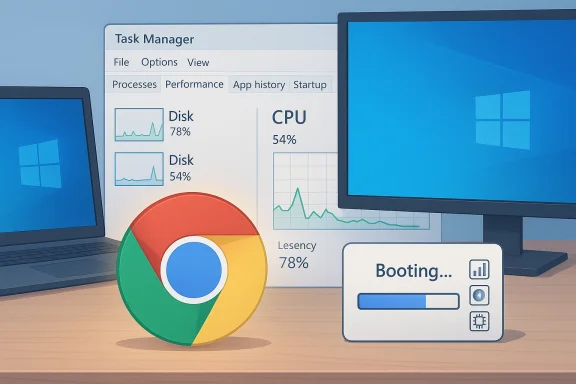
Note: I pulled multiple public reports while reporting this (news sites, vendor docs and support pages). You asked for a standalone feature-style article — below is a full write-up written in a Windows-focused reporting voice. If you want the source list I used for background research, I can append it separately.
Google Chrome tests a Windows startup behaviour that can slow your PC — what’s happening, why it matters, and how to protect your boot time
by [WindowsForum reporter]
Summary
- Google appears to be testing a Chrome behaviour that causes browser components to run at system sign-in — the same general approach other apps use to “prime” themselves so launches feel instantaneous.
- Those background/“startup boost” processes can add work during Windows sign-in and, on resource-limited machines, measurably slow the system boot sequence and increase disk/CPU use right after you turn the PC on.
- This isn’t a new pattern — Microsoft Edge and (more recently) Office have used similar “startup boost” tasks — but the implementation details matter: well-designed background priming waits until the system is idle and uses strict heuristics; poorly designed ones run immediately and can hit slow HDDs and low-RAM machines hard.
- If you want to avoid any boot hit, you can stop browsers from running background apps at sign-in (Chrome’s settings, Windows Startup list, or Autoruns), and enterprise admins have additional controls.
- In short: fast-on-launch convenience can come at the cost of slower machine start. Here’s what to look for, how to measure it, and how to turn it off safely.
Browsers today do two opposing things:
- They try to start instantly when you click their icon or a link.
- They also try to be polite at system boot so they don’t make Windows feel slow.
The feature Google is testing follows that pattern: Chrome will create background activity at Windows start (or will register to run at sign-in) so Chrome can “warm up.” The benefit is visible: subsequent Chrome launches are faster. The trade-off: there is extra work during the crucial sign-in window. On modern, well-resourced PCs that cost is usually negligible; on low-RAM machines, older HDDs, or heavily loaded systems it can add seconds or more to the time between powering on and having a responsive desktop.
Why this can slow your PC at turn-on
A few important technical reasons explain the effect:
- Disk I/O spike at sign-in: Boot and sign-in already cause a lot of disk reads (drivers, services, startup apps). If Chrome starts background tasks immediately, it competes for disk I/O with Windows, slowing the whole startup.
- CPU contention: Background processes spawn threads and possibly run initialization code that consumes CPU cycles during the same time Windows is discovering devices and starting services.
- Memory pressure: On systems with limited RAM (4–8 GB) keeping even a small browser process resident can force Windows to page other code or delay freeing memory, making the whole system sluggish.
- Battery and thermal constraints: On laptops, background work at boot can spike power draw and heat, which throttles performance until the system settles.
- Scheduling/heuristics matter: vendors that implemented “wait ten minutes after login” heuristics (so the system reaches steady idle before priming) avoid the worst of the problem. Without those heuristics, users notice the slowdown immediately.
This pattern isn’t unique to Chrome. Microsoft Edge introduced “Startup boost” to keep a light set of processes resident so Edge opens faster. Microsoft more recently tested a similar scheduled-task approach for Office apps (a “Startup Boost” scheduled task to keep Word/Outlook primed). Those vendors experienced some pushback and implemented safeguards (resource checks and delaying the task after login) to prevent a negative impact on overall boot times.
Why the difference in user experience matters
Two implementations illustrate the difference:
- Good implementation: only runs if system has ample free RAM and disk space; respects energy‑saver/battery modes; delays nonessential background work until the system is idle (for example, wait 5–10 minutes).
- Poor implementation: runs immediately at sign-in regardless of system load; always creates a background process; offers no heuristics or opt-out that persist across updates.
What you may already be seeing (real-world signals)
- A noticeable “hang” or sluggishness for the first 30–60 seconds after sign-in.
- High disk or CPU activity shown in Task Manager during early boot.
- Chrome processes listed under Task Manager even when you believe Chrome isn’t open.
- Longer “CPU at startup” or “Disk I/O at startup” metrics on the Task Manager Startup tab for items that run at sign-in.
Use these checks to see what’s running and whether Chrome is participating in sign-in work:
1) Task Manager — Startup tab
- Press Ctrl+Shift+Esc → Startup. Look for Google Chrome and check the “Startup impact” column. If Chrome is enabled there, it may be contributing to boot time.
- Right after sign-in, open Task Manager (Ctrl+Shift+Esc) and sort by Disk or CPU. If chrome.exe or background_service processes are near the top, they’re doing work at boot.
- Settings → Apps → Startup shows apps allowed to start at sign-in (toggable per app). Chrome may appear there.
- Autoruns offers a complete list of startup items (Run keys, scheduled tasks, services). It shows command-line switches and locations; very useful for tracking scheduled tasks that an installer created.
- Some apps create scheduled tasks instead of Run keys. Open Task Scheduler (taskschd.msc) and review “Task Scheduler Library” for any Google- or Chrome-related tasks.
If you want to avoid any boot impact, do one or more of the steps below.
A. Turn off Chrome’s settings that allow background work
- Open Chrome → Settings → System (chrome://settings/system).
- Turn off “Continue running background apps when Google Chrome is closed.”
- If you see “Startup Boost” in your Chrome settings, turn that off too.
- Settings → Apps → Startup (or Task Manager → Startup tab) and disable Google Chrome.
- Open Task Scheduler and look for Google or Chrome tasks. If you find a Chrome startup task and want to disable it, right-click → Disable. Use care — some updater tasks are legitimate (Chrome updater) and you may prefer disabling only the specific “startup boost” type task if present.
- Download Autoruns from Microsoft Sysinternals, run it elevated, and search for Chrome/Google entries. Uncheck suspicious startup entries. Autoruns shows exactly where the startup instruction lives (Run keys, services, scheduled tasks).
- Keep background/startup priming off. It saves battery and prevents awkward CPU spikes immediately after sign-in.
Do this before and after an adjustment so you can measure the effect:
- Boot with Fast Startup disabled for consistent results (search “Turn on fast startup” in Windows power options — you can toggle it, but don’t forget its effect).
- Immediately after sign-in open Task Manager and note CPU/Disk usage peak and which processes caused it.
- Check Task Manager → Startup → “CPU at startup” and “Disk I/O at startup” columns for recent runs.
- Windows Event Viewer → Applications and Services Logs → Microsoft → Windows → Diagnostics‑Performance → Operational contains events (ID 100/200) that report reported Boot ■ Boot Duration. Compare before/after changes.
For sysadmins and enterprises: control centrally
- Group Policy / MDM: Many browser behaviours can be controlled centrally by enterprise policies. If you manage fleets, you should evaluate any new startup behaviour in pre-production and push a policy that disables background startup for systems that are resource-constrained.
- Imaging and onboarding: If a browser installer creates scheduled tasks when it updates (as happened with some apps), ensure your imaging and update policies prevent persistent re-enablement of disabled tasks.
- Test on representative hardware: Always test on low-end and older models as well as the typical corporate fleet.
- User expectations: People want instant launches — preloading satisfies that expectation.
- Competition: Other browsers (Edge) and even large app suites (Office) have moved to “priming” models; Chrome will be looking to match launch snappiness.
- Resource balancing advances: Browser teams often iterate — adding heuristics so “priming” runs in the background when the system is idle and won’t harm the user. The devil is in the heuristics.
A careful implementation usually includes:
- Device checks: only enable the behaviour if free RAM and disk space exceed a threshold.
- Energy mode checks: disable when the machine is on battery saver or energy saver.
- Delay logic: do not run priming tasks immediately at sign-in; wait 5–10 minutes of steady idle.
- Opt-out: an easy UI toggle where users can disable it permanently, plus enterprise policy controls for admins.
Common user questions and concise answers
Q: Will disabling startup priming make Chrome launches slower?
A: Yes, you’ll likely see a small delay the first time you open Chrome after sign-in. The trade-off is faster overall system responsiveness at boot.
Q: Is this a malware thing?
A: No — legitimate browsers and apps use these techniques. The concern is purely performance and update/opt-out behaviour, not maliciousness.
Q: Can Chrome re-enable the task during an update?
A: Some installers re-create scheduled tasks when they update. If you disable a task manually but updates later re-create it, you’ll need to disable it again or use group policy/MDM to enforce the setting.
Q: Should I uninstall Chrome?
A: No — start by disabling the background/startup options. Uninstalling is an extreme and unnecessary step for most users.
Practical checklist (do this now if boot times bother you)
1) Open chrome://settings/system and:
- Turn off “Continue running background apps.”
- Turn off “Startup Boost” (if present).
3) Open Task Manager immediately after sign-in; watch for chrome.exe CPU/disk use.
4) Use Autoruns to find and disable any Chrome scheduled tasks you don’t want and to discover hidden startup entries.
5) For admins: push a Group Policy or MDM profile that disables Chrome background startup behaviour for machines that must preserve boot time.
A measured closing
Startup priming is a small, pragmatic engineering trick: when done well, it improves user experience without noticeable cost. But when it runs at the most sensitive moment — Windows sign-in — and without conservative checks, the convenience of a faster browser can directly conflict with the user’s expectation of a fast boot.
If Google rolls this test out widely, pay attention for these two things: does the priming wait for an idle state (a good sign), and does Chrome allow a persistent, update-resistant opt-out (also important). If either is missing, disable the Chrome startup/background options and check Task Manager and Task Scheduler — the boot hit is preventable, and you can have a responsive PC even if your browser takes one extra second to open.
If you’d like, I can:
- Add a step-by-step illustrated guide for Autoruns and Task Scheduler (with exact paths and screenshots).
- Run specific checks or a short script you can use to measure boot-time impact (for your own PC).
- Provide the research/source list used while preparing this article.
Source: Neowin https://www.neowin.net/news/google-...low-your-windows-1110-pc-when-you-turn-it-on/
