

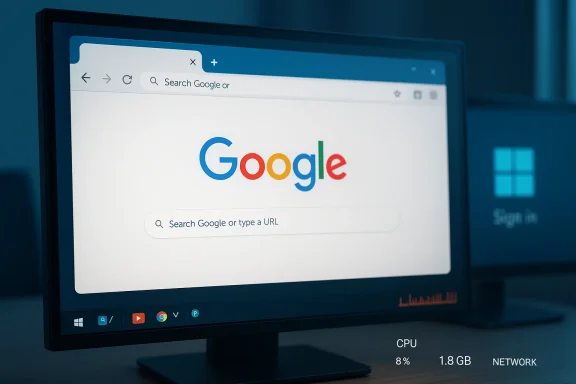
Google’s Chrome is quietly testing a new toggle that lets the browser open itself the moment you sign in to Windows — and it won’t be hiding in the tray. The option, appearing in Chrome Canary under Settings → On startup as “Open Chrome when my computer starts,” is off by default in current test builds, but its implementation and the upstream Chromium changes behind it make this more than a cosmetic convenience. Google’s engineers added explicit support to launch Chrome as a foreground process at login, which changes the performance trade-offs and the way the browser competes for system resources during the sensitive boot and sign-in window.
For years, the big browsers have offered ways to restore sessions, reopen a set of pages, or run lightweight background helpers so apps feel snappier. Chrome’s existing startup controls — Open the New Tab page, Continue where you left off, and Open a specific page or set of pages — let you control what Chrome shows after you explicitly launch it. What’s new is a browser-native toggle to start at the moment you log into Windows, without relying on Windows Startup folder entries, scheduled tasks, or third-party utilities.
Behind the scenes, Chromium developers added flags and components to support this behavior, notably a feature for foreground launch on login. That engineering work is what makes the browser appear in the foreground — a visible window — immediately after sign-in, rather than quietly warming up background processes and waiting for you to click the icon.
Microsoft’s Edge has long used a different approach to the same problem: Startup Boost. Edge can keep minimal core processes running in the background so the full UI loads faster on demand. That design tries to balance perceived speed with a small, ongoing memory footprint. Chrome’s foreground launch option deliberately shifts the behavior: start the full browser UI right away. For users who open the browser as their first action after signing in — especially on work machines whose primary workspace is a web app — that trade-off can feel like a meaningful time-saver. For everyone else, it may be unnecessary or harmful to overall responsiveness.
Two implementation choices stand out as important for minimizing harm:
If you’re working on an older laptop, a shared machine, or you prioritize a responsive desktop over immediate browser presence, leave the toggle off and prefer background-warming alternatives or scheduled delayed starts. The feature is currently opt-in and experimental, which is the right stance for a change that alters boot-time process ordering and resource allocation.
For IT pros, testing on representative hardware and setting clear policies will be vital if your organization uses Chrome heavily.
Conclusion
Chrome’s in-development option to open itself in the foreground at Windows sign-in is a practical convenience for web-first users and modern systems, but it raises clear trade-offs around RAM, CPU, and boot-time responsiveness. The visible engineering work to support foreground launches explains why this matters beyond a simple settings tweak: Chrome is moving from a purely on-demand model to one that can assert itself during the system sign-in sequence. For most people the safest approach today is to leave the toggle off until you’ve tested it on your hardware or until enterprises and power users have more granular policy controls. In short: the feature can be a helpful shortcut — but on many machines, it’s also another kind of bloat you may not want first in line.
Source: Windows Central Does Chrome really need to be the first thing you see when opening a PC?
 Background
For years, the big browsers have offered ways to restore sessions, reopen a set of pages, or run lightweight background helpers so apps feel snappier. Chrome’s existing startup controls — Open the New Tab page, Continue where you left off, and Open a specific page or set of pages — let you control what Chrome shows after you explicitly launch it. What’s new is a browser-native toggle to start at the moment you log into Windows, without relying on Windows Startup folder entries, scheduled tasks, or third-party utilities.Behind the scenes, Chromium developers added flags and components to support this behavior, notably a feature for foreground launch on login. That engineering work is what makes the browser appear in the foreground — a visible window — immediately after sign-in, rather than quietly warming up background processes and waiting for you to click the icon.
Microsoft’s Edge has long used a different approach to the same problem: Startup Boost. Edge can keep minimal core processes running in the background so the full UI loads faster on demand. That design tries to balance perceived speed with a small, ongoing memory footprint. Chrome’s foreground launch option deliberately shifts the behavior: start the full browser UI right away. For users who open the browser as their first action after signing in — especially on work machines whose primary workspace is a web app — that trade-off can feel like a meaningful time-saver. For everyone else, it may be unnecessary or harmful to overall responsiveness.
How the new Chrome startup option works
Where you'll find it
The setting shows up in the Chrome Canary preview channel in the On startup section of Settings as Open Chrome when my computer starts. In current test builds the toggle is disabled by default; a user must explicitly enable it to have Chrome launch on sign-in.Foreground vs background launch — why it matters
- Foreground launch: Chrome opens a visible window and acquires the usual resource scheduling priority of an interactive application. That means the UI is allocated CPU time and memory earlier in the sign-in process, and the OS is more likely to schedule rendering and input-handling tasks promptly.
- Background warming: The background approach spins up only minimal helper processes and keeps memory usage lower, with the full UI created only when the user opens the browser. This is what Edge’s Startup Boost uses.
Integration with existing startup options
The new toggle is additive: it works alongside Chrome’s existing On startup choices. If you enable the browser to open at login and choose Continue where you left off, Chrome will immediately restore your previous session, including all tabs and windows, as soon as the window appears. That’s convenient for users whose workflows are tab-centric, but it also multiplies the impact on memory and I/O when the session contains many tabs.Who benefits — and who loses
Beneficiaries
- Web-first workers: If your job revolves around a web app — workplace SaaS, dashboards, web-based IDEs — having Chrome open the moment you sit down saves clicks and shave seconds off your startup ritual.
- Users on fast hardware: Machines with modern multi-core CPUs, plentiful RAM (8GB or more), and SSD storage will experience much less negative impact from a foreground browser launch.
- People who prefer a one-click workflow: For anyone who habitually opens the browser immediately to the same set of pages, this is a small but genuine quality-of-life improvement.
Those who may be harmed
- Low-RAM systems and older CPUs: Systems with limited memory or slower HDDs can see noticeable degradations in boot and login responsiveness if a heavy app requests foreground resources immediately.
- Users who want a snappy desktop flash: The desktop’s perceived readiness depends on the sequence of processes that run at login. A foreground browser window appearing while system services are still initializing can magnify perceived sluggishness.
- Careful multitaskers: If your first act after signing in is to open mail and productivity apps, having Chrome jump in front automatically can be intrusive.
Performance and resource implications
Chrome’s reputation for higher memory usage is well-known, and a foreground start simply moves the resource consumption earlier in the boot timeline. There are several concrete factors to consider.Memory pressure at sign-in
Restoring a previous session of many tabs or opening a set of pinned pages immediately can consume hundreds of megabytes — and in heavy cases multiple gigabytes — of RAM. On a machine with limited free memory at sign-in, that allocation can cause the OS to page, swap, or deprioritize other processes, leading to lag when interacting with the desktop or other foreground apps.CPU and I/O burst
Creating the UI, initial tab rendering, network connections, and extension initialization generate CPU and disk I/O bursts. On older systems or those with slower disks, these bursts can produce stutters or slow desktop animation until background I/O settles.Startup ordering and priority
Because the Chromium change provides a foreground launch path, Chrome may be scheduled with higher interactive priority. On systems that are resource-constrained, that can starve other interactive programs at the moment you expect them to be usable.Comparison to background warming approaches
Edge’s Startup Boost and similar background-warming techniques keep only minimal processes in memory. That trades continuous, small memory use for quicker cold-start behavior without a big burst at login. Chrome’s foreground toggle is a different design decision: accelerate the first visible browser experience by making the browser the first visible app at login.Security and privacy considerations
Automatically opening a browser window at login has privacy and security implications beyond performance.- Session restoration: If you use Continue where you left off, enabling the startup toggle means that any tabs you left open — including content behind single-sign-on, private dashboards, or chat windows — will appear immediately. On a shared or semi-public workstation, that exposes content sooner than you might expect.
- Credentialed apps and SSO: Web apps that rely on single sign-on or session cookies may automatically reconnect, presenting sensitive information as soon as you log in to Windows.
- Malware and supply-chain risks: Any startup behavior that launches a networked UI increases the attack surface at a time when system defenses and endpoint security services may still be initializing. That’s not to say enabling the toggle makes you insecure by itself, but it does change the timing of when network requests are made during boot.
Enterprise and IT perspectives
IT administrators will want to know how this interacts with policy management and enterprise deployments.- Policy controls and experimentation: Chromium’s implementation includes a set of flags and a feature gate that can be used to roll the behavior out as an experiment or to control it centrally. That indicates Google intends to manage deployment via remote experiments and potentially provide enterprise policy knobs.
- Group Policy and MDM: Enterprises that manage browser behavior centrally will likely get policies to enable or disable launch-on-login behavior or control whether Chrome can restore sessions at startup.
- User training and helpdesk load: If machines under management enable foreground launch by default (which is currently not the case), IT teams may see increased calls about slow boot times or apps that appear to compete for resources on login.
How to control the behavior today (practical steps)
If you’re testing Chrome Canary or want to be ready for this feature when it ships, here’s what to check and how to protect your Windows login experience.- Open Chrome Canary and go to Settings → On startup.
- Confirm whether Open Chrome when my computer starts is present and turned off by default.
- If you want Chrome to start without showing a full window, rely instead on Windows Startup entries or background-warming features in other browsers.
- To stop a browser from auto-starting after enabling the toggle:
- Turn the toggle off.
- Or manage startup apps via Windows Settings → Apps → Startup and disable Chrome there.
- If you experience slow sign-in after enabling it, revert the toggle, reboot, and compare responsiveness before and after.
- Identify policy controls when they arrive in the Chromium policy set.
- Test on hardware representative of your fleet, focusing on boot times and user-session responsiveness.
- Communicate default behavior to users and provide guidance about session restore and privacy best practices.
Mitigations and alternatives
If you like a fast browser launch but worry about boot-time resource contention, consider these alternatives:- Background-warm approaches: Use a browser with a background warming feature (for example, Microsoft Edge’s Startup Boost) which aims to reduce the cold-start time without creating a visible UI at login.
- Delay startup with Task Scheduler: If you must have Chrome open early but want to avoid the tight sign-in window, schedule Chrome to start a minute or two after login using the Windows Task Scheduler. This lets core system services finish initializing first.
- Limit restored tabs: If you use session restore, close tabs you don’t need before signing out. Restoring fewer tabs reduces memory and I/O impact.
- Increase system resources: On frequently used workstations, adding RAM and switching to SSDs reduces the friction of foreground launches and makes the trade-off favorable.
The trade-offs: convenience vs control
Chrome’s on-login foreground launch is a classic trade-off between convenience and predictability. For web-first users on modern hardware, the feature can streamline the morning routine by removing one click and reducing perceived time-to-first-task. For users with older or constrained hardware, or for those who value a snappy desktop at sign-in, the change risks introducing confusion and slowdowns.Two implementation choices stand out as important for minimizing harm:
- Keep the toggle off by default: Test builds show the option disabled by default. That’s a sensible conservative choice that avoids surprising users who upgrade Chrome.
- Provide enterprise policy controls: Admin controls that completely disable foreground launches at scale would let IT departments avoid regressions on locked-down fleets.
Risks and unknowns
A few open questions and risks deserve attention:- Will Google ever flip the default? There is always a chance that engineering teams will change defaults based on experiment results, telemetry, or perceived UX benefits. If that happens, the change from opt-in to opt-out could create widespread user confusion and a spike in helpdesk tickets for machines with limited resources. That eventuality is speculative and not a guarantee.
- Extension behavior and startup hooks: Extensions that run at startup or inject scripts can magnify resource demands at login. Some extensions are heavy or poorly optimized; their initialization in a foreground-launch scenario could exacerbate slowdowns.
- Interaction with Windows boot optimizations: Because Windows schedules device and process initialization during boot and sign-in, a foreground browser competing for resources at that critical period might interact unpredictably with other scheduled startup tasks and OEM-specific boot optimizations.
Bottom line: is Chrome’s head start worth it?
If you open the browser first thing every morning and your machine is modern and well-provisioned, Chrome’s new startup toggle is a legitimate productivity win. It reduces clicks and speeds the moment-to-first-browse by placing the UI where you expect it immediately after sign-in.If you’re working on an older laptop, a shared machine, or you prioritize a responsive desktop over immediate browser presence, leave the toggle off and prefer background-warming alternatives or scheduled delayed starts. The feature is currently opt-in and experimental, which is the right stance for a change that alters boot-time process ordering and resource allocation.
For IT pros, testing on representative hardware and setting clear policies will be vital if your organization uses Chrome heavily.
What to watch next
- Will Google expose enterprise controls in the Chromium policy set to let admins centrally disable foreground launches? That’s likely — the underlying commits show feature gates intended to support experimentation and controlled rollouts.
- How will extensions behave in this startup window? Keep an eye on reports that link poor boot responsiveness to extension initialization during foreground launches.
- Will the setting ever become the default? That would be the most consequential change; if that step is considered, it should be accompanied by clear telemetry-backed heuristics and per-device criteria.
Conclusion
Chrome’s in-development option to open itself in the foreground at Windows sign-in is a practical convenience for web-first users and modern systems, but it raises clear trade-offs around RAM, CPU, and boot-time responsiveness. The visible engineering work to support foreground launches explains why this matters beyond a simple settings tweak: Chrome is moving from a purely on-demand model to one that can assert itself during the system sign-in sequence. For most people the safest approach today is to leave the toggle off until you’ve tested it on your hardware or until enterprises and power users have more granular policy controls. In short: the feature can be a helpful shortcut — but on many machines, it’s also another kind of bloat you may not want first in line.
Source: Windows Central Does Chrome really need to be the first thing you see when opening a PC?
