

Microsoft’s December Patch Tuesday update, delivered as KB5072033, landed on December 9, 2025, and while it does not introduce headline-grabbing features, it fixes two of the most visible annoyances in everyday Windows 11 use: the File Explorer white-flash when navigating and a buggy Ask Copilot “Click to Do” window that sometimes failed to appear in the foreground. These fixes are bundled into cumulative builds 26200.7462 (Windows 11 25H2) and 26100.7462 (Windows 11 24H2), and the release also carries a broad set of security patches and quality improvements that administrators and consumers should evaluate before deployment.
Microsoft’s monthly cumulative updates typically mix security fixes, reliability patches, and incremental feature polish. December’s KB5072033 follows an early-December optional release and consolidates fixes from previous previews while adding additional corrections tied to recent stability complaints. The update is the final standard Patch Tuesday rollup before the reduced servicing cadence over the Western holiday period; the package includes a servicing stack update for reliability and a number of AI component updates used by Copilot and related features.
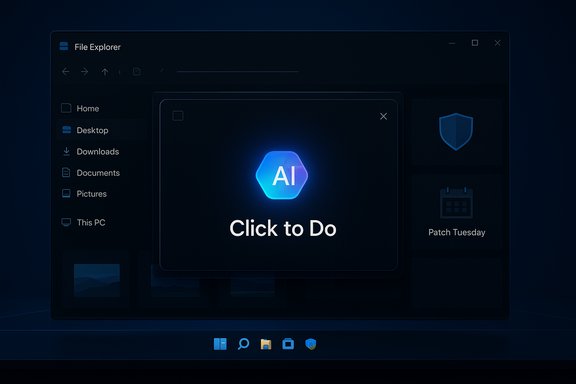
The two user-facing fixes that drew attention are: (1) a short, distracting white flash in File Explorer when moving between panes or pages, and (2) an inconsistent behavior in Ask Copilot where the Click to Do window either failed to appear or opened behind other apps. Both issues affected day-to-day productivity for frequent Explorer users and anyone relying on Copilot for quick actions.
This behavior appears to have been introduced or triggered by earlier updates and was especially noticeable after a December preview update installed on some machines. The white flash was a visual race condition between UI rendering paths: dark-theme surfaces weren’t consistently applied to all Explorer frames during navigation transitions.
Notable UX improvements in the release:
This undermined trust in Copilot’s immediacy and made lightweight workflows slower.
Additional Copilot-related adjustments in the release refine menu layouts and agent responsiveness on Copilot+ devices; some advanced capabilities remain hardware- and entitlement-gated and are staged via controlled rollout mechanisms.
Key security notes accompanying the rollout:
Adopting KB5072033 should be straightforward for most users, but organizations with specialized environments must validate interactions with third-party shell extensions, virtualization stacks, and automation pipelines. For anyone who spends substantial time in File Explorer or relies on Copilot’s quick actions, the update removes two of the most visible irritants and strengthens the overall Windows 11 experience.
Source: Windows Report Windows 11 KB5072033 Update Fixes File Explorer Flashing and Ask Copilot Bugs
 Background
Microsoft’s monthly cumulative updates typically mix security fixes, reliability patches, and incremental feature polish. December’s KB5072033 follows an early-December optional release and consolidates fixes from previous previews while adding additional corrections tied to recent stability complaints. The update is the final standard Patch Tuesday rollup before the reduced servicing cadence over the Western holiday period; the package includes a servicing stack update for reliability and a number of AI component updates used by Copilot and related features.The two user-facing fixes that drew attention are: (1) a short, distracting white flash in File Explorer when moving between panes or pages, and (2) an inconsistent behavior in Ask Copilot where the Click to Do window either failed to appear or opened behind other apps. Both issues affected day-to-day productivity for frequent Explorer users and anyone relying on Copilot for quick actions.
What KB5072033 Changes — Overview
This cumulative update focuses on reliability and UI polish across several Windows 11 subsystems. Highlights include:- File Explorer visual and UX fixes: Dark mode polishing, corrected thumbnails for certain media metadata, removal of a legacy white toolbar that could appear randomly, and the specific fix for the brief white flash while navigating.
- Copilot interaction reliability: Fix for Ask Copilot so that the Click to Do window reliably opens in the foreground when data is shared with Copilot.
- Networking and virtualization fixes: Correction for external virtual switches that could lose NIC bindings after a host restart.
- PowerShell safeguards: Changes to PowerShell 5.1 that add an explicit confirmation prompt to Invoke-WebRequest, raising awareness of potential script execution risks when pulling web content.
- AI component updates: Updated versions for image search, content extraction, and semantic analysis modules used by Copilot features.
- Servicing stack update: An SSU to improve update installation reliability (noted separately as KB5071142 for some servicing scenarios).
File Explorer: From Flashing White to Dark-Mode Consistency
What was happening
Many Windows 11 users reported that File Explorer would briefly flash a white background when navigating between folders, switching views, or performing file operations. The flash was particularly jarring for users employing dark themes or working in low-light conditions, where a sudden bright white flash breaks visual continuity and can be distracting over repeated interactions.This behavior appears to have been introduced or triggered by earlier updates and was especially noticeable after a December preview update installed on some machines. The white flash was a visual race condition between UI rendering paths: dark-theme surfaces weren’t consistently applied to all Explorer frames during navigation transitions.
What Microsoft changed
KB5072033 addresses this by standardizing how Explorer applies theme surfaces during transitions and ensuring the dark-mode assets and chrome render synchronously with the page content. The update also includes several related fixes that improve dark mode consistency across dialogs, progress bars, and context menus.Notable UX improvements in the release:
- Dark mode alignment across previously inconsistent Explorer dialogs (copy/move/delete confirmations and progress UI).
- Removal of a legacy white toolbar that could appear unexpectedly in certain copy/move operations.
- Correct thumbnail rendering for video files with specific EXIF metadata.
- Small context-menu icon and layout corrections to show the correct app icon next to “Open” instead of a generic placeholder.
Why this matters
For users who rely on dark mode for reduced eye strain or for kiosks and public displays, the flash was more than cosmetic: it broke an intentional visual continuity and could lead to usability complaints. Fixing the flash reduces cognitive friction and improves perceived stability, which is a meaningful quality-of-life improvement even though it’s not a new feature.Deployment guidance
- Consumer devices: Install the update via Windows Update when it becomes available; the UX improvements are low-risk and targeted.
- Enterprise: Validate in a pilot ring before broad rollout if you run specialized deployments (kiosk systems, point-of-sale terminals, or devices with highly customized shell environments). Confirm that third-party Explorer extensions behave correctly post-update, since shell extensions can sometimes interact poorly with context-menu changes.
Ask Copilot and Click to Do: Reliability for Quick Actions
The problem
Ask Copilot’s Click to Do window, a streamlined Copilot surface for quick actions like copy, save, and share, sometimes failed to activate or opened behind other applications. That meant users attempting to trigger Copilot for contextual operations could be left wondering whether the action had been invoked, leading to repeated clicks or abandoned flows.This undermined trust in Copilot’s immediacy and made lightweight workflows slower.
The fix
KB5072033 ensures the Click to Do window reliably appears in the foreground when data is shared with Copilot. The change centers on window activation and Z-order handling for Copilot’s UI, ensuring it requests and receives foreground focus correctly across a range of app states.Additional Copilot-related adjustments in the release refine menu layouts and agent responsiveness on Copilot+ devices; some advanced capabilities remain hardware- and entitlement-gated and are staged via controlled rollout mechanisms.
Practical impact
- For everyday users: Expect fewer cases where Copilot appears to be non-responsive or hidden behind other windows.
- For power users and creators: Click-to-Do is a quick productivity affordance; its improved reliability saves seconds per interaction which can add up in tight workflows.
- For enterprises: The foreground activation fix reduces helpdesk complaints about “missing” windows and can improve user acceptance of Copilot-assisted workflows.
Caveats
Some Copilot features remain subject to staged rollouts and device capabilities. Not all users will see Copilot+ enhancements immediately. Administrators controlling Copilot deployment via organizational policies should check the enterprise management documentation and test behavior with the updated agent binaries.Security and Vulnerability Context
KB5072033 is distributed as a security cumulative update and consolidates various security hardening efforts. Independent security reporting around this Patch Tuesday cycle documented dozens of CVEs fixed across the Windows ecosystem, including multiple zero-day and public disclosure cases.Key security notes accompanying the rollout:
- The update is part of a monthly Patch Tuesday that security outlets reported addressed roughly mid‑to‑high‑double‑digit counts of CVEs during December’s release window. Independent coverage places the number in the high-50s, with at least one actively exploited vulnerability affecting the Windows Cloud Files Mini Filter Driver.
- Microsoft’s release emphasizes that this update contains security fixes and links administrators to the Security Update Guide for detailed CVE tracking and mitigation steps.
- KB5072033 also includes a protective change to PowerShell 5.1’s Invoke-WebRequest, adding an explicit confirmation prompt to reduce the risk of inadvertent script execution from web content. This is an important usability/security trade-off that raises user awareness of a potentially dangerous operation.
- Prioritize patching systems exposed to local users or public networks where known exploited vulnerabilities could be chained into higher-impact attacks.
- Apply the servicing stack update (SSU) as recommended to ensure future Windows updates install reliably.
- For large environments, test the update against imaging, driver, and boot configurations in a representative lab before broad deployment.
Network, Virtualization, and PowerShell Fixes
Beyond UI and Copilot tweaks, the update also addresses operational problems that can affect servers and development machines:- External virtual switch NIC bindings: A bug that could cause external virtual switches to lose physical NIC bindings after a host restart has been corrected. In affected cases, switches reverted to internal mode after reboot, breaking network connectivity for VMs. This is critical for server-hosting environments and virtualization hosts.
- Kerberos: Certain failure modes that could lead to crashes when accessing cloud file shares were addressed.
- PowerShell 5.1: The Invoke-WebRequest change introduces an explicit warning and confirmation prompt. Administrators relying on automated scripts that programmatically invoke web resources should audit scripts and automation pipelines to ensure they handle the interactive prompt or opt to use non-interactive mechanisms (PowerShell Core or other command-line tools) where appropriate.
Testing and Rollout Considerations
KB5072033 is safe for typical consumer installs, but larger organizations and specialized deployments should consider a measured rollout:- Create a pilot deployment group that includes the following device types:
- Workstations used by creative teams or content editors (to validate Copilot and Explorer behaviors).
- Kiosks and public-facing terminals (validate dark-mode consistency and ensure the white-flash is resolved without introducing new visual regressions).
- Virtualization hosts (validate NIC binding and VM network connectivity).
- Automation servers and build agents (validate PowerShell 5.1 behavior and confirm no breakage from the new Invoke-WebRequest prompt).
- Track telemetry for UI regressions: look for escalations in Explorer-related error reports and Copilot responsiveness.
- Coordinate with helpdesk teams: prepare a short FAQ covering the Explorer dark-mode corrections and Copilot foreground behavior so first-line staff can triage any residual user reports.
- For managed enterprises: update your WSUS, SCCM/ConfigMgr, or MDM catalogs and schedule maintenance windows that include SSU installation where required.
Risks, Limitations, and Unverifiable Claims
While KB5072033 addresses high-impact usability and security concerns, there are a few caveats and potential risks to track:- Controlled feature rollouts and hardware gating: Some Copilot refinements and Copilot+ features are staged and may require specific hardware (NPUs or Copilot+ entitlements). Availability will vary across devices and user accounts.
- Third-party shell and context-menu extensions: Changes to File Explorer’s context menu and dark-mode rendering can surface compatibility issues with older or poorly maintained shell extensions. If your environment relies on such extensions, validate them in a pilot before broad deployment.
- Security vulnerability counts reported by press outlets: Independent reporting placed the December Patch Tuesday total in the mid‑to‑high‑50s for CVEs patched, including several zero-days. These counts reflect consolidated industry reporting and Security Update Guide data; they should be interpreted in context and validated against internal vulnerability management systems. Treat third-party tallies as indicative rather than authoritative unless reconciled with Microsoft’s Security Update Guide and organizational CVE inventories.
- Edge cases: Although the white-flash fix addresses a broad rendering race condition, highly customized themes, third-party UI customization tools, or legacy accessibility overlays could still produce unexpected visual artifacts. Administrators using such tools should test in representative environments.
Why This Update Matters — Practical Analysis
KB5072033 is not transformative, but it is consequential in ways that affect day-to-day user satisfaction and security posture.- Small fixes, big perceived quality: The File Explorer flash is a small bug that disproportionately affects perception. Fixing it improves the overall polish of Windows 11 and reduces user friction.
- Copilot reliability equals adoption: Copilot’s utility depends on predictable, immediate responses. Fixing foreground activation for Click to Do helps Copilot feel dependable rather than flaky—a critical factor for adoption of AI-assisted workflows.
- Security maintenance remains essential: The rollout’s security fixes—particularly zero-day closures—underscore that Patch Tuesday remains the most effective single action users and organizations can take to reduce exposure to active threats.
- Operational stability: Fixes to networking virtualization and PowerShell safeguards reduce the operational risk of system reboots or scripted automation silently failing.
Recommendations
- End users: Install KB5072033 via Windows Update at your next convenient opportunity. The update targets visible annoyances and security fixes with minimal disruption for most consumer devices.
- Small businesses: Apply the update to a subset of machines first (administrators, power users), confirm Copilot and Explorer behavior, then proceed to full deployment.
- Enterprises and critical infrastructure: Follow standard change-control processes. Validate the update against virtualization hosts, automation servers, and devices that use customized shells or IMEs. Pay special attention to PowerShell scripts that may interactively prompt under new behavior.
- Security teams: Reconcile third-party CVE counts with vulnerability management tooling and the Security Update Guide. Prioritize systems flagged as externally exposed or listed in the KEV catalog.
- Helpdesk teams: Prepare short troubleshooting scripts for issues that could arise from context-menu changes or Copilot behavior during staged rollout periods.
Conclusion
KB5072033 is a reminder that not all meaningful updates are big feature rollouts. Some of the most impactful changes are stability and usability corrections that quietly improve everyday workflows: a dark mode that no longer flashes white, thumbnails that render correctly, and an AI assistant that reliably appears when called. On the security side, December’s cumulative update rounds out the year with important CVE mitigations and a defensive tweak to PowerShell usage patterns.Adopting KB5072033 should be straightforward for most users, but organizations with specialized environments must validate interactions with third-party shell extensions, virtualization stacks, and automation pipelines. For anyone who spends substantial time in File Explorer or relies on Copilot’s quick actions, the update removes two of the most visible irritants and strengthens the overall Windows 11 experience.
Source: Windows Report Windows 11 KB5072033 Update Fixes File Explorer Flashing and Ask Copilot Bugs
