

A simple, reversible tweak that disables the WinUI-based command bar in Windows 11 File Explorer can eliminate the glaring dark‑mode “white flash” introduced by Microsoft’s recent preview update and — for many users — deliver noticeably faster Explorer launches and a much smaller memory footprint.
Windows 11 has been steadily migrating parts of the Shell’s chrome from classical Win32 UI code to WinUI/XAML hosted via the Windows App SDK. That change brings modern theming and feature parity with new Windows apps, but it also adds a new composition and paint path into the mix. When Microsoft shipped the December 1, 2025 preview cumulative (KB5070311), the update aimed to finish dark‑mode theming across more Explorer dialogs and progress UIs — and inadvertently introduced a regression that causes a very brief, extremely bright white flash whenever File Explorer paints in dark mode. Microsoft documented the issue as a Known Issue in the KB and said a fix is in progress. At the same time, Microsoft is experimenting with a different Explorer optimization (a background preloading toggle to reduce cold‑start latency) in Insider builds, acknowledging the long‑running perception that File Explorer can feel sluggish on cold opens. The preload is a pragmatic, reversible engineering trade‑off that improves perceived launch time by warming a lightweight Explorer skeleton in memory. Independent testing and Microsoft’s notes show the preload improves first‑open responsiveness at a modest memory cost.
When the WinUI components paint or recompose slower than the rest of the window, the system can temporarily render a fallback background (in this case, bright white) before the dark UI finishes. Reverting to the legacy Ribbon avoids that extra XAML path entirely, so the old, well‑trodden paint order is used and the flash is eliminated. This explanation matches the community’s reproducible observations and Microsoft’s note that the regression is tied to dark mode paint ordering after the KB.
By moving only the command bar back to a legacy rendering path, users can restore a calmer dark‑mode experience and, in many cases, noticeably snappier File Explorer opens — but treat this as a pragmatic, temporary measure until an official, long‑term repair arrives.
Source: Neowin Simple tweak makes Windows 11 File Explorer faster and fixes a very annoying bug
 Background
Windows 11 has been steadily migrating parts of the Shell’s chrome from classical Win32 UI code to WinUI/XAML hosted via the Windows App SDK. That change brings modern theming and feature parity with new Windows apps, but it also adds a new composition and paint path into the mix. When Microsoft shipped the December 1, 2025 preview cumulative (KB5070311), the update aimed to finish dark‑mode theming across more Explorer dialogs and progress UIs — and inadvertently introduced a regression that causes a very brief, extremely bright white flash whenever File Explorer paints in dark mode. Microsoft documented the issue as a Known Issue in the KB and said a fix is in progress. At the same time, Microsoft is experimenting with a different Explorer optimization (a background preloading toggle to reduce cold‑start latency) in Insider builds, acknowledging the long‑running perception that File Explorer can feel sluggish on cold opens. The preload is a pragmatic, reversible engineering trade‑off that improves perceived launch time by warming a lightweight Explorer skeleton in memory. Independent testing and Microsoft’s notes show the preload improves first‑open responsiveness at a modest memory cost. What Microsoft shipped and what broke
The KB: what it attempted to fix
KB5070311 (the December 1, 2025 preview) bundles a number of polish items: deeper dark‑mode coverage across File Explorer dialogs, fixes for some thumbnail and icon glitches, and miscellaneous reliability improvements. The update’s release notes explicitly call out a known issue: when Windows is set to Dark mode, File Explorer may briefly display a blank white screen (a “flashbang”) before the dark UI finishes painting. The flash can appear when opening Explorer, creating a new tab, switching panes such as Home/Gallery, toggling the Details pane, or selecting “More details” while copying files. Microsoft states it is working on a resolution.How the bug shows up for users
Coverage from multiple outlets and forum threads makes the symptom clear: in dark mode the initial paint sometimes flips to a white window for a short instant, producing a jarring contrast that is particularly uncomfortable on OLED or low‑light setups. The bug is visible, repeatable for many affected machines, and triggered by UI actions users perform dozens of times daily — which is why the regression has attracted rapid attention.The community workaround: avoid the WinUI command bar
What people discovered
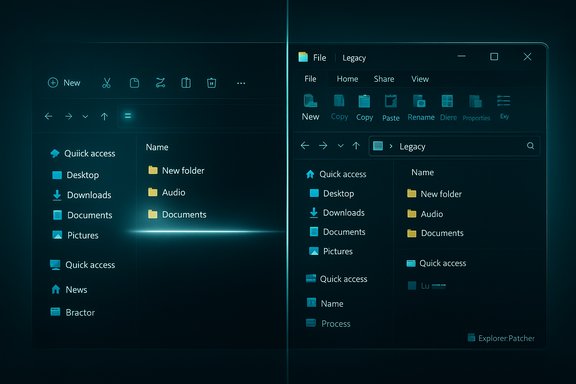
Community testing found a practical, surgical workaround: remove the modern Windows 11 command bar (the WinUI surface) and force File Explorer to use a legacy UI path — either the Windows 10 Ribbon or the Windows 7 Command Bar — for the explorer chrome. Doing so avoids the WinUI composition path that appears implicated in the paint ordering/regression, and many users report the white flash disappears when Explorer’s control interface is switched to the legacy alternative. Multiple independent hands‑on reports and forum threads document this behavior.The tool that exposes the option: ExplorerPatcher
ExplorerPatcher is an open‑source utility that restores many legacy shell behaviors and exposes a control to disable the Windows 11 command bar so the Windows 10 Ribbon (or Windows 7 Command Bar) is shown instead. The project’s documentation lists this feature explicitly and provides screenshots and guidance. Because ExplorerPatcher makes only that targeted change to Explorer’s chrome, it is a quick, reversible way to test whether avoiding WinUI removes the flash and changes Explorer’s performance profile.Why this works: the technical picture in plain English
File Explorer in modern Windows 11 is a hybrid. The underlying shell and folder enumeration remain Win32/COM-based, but the chrome — toolbar, command bar, and several panes — has been progressively migrated to WinUI/XAML. WinUI introduces a different composition stage and XAML runtime initialization. For many machines, the additional XAML initialization and cross‑composition of WinUI elements into a legacy shell window can change paint order and timing.When the WinUI components paint or recompose slower than the rest of the window, the system can temporarily render a fallback background (in this case, bright white) before the dark UI finishes. Reverting to the legacy Ribbon avoids that extra XAML path entirely, so the old, well‑trodden paint order is used and the flash is eliminated. This explanation matches the community’s reproducible observations and Microsoft’s note that the regression is tied to dark mode paint ordering after the KB.
Measured effects and claims — what’s confirmed, what’s anecdote
- Confirmed: Microsoft acknowledges the white‑flash issue in the KB5070311 Known Issues and is tracking a repair. That admission is authoritative.
- Confirmed: ExplorerPatcher provides an explicit option to disable the Windows 11 command bar and show the Windows 10 Ribbon or Windows 7 Command Bar instead. The project documentation and releases show the option.
- Independently reported: several outlets and community threads have reproduced the white flash and reported that switching Explorer’s control interface to the legacy Ribbon removes the visual regression for affected systems. These independent reproductions are consistent across forums and coverage.
- Anecdotal / not independently verified: a widely circulated community claim — attributed to a tech enthusiast on X (formerly Twitter) — states that disabling the WinUI elements reduced File Explorer’s memory usage by 69% and markedly sped cold opens. This precise numerical claim is plausible in direction (lower memory and faster cold start) because avoiding WinUI removes runtime overhead, but the exact percentage and uniformity of that result vary by hardware, installed shell extensions, GPU drivers, and driver‑assisted composition. The original 69% figure could not be verified against an official, reproducible benchmark dataset and should be treated as an anecdote until corroborated with methodical measurement on multiple systems. Users who value exact quantification should run their own before/after memory and launch timers. (Caveat: claims of dramatic percentage reductions are often true for specific test rigs but not universal.
Practical, safe steps to try the tweak
- Back up critical data and create a System Restore point before applying any third‑party shell modification.
- If you’re on a managed device (work/school), consult your IT policy first. Do not deploy ExplorerPatcher on production fleets without approval.
- Download ExplorerPatcher from its official GitHub releases page (verify the release and checksum where practical).
- Install the utility (the installer is small and typically restarts Explorer to apply changes).
- Open the ExplorerPatcher properties (right‑click the taskbar → Properties, or use the small properties app the tool installs).
- Go to the File Explorer tab (Control Interface section) and choose Windows 10 Ribbon or Windows 7 Command Bar from the dropdown.
- Restart Explorer (ExplorerPatcher provides a restart link) or sign out and back in to ensure the change is applied.
- Test the previously failing actions: open File Explorer in dark mode, create a new tab, toggle Details, etc. Confirm whether the white flash persists.
- If you encounter unexpected behavior, revert the setting or uninstall ExplorerPatcher and use the System Restore point.
- SmartScreen and some EDR tools may flag ExplorerPatcher on first run because community projects can lack broad reputation. Verify the GitHub release and checksum to reduce risk.
- Don’t install community shell‑patching tools on critical production machines without approval.
- If you are uncomfortable with third‑party utilities, simpler mitigations exist: uninstall the optional preview cumulative (rollback KB5070311) or temporarily use Light mode until Microsoft ships a fix.
Alternatives and longer‑term outlook
- Uninstall or pause the preview LCU: For users affected by the flash who prefer to avoid third‑party tools, uninstalling the optional preview KB or pausing preview updates is the safest route until Microsoft publishes a fix. Microsoft has acknowledged the issue and will push a repair through Windows Update.
- Switch to Light mode: As Microsoft notes and community testers observe, setting the OS to Light theme avoids the dark‑mode paint path that triggers the flash. This is an ugly workaround for those committed to dark mode, but it is immediate and safe for managed devices.
- Wait for Microsoft: because the regression is a Known Issue in the KB, Microsoft will fix it in a forthcoming cumulative or out‑of‑band update. For most mainstream users, the best path is to wait for that repair if they cannot or should not run third‑party code.
- Use ExplorerPatcher as a diagnostic: power users and enthusiasts can use the setting to determine whether their machine’s regression is WinUI‑related, and then decide conservatively whether to keep the change until Microsoft issues the official fix.
Risks, enterprise impact and support considerations
- Unsupported tooling: ExplorerPatcher is not a Microsoft product. It can conflict with corporate policies, endpoint protection, or OEM customizations. IT teams should prefer vendor sanctioned mitigations (uninstall the preview LCU, change theme policy) rather than community patches on managed fleets.
- Driver and GPU variance: paint behavior and composition timing are influenced by GPU drivers, HDR/OLED pipelines, and display driver model changes. Results will vary between machines; test widely on representative hardware before adopting any change broadly.
- Security posture: community projects can be flagged by SmartScreen or EDR until they gain reputation. IT and security teams must weigh the usability gains against the operational friction. Verifying binary signatures, checksums, and GitHub provenance reduces but does not eliminate risk.
- Not a silver bullet: the tweak addresses a paint ordering symptom tied to WinUI usage in the command bar. Other forms of Explorer sluggishness — network enumeration delays, heavy thumbnailing, or slow third‑party shell extensions — will not be fixed by switching the command bar. Administrators and power users should diagnose other root causes separately.
What this episode says about Windows UI migration
This regression illustrates a perennial trade‑off in platform evolution: migrating to a modern UI stack (WinUI/XAML) can deliver consistent theming, improved accessibility, and a modern development model — but the migration changes runtime composition and integration with legacy subsystems. When large shipments of incremental polish land across millions of devices, minor timing or paint regressions can become highly visible. The right engineering response is twofold: (a) ship staged preview updates with clear opt‑ins to limit blast radius, and (b) prioritize a targeted fix so the platform preserves the new design without uncomfortable regressions. Microsoft’s KB acknowledgment and the community workaround both reflect an ecosystem in active triage: vendor fixes should restore the intended UX while the community patches serve as short‑term mitigations.Bottom line
If you’re seeing the bright white flash in File Explorer after installing Microsoft’s December preview (KB5070311), the quickest and most effective diagnostic is to avoid the WinUI command bar and switch to the Windows 10 Ribbon or Windows 7 Command Bar. ExplorerPatcher exposes this change cleanly and reversibly; many users report the flash disappears and perceived launch times improve. However, the precise memory and speed gains are hardware‑dependent and community claims of specific percentage improvements should be treated as anecdotal unless reproduced in controlled tests. For managed environments and risk‑sensitive users, uninstalling the preview LCU or switching to Light mode until Microsoft issues a fix are the safest options. In all cases, test before you deploy and prefer vendor fixes over long‑term reliance on third‑party shell patchers.By moving only the command bar back to a legacy rendering path, users can restore a calmer dark‑mode experience and, in many cases, noticeably snappier File Explorer opens — but treat this as a pragmatic, temporary measure until an official, long‑term repair arrives.
Source: Neowin Simple tweak makes Windows 11 File Explorer faster and fixes a very annoying bug
