

Google's Chrome appears to be testing a new, somewhat insistent prompt on Windows 11 that asks users to let the browser launch automatically when the OS reaches the desktop — a change that promises faster-first-click responsiveness at the cost of adding a background startup process and another in-product nudge in the UX.
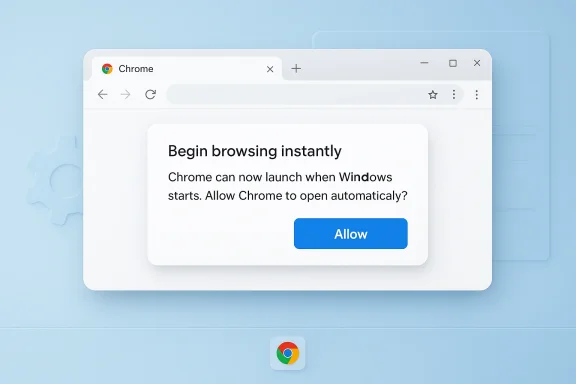
For years, browser makers have used a combination of onboarding prompts, "set as default" nudges, and background preloads to improve perceived speed and increase market share. Chrome has supported background processes and a "run in background" option for a long time, and Chromium's source now contains strings that make explicit a new foreground launch on first boot message that appears in Windows builds of Chrome. That string — "Begin browsing instantly. Chrome can now launch when Windows starts. Allow Chrome to open automatically?" — is present in Chromium's resource files and has begun appearing in Canary-channel builds and screenshots shared by browser watchers. Early reports from browser-specialist observers and tech outlets show the infobar appearing directly under the bookmarks bar with a single Allow button and an alternate Settings action.
Put plainly: Chrome is testing a feature that will optionally register the browser to launch when Windows signs in, keep a Chrome process running (so subsequent open operations are faster), and — crucially for many users — show an on‑screen prompt asking for permission to do so.
What is different today is the context: Windows 11 already surfaces suggestions and tips across the OS (lock screen, widgets, and setup flows). Users are sensitized to prompts that try to change system behavior. That creates a UX environment where an extra in‑browser banner about starting Chrome at boot will feel notable — and not always positively.
If Chrome ships this prompt in a way that respects explicit user choice, includes clear opt-out mechanisms, and provides guidance about battery and performance impact, the feature can deliver genuine user value. If, however, the prompt becomes more aggressive, defaults change without clear consent, or the UI encourages reflexive acceptance, the result will be annoyed users, more support friction, and justified scrutiny from privacy and competition watchers.
Users who want to stay in control of what runs at startup have multiple, well-supported levers in Windows 11 and Chrome settings to stop autostart behavior; power users and administrators can lock these down centrally. Practically, the best approach for most consumers is to understand the cost: convenience and speed versus resource use and battery life — then choose the behavior that aligns with how they use their PC.
Source: TweakTown It looks like Google plans to nag Windows 11 users to open its Chrome browser at bootup
 Background
For years, browser makers have used a combination of onboarding prompts, "set as default" nudges, and background preloads to improve perceived speed and increase market share. Chrome has supported background processes and a "run in background" option for a long time, and Chromium's source now contains strings that make explicit a new foreground launch on first boot message that appears in Windows builds of Chrome. That string — "Begin browsing instantly. Chrome can now launch when Windows starts. Allow Chrome to open automatically?" — is present in Chromium's resource files and has begun appearing in Canary-channel builds and screenshots shared by browser watchers. Early reports from browser-specialist observers and tech outlets show the infobar appearing directly under the bookmarks bar with a single Allow button and an alternate Settings action.Put plainly: Chrome is testing a feature that will optionally register the browser to launch when Windows signs in, keep a Chrome process running (so subsequent open operations are faster), and — crucially for many users — show an on‑screen prompt asking for permission to do so.
What exactly is being tested
The UI and the behavior
- A small infobar or banner appears inside Chrome (under the bookmarks toolbar) asking users whether Chrome may open automatically when Windows starts.
- The prompt's copy is explicit about launch-at-startup and invites a one-click opt-in via a clearly labeled Allow button.
- When allowed, Chrome registers itself to start on sign-in and creates one or more background processes so the user sees a browser window faster when they first click the icon after boot.
- The implementation under test appears in Canary builds first; Google typically experiments in Canary, then Beta, then Stable channels — but not every test becomes permanent. The string and the setting are present in Chromium source files and the UI has been observed in early builds.
How Chrome speeds up the first open
Chrome's benefit here is straightforward: by prestarting key processes on user sign-in (or by keeping a background process alive), the browser avoids paying process-start and profile-initialization latency the instant you click its icon. Instead of spawning new processes and loading the full UI, Chrome reuses already-running processes and can display the window more quickly. That tradeoff is a classic speed-versus-resources design decision.Evidence and verification
The test is visible in multiple places:- The Chromium source contains dedicated resource strings for a launch-on-startup infobar — the exact text that has been shown in screenshots and reported by browser watchers. Those strings are not an accident: they are explicit UI resources compiled into Chrome builds.
- Independent reporting and screenshots from Canary-channel users and browser researchers confirm the UI has appeared in testing builds. Tech outlets familiar with Canary reporting have covered the change.
- Chromium's enterprise policy templates include the longstanding BackgroundModeEnabled policy and other startup-related policy entries, which indicate that Chrome has code and controls for background/startup behavior. This provides a clear technical match between the UI prompt and existing Chrome configuration options.
Why Google is testing this — the incentives
There are three obvious reasons Chrome would push this:- Performance optics: Faster perceived launch is a measurable UX improvement. Users equate speed at the moment of interaction with product quality; prelaunching improves that first-click experience.
- Engagement and retention: A background Chrome process can handle update checks, push notifications, and preconnects, which keeps users within Google's ecosystem and reduces friction to open the browser.
- Market share dynamics: More foreground launches and being the default visible app at boot subtly reinforce user habits. Prompts nudging users to start Chrome on boot are small levers that can translate into more session starts and more time spent in Chrome — a commercial benefit for Google.
UX and consumer-impact analysis
The upside
- Faster first interaction: If you rely on Chrome as your daily driver, launching preloaded processes will make the browser feel snappier after a boot.
- Less perceived delay for web apps: Progressive Web Apps (PWAs) and services that expect quick launches benefit when the underlying browser is already warm.
- Optionality: The current test exposes the setting and requires an affirmative opt-in. Google has not made the behavior a silent default in the builds being tested.
The downside
- Start-up overhead: Preloading any app at sign-in consumes CPU cycles, RAM, and — on laptops — battery. Even a "tiny" background footprint multiplies across low-end and older hardware. For users who open Chrome only occasionally, the constant background process is wasted resource usage.
- Nag fatigue: Users already face many in-app prompts (set as default, enable sync, new features, etc.). Another prominent banner that appears early in the session risks exacerbating prompt fatigue and eroding trust.
- Accidental opt-ins: A prominent single-button Allow prompt increases the chance of accidental acceptance. Users who click through to dismiss UI clutter may inadvertently enable an autostart behavior they don't want.
- Fragmented user expectations: Some users prefer a tidy desktop after boot; they do not want multiple apps opening or processes running unless explicitly required. The new prompt conflicts with that expectation.
UX alternatives Chrome could have chosen
- Integrate the change into the first-run "What's new" dialog rather than an infobar.
- Use a less intrusive, deferred nudge (e.g., a subtle in-product help tip) rather than a banner that appears immediately on the first screens.
- Default to off and provide a one-time notification in the "System" settings or a changelog entry when the feature ships.
Privacy and regulatory considerations
- Data collection and privacy: Launching a background process in itself does not imply additional telemetry or data collection. However, background processes enable faster background tasks: update checks, push notifications, and preconnects. Users concerned about data collection or continuous connectivity should weigh the tradeoffs. Chrome already has telemetry and sync options bordered by user preferences and policies, so this change mainly affects when background tasks run, not necessarily what they do.
- Competition scrutiny: Regulators have scrutinized browser makers over bundling, default-browser nudges, and other mechanisms that may entrench market share. A widely deployed, aggressive opt-in prompt that pushes autostart behavior could attract attention if it becomes a default or is framed as required. At present, the test is opt-in and localized to Chrome's in-product UI; that minimizes immediate regulatory risk, but it doesn't fully remove commercial or antitrust scrutiny if similar nudges escalate.
- Enterprise control: Enterprises and administrators will expect to manage this behavior centrally. Chromium already exposes a BackgroundModeEnabled policy and other startup-related policies, which means administrators can control or disable background startup behaviors with standard Group Policy or registry keys. For device-management-conscious organizations, that will be an essential control.
Technical mechanics: how Chrome will likely implement autostart
Chrome already supports background operation and has a policy and a browser-setting to "Continue running background apps when Google Chrome is closed." The autostart feature under test likely ties into Windows startup mechanisms:- Startup Task / Registry Run Keys: When enabled, Chrome can register a startup task or add a registry Run entry for the signed-in user to start chrome.exe at login.
- Background mode vs. foreground start: Two separate approaches exist: a hidden background process that doesn't show a top-level window until the user opens Chrome, or actually creating the full window at startup. The test shows Chrome launching in a background state and reusing those processes later — the UI text and Canary behavior suggest a background start that speeds a later foreground open.
- Reuse of existing processes: When Chrome is already running in the background, opening the browser doesn't require spawning new processes or performing expensive profile initialization — the existing process can present the UI quickly.
- Policy hooks: Chromium's policy templates expose BackgroundModeEnabled and other startup controls. That lets administrators set policy values in the registry or via management consoles to prevent background startup entirely.
How to check and control Chrome startup behavior (practical guidance)
If you see the prompt or want to ensure Chrome doesn't auto-launch, here are verified, practical steps to control the behavior on Windows 11.Quick, in‑browser method
- Open Chrome and click the three-dot menu (⋮).
- Choose Settings → System.
- Find the option labeled Continue running background apps when Google Chrome is closed and toggle it off if you don't want background Chrome processes.
- For startup-specific behavior, open Settings → On startup and verify how Chrome opens (e.g., open a specific page vs. continue where you left off). If Chrome has registered a Windows startup task, this section may not show it; use the OS-level controls below.
Windows 11 Settings (recommended for casual users)
- Open Settings → Apps → Startup.
- In the list, find Google Chrome and toggle it Off to prevent Chrome from launching on sign-in.
- Windows shows an "impact" metric for each startup item which helps you spot high-impact entries.
Task Manager method
- Press Ctrl + Shift + Esc to open Task Manager.
- Click the Startup tab.
- Find Google Chrome, right-click and select Disable. This prevents Chrome from being launched automatically on next sign-in.
The Startup folders
- To stop shortcuts that might auto-open Chrome, open the Run dialog (Win + R) and type shell:startup to open the per-user Startup folder. Remove any Chrome shortcuts. For system-wide Startup items, use shell:common startup.
Registry and enterprise controls (for advanced users and administrators)
- Chrome exposes policies under the Google registry hive. For managed environments, administrators can set policies such as BackgroundModeEnabled=0 under HKLM\SOFTWARE\Policies\Google\Chrome to disable background mode. Use Group Policy ADMX templates or your device-management system to set these values centrally. Editing the registry directly is powerful but should be done with care and only by experienced admins.
If you already clicked Allow (and want to undo it)
- Open Chrome → Settings → System and toggle the background/startup options off.
- Confirm via Windows Settings → Apps → Startup or Task Manager that Chrome is not enabled. If Chrome still starts, check the per-user and common Startup folders and the registry Run keys under HKCU\Software\Microsoft\Windows\CurrentVersion\Run and HKLM\SOFTWARE\Microsoft\Windows\CurrentVersion\Run.
Enterprise and sysadmin guidance
Enterprises that manage large fleets should take these steps proactively:- Use Chrome ADMX/enterprise templates or the device-management console to set BackgroundModeEnabled to false if you do not want Chrome to run at sign-in.
- Use endpoint configuration baselines to audit startup entries and remove unauthorized changes.
- Document user-facing communications so employees understand whether Chrome will or will not run at startup, and why.
- Consider battery impact on laptops: automatic background processes reduce battery life across thousands of endpoints.
Broader context: how this fits with past browser behavior
Browser makers have long nudged users with default-browser prompts and first-run experiences. Microsoft and Google have traded prompts and product placement tactics for years, and regulators have watched closely when these nudges border on coercive behavior. This new Chrome experiment is consistent with that history: a small in-product nudge that balances product benefit against the risk of annoying the user.What is different today is the context: Windows 11 already surfaces suggestions and tips across the OS (lock screen, widgets, and setup flows). Users are sensitized to prompts that try to change system behavior. That creates a UX environment where an extra in‑browser banner about starting Chrome at boot will feel notable — and not always positively.
Risks and unknowns
- Battery and performance on constrained devices: Laptops and older PCs will feel the resource impact more. Users who prioritize battery life or low background utilization will treat this as a regression.
- Accidental enablement: A poorly placed infobar with a single affirming action increases accidental opt-ins, which in turn creates support tickets and negative sentiment.
- Regulatory attention if defaults shift: If Google ever flips the behavior into a default on, or if the prompt becomes mandatory in some contexts, regulators could examine its effect on competition. For now the feature is opt-in and explicitly presented, which mitigates that risk.
- User trust erosion: Repeated in-product nudges for foundational OS behaviors (launch at startup, default browser, search engine choice, etc.) cumulatively erode trust if not handled transparently. Chrome will need to show restraint to avoid that outcome.
Recommendations for users
- If you always use Chrome and care about fastest‑possible launch times, the opt-in can be useful — but test battery/system impact on your device before you accept it system-wide.
- If you prefer minimal background activity, decline the prompt and double-check Chrome's System setting to ensure background mode is disabled. Verify in Windows Settings → Apps → Startup that Chrome is not set to launch.
- Laptop users should be especially cautious: small background processes can reduce battery life meaningfully over the course of a day.
- Power users and admins should use Group Policy or registry-based controls to enforce a consistent environment across machines.
Final assessment
This Chrome Canary experiment is a textbook example of a reasonable engineering tradeoff — faster startup versus background resource use — wrapped in a small but noticeable UX nudge. The technical side is well understood: prestarting a process reduces latency, and Chromium already exposes background-mode and policy controls. What will determine whether this becomes a problem for users is how Google presents and controls the feature in stable builds.If Chrome ships this prompt in a way that respects explicit user choice, includes clear opt-out mechanisms, and provides guidance about battery and performance impact, the feature can deliver genuine user value. If, however, the prompt becomes more aggressive, defaults change without clear consent, or the UI encourages reflexive acceptance, the result will be annoyed users, more support friction, and justified scrutiny from privacy and competition watchers.
Users who want to stay in control of what runs at startup have multiple, well-supported levers in Windows 11 and Chrome settings to stop autostart behavior; power users and administrators can lock these down centrally. Practically, the best approach for most consumers is to understand the cost: convenience and speed versus resource use and battery life — then choose the behavior that aligns with how they use their PC.
Source: TweakTown It looks like Google plans to nag Windows 11 users to open its Chrome browser at bootup
