

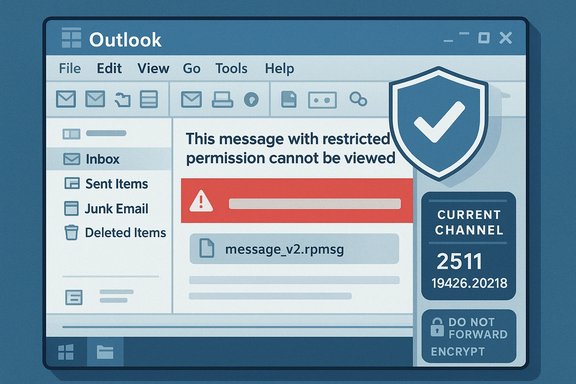
Microsoft has confirmed that a recent Current Channel update to Classic Outlook (Version 2511, Build 19426.20218) introduced a regression that prevents recipients from opening messages protected with Encrypt Only permissions, leaving affected users seeing an unreadable rpmsg attachment instead of the message body and attachments.
Encryption in Microsoft 365 mailflows is presented in several flavors. Encrypt‑Only (also called Encrypt in some UI locations) applies message protection without restricting basic actions such as copying or printing; it is commonly used by organizations that want message confidentiality in transit and at rest but still permit normal recipient actions. Classic Outlook has supported rights‑managed messages and rpmsg packaging for years; when a message is protected the client must request a use license or otherwise handle the rpmsg container to render the content. Microsoft distributes Outlook updates on a cadence of channels and builds. The bug began appearing after users updated to Current Channel Version 2511 (Build 19426.20218). Microsoft’s support notice explicitly calls out that the issue started with build 19426.20218 and that the previous build known to work is 19426.20186. This incident sits alongside another Outlook change that has been rolling out since September 2025: Microsoft’s retirement of inline SVG rendering in Outlook for Web and the new Outlook for Windows. That change—framed as a security hardening to mitigate active SVG abuse—means inline SVGs in message bodies will render as blank spaces in affected clients. The SVG retirement and the rpmsg regression are separate changes, but together they demonstrate how small rendering or processing changes in mail clients can suddenly break workflows and security expectations for users and administrators.
This is technical inference based on the symptoms and long‑standing rpmsg behavior; Microsoft has not published the root cause publicly yet, so these points should be treated as informed analysis rather than confirmed facts.
Administrators should act quickly to apply the low‑friction mitigations (Options ribbon guidance and draft save) and to update user guidance and support scripts. Rolling back builds should be a last resort due to the potential for reintroducing other issues.
Finally, while the immediate rpmsg problem appears limited to Classic Outlook and one encryption compose path, organizations should treat this as a reminder to:
Source: TechRadar Use Classic Outlook? This Microsoft bug might stop you from opening encrypted emails
 Background
Encryption in Microsoft 365 mailflows is presented in several flavors. Encrypt‑Only (also called Encrypt in some UI locations) applies message protection without restricting basic actions such as copying or printing; it is commonly used by organizations that want message confidentiality in transit and at rest but still permit normal recipient actions. Classic Outlook has supported rights‑managed messages and rpmsg packaging for years; when a message is protected the client must request a use license or otherwise handle the rpmsg container to render the content. Microsoft distributes Outlook updates on a cadence of channels and builds. The bug began appearing after users updated to Current Channel Version 2511 (Build 19426.20218). Microsoft’s support notice explicitly calls out that the issue started with build 19426.20218 and that the previous build known to work is 19426.20186. This incident sits alongside another Outlook change that has been rolling out since September 2025: Microsoft’s retirement of inline SVG rendering in Outlook for Web and the new Outlook for Windows. That change—framed as a security hardening to mitigate active SVG abuse—means inline SVGs in message bodies will render as blank spaces in affected clients. The SVG retirement and the rpmsg regression are separate changes, but together they demonstrate how small rendering or processing changes in mail clients can suddenly break workflows and security expectations for users and administrators. What exactly is breaking (symptoms and scope)
- In affected Classic Outlook clients, users will see this message in the Reading Pane: "This message with restricted permission cannot be viewed in the reading pane until you verify your credentials. Open the item to read its contents and verify your credentials." Double‑clicking or opening the item shows an attached file named message_v2.rpmsg and the message content is not rendered.
- The bug affects messages encrypted using the File > Encrypt workflow in the Outlook compose window (the File dialog encryption path). Messages encrypted via other UI paths (for example the Options > Encrypt ribbon) appear not to be impacted in the same way, which is why Microsoft and third‑party reporting recommend using the Options ribbon Encrypt as a temporary workaround.
- Microsoft labels the issue STATUS: INVESTIGATING and the Outlook team is actively working on a permanent fix. No firm timeline for a patch was published in the official advisory at the time of writing.
Why this matters: security, compliance and business continuity
Email is the primary vehicle for business communications, legal notices, and controlled data exchange. Encrypted messages—especially those governed by Azure Information Protection (AIP) or Microsoft Purview Message Encryption—are often used to transmit:- Personally Identifiable Information (PII)
- Contractual documents
- Legal and regulatory notifications
- Confidential internal and partner information
Technical explanation (what likely went wrong — clearly flagged as analysis)
Classic Outlook relies on a series of components to handle rights‑managed messages:- The sender applies encryption metadata to the message and the client packages content into an rpmsg container.
- Recipients’ clients fetch a use license from Microsoft’s licensing services, validate the user principal, and then decrypt and render the message body and any attachments.
- The UI rendering pipeline must recognize the rpmsg container and invoke the rights management stack to request and apply the license.
This is technical inference based on the symptoms and long‑standing rpmsg behavior; Microsoft has not published the root cause publicly yet, so these points should be treated as informed analysis rather than confirmed facts.
Official guidance and practical workarounds
Microsoft published immediate guidance and two primary mitigations that administrators and users can use while a permanent fix is developed. These are the confirmed, supported options documented by Microsoft and corroborated by independent reporting. Workaround A — Save the message before sending- If you are the sender and must use File > Encrypt, Microsoft recommends saving the draft after applying the encryption and before sending. Saving apparently causes the message to be stored in a form that recipients can open. This is the simplest mitigation for occasional senders who already use the File > Encrypt path.
- Instead of encrypting from the File dialog, use Options > Encrypt in the message compose window and choose Encrypt or Do Not Forward. Messages encrypted this way have been widely reported to render correctly for recipients. This is the recommended sender‑side workaround for those who can change their compose behavior immediately.
- For organizations that need to preserve existing sending behavior or who cannot change workflows, Microsoft documents how to roll an Office Click‑to‑Run client back to the previous build known to work (19426.20186). The advisory provides a Click‑to‑Run command to update to a specific version:
- Save your work and close all Office applications.
- Open an elevated Command Prompt.
- Run: "%programfiles%\Common Files\Microsoft Shared\ClickToRun\officec2rclient.exe" /update user updatetoversion=16.0.19426.20186
- Rolling back is intrusive and should be managed by IT; it should be performed in a controlled way (pilot first, then broader deployment) and only if the benefits outweigh the operational cost.
- Do not instruct users to re‑encode or export information into insecure channels unless absolutely necessary and approved by policy.
- Reverting builds may reintroduce other fixed bugs or roll back security hardenings; ensure testing before a mass roll‑back.
- The Options ribbon workaround is the least disruptive and should be rolled out as an immediate guidance to users who send protected mail frequently.
Step‑by‑step: how to check if you’re affected
- In Classic Outlook, go to File > Office Account > About Outlook and confirm the Current Channel build and version. If your build is 19426.20218 (Current Channel 2511), you are in the impacted cohort.
- If you receive a rights‑protected message and see message_v2.rpmsg attached instead of body content, or the Reading Pane displays the “verify your credentials” prompt and still won’t render content after opening, you are affected.
- Try opening the same message in Outlook for Web (OWA) or in the New Outlook for Windows (if your tenant uses it). In many reports, web clients render protected messages correctly because the regression is in Classic Outlook; using web access can be a short‑term recipient workaround if permitted by policy. Note: using OWA may require authentication flow changes (multi‑factor, licensing checks) but often succeeds where Classic Outlook currently fails.
Recommended actions for IT teams and administrators
- Communicate quickly and clearly to users who routinely send or receive encrypted mail. Explain the temporary change in recommended compose behavior and the available mitigations.
- Issue a directed guidance note that instructs senders to use Options > Encrypt (Encrypt or Do Not Forward) rather than File > Encrypt until Microsoft releases a fix.
- If your organization has automated deployment policies, evaluate whether to hold the problematic build (19426.20218) from rolling out to additional users or to roll back selectively for pilot accounts. Manage rollbacks with the Click‑to‑Run command Microsoft provided and coordinate testing.
- Update internal runbooks for compliance, legal, and incident‑response teams so they understand that encrypted messages may be temporarily inaccessible in Classic Outlook and that alternate access (OWA, New Outlook, or sender changes) might be necessary.
- Monitor Microsoft’s classic Outlook known issues and update advisories. Subscribe to Microsoft 365 admin alerts or message center feeds to receive the patch release notification; treat the fix validation as a post‑deployment verification task rather than an automatic greenlight.
Risks and trade‑offs: what to watch for
- User behavior drift: If users begin to prefer insecure alternatives (unprotected email, consumer cloud links, chat), your organization’s data leakage risk increases.
- Rollback side effects: Rolling back Click‑to‑Run builds can reintroduce other bugs, patch gaps, or compatibility problems with integrations. Test thoroughly before broad rollbacks.
- Compliance and audit trails: For regulated data, inability to decrypt or access messages during an audit could complicate responses. Keep a clear record of impacted messages and mitigation steps for governance and legal review.
- Support load: Helpdesks may see a surge in tickets from confused users who cannot open encrypted mail. Equip frontline support with the check steps and temporary guidance to reduce time‑to‑resolution.
The inline SVG retirement — related but distinct
While administrators are triaging the rpmsg issue, Microsoft’s broader security hardening around rendering is also in motion: Microsoft announced the retirement of inline SVG image support in Outlook for Web and the New Outlook for Windows, which means those clients will not display inline SVGs embedded in message bodies and will show blank spaces instead. SVG attachments (sent as files) remain viewable. The change was framed as a security mitigation to reduce active content abuse via SVGs. This rollout began in September 2025 and was positioned as a low‑impact, security driven retirement. Why that matters: SVGs are XML‑based and can contain embedded scripts or reference external content; attackers have used crafted SVGs as a vector for phishing and drive‑by credential capture. Removing inline rendering reduces an active attack surface in web and new Outlook clients, but it also impacts email design and any workflows that relied on inline vector graphics. Marketers and automated mail systems that use SVG for logos or dynamic content should update templates to use PNG/WebP or attach SVGs as files.What to expect next
- Microsoft is investigating and will issue a fixed build for Classic Outlook. Administrators should watch the Microsoft classic Outlook known issues and update history pages for a released fix. Once a fix is posted, perform staged validation before enterprise‑wide deployment.
- Expect vendor and community testing notes and guidance from security and email‑ops blogs; they often publish verification steps when a fix ships. Use test accounts to validate encrypted message roundtrips after the update lands.
- Because the regression affects only one of the UI code paths that produce encrypted messages, a permanent fix will likely either normalize the rpmsg packaging across UI paths or reconcile the rendering code to accept both package variants. That said, do not assume the fix will be immediate—plan for a window during which workarounds are required.
Practical checklist (what to do right now)
- Identify users who frequently send/receive protected emails and alert them.
- Instruct senders to use Options > Encrypt (Encrypt or Do Not Forward) instead of File > Encrypt.
- If your environment requires File > Encrypt, consider saving the draft after applying encryption before sending as an immediate temporary mitigation.
- For urgent recipient needs, use Outlook Web to access protected messages if permitted and authenticated.
- If necessary and after testing, roll back the Click‑to‑Run build for a limited pilot using the command Microsoft published; escalate to broader rollbacks only if the pilot confirms acceptable trade‑offs.
Final analysis and caution
This incident underscores a broader truth about complex client software in enterprise environments: small UI or packaging changes intended to improve features or security can have outsized operational impacts, particularly when they touch encryption or rights management code paths. The regression is significant not because it breaks a flashy consumer feature, but because it interferes with the integrity of secure communications that many organizations rely on for compliance and confidential collaboration.Administrators should act quickly to apply the low‑friction mitigations (Options ribbon guidance and draft save) and to update user guidance and support scripts. Rolling back builds should be a last resort due to the potential for reintroducing other issues.
Finally, while the immediate rpmsg problem appears limited to Classic Outlook and one encryption compose path, organizations should treat this as a reminder to:
- Validate critical messaging workflows after client updates,
- Maintain a test pilot ring for updates that affect security or data handling,
- Keep contingency procedures for encrypted communications, and
- Monitor vendor advisories for fixes and follow through with staged deployments.
Source: TechRadar Use Classic Outlook? This Microsoft bug might stop you from opening encrypted emails
