

Microsoft has confirmed that classic Outlook for Windows can fail to display images in emails, newsletters, and signatures beginning with Version 2604 Build 19929.20164, with affected messages sometimes showing the familiar red X and a “linked image cannot be displayed” error. The company says it is investigating, and its current workaround is to avoid using the “Top and Bottom” text-wrapping option for images. That sounds narrow until you remember what Outlook is: the place where invoices, HR notices, legal footers, sales decks, executive signatures, and phishing clues all arrive dressed up as “just email.” This is not a spectacular outage, but it is the kind of small breakage that corrodes trust because it lands directly on a feature users assume stopped being hard twenty years ago.
The broken feature here is not Copilot, not offline AI, not a shiny new calendar overlay, and not some edge-case enterprise connector. It is image rendering inside email. In 2026, that should be plumbing.
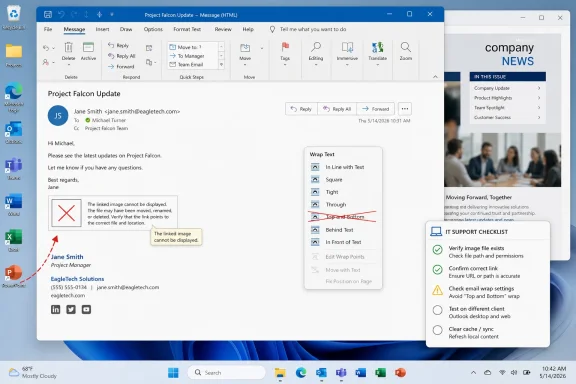
Microsoft’s support note describes a failure mode that starts in classic Outlook Version 2604 Build 19929.20164 and later. A user includes an image in a message, newsletter, or signature, and the recipient or sender may see no image at all, or a red X with an error saying the linked image cannot be displayed because the file may have been moved, renamed, or deleted.
That error message is almost cruel in its familiarity. Outlook has trained generations of users to associate missing images with broken network paths, blocked downloads, bad signatures, stale cached content, or overzealous security settings. In this case, Microsoft is pointing to a rendering problem tied to how the image is embedded and wrapped in the message itself.
The company’s diagnostic advice is not what most office workers would call user-friendly. It tells users to open the message in classic Outlook, use the ribbon to view the message source, search for a content ID, and look for XML elements such as image data and wrapping instructions. That is useful for admins and support desks. It is also a reminder that when Outlook breaks, the abstraction often collapses and users are dropped into the machinery.
That tension defines modern Outlook. Microsoft wants to modernize the client, but its most demanding customers often live in the older one because it does the strange, specific, unglamorous things their businesses depend on. When classic Outlook breaks, it does not just inconvenience users who refuse to move with the times. It hits organizations that have built workflows around a client Microsoft still ships, supports, and updates.
The image bug follows close behind another acknowledged classic Outlook problem involving Quick Steps, where certain actions became grayed out after an update. Microsoft has since marked that issue fixed through a service-side change, but the sequence matters. One week, users are told that a productivity shortcut many of them use dozens or hundreds of times a day has been tripped up. The next, a basic rendering behavior in messages and signatures is under investigation.
Individually, these are bugs. Collectively, they reinforce a familiar complaint from admins: Outlook is both mission-critical and surprisingly fragile. That is a bad combination for any application, but especially for one that sits at the center of Microsoft 365’s productivity pitch.
Business email is different. Images in Outlook often carry brand marks, certification logos, QR codes, scanned approvals, embedded charts, inline screenshots, product mockups, process diagrams, and signature blocks that are part of a company’s public-facing identity. In some organizations, the signature is not decoration; it is a compliance artifact containing legal disclaimers, contact information, and certification badges.
The most practical harm may be confusion. If Outlook tells a user the linked image cannot be displayed, the user may assume the sender made a mistake, the file path is wrong, the message is suspicious, or their own machine is misconfigured. Help desks then burn time reproducing a client-side bug that masquerades as broken content.
There is also a security angle, though not in the sensational sense. Email clients routinely block remote images to reduce tracking and exposure, and users are already conditioned to treat missing images as a security-adjacent signal. A rendering bug muddies that signal. If the same visual failure can mean “Outlook bug,” “blocked external content,” “bad sender hygiene,” or “phishing attempt,” users have less confidence in what the client is telling them.
That is the hidden cost of basic feature breakage. It does not merely remove functionality. It makes the interface less trustworthy.
But the workaround also reveals the shape of the bug. This is not simply “images are blocked.” It appears tied to how Outlook handles embedded image references and document-style layout markup inside an email body. The support article’s mention of content IDs and XML wrapping elements suggests a failure in the handoff between the message’s internal representation and Outlook’s rendering engine.
That matters because Outlook is not a simple HTML email viewer. Classic Outlook has long carried the baggage of Word-based editing and rendering decisions, rich text compatibility, legacy message formats, and years of enterprise-specific expectations. The result is powerful, but it is also a layered system where a seemingly harmless layout option can have unexpected consequences.
The average user should not need to know any of this. They should be able to paste a logo into a signature, choose a wrapping style, and send mail. The moment the official workaround requires understanding that one text-wrapping setting may corrupt the visible result, the product has pushed implementation detail back onto the customer.
For IT departments, the advice is actionable but awkward. Standardize signature templates. Avoid the affected wrap option. Tell users not to “fix” the missing image by repeatedly re-embedding it. Keep an eye on the installed Office build. Those are practical steps, but they are also the kind of small operational tax that accumulates across Microsoft 365 administration.
New Outlook has improved, but its reputation among power users and admins remains complicated. It has gained features over time, but it also arrived with missing capabilities, different behaviors, and a web-app feel that many classic Outlook users still resist. For users with heavily customized workflows, “just switch to new Outlook” is often not a serious answer.
That leaves Microsoft in a bind of its own making. If classic Outlook gets too little attention, enterprise customers see instability in the tool they still depend on. If new Outlook is pushed too aggressively, those same customers complain that Microsoft is replacing a mature client with something that does not yet cover their needs. Every classic Outlook bug therefore becomes ammunition in a larger argument about whether Microsoft is modernizing responsibly or simply stretching two clients across one product promise.
The image-rendering bug is particularly awkward because it affects the kind of feature that should be table stakes in both worlds. Outlook can be redesigned, cloud-connected, AI-assisted, and cross-platform, but it still has to show the image in the email. If the basics wobble, the grand strategy looks less convincing.
This is where Microsoft’s cadence can work against it. The Microsoft 365 Apps update model delivers improvements continuously, but it also means regressions can move quickly through channels that many businesses rely on. A build number like 19929.20164 becomes a fault line: before it, a signature works; after it, a logo may disappear. For administrators, that is not an abstract versioning detail. It is the difference between calm and a morning of tickets.
That is why these incidents resonate so strongly in IT circles. The technical defect may be relatively small, but the blast radius is determined by deployment reality. A company with thousands of endpoints, centrally managed signatures, marketing templates, and strict brand requirements cannot simply shrug off a rendering regression.
The mitigation also introduces its own governance problem. If users create their own signatures, IT has to communicate the wrapping workaround in plain language. If signatures are centrally injected, the provider or admin team has to adjust templates. If newsletters are generated through third-party tools, teams may need to test whether the affected markup appears in outbound campaigns.
The problem becomes even trickier because email is an ecosystem. The sender may create the message in Outlook, but recipients may read it in Outlook, Gmail, Apple Mail, a mobile client, a web portal, or an archiving system. A bug in classic Outlook’s rendering may be noticed by the sender in Sent Items, by internal recipients, or by support teams trying to validate what actually left the organization.
The smart move for admins is not panic. It is containment. Identify affected builds, reproduce the issue with known templates, adjust image wrapping where possible, and give help desks a short script so they do not waste time chasing phantom file-path problems. The worst outcome is not the missing logo. It is hundreds of users independently trying to fix a bug Microsoft has already acknowledged.
That ambiguity is tolerable when failures are rare. When Outlook itself introduces a rendering regression, the same old symbol becomes actively unhelpful. It points users toward the wrong mental model: that the linked file moved or disappeared.
Microsoft’s support language acknowledges that the error may appear, but not in all cases. That variability is another classic support headache. A bug that always fails in the same visible way is easier to explain; a bug that sometimes shows a red X and sometimes simply suppresses the image invites speculation.
There is a lesson here for Microsoft’s user experience teams. Error messages in mature productivity software are not merely technical outputs. They are institutional memory. Users interpret them through years of past troubleshooting, and support desks build workflows around them.
If a modern Outlook bug triggers an old Outlook error, the client should ideally distinguish between a sender-side missing file and a known client-side rendering issue. That may not be feasible in every case, but it is the kind of polish users expect from software that sits inside paid business subscriptions.
Still, the article also illustrates how wide the gap can be between Microsoft’s engineering view and the daily reality of Outlook users. Asking someone to inspect message source for content IDs and XML-like elements may be appropriate for a support engineer. It is not meaningful guidance for the executive assistant whose CEO’s signature now looks broken.
The better enterprise answer is translation. Microsoft can publish the technical symptom, but admins need to turn it into operational guidance: if a signature logo disappears after an Office update, do not recreate the whole profile; check whether the machine is on Version 2604 Build 19929.20164 or later; avoid Top and Bottom wrapping for images until Microsoft ships a fix.
That translation work is part of the hidden labor of Microsoft 365. The cloud promised to reduce infrastructure burden, and in many ways it has. But it has also shifted a great deal of attention toward update channels, service advisories, message-center posts, known-issue pages, and regression triage.
The image bug is small enough to be manageable. It is also visible enough to remind everyone that “evergreen” software means the ground is always moving.
The fair criticism is not that Outlook has a bug. The fair criticism is that Microsoft keeps breaking the kinds of features that ordinary users experience as basic competence. Quick Steps that gray out. Images that vanish. Updates that collide with workflows people have used for years. These failures may have different root causes, but they rhyme.
Microsoft’s public strategy is full of ambition: AI in the inbox, new Outlook experiences, deeper integration across Microsoft 365, and a cloud-first rhythm that promises faster improvements. But trust is built at the level of the mundane. A mailbox that opens. A rule that fires. A signature that displays. A shortcut that still works after Patch Tuesday.
That is especially true because Outlook is not optional in many workplaces. Users are not choosing it in the way they choose a notes app or a browser extension. It is assigned, managed, licensed, and woven into identity, compliance, calendaring, and collaboration. When Outlook regresses, users do not shop around; they open tickets.
The result is a harsher standard, but not an unfair one. Microsoft charges businesses for a productivity platform. The platform should treat foundational reliability as a feature, not as the quiet residue left after the roadmap items are done.
The second check is the image layout. Microsoft’s workaround specifically says to avoid using Wrap Text with Top and Bottom. That means organizations with standardized signatures or newsletter templates should review how images are inserted and wrapped, not merely whether the image file itself exists.
The third check is user expectation. If a user sees “The linked image cannot be displayed,” the instinct will be to hunt for a missing file or bad link. In this case, that may be wasted motion. The problem can be Outlook’s handling of the message rather than the sender’s asset.
The fourth check is whether switching clients is acceptable. Outlook on the web or the new Outlook may avoid some classic Outlook-specific behaviors, but that does not make them universal replacements. For some users, especially those dependent on classic add-ins or workflows, the workaround must remain inside classic Outlook.
That is the difference between a consumer workaround and an enterprise workaround. “Use another app” is easy to write and often hard to operationalize.
The concrete lessons are straightforward:
 Microsoft’s Most Boring Bug Is Also Its Most Revealing One
The broken feature here is not Copilot, not offline AI, not a shiny new calendar overlay, and not some edge-case enterprise connector. It is image rendering inside email. In 2026, that should be plumbing.Microsoft’s support note describes a failure mode that starts in classic Outlook Version 2604 Build 19929.20164 and later. A user includes an image in a message, newsletter, or signature, and the recipient or sender may see no image at all, or a red X with an error saying the linked image cannot be displayed because the file may have been moved, renamed, or deleted.
That error message is almost cruel in its familiarity. Outlook has trained generations of users to associate missing images with broken network paths, blocked downloads, bad signatures, stale cached content, or overzealous security settings. In this case, Microsoft is pointing to a rendering problem tied to how the image is embedded and wrapped in the message itself.
The company’s diagnostic advice is not what most office workers would call user-friendly. It tells users to open the message in classic Outlook, use the ribbon to view the message source, search for a content ID, and look for XML elements such as image data and wrapping instructions. That is useful for admins and support desks. It is also a reminder that when Outlook breaks, the abstraction often collapses and users are dropped into the machinery.
Classic Outlook Is Still the Workhorse Microsoft Cannot Afford to Neglect
There is a bigger story behind the bug because this is happening in classic Outlook, not merely in some abandoned fringe client. Microsoft has spent years nudging Windows users toward the new Outlook for Windows, a web-powered client intended to rationalize the Outlook experience across platforms. Yet classic Outlook remains deeply embedded in business workflows, automation, add-ins, shared mailboxes, COM integrations, PST habits, and the muscle memory of people who spend their working lives triaging mail.That tension defines modern Outlook. Microsoft wants to modernize the client, but its most demanding customers often live in the older one because it does the strange, specific, unglamorous things their businesses depend on. When classic Outlook breaks, it does not just inconvenience users who refuse to move with the times. It hits organizations that have built workflows around a client Microsoft still ships, supports, and updates.
The image bug follows close behind another acknowledged classic Outlook problem involving Quick Steps, where certain actions became grayed out after an update. Microsoft has since marked that issue fixed through a service-side change, but the sequence matters. One week, users are told that a productivity shortcut many of them use dozens or hundreds of times a day has been tripped up. The next, a basic rendering behavior in messages and signatures is under investigation.
Individually, these are bugs. Collectively, they reinforce a familiar complaint from admins: Outlook is both mission-critical and surprisingly fragile. That is a bad combination for any application, but especially for one that sits at the center of Microsoft 365’s productivity pitch.
The Image Is Not Decoration When Email Is the Workflow
It is tempting to dismiss missing images as cosmetic. For many messages, that is true. A promotional newsletter with a broken banner is ugly, not catastrophic.Business email is different. Images in Outlook often carry brand marks, certification logos, QR codes, scanned approvals, embedded charts, inline screenshots, product mockups, process diagrams, and signature blocks that are part of a company’s public-facing identity. In some organizations, the signature is not decoration; it is a compliance artifact containing legal disclaimers, contact information, and certification badges.
The most practical harm may be confusion. If Outlook tells a user the linked image cannot be displayed, the user may assume the sender made a mistake, the file path is wrong, the message is suspicious, or their own machine is misconfigured. Help desks then burn time reproducing a client-side bug that masquerades as broken content.
There is also a security angle, though not in the sensational sense. Email clients routinely block remote images to reduce tracking and exposure, and users are already conditioned to treat missing images as a security-adjacent signal. A rendering bug muddies that signal. If the same visual failure can mean “Outlook bug,” “blocked external content,” “bad sender hygiene,” or “phishing attempt,” users have less confidence in what the client is telling them.
That is the hidden cost of basic feature breakage. It does not merely remove functionality. It makes the interface less trustworthy.
The Workaround Says More Than Microsoft Probably Intended
Microsoft’s suggested workaround is to avoid setting images with Wrap Text set to Top and Bottom. On its face, that is a narrow and reasonable mitigation. If a particular wrapping mode triggers the rendering problem, use another wrapping mode until the Outlook team ships a fix.But the workaround also reveals the shape of the bug. This is not simply “images are blocked.” It appears tied to how Outlook handles embedded image references and document-style layout markup inside an email body. The support article’s mention of content IDs and XML wrapping elements suggests a failure in the handoff between the message’s internal representation and Outlook’s rendering engine.
That matters because Outlook is not a simple HTML email viewer. Classic Outlook has long carried the baggage of Word-based editing and rendering decisions, rich text compatibility, legacy message formats, and years of enterprise-specific expectations. The result is powerful, but it is also a layered system where a seemingly harmless layout option can have unexpected consequences.
The average user should not need to know any of this. They should be able to paste a logo into a signature, choose a wrapping style, and send mail. The moment the official workaround requires understanding that one text-wrapping setting may corrupt the visible result, the product has pushed implementation detail back onto the customer.
For IT departments, the advice is actionable but awkward. Standardize signature templates. Avoid the affected wrap option. Tell users not to “fix” the missing image by repeatedly re-embedding it. Keep an eye on the installed Office build. Those are practical steps, but they are also the kind of small operational tax that accumulates across Microsoft 365 administration.
The New Outlook Strategy Makes Every Classic Outlook Bug Political
If classic Outlook were simply aging software on a quiet maintenance track, this bug would be annoying but unsurprising. The politics are sharper because Microsoft is simultaneously trying to convince users that the new Outlook is the future while asking many enterprises to keep trusting the old Outlook in production.New Outlook has improved, but its reputation among power users and admins remains complicated. It has gained features over time, but it also arrived with missing capabilities, different behaviors, and a web-app feel that many classic Outlook users still resist. For users with heavily customized workflows, “just switch to new Outlook” is often not a serious answer.
That leaves Microsoft in a bind of its own making. If classic Outlook gets too little attention, enterprise customers see instability in the tool they still depend on. If new Outlook is pushed too aggressively, those same customers complain that Microsoft is replacing a mature client with something that does not yet cover their needs. Every classic Outlook bug therefore becomes ammunition in a larger argument about whether Microsoft is modernizing responsibly or simply stretching two clients across one product promise.
The image-rendering bug is particularly awkward because it affects the kind of feature that should be table stakes in both worlds. Outlook can be redesigned, cloud-connected, AI-assisted, and cross-platform, but it still has to show the image in the email. If the basics wobble, the grand strategy looks less convincing.
This is where Microsoft’s cadence can work against it. The Microsoft 365 Apps update model delivers improvements continuously, but it also means regressions can move quickly through channels that many businesses rely on. A build number like 19929.20164 becomes a fault line: before it, a signature works; after it, a logo may disappear. For administrators, that is not an abstract versioning detail. It is the difference between calm and a morning of tickets.
Outlook Bugs Are Really Change-Management Problems
A consumer sees a broken image and thinks, “Outlook is broken.” An administrator sees a broken image and starts asking which channel, which build, which machines, which templates, which message format, which add-ins, and which recent updates. The bug is the start of the work, not the end of it.That is why these incidents resonate so strongly in IT circles. The technical defect may be relatively small, but the blast radius is determined by deployment reality. A company with thousands of endpoints, centrally managed signatures, marketing templates, and strict brand requirements cannot simply shrug off a rendering regression.
The mitigation also introduces its own governance problem. If users create their own signatures, IT has to communicate the wrapping workaround in plain language. If signatures are centrally injected, the provider or admin team has to adjust templates. If newsletters are generated through third-party tools, teams may need to test whether the affected markup appears in outbound campaigns.
The problem becomes even trickier because email is an ecosystem. The sender may create the message in Outlook, but recipients may read it in Outlook, Gmail, Apple Mail, a mobile client, a web portal, or an archiving system. A bug in classic Outlook’s rendering may be noticed by the sender in Sent Items, by internal recipients, or by support teams trying to validate what actually left the organization.
The smart move for admins is not panic. It is containment. Identify affected builds, reproduce the issue with known templates, adjust image wrapping where possible, and give help desks a short script so they do not waste time chasing phantom file-path problems. The worst outcome is not the missing logo. It is hundreds of users independently trying to fix a bug Microsoft has already acknowledged.
Red X Errors Carry Too Much Historical Baggage
Part of the annoyance here comes from the red X itself. Outlook users have seen it for decades, and it has never meant just one thing. It can indicate blocked external downloads, missing local files, malformed HTML, trust-center behavior, antivirus interference, cached content issues, or an actual sender-side mistake.That ambiguity is tolerable when failures are rare. When Outlook itself introduces a rendering regression, the same old symbol becomes actively unhelpful. It points users toward the wrong mental model: that the linked file moved or disappeared.
Microsoft’s support language acknowledges that the error may appear, but not in all cases. That variability is another classic support headache. A bug that always fails in the same visible way is easier to explain; a bug that sometimes shows a red X and sometimes simply suppresses the image invites speculation.
There is a lesson here for Microsoft’s user experience teams. Error messages in mature productivity software are not merely technical outputs. They are institutional memory. Users interpret them through years of past troubleshooting, and support desks build workflows around them.
If a modern Outlook bug triggers an old Outlook error, the client should ideally distinguish between a sender-side missing file and a known client-side rendering issue. That may not be feasible in every case, but it is the kind of polish users expect from software that sits inside paid business subscriptions.
The Support Article Is Helpful, But It Also Shows the Gap
Microsoft deserves some credit for documenting the issue clearly enough for administrators to confirm the symptom and apply a workaround. The support note names the affected version and build range, describes where the bug appears, provides the error text, and gives a specific layout setting to avoid. That is much better than the vague “we’re looking into it” posture users often get from large software vendors.Still, the article also illustrates how wide the gap can be between Microsoft’s engineering view and the daily reality of Outlook users. Asking someone to inspect message source for content IDs and XML-like elements may be appropriate for a support engineer. It is not meaningful guidance for the executive assistant whose CEO’s signature now looks broken.
The better enterprise answer is translation. Microsoft can publish the technical symptom, but admins need to turn it into operational guidance: if a signature logo disappears after an Office update, do not recreate the whole profile; check whether the machine is on Version 2604 Build 19929.20164 or later; avoid Top and Bottom wrapping for images until Microsoft ships a fix.
That translation work is part of the hidden labor of Microsoft 365. The cloud promised to reduce infrastructure burden, and in many ways it has. But it has also shifted a great deal of attention toward update channels, service advisories, message-center posts, known-issue pages, and regression triage.
The image bug is small enough to be manageable. It is also visible enough to remind everyone that “evergreen” software means the ground is always moving.
Microsoft’s Quality Problem Is Not That Bugs Exist
Every large software vendor ships bugs. Outlook is old, complex, and asked to do far more than most users appreciate. It handles Exchange, IMAP, cached mailboxes, delegates, retention policies, signatures, add-ins, encryption, formatting translation, and a graveyard of legacy compatibility decisions.The fair criticism is not that Outlook has a bug. The fair criticism is that Microsoft keeps breaking the kinds of features that ordinary users experience as basic competence. Quick Steps that gray out. Images that vanish. Updates that collide with workflows people have used for years. These failures may have different root causes, but they rhyme.
Microsoft’s public strategy is full of ambition: AI in the inbox, new Outlook experiences, deeper integration across Microsoft 365, and a cloud-first rhythm that promises faster improvements. But trust is built at the level of the mundane. A mailbox that opens. A rule that fires. A signature that displays. A shortcut that still works after Patch Tuesday.
That is especially true because Outlook is not optional in many workplaces. Users are not choosing it in the way they choose a notes app or a browser extension. It is assigned, managed, licensed, and woven into identity, compliance, calendaring, and collaboration. When Outlook regresses, users do not shop around; they open tickets.
The result is a harsher standard, but not an unfair one. Microsoft charges businesses for a productivity platform. The platform should treat foundational reliability as a feature, not as the quiet residue left after the roadmap items are done.
The Build Number Belongs in the Help Desk Script
For WindowsForum readers, the practical side of this story starts with the build number. The issue begins with classic Outlook Version 2604 Build 19929.20164 and later, according to Microsoft’s support note. If users report missing images in emails, newsletters, or signatures, that version check should happen early.The second check is the image layout. Microsoft’s workaround specifically says to avoid using Wrap Text with Top and Bottom. That means organizations with standardized signatures or newsletter templates should review how images are inserted and wrapped, not merely whether the image file itself exists.
The third check is user expectation. If a user sees “The linked image cannot be displayed,” the instinct will be to hunt for a missing file or bad link. In this case, that may be wasted motion. The problem can be Outlook’s handling of the message rather than the sender’s asset.
The fourth check is whether switching clients is acceptable. Outlook on the web or the new Outlook may avoid some classic Outlook-specific behaviors, but that does not make them universal replacements. For some users, especially those dependent on classic add-ins or workflows, the workaround must remain inside classic Outlook.
That is the difference between a consumer workaround and an enterprise workaround. “Use another app” is easy to write and often hard to operationalize.
A Small Outlook Regression With an Oversized Lesson
This incident is not a reason to abandon Outlook, nor is it proof that Microsoft cannot maintain a mature productivity client. It is a useful reminder that the last mile of software quality is often the least glamorous and the most important. Users may forgive a missing experimental feature. They are much less forgiving when the signature they have used for years suddenly breaks.The concrete lessons are straightforward:
- Classic Outlook users on Version 2604 Build 19929.20164 or later may encounter missing images in emails, newsletters, and signatures.
- The visible symptom may include a red X and an error claiming the linked image cannot be displayed.
- Microsoft’s current workaround is to avoid the Top and Bottom text-wrapping setting for images.
- Administrators should check affected signature and newsletter templates before rebuilding profiles or blaming sender-side file paths.
- The bug matters because image rendering is part of trust, branding, compliance, and everyday email comprehension, not merely decoration.
- The episode strengthens the case for slower, better-tested update rings in organizations where Outlook is operationally critical.
References
- Primary source: Neowin
Published: Fri, 22 May 2026 13:10:19 GMT
Microsoft admits one of the most basic, useful Outlook features is broken - Neowin
Microsoft has acknowledged that a very basic and useful Outlook email feature is currently broken. A workaround has been shared. www.neowin.net
- Official source: support.microsoft.com
- Official source: learn.microsoft.com
Office Current Channel build 19929.20090 breaks third-party COM Interop with Outlook — looking for known issue or workaround - Microsoft Q&A
Hi all — looking for confirmation or guidance on what appears to be a regression in the latest Current Channel build. After updating to Version 2604 (Build 19929.20090), released April 21, multiple users in our environment can no longer use a third-party…learn.microsoft.com - Related coverage: handlewithcaremo.org
- Related coverage: office-watch.com
Classic Outlook Quick Steps Go Gray After Microsoft 365 Update: The Fast Fix
The latest Microsoft 365 update has broken Quick Steps in classic Outlook for Windows. If your Quick Step contains an action that can't be applied to the selectoffice-watch.com
- Related coverage: windowsreport.com
Microsoft Confirms Outlook Quick Steps Bug in Classic Outlook
Microsoft confirmed a new Outlook Quick Steps bug causing some actions to become grayed out in classic Outlook for Microsoft 365. windowsreport.com

- Related coverage: minto.tech
【2026年最新版】Outlookのクイック操作が機能しない・実行されない原因と対処法【完全ガイド】 – minto.tech
「Outlookのクイック操作を設定したのに、クリックしても何も起きない」「以前は動いていたのに急に実行されなくなった」——そんなトラブルで悩んでいませんか? クイック操作はOutlookが誇る時短機minto.tech - Official source: answers.microsoft.com
Quick Steps missing in new build of outlook - Microsoft Q&A
I updated to the new version of outlook (2304 build 16327.20248 ) released recently. I noticed that my quick step shortcuts were missing. I messed around in settings to see if I had to add it back but I found nothing. Was quick steps removed in the new…answers.microsoft.com
