

OpenAI’s Codex has crossed an important threshold on Windows 11: it is no longer just a developer curiosity, but a genuinely usable workflow tool with three distinct on-ramp paths for different kinds of users. The native desktop app is the fastest way in, the CLI is the most flexible for terminal-first developers, and the VS Code extension is the most practical option for everyday coding work. On paper that may sound like product redundancy; in practice, it reflects a broader shift toward agentic tools that live where people already work. That same pattern shows up in the WindowsForum coverage of Codex’s arrival on Windows, which emphasizes both the native sandbox and the broader developer workflow implications.
The interesting thing about Codex on Windows 11 is not simply that it works, but that it now works in ways that map to very different user habits. Some people want a polished app that handles setup and updates quietly. Others want a terminal agent they can script, automate, and drop into pipelines. Still others want a sidebar in their editor that keeps the review loop close to the code. OpenAI’s Windows rollout, as reflected in the forum’s coverage, underscores that Codex is meant to be a platform for agentic coding rather than a single interface.
That matters because Windows developers have historically been asked to compromise when adopting Linux-centric developer tools. They either relied on WSL, accepted a rough native port, or had to stitch together workflows that were never truly Windows-first. Codex changes that calculation by offering a native desktop option alongside the CLI and IDE integration. The result is less about “installing an AI tool” and more about selecting the right mode of working for your environment.
Your own install notes are especially useful because they expose where the friction really lives. The app was easy. The CLI was mostly easy but tripped on a Node.js version mismatch. The extension was the smoothest fit for actual development because it kept the review loop inside VS Code. That combination is exactly what readers need: not just a feature list, but a practical sense of which path will feel natural on a Windows 11 laptop.
The bigger context is that OpenAI has been steadily expanding from chat into desktop apps, coding agents, and browser-mediated workflows. Forum coverage describes Codex as part of a broader “command center for agents” strategy, one that blends multi-agent orchestration, reviewable diffs, and multi-surface access. Codex on Windows is therefore not a standalone launch; it is one more step in OpenAI’s effort to make its products feel like a single, connected operating environment.
The Windows 11 release broadens that model into three practical surfaces. There is the Codex App, which is the easiest entry point. There is the Codex CLI, which appeals to terminal users and automation-minded developers. And there is the Codex IDE Extension, which is the tightest fit for people who already live inside VS Code or Cursor. The fact that all three exist at once says a lot about where AI coding tools are heading: they are no longer just features inside one editor, but separate interaction models that share the same core agent.
This also explains why Windows users may experience Codex differently depending on the method they choose. The desktop app emphasizes visual clarity. The CLI emphasizes control and composability. The extension emphasizes proximity to the code. None of those is inherently better, but each changes the cadence of work in a meaningful way. If you choose badly, the product can feel awkward; choose well, and it disappears into the workflow.
It also means that Windows users will benefit from a little more discipline than Mac or Linux users may need. A clean toolchain, current Node.js, and a Git-backed project are not optional niceties. They are what keep Codex from feeling flaky. In that sense, the Windows 11 experience is less about “can I install it?” and more about “have I set myself up to let the agent behave predictably?”
This is one of those rare cases where the “best” option really does depend on how you work. Beginners want the least number of moving parts. Terminal users want a tool they can invoke repeatedly. IDE users want a side panel that feels like a natural extension of the editing experience. Codex sensibly accommodates all three.
Your experience lines up with that story. The app was installed in under five minutes, the Microsoft Store handled the update path, and sign-in was straightforward. That kind of reliability matters because first impressions drive whether a new AI tool becomes part of someone’s routine or gets mentally filed under “interesting, but annoying.”
There is a strategic reason OpenAI would want this path to be strong. A native app gives the company a controllable, polished front door into agentic development. It is discoverable, easy to update, and less dependent on the user’s local ecosystem. That is the kind of product surface that can drive adoption fast.
That said, your Node.js issue is exactly the sort of problem that makes this route less welcoming than the app or extension. The install is conceptually simple — get Node, run npm install, sign in — but in practice the CLI is more sensitive to the state of the machine. If a previous Node version is cached or the PATH is stale, the whole process can look broken even when the fix is trivial.
In practical terms, that means the CLI is best treated as a two-step decision: first, decide whether you really want terminal-native control; second, decide whether you want that control inside WSL2 rather than native PowerShell. For many Windows users, that extra layer is worth it because the tool behaves more consistently. For others, it will feel like one setup chore too many.
Your experience suggests that the extension is the best compromise between ease and utility. It is easy enough to install, but more immediately useful than the desktop app because it sits right where coding decisions happen. That proximity is worth a lot, especially when the task is small enough that opening a separate app would feel like overhead.
It also lowers the cognitive tax of using an AI agent. You are not switching mental models between “editor mode” and “assistant mode.” Instead, the assistant becomes another panel in the same environment. That may sound minor, but in day-to-day coding it is often the difference between a tool you reach for and a tool you forget exists.
This is also where the IDE path shows OpenAI’s broader ambition. It wants Codex to feel less like a standalone assistant and more like a persistent layer inside the tools developers already use. That mirrors the industry-wide shift toward embedded AI rather than isolated AI apps.
The most revealing part of your setup was not the hardware, though. It was the fact that a small Node.js mismatch caused the CLI to stumble. That is a classic example of how developer tooling on Windows often fails: not catastrophically, but irritatingly. The fix is easy once identified, but the diagnosis can waste time.
That is why your troubleshooting section works so well. It does not just tell users what to click. It helps them understand where the likely failure points are, which is what saves time in real life. The more agentic the product becomes, the more important that kind of environmental sanity check gets.
That does not mean native Windows support is poor. It means Windows remains a layered environment, and some tools are still more comfortable in one layer than another. Codex is good evidence of progress, but not a sign that every friction point has disappeared.
For enterprises, the question is more complicated. A tool that can read repos, propose edits, and execute commands is powerful, but it also raises governance questions around permissions, auditability, and environment boundaries. Windows-native sandboxing helps, but companies will still want clear controls over what the agent can access and where it can operate.
It is also why the CLI and WSL route may appeal more to technical teams than casual users. Enterprises often prefer environments that can be scripted, audited, and reproduced. The app is friendlier; the CLI is easier to integrate into existing operational discipline.
There is also a broader industry signal here. The future of AI coding is increasingly about where the assistant lives, not just what the model can say. OpenAI, Microsoft, Google, and others are all converging on the same idea: the winning product is the one that becomes part of the user’s daily operating rhythm. Codex on Windows 11 is a clear move in that direction.
What your testing ultimately shows is that Codex on Windows 11 is not a single product story but a workflow story. The native app is the easiest door in, the CLI is the most configurable route, and the VS Code extension is the most practically useful for day-to-day development. If OpenAI continues smoothing the Windows experience, Codex could become one of those tools people stop thinking about as “AI software” and start treating as just another indispensable part of getting code shipped.
Source: How to Install ChatGPT Codex on Windows 11: I Tried All 3 Methods — Here's What Actually Works
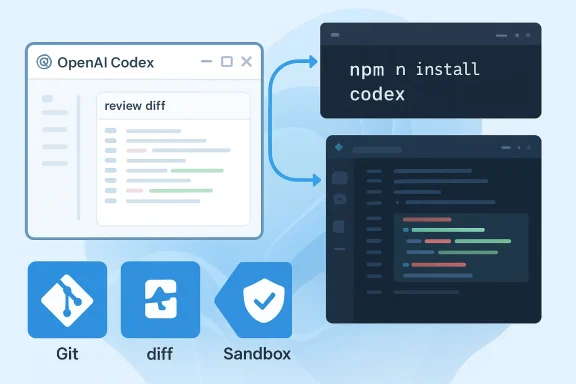 Overview
The interesting thing about Codex on Windows 11 is not simply that it works, but that it now works in ways that map to very different user habits. Some people want a polished app that handles setup and updates quietly. Others want a terminal agent they can script, automate, and drop into pipelines. Still others want a sidebar in their editor that keeps the review loop close to the code. OpenAI’s Windows rollout, as reflected in the forum’s coverage, underscores that Codex is meant to be a platform for agentic coding rather than a single interface.That matters because Windows developers have historically been asked to compromise when adopting Linux-centric developer tools. They either relied on WSL, accepted a rough native port, or had to stitch together workflows that were never truly Windows-first. Codex changes that calculation by offering a native desktop option alongside the CLI and IDE integration. The result is less about “installing an AI tool” and more about selecting the right mode of working for your environment.
Your own install notes are especially useful because they expose where the friction really lives. The app was easy. The CLI was mostly easy but tripped on a Node.js version mismatch. The extension was the smoothest fit for actual development because it kept the review loop inside VS Code. That combination is exactly what readers need: not just a feature list, but a practical sense of which path will feel natural on a Windows 11 laptop.
The bigger context is that OpenAI has been steadily expanding from chat into desktop apps, coding agents, and browser-mediated workflows. Forum coverage describes Codex as part of a broader “command center for agents” strategy, one that blends multi-agent orchestration, reviewable diffs, and multi-surface access. Codex on Windows is therefore not a standalone launch; it is one more step in OpenAI’s effort to make its products feel like a single, connected operating environment.
What Codex Is on Windows 11
At a high level, Codex is OpenAI’s agentic coding tool, designed to do more than suggest code. It can inspect a repository, propose edits, run commands, and present diffs for review. That distinction matters because it shifts the product from “assistant” to execution layer, which is a much more consequential place to sit inside a software workflow.The Windows 11 release broadens that model into three practical surfaces. There is the Codex App, which is the easiest entry point. There is the Codex CLI, which appeals to terminal users and automation-minded developers. And there is the Codex IDE Extension, which is the tightest fit for people who already live inside VS Code or Cursor. The fact that all three exist at once says a lot about where AI coding tools are heading: they are no longer just features inside one editor, but separate interaction models that share the same core agent.
Why the “agentic” label matters
The value of an agent is not that it writes code faster than a human can type. The value is that it can carry a task through multiple steps without the user constantly re-orienting it. Codex can break down a request, inspect context, make modifications, and surface a diff for approval. That review-first design is one reason it feels closer to a junior collaborator than a traditional autocomplete tool.This also explains why Windows users may experience Codex differently depending on the method they choose. The desktop app emphasizes visual clarity. The CLI emphasizes control and composability. The extension emphasizes proximity to the code. None of those is inherently better, but each changes the cadence of work in a meaningful way. If you choose badly, the product can feel awkward; choose well, and it disappears into the workflow.
The Windows angle
Windows 11 is not just another desktop target here. Codex on Windows is arriving into an ecosystem where PowerShell, WSL, Git, VS Code, and package managers all shape the developer experience. That means install friction is often environmental rather than product-specific. Your notes about Node.js, PATH behavior, and browser-based sign-in are exactly the kind of details that make a guide trustworthy.It also means that Windows users will benefit from a little more discipline than Mac or Linux users may need. A clean toolchain, current Node.js, and a Git-backed project are not optional niceties. They are what keep Codex from feeling flaky. In that sense, the Windows 11 experience is less about “can I install it?” and more about “have I set myself up to let the agent behave predictably?”
The Three Install Paths at a Glance
Your testing makes the comparison simple enough to be actionable. The desktop app is the easiest and fastest. The CLI is the most powerful for scripted workflows, but also the most likely to expose environment issues. The VS Code extension hits the best balance for most developers because it keeps Codex close to the editor, the diff, and the file tree.This is one of those rare cases where the “best” option really does depend on how you work. Beginners want the least number of moving parts. Terminal users want a tool they can invoke repeatedly. IDE users want a side panel that feels like a natural extension of the editing experience. Codex sensibly accommodates all three.
Fast comparison
- Codex App: easiest setup, best for first-time users.
- Codex CLI: best for automation, shell workflows, and scripts.
- VS Code Extension: best for day-to-day coding and quick iteration.
- WSL2: the safer path if you want the CLI to feel more Linux-native.
- Native PowerShell: workable, but still the roughest of the three.
Method 1: Installing the Codex App
The Codex App is the cleanest way to get started on Windows 11. It avoids Node.js entirely, hides the complexity of the CLI, and gives you a visual review flow that most non-specialist users will understand immediately. For many readers, this is the best first install simply because it is the least likely to fail.Your experience lines up with that story. The app was installed in under five minutes, the Microsoft Store handled the update path, and sign-in was straightforward. That kind of reliability matters because first impressions drive whether a new AI tool becomes part of someone’s routine or gets mentally filed under “interesting, but annoying.”
Step flow
- Open the Microsoft Store and search for the Codex by OpenAI listing.
- Install the app and let Windows handle the download.
- Sign in with your ChatGPT account or API key.
- Open or add a project folder.
- Start a task and review the proposed diff before applying changes.
Why the app is the safest first step
The app also seems to be the most forgiving choice for a Windows 11 laptop that is not configured like a dev workstation. If your machine is a general-purpose PC, the desktop app lets you evaluate Codex before you commit to deeper tooling changes. That makes it ideal for students, hobbyists, and professionals who only occasionally need AI assistance in code.There is a strategic reason OpenAI would want this path to be strong. A native app gives the company a controllable, polished front door into agentic development. It is discoverable, easy to update, and less dependent on the user’s local ecosystem. That is the kind of product surface that can drive adoption fast.
Method 2: Installing the Codex CLI
The Codex CLI is where Windows users are most likely to hit snags, but it is also where the product begins to feel genuinely developer-grade. The CLI is built for the terminal: it fits scripts, automation, and direct command-driven workflows. If you think in commands rather than windows, it is probably the method that will age best for your use case.That said, your Node.js issue is exactly the sort of problem that makes this route less welcoming than the app or extension. The install is conceptually simple — get Node, run npm install, sign in — but in practice the CLI is more sensitive to the state of the machine. If a previous Node version is cached or the PATH is stale, the whole process can look broken even when the fix is trivial.
The core CLI setup
- Install Node.js 18+, with the LTS release being the safer choice.
- Run
npm install -g @openai/codex. - Confirm the install with
codex --version. - Sign in through the terminal or use an API key.
- Launch
codexinside a project directory.
Where the CLI feels rough on Windows
Your note that native PowerShell is experimental is important. It is the sort of caveat that users tend to discover only after wasting time, so calling it out upfront is helpful. On Windows, WSL2 remains the more reliable environment for terminal-first Codex work because it sidesteps a lot of the filesystem and shell quirks that can complicate native installs.In practical terms, that means the CLI is best treated as a two-step decision: first, decide whether you really want terminal-native control; second, decide whether you want that control inside WSL2 rather than native PowerShell. For many Windows users, that extra layer is worth it because the tool behaves more consistently. For others, it will feel like one setup chore too many.
Useful CLI advantages
- Better fit for shell scripts and automation.
- Stronger match for CI-style work.
- Easier to chain with local dev tooling.
- Useful when you want explicit command-line control.
- More scalable for repetitive tasks than the app.
Method 3: Installing the VS Code Extension
For many Windows 11 developers, the VS Code extension is the real winner. It keeps Codex in the same place you are already reading code, jumping between files, and reviewing diffs. That reduces context switching, which is often the main reason developer tools fail to stick.Your experience suggests that the extension is the best compromise between ease and utility. It is easy enough to install, but more immediately useful than the desktop app because it sits right where coding decisions happen. That proximity is worth a lot, especially when the task is small enough that opening a separate app would feel like overhead.
Why it fits real workflows
The extension’s strength is that it keeps the approval loop inside the editor. You can inspect the generated diff, compare it against existing code, and decide whether to accept the change without leaving the workspace. That is a more natural fit for software development than a chat-only interface.It also lowers the cognitive tax of using an AI agent. You are not switching mental models between “editor mode” and “assistant mode.” Instead, the assistant becomes another panel in the same environment. That may sound minor, but in day-to-day coding it is often the difference between a tool you reach for and a tool you forget exists.
WSL-related caveat
Your warning about the WSL setting is especially useful: if you want Codex to run under WSL from the editor, the extension needs the right configuration. That is one of those details that can save users from assuming the extension itself is broken. In reality, the problem may be the execution context rather than the extension package.This is also where the IDE path shows OpenAI’s broader ambition. It wants Codex to feel less like a standalone assistant and more like a persistent layer inside the tools developers already use. That mirrors the industry-wide shift toward embedded AI rather than isolated AI apps.
What Happened in Your Test Environment
Your test setup was strong enough to give the article credibility without making the experience look artificially tuned. A Windows 11 Home machine with ample RAM, a modern Intel Core i7, and fresh Node.js gave the installs a fair chance. That matters because readers need to know your results were not the product of an exotic lab configuration.The most revealing part of your setup was not the hardware, though. It was the fact that a small Node.js mismatch caused the CLI to stumble. That is a classic example of how developer tooling on Windows often fails: not catastrophically, but irritatingly. The fix is easy once identified, but the diagnosis can waste time.
Calibration points
- App install: under five minutes.
- CLI install: closer to ten to fifteen minutes after troubleshooting.
- VS Code extension: about six minutes.
- Most useful in practice: VS Code extension.
- Best for first-time users: desktop app.
Troubleshooting and Friction Points
The biggest lesson from your writeup is that Codex on Windows 11 is not difficult in the abstract, but it is sensitive to the surrounding environment. Most installation issues are not mysterious product bugs. They are caused by version mismatches, PATH confusion, sign-in blockers, or the difference between native Windows and WSL behavior.That is why your troubleshooting section works so well. It does not just tell users what to click. It helps them understand where the likely failure points are, which is what saves time in real life. The more agentic the product becomes, the more important that kind of environmental sanity check gets.
Common failure patterns
- A stale Node.js install breaks the CLI.
- PowerShell may not register npm until a new session is opened.
- Login loops can come from browser cache or network policy.
- Lookalike extensions can confuse users in VS Code.
- WSL and native Windows behave differently enough to matter.
Why WSL still matters
WSL2 is not mandatory, but it remains the most sensible option for developers who want the CLI to behave predictably. Linux-style file access and package handling simply avoid a lot of Windows-specific friction. If your workflow already includes WSL, the case for using it with Codex is strong.That does not mean native Windows support is poor. It means Windows remains a layered environment, and some tools are still more comfortable in one layer than another. Codex is good evidence of progress, but not a sign that every friction point has disappeared.
Enterprise vs Consumer Impact
For consumers, Codex is about convenience and confidence. The desktop app makes the tool approachable, and the visual diff flow lowers the anxiety of letting an AI modify code. That is important for hobbyists, students, and smaller teams where no formal governance process exists.For enterprises, the question is more complicated. A tool that can read repos, propose edits, and execute commands is powerful, but it also raises governance questions around permissions, auditability, and environment boundaries. Windows-native sandboxing helps, but companies will still want clear controls over what the agent can access and where it can operate.
Different expectations, different risks
Consumer users usually care about speed and simplicity. Enterprise users care about reproducibility, policy enforcement, and least-privilege behavior. Codex can serve both, but not with the exact same setup assumptions. That is why the product’s multi-surface design is so important.It is also why the CLI and WSL route may appeal more to technical teams than casual users. Enterprises often prefer environments that can be scripted, audited, and reproduced. The app is friendlier; the CLI is easier to integrate into existing operational discipline.
What enterprise IT will care about
- Where the agent stores or accesses project data.
- Whether the sandbox is enforced consistently.
- How sign-in and API-key usage are managed.
- Whether the tool is compatible with internal policy.
- How much of the workflow can be audited later.
Strengths and Opportunities
Codex on Windows 11 is strongest when it respects user intent and keeps the agent close to the work. The app, CLI, and extension each solve a different problem, and that breadth is a major advantage. It means OpenAI is not forcing a one-size-fits-all workflow on Windows users.Strengths
- Multiple entry points for different skill levels and workflows.
- Native Windows app lowers the barrier for first-time users.
- VS Code integration fits real coding habits.
- CLI flexibility supports automation and scripting.
- Reviewable diffs create trust before changes are applied.
- WSL compatibility gives power users a more stable terminal path.
- OpenAI account integration makes onboarding feel familiar.
Risks and Concerns
The biggest risk is not that Codex fails outright. It is that the Windows experience remains good enough for some workflows but frustratingly uneven for others. That kind of inconsistency can slow adoption, especially for users who expect AI tooling to feel as polished as the rest of their stack.Risks
- Node.js mismatches can derail the CLI install.
- Native PowerShell remains less predictable than WSL2.
- Extension behavior may differ inside WSL contexts.
- Sandbox prompts can interrupt fast iteration.
- Lookalike listings may confuse less technical users.
- Enterprise policies may block parts of the workflow.
- API-key-only use may limit some cloud features.
Looking Ahead
If OpenAI keeps refining Codex on Windows 11, the most important developments will likely be less about raw model capability and more about workflow polish. Better sandbox clarity, cleaner WSL handling, and tighter IDE integration will matter more to most users than another flashy feature. The platform is already useful; the next phase is about making it feel inevitable.There is also a broader industry signal here. The future of AI coding is increasingly about where the assistant lives, not just what the model can say. OpenAI, Microsoft, Google, and others are all converging on the same idea: the winning product is the one that becomes part of the user’s daily operating rhythm. Codex on Windows 11 is a clear move in that direction.
What to watch next
- Stronger Windows-native sandbox controls.
- More reliable WSL2 behavior in the CLI and IDE.
- Better onboarding for Node.js and dependency checks.
- Improved VS Code diff and review flows.
- Fewer installation ambiguities between Codex surfaces.
- More explicit enterprise guidance for policy-heavy environments.
What your testing ultimately shows is that Codex on Windows 11 is not a single product story but a workflow story. The native app is the easiest door in, the CLI is the most configurable route, and the VS Code extension is the most practically useful for day-to-day development. If OpenAI continues smoothing the Windows experience, Codex could become one of those tools people stop thinking about as “AI software” and start treating as just another indispensable part of getting code shipped.
Source: How to Install ChatGPT Codex on Windows 11: I Tried All 3 Methods — Here's What Actually Works
