

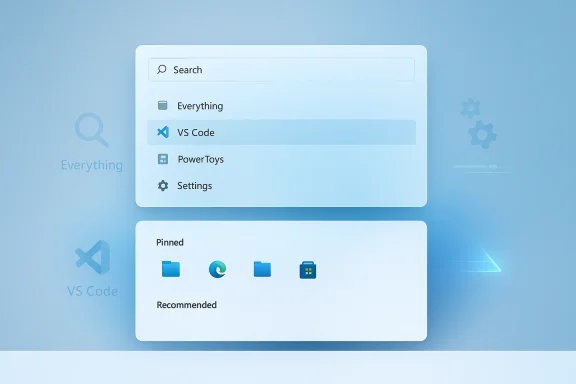
Microsoft’s PowerToys is quietly turning one of the most frustrating parts of Windows — finding apps and files — into something genuinely competitive with macOS Spotlight and the better third‑party launchers, and the latest engineering work on the new Command Palette points to a noticeably faster, more responsive launcher experience that could make Windows Search feel even more obsolete for power users.
Windows Search has long been criticized for inconsistent indexing, slow results, and a cluttered, ad‑laden Start experience. For years the community has filled that gap with launchers such as PowerToys Run, Everything, Flow Launcher, and others. Microsoft’s PowerToys project has leaned into that space: PowerToys Run has been a reliable, lightweight launcher for a long time, and in 2025–2026 Microsoft introduced a rebuilt, extensible alternative called Command Palette that borrows the best ideas from macOS Spotlight, Visual Studio Code’s command palette, and modern launcher design.
Since its first shipping builds, Command Palette has undergone a rapid engineering sprint: the PowerToys team enabled Ahead‑of‑Time (AOT) compilation, added lazy loading and parallel extension startup, introduced smarter fuzzy matching and fallbacks, and tightened extension timeouts and safeguards. Those platform changes have produced measurable gains in memory, startup time, and extension load time — and the project’s maintainers and contributors continue to iterate on micro‑optimizations intended to make the launcher feel instant. At the same time, PowerToys has added a new mouse tool called CursorWrap (wrap your cursor around a monitor edge) and refined its settings with user‑facing personalization.
This article unpacks the concrete changes, explains how and why they make a difference, compares Command Palette to PowerToys Run and the built‑in Windows Search, highlights practical tips for power users, and calls out risks you should consider before making Command Palette your default launcher.
Design teams call this a trade between perceived latency and interactivity cues. The ideal is configurable: let power users enable “lightning‑fast” mode for raw speed and let accessibility‑focused users retain animations and visible selection indicators.
That said, the best practical setup for most users in 2026 is hybrid:
If you rely on fast, keyboard‑first flow, update PowerToys, try Command Palette with an Everything backend, and keep PowerToys Run as a fallback while you tune settings to match your workflow. The result: far fewer context switches, faster launches, and a Windows desktop that behaves more like a professional toolbench than a patchwork of legacy features.
Conclusion: Command Palette’s recent engineering push is more than incremental polish — it’s a pragmatic re‑architecture that closes the responsiveness gap while bringing the extensibility power users want. The trade‑offs are real (accessibility cues and early release regressions), but handled carefully, this evolution makes Command Palette a credible, faster way to find apps and files on Windows 11.
Source: Windows Central Windows 11 may soon get a much quicker way to find apps and files
 Background / Overview
Windows Search has long been criticized for inconsistent indexing, slow results, and a cluttered, ad‑laden Start experience. For years the community has filled that gap with launchers such as PowerToys Run, Everything, Flow Launcher, and others. Microsoft’s PowerToys project has leaned into that space: PowerToys Run has been a reliable, lightweight launcher for a long time, and in 2025–2026 Microsoft introduced a rebuilt, extensible alternative called Command Palette that borrows the best ideas from macOS Spotlight, Visual Studio Code’s command palette, and modern launcher design.Since its first shipping builds, Command Palette has undergone a rapid engineering sprint: the PowerToys team enabled Ahead‑of‑Time (AOT) compilation, added lazy loading and parallel extension startup, introduced smarter fuzzy matching and fallbacks, and tightened extension timeouts and safeguards. Those platform changes have produced measurable gains in memory, startup time, and extension load time — and the project’s maintainers and contributors continue to iterate on micro‑optimizations intended to make the launcher feel instant. At the same time, PowerToys has added a new mouse tool called CursorWrap (wrap your cursor around a monitor edge) and refined its settings with user‑facing personalization.
This article unpacks the concrete changes, explains how and why they make a difference, compares Command Palette to PowerToys Run and the built‑in Windows Search, highlights practical tips for power users, and calls out risks you should consider before making Command Palette your default launcher.
What the recent updates actually changed
Performance-first engineering: AOT, lazy loading and parallelization
Command Palette’s performance improvements are not marketing copy — they are engineering choices with real consequences.- Ahead‑of‑Time (AOT) readiness: The PowerToys team prepared and enabled AOT compilation for the Command Palette and first‑party extensions, reducing runtime JIT overhead. In practice this lowers memory pressure on launch and shortens initial render time, which is important for a launcher that users summon dozens of times a day.
- Lazy loading: Heavy resources and extension settings are deferred until needed. That means when you open the palette for a quick calculation or to run an application, Command Palette avoids loading images, extension settings, or nonessential metadata until the UI is stable.
- Parallel extension startup and timeouts: Instead of initializing every extension serially (which would block the UI), extensions are started in parallel with strict timeouts. A slow or misbehaving plugin now gets isolated rather than stalling the entire launcher.
“Lightning‑fast” UI tweaks: remove flashing, choose early selection
One of the most visible updates being trialed is a low‑latency visual mode — discussed publicly in development channels and demonstrated in a preview video — that focuses on reducing visual distractions while results update. Key ideas in that mode:- Reduce motion and animation: Several selection and highlight animations are removed to prevent the pointer of focus from visually jumping as results refresh.
- Select the first interactable result early: The UI chooses the first usable result as soon as possible, preventing transient focus movement that causes blinking or “selection jitter.”
- Consistent home layout: A static “Results” section header is introduced so the home page maintains consistent visual layout even when elements replace each other.
File search and indexer behavior
Command Palette’s out‑of‑the‑box file search is increasingly useful, but it is not a universal replacement for a dedicated indexer. The launcher can leverage Windows indexing and also integrates with external indexers via extensions (for example, using Everything to obtain instant filename search). For very large local or networked stores, pairing Command Palette with an indexer is still the fastest way to get consistent, “instant” file results.CursorWrap and per‑axis wrapping
PowerToys added a mouse utility called CursorWrap that teleports the pointer to the opposite edge of the active monitor when you push the cursor off an outer edge. Subsequent updates added:- a Wrap mode setting letting you limit wrapping to horizontal only, vertical only, or both, and
- improved multi‑monitor topology detection (handling lid close, dock/undock scenarios) and enterprise ADMX policy support.
Command Palette vs PowerToys Run vs Windows Search
PowerToys Run: The veteran launcher
- Extremely lightweight, minimal UI.
- Instant file & app lookup on many machines.
- Mature, familiar behavior for long‑time PowerToys users.
Command Palette: The modern, extensible successor
- Feature‑rich: extensions, clipboard metadata, Peek previews, PowerToys control.
- More customizable visual design and personalization.
- Scales into a command center (run scripts, manage settings, remote desktop quick actions).
Windows Search: default but constrained
- Integrated into the Start menu and system shell.
- Indexing sometimes inconsistent; occasional delays and UI clutter.
- Ads and suggestions can clutter results (depends on settings and edition).
Strengths: Why Command Palette matters now
- Measured performance improvements: Architecture changes (AOT, lazy loading, parallel startup) reduce time‑to‑result, making the tool behave more like “instant” launchers.
- Extensibility: Built‑in extensions and a stable extension SDK let Command Palette do more than run apps — from Peek file previews to controlling PowerToys utilities and integrating with Everything or WinGet.
- Personalization and polish: The new personalization options and a cleaner settings dashboard make the tool approachable while still powerful.
- Rapid, visible fixes: The project has shown fast iteration (fixes for personalization issues, icon loading, CursorWrap edge cases), reflecting an active release cadence.
- Opt‑in features for different workflows: You can keep PowerToys Run enabled, set different hotkeys, or install the Everything extension for the best file search speed — Command Palette doesn’t force a single workflow.
Risks and caveats — what to watch for
No major system utility ships without trade‑offs. Here are the areas to be cautious about.Accessibility and discoverability trade‑offs
Removing selection animations and other visual indicators reduces perceived lag, but it may harm discoverability for users who depend on motion or highlight pills to confirm selection. Users who require visual cues or use assistive technologies should test the new look carefully.Early instability and regressions
Command Palette rolled out rapidly and with significant surface area. Community reports have included issues such as: failure to open in some builds, hotkey remapping quirks, and extension visibility differences when running PowerToys as administrator. These regressions have been addressed in follow‑up patch releases, but they underline that major rewrites can introduce edge‑case breakage.Shell and registration issues
Historically, some users reported severe side effects when early Command Palette builds interacted with the Windows shell registration in problematic ways. Most of those reports were tied to early releases and were mitigated in later updates, but any PowerToy that deeply integrates with shell behaviors should be deployed with caution in managed environments.Extension supply‑chain and privacy
Command Palette’s extensibility is a strength and a risk. Extensions that access clipboard history, browser tabs, or cloud services increase the surface for accidental data exposure. Enterprises and privacy‑conscious users should curate, audit, and limit which extensions are installed. Prefer signed, widely used extensions and rely on vetted distribution channels.Indexing dependence for file search
If your workflows require instant cross‑network searches or large datasets, Command Palette without a dedicated indexer will not match the speed of “Everything”‑style indexers. That’s a configuration note rather than a bug: pairing Command Palette with a specialized indexer produces the best real‑world results.Practical advice: how to get the best results today
If you want Command Palette to replace your launcher, here’s a practical checklist to make the transition smooth.- Update PowerToys to the latest stable release.
- Confirm the version number in the PowerToys settings to ensure you have the release that contains the performance and CursorWrap fixes.
- Enable Command Palette and set a comfortable hotkey.
- Default is Win+Alt+Space; if that conflicts with other shortcuts, remap and test.
- Keep PowerToys Run available as a fallback.
- Keep both tools enabled with different hotkeys while you test Command Palette’s behavior for your daily tasks.
- Install the Everything extension if you need instant file names.
- Everything remains the fastest file indexer; the extension bridges its results into Command Palette.
- Vet and limit extensions.
- Install only the extensions you trust. For corporate devices, prepare a curated list and use admin policies to control what extensions can be installed.
- Test CursorWrap carefully before making it your default.
- If you use multiple monitors, try Horizontal‑only mode first. The Wrap mode allows Horizontal, Vertical, or Both.
- Test edge cases: elevated apps, shell actions, and sleeping/wake cycles.
- Verify Command Palette behaves when PowerToys runs elevated vs non‑elevated and check wake-from-sleep behavior on multi‑monitor setups.
Enterprise considerations
PowerToys is not just for hobbyists anymore. Recent updates added ADMX policy support for CursorWrap and enterprise deployment considerations have been discussed in release notes. If you plan to roll PowerToys to a fleet:- Pilot on a small test cohort first and document default hotkeys and approved extensions.
- Use your device management tooling to pin PowerToys versions and allow controlled rollouts.
- Audit extensions for network behavior and data access before approving them.
- Validate accessibility impacts with your assistive technology users.
- Keep rollback plans: PowerToys releases are frequent; ensure you can revert if a particular build introduces regressions.
Technical verification and known limitations
- The Command Palette performance gains are built on AOT readiness and runtime optimizations. The PowerToys engineering blog and release notes explicitly mention AOT, lazy loading, and parallelization as contributors to reduced memory use and faster startup.
- CursorWrap shipped in the 0.97 cycle and later received a Wrap mode setting to constrain wrapping to horizontal or vertical; release notes list that feature and subsequent patch versions fixed multi‑monitor edge cases.
- The “lightning‑fast mode” concept (a UI mode that removes certain animations and selects the first interactable result early) was demonstrated in development previews and is tracked via development pull requests and changelogs. Implementation details and final user options may change while pull requests are reviewed, and individual distributions may differ until changes are merged and shipped.
UX tradeoffs: faster is not always better
There’s a subtle human factor to removing animation and visual clues. Motion and selection pills deliver micro‑feedback that confirms system understanding of the user’s input. When you make a result list update without those cues, you win on perceived latency but lose a signpost that helps users confirm an action.Design teams call this a trade between perceived latency and interactivity cues. The ideal is configurable: let power users enable “lightning‑fast” mode for raw speed and let accessibility‑focused users retain animations and visible selection indicators.
Final verdict and recommendations
PowerToys’ Command Palette has closed the gap with PowerToys Run in raw responsiveness and, importantly, extended the launcher’s reach into a true command center. The engineering work — AOT readiness, lazy loading, parallel extension initialization, and targeted UI optimizations — legitimately makes the tool feel faster for common tasks.That said, the best practical setup for most users in 2026 is hybrid:
- Use Command Palette as your primary, extensible command center for scriptable actions, previews, and integrated PowerToys controls.
- Keep PowerToys Run or a dedicated indexer like Everything for instant, raw app and filename lookups if you need consistent immediate results.
- Enable CursorWrap only after testing in your multi‑monitor setup and prefer Horizontal‑only mode if you find vertical wrapping disruptive.
- Curate and audit extensions to limit privacy and supply‑chain risk, and test in a controlled environment before rolling out broadly.
If you rely on fast, keyboard‑first flow, update PowerToys, try Command Palette with an Everything backend, and keep PowerToys Run as a fallback while you tune settings to match your workflow. The result: far fewer context switches, faster launches, and a Windows desktop that behaves more like a professional toolbench than a patchwork of legacy features.
Conclusion: Command Palette’s recent engineering push is more than incremental polish — it’s a pragmatic re‑architecture that closes the responsiveness gap while bringing the extensibility power users want. The trade‑offs are real (accessibility cues and early release regressions), but handled carefully, this evolution makes Command Palette a credible, faster way to find apps and files on Windows 11.
Source: Windows Central Windows 11 may soon get a much quicker way to find apps and files
