

MyASUS is the single-pane control center ASUS ships on compatible notebooks to handle everything from driver and BIOS updates to phone linking, battery health settings, and hardware diagnostics — this guide walks through a complete MyASUS setup, the safest ways to update drivers and BIOS, practical troubleshooting, and the best maintenance habits to keep an ASUS laptop healthy and fast.
MyASUS consolidates multiple maintenance and convenience functions that previously lived in separate ASUS utilities. It is available preinstalled on many ASUS laptops and also downloadable from the Microsoft Store; however, full functionality requires the vendor’s System Control Interface driver to be present first, and some features can vary by model and driver generation. At a glance, MyASUS provides:
MyASUS simplifies essential maintenance for ASUS laptops, but like any system-management tool it works best when paired with smart practices: verify prerequisites, back up before high-impact updates, prefer official downloads, and test after each change. Follow the procedures outlined here to install, configure, and use MyASUS confidently — and keep driver and BIOS updates scoped, safe, and reversible.
Source: Windows Report How to Use MyASUS: Complete Setup and Driver Update Guide
 Background / Overview
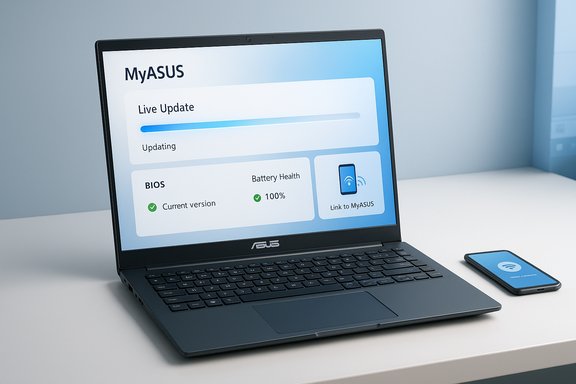
MyASUS consolidates multiple maintenance and convenience functions that previously lived in separate ASUS utilities. It is available preinstalled on many ASUS laptops and also downloadable from the Microsoft Store; however, full functionality requires the vendor’s System Control Interface driver to be present first, and some features can vary by model and driver generation. At a glance, MyASUS provides:- Live Update for drivers and utilities.
- Link to MyASUS for phone-to-PC integration (file transfer, screen mirroring, hands-free calls).
- System customizations (performance modes, display tuning such as Splendid Display).
- Battery health tools to slow battery wear (Battery Health Charging).
- Customer Support with diagnostics and service request options.
Getting Started: Install and Open MyASUS
Prerequisites: System Control Interface driver
Before installing MyASUS, verify the presence of the ASUS System Control Interface driver in Device Manager. Many MyASUS features depend on that driver; if it's missing you may see a reduced feature set or the app may refuse to install. The official ASUS support guidance specifically requires the System Control Interface driver be present before installing MyASUS.Install from Microsoft Store (Windows 10 / 11)
- Open the Microsoft Store, search for MyASUS, and click Install. After installation click Open to start the app.
- If MyASUS is preinstalled on your machine, it should appear in Start → All apps. Pin it to Start or Taskbar for quick access. (Right‑click → Pin to taskbar / Pin to Start.
- If the app cannot be found in the Store or won’t install, double-check the System Control Interface driver and model compatibility. Older ASUS models may show only a partial feature set even with MyASUS installed.
First-run checklist
- Ensure Windows Update is current and the device is plugged into power.
- Create a system restore point before applying major system updates (recommended for BIOS updates and critical driver changes).
- If you need the System Control Interface driver, download it from the ASUS support pages for your exact model before installing MyASUS.
Core MyASUS Sections and What They Do
Home
The Home page summarizes system health, recommended updates, and quick tips. It’s where MyASUS surfaces critical updates and helpful suggestions.Customer Support (Live Update)
Live Update is the MyASUS module that scans for updated drivers, utilities, and firmware available from ASUS and offers a one-click installer for selected items. Use Live Update to keep chipset, audio, Wi‑Fi, camera, and vendor drivers current. ASUS documentation shows how Live Update notifies and applies updates; optional updates may install silently if Microsoft Store auto-update is enabled.Customization / System Settings
Under Customization you’ll find:- Performance modes: Performance, Balanced, Silent (affects fan curves and power policy).
- Display tuning: Splendid Display or other color/temperature profiles.
- Battery Health Charging: options to cap maximum charge for longevity (e.g., 60%, 80%) to reduce battery wear.
Link to MyASUS (phone integration)
Link to MyASUS pairs your phone and PC for:- File transfer and URL transfer.
- Phone screen mirror and remote control.
- Hands-free calls routed through the PC.
- Screen extender / remote file access.
Pairing requires the Link to MyASUS mobile app from Google Play or the Apple App Store and QR-code scanning inside the desktop app. Grant the requested permissions (notifications, contacts, file access) for full functionality.
How to Use Live Update: Update Drivers Safely
Keeping drivers current is essential for stability, security, and performance, but driver updates should be applied with attention to risk. Follow these best practices when using MyASUS Live Update.Pre-update checklist
- Create a system restore point or a full backup (Disk image) before driver or BIOS updates.
- Ensure a stable power source and an active internet connection.
- Close nonessential apps and pause heavy workloads.
- Note your current driver versions (Device Manager → Properties → Driver tab) so you can roll back if needed.
Live Update — step-by-step
- Open MyASUS → Customer Support → Live Update.
- Click Check for Updates to let MyASUS scan and list available updates.
- Review the list; select only the updates you want (chipset, audio, Wi‑Fi, GPU drivers, utilities).
- Click Install and allow the app to download and apply updates. Reboot when prompted.
When Windows Update vs. MyASUS?
- Use Windows Update for Microsoft-signed drivers and OS patches.
- Use MyASUS Live Update for ASUS-supplied drivers and firmware that are tailored for your model (chipset firmware, vendor utilities, vendor camera/microphone drivers).
- If Windows Update doesn’t find a device driver update, MyASUS or the device-specific Support → Driver & Tools page is the correct place to look.
Rollback strategy
If a driver causes trouble:- Open Device Manager → Device → Properties → Driver → Roll Back Driver (if available).
- If rollback isn’t available, uninstall the driver (Device Manager → Uninstall device), reboot, and let Windows reinstall, or manually install the previous driver downloaded from ASUS or the device vendor.
Advanced: Manual Driver Update and Reinstall Procedures
There are situations when Live Update or Windows Update won’t supply the driver you need. In those cases, a manual update gives you control.Manual update: steps
- Identify the exact model and OS (msinfo32 → System Model) and download the correct driver from ASUS’s Support → Driver & Tools page.
- Extract the driver package to a known folder.
- Open Device Manager, locate the device, right-click → Update driver → Browse my computer for drivers → point to the extracted folder.
- Restart when finished.
Reinstalling a problematic driver
- Save all work and close applications.
- Device Manager → right-click device → Uninstall device → confirm.
- Reboot; Windows will attempt to reinstall the base driver. If it does not, use the manual process above to install the correct vendor driver.
Pro tips
- Read release notes for drivers so you know which issues are addressed and whether there are known incompatibilities.
- Prefer manufacturer-signed drivers over third-party driver packs. Only use trusted download sources.
- Keep a copy of the driver installer you know worked, in case a newer driver causes regressions.
BIOS Updates: Why They Matter and How to Proceed Safely
BIOS/UEFI updates can fix firmware bugs, improve compatibility, and sometimes resolve severe performance/stability issues — but they carry greater risk because an interrupted or incorrect BIOS update can render a system unbootable.When to update BIOS
- If ASUS or major outlets publish a fix for your model that resolves a bug you’re experiencing (e.g., thermal or ACPI issues), updating may be warranted.
- If the update delivers required support for new hardware (rare for laptops) or critical security fixes. News coverage and vendor advisories sometimes highlight urgent BIOS patches; install those after proper backups.
Official ASUS BIOS update methods
ASUS supports several BIOS update paths depending on platform:- MyASUS in UEFI: some laptops expose an update option integrated in the OEM UEFI (ASUS Firmware Update).
- EZ Flash / EZ Flash 3: a UEFI tool that updates BIOS from a FAT32 USB stick with the official BIOS file.
- EZ Update / AI Suite: on motherboards, tools like EZ Update can update BIOS online then call EZ Flash. Both approaches and their step-by-step instructions are part of ASUS’s official support guidance.
Safe BIOS update checklist
- Back up personal data and create a full system image.
- Ensure AC power is connected and battery charge is sufficient (recommended > 20%).
- Download the BIOS for your exact model from the ASUS Support page; never use BIOS from a different model.
- Read the vendor notes and follow the update path recommended for your device (MyASUS in UEFI, EZ Flash, or USB method).
- Do not power off during the update. If the update offers an option to preserve settings, consider doing so only if advised by ASUS documentation.
Cautionary note
BIOS updates sometimes ship as beta or interim fixes. Beta BIOS can resolve problems but may be less stable; follow ASUS guidance and back up before proceeding. If a BIOS update is labeled “critical” on ASUS support or security advisories, plan for it, but treat every firmware update as high-impact maintenance.Link to MyASUS: Pair Your Phone and PC
Pairing and permissions
- In MyASUS, open Link to MyASUS. A QR code appears.
- Install Link to MyASUS on your phone (Google Play / App Store). Launch the mobile app and scan the QR code.
- Grant permissions requested by the mobile app (notifications, contacts, file access, etc. for full functionality.
Common uses
- File transfer: fast wireless file sharing between phone and PC.
- Mirror & remote control: operate phone apps from the PC using the keyboard/mouse.
- Hands-free calls: place and receive phone calls via PC audio.
- Screen extender & remote files: use phone as a second display or access PC files remotely.
Troubleshooting pairing failures
- Confirm both devices are on the same network (if required) and Bluetooth/Wi‑Fi are enabled.
- Restart both apps and retry the QR scan.
- Reinstall the mobile app if the problem persists.
- Check firewall settings and any VPN or security apps that might block local discovery.
Customer Support & Diagnostics in MyASUS
MyASUS includes built-in diagnostics and a direct support channel:- Run diagnostic tests for hardware components from the Customer Support section.
- Submit service requests and check warranty/service center locations via the app’s support interface.
Troubleshooting: Failed Driver Updates and Recovery
When an update fails or causes system instability, follow this recovery workflow:- Boot to Safe Mode if Windows won’t start normally (press and hold Shift while selecting Restart → Troubleshoot → Advanced options → Startup Settings → Restart → Safe Mode).
- Use Device Manager to roll back or uninstall the offending driver.
- If system files are damaged, use System Restore to revert to a point created before the update.
- If the machine is unbootable after a firmware update, contact ASUS support or a certified repair center — do not attempt unofficial firmware recovery methods unless directed by ASUS.
Maintenance Routine: Keep Your ASUS Laptop Healthy
- Monthly: Open MyASUS → Live Update → Check for Updates. Review Windows Update for OS and Microsoft-signed drivers.
- Quarterly: Create a full system backup and verify restore points.
- When upgrading Windows (feature update): update key drivers (chipset, storage, GPU) before the OS upgrade to reduce compatibility issues.
- Backup → Verify driver/firmware source → Read release notes → Update non-critical drivers first → Reboot and test → Monitor for regressions for 48–72 hours.
Security & Risk Considerations
- MyASUS and related ASUS utilities (including Live Update) are vendor-supplied and generally safe when obtained from ASUS or Microsoft Store. However, in 2024–2025 there were vendor-issued patches addressing security vulnerabilities that affected ASUS software; keeping the MyASUS app and related utilities updated is important for patching those risks. If you see a security advisory for your model, treat it as high priority.
- Never download drivers or BIOS from untrusted third-party web sites. Only use ASUS’s official Support pages or the Microsoft Store to avoid counterfeit or malicious packages.
Quick Reference: Step-by-Step Summaries
Install MyASUS (Windows 11 / 10)
- Confirm ASUS System Control Interface is present in Device Manager.
- Open Microsoft Store → search MyASUS → Install → Open.
Update drivers with Live Update
- MyASUS → Customer Support → Live Update → Check for Updates.
- Select updates → Install → Reboot when prompted.
Pair phone via Link to MyASUS
- MyASUS → Link to MyASUS → Scan QR code with mobile Link to MyASUS app → Grant permissions.
Update BIOS (safe path)
- Back up data and create a system image.
- Download exact BIOS for your model from ASUS Support.
- Use MyASUS in UEFI or EZ Flash / EZ Update method per ASUS instructions.
- Keep AC power connected; do not interrupt the update.
Final Analysis: Strengths, Limitations, and Practical Recommendations
MyASUS is a strong, practical tool for maintaining ASUS laptops because it centralizes vendor‑specific updates, diagnostics, and phone integration in one interface. For most users, Live Update reduces the friction of keeping drivers and utilities current without hunting through support pages. Link to MyASUS is particularly useful for cross-device workflows, and the battery health options are sensible features to extend battery longevity. However, there are clear risks and limitations:- Dependency on vendor drivers: Full functionality requires the ASUS System Control Interface driver; on older models this driver may be unavailable or only partially supported. Plan accordingly.
- Firmware risk profile: BIOS updates are inherently higher risk than device drivers. Always back up and follow ASUS’s explicit flashing instructions.
- Security posture: Vendor utilities occasionally require rapid security fixes; keep MyASUS and related software updated. News coverage has shown ASUS issuing important patches in recent years.
MyASUS simplifies essential maintenance for ASUS laptops, but like any system-management tool it works best when paired with smart practices: verify prerequisites, back up before high-impact updates, prefer official downloads, and test after each change. Follow the procedures outlined here to install, configure, and use MyASUS confidently — and keep driver and BIOS updates scoped, safe, and reversible.
Source: Windows Report How to Use MyASUS: Complete Setup and Driver Update Guide
