

The easiest way to get your controller working on a Windows 10 or Windows 11 PC is often the simplest: plug it in, pair it, and play — but there are several choices, caveats, and troubleshooting steps that every Windows gamer should know. This feature walks through every practical method for connecting an Xbox controller to a Windows PC — wired USB, Bluetooth, and the low‑latency Xbox Wireless radio — explains what each option enables (and restricts), and gives diagnostic steps and best practices so you spend less time in menus and more time in games.
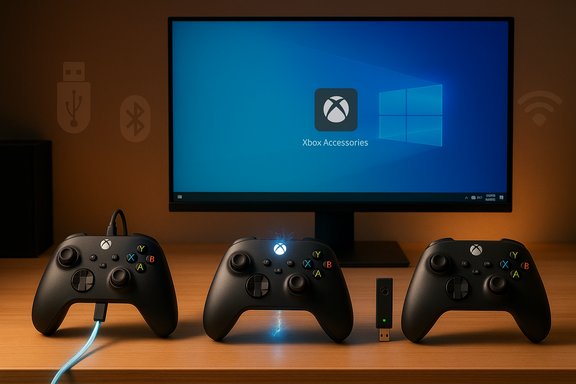
PC gaming has come a long way from arrow‑keys-only or third‑party serial adapters. Modern Xbox controllers support multiple connection modes — USB wired, Bluetooth, and Xbox Wireless (proprietary radio) — and Windows 10 and 11 include built‑in support for these modes. The official Microsoft product pages confirm that current Xbox Wireless Controllers support Bluetooth for mobile and PC devices, USB‑C wired connections for plug‑and‑play, and native Xbox Wireless radio for the fullest feature set on compatible devices. That flexibility is good — but it also creates choices. Bluetooth is widely supported but can limit certain features and add latency. Wired USB is the most consistent and requires the correct cable. Xbox Wireless (paired via a built‑in radio or Microsoft’s USB adapter) gives the lowest latency and the broadest feature compatibility, but requires compatible hardware. This article breaks down those tradeoffs and shows exactly how to connect, configure, and troubleshoot.
Caveat: some Elite features (e.g., certain on‑board customizations) are limited or unavailable over Bluetooth or on legacy OS versions. For full feature access, prefer Xbox Wireless or wired USB on Windows 10/11.
The modern Xbox controller ecosystem is flexible and largely frictionless — but small differences in connectors, radios, drivers, and overlays can produce confusing results. Following the steps above will get most players up and running in minutes and provide a clear escalation path when something doesn’t behave as expected. For gamers who want the best of both worlds, using an official Xbox Wireless Adapter (or a PC with native Xbox Wireless) plus the Xbox Accessories app delivers the broadest compatibility, lowest latency, and easiest customization on Windows 10 and 11.
Source: Tom's Hardware https://www.tomshardware.com/video-...ndows-pc-wired-and-wireless-gaming-made-easy/
 Background / Overview
PC gaming has come a long way from arrow‑keys-only or third‑party serial adapters. Modern Xbox controllers support multiple connection modes — USB wired, Bluetooth, and Xbox Wireless (proprietary radio) — and Windows 10 and 11 include built‑in support for these modes. The official Microsoft product pages confirm that current Xbox Wireless Controllers support Bluetooth for mobile and PC devices, USB‑C wired connections for plug‑and‑play, and native Xbox Wireless radio for the fullest feature set on compatible devices. That flexibility is good — but it also creates choices. Bluetooth is widely supported but can limit certain features and add latency. Wired USB is the most consistent and requires the correct cable. Xbox Wireless (paired via a built‑in radio or Microsoft’s USB adapter) gives the lowest latency and the broadest feature compatibility, but requires compatible hardware. This article breaks down those tradeoffs and shows exactly how to connect, configure, and troubleshoot.Which Xbox controller do you have? Cable types and capabilities
Before you connect anything, identify your controller model. The physical connector and wireless capabilities vary by generation:- Older Xbox One controllers (first revision) use Micro‑USB for wired play.
- Xbox One S and later revisions and Xbox Series X|S controllers use USB‑C for wired play and also include Bluetooth on supported SKUs.
- Many controllers support both Bluetooth and Xbox Wireless; the latter is Microsoft’s proprietary radio that offers lower latency and additional features when used with a PC that has Xbox Wireless or the USB Xbox Wireless Adapter.
Wired connection: The fastest, most reliable way
Wired USB is the least finicky method. It provides consistent input with minimal latency and avoids Bluetooth pairing issues.What you need
- A Windows 10 or Windows 11 PC with an available USB port.
- A compatible cable: Micro‑USB for older controllers, USB‑C for Xbox Series X|S and many newer controllers.
- (Optional) A USB extension if you want extra reach; ensure the extension supports data.
Step‑by‑step: Plug in and play
- Connect the correct cable to the controller (Micro‑USB for older pads; USB‑C for Series X|S or later). Use a data cable, not a charge‑only cable.
- Plug the other end into a free USB port on the PC. Windows usually detects and installs required drivers automatically; wait for the “Device ready” notification.
- Press the Xbox button to power on the controller. On Windows 10/11 pressing the Xbox button typically opens the Xbox Game Bar (if enabled), showing that the OS sees the pad.
- Launch a game or Steam/other launcher. If the game supports XInput (most modern titles do), your controller should work immediately.
Bluetooth pairing: convenient but with tradeoffs
Bluetooth is excellent for laptops and quick setups because no dongle is required. However, Bluetooth uses more power, may add latency, and sometimes limits certain controller features (such as advanced accessory support and some on‑board functionality) relative to Xbox Wireless.When to use Bluetooth
- You want a wireless connection and your PC/laptop already has Bluetooth.
- You don’t need the absolute lowest latency (competitive online shooters benefit more from Xbox Wireless or wired).
- You prefer simplicity and fewer USB devices.
How to pair an Xbox controller over Bluetooth (Windows 10 and 11)
- Turn the controller on by pressing the Xbox button.
- Put the controller into pairing mode by pressing and holding the pair button (the small button near the USB port) until the Xbox button flashes rapidly.
- On Windows, open Settings → Bluetooth & devices (or the Bluetooth icon in the system tray), turn Bluetooth on, and choose Add device → Bluetooth.
- Select Xbox Wireless Controller when it appears and complete pairing. The Xbox light will become steady once paired.
- Bluetooth pairing can fail or stall on PCs with older or incompatible Bluetooth stacks. If pairing hangs at “Connecting,” update your PC’s Bluetooth drivers or try a different adapter. Microsoft’s community forums and Q&A threads document repeated fixes for adapter incompatibilities.
- Bluetooth typically supports only one Bluetooth device profile at a time for certain controllers. To pair to a new device, you may need to unpair the controller from the previous host or remove it from the Bluetooth list.
Xbox Wireless radio and the Xbox Wireless Adapter: the best for low latency
If you want the most console‑like experience on PC — lower latency and broader feature support — use Xbox Wireless rather than Bluetooth. Many modern laptops and desktops include the Xbox Wireless radio natively; otherwise, Microsoft sells a USB Xbox Wireless Adapter for Windows.- Xbox Wireless supports more features than Bluetooth and generally provides better latency for competitive play. It’s also the way to connect older non‑Bluetooth controllers wirelessly.
How to use the Xbox Wireless Adapter
- Plug the Xbox Wireless Adapter into a USB port on your PC. Windows should install drivers automatically.
- Press the adapter’s pairing button, then press the pairing button on the controller. When the controller’s Xbox button becomes steady, pairing is complete.
- Use the Xbox Accessories app for firmware updates and configuration if needed.
Xbox Game Bar and what the controller unlocks in Windows
Windows 10 and 11 include the Xbox Game Bar, a quick overlay for capturing gameplay, checking performance, and managing social features. Pressing the Xbox button on a connected controller launches Game Bar (unless you’ve disabled the shortcut).- Game Bar provides quick access to capture, performance overlays, audio controls, and shortcuts to your game libraries — useful when using a controller‑first workflow. Microsoft has added controller‑friendly modes (Compact Mode and a controller bar) to the Game Bar to make navigation easier on handheld devices.
Xbox Accessories app, firmware and custom mapping
The Xbox Accessories app (Windows Store / Microsoft Store) is Microsoft’s official tool for firmware updates and advanced controller customization. With the app you can:- Update controller firmware.
- Remap buttons and set custom profiles.
- Configure trigger and stick sensitivity and dead zones (Series X|S and Elite controllers support additional tuning).
Troubleshooting: the most common issues and fixes
Even with modern plug‑and‑play, a handful of recurring issues cause the most grief. The following steps cover the likely causes in order of ease.1. Controller not detected via USB
- Try a different USB cable (make sure it’s data‑capable).
- Plug into a different USB port (rear ports on desktops are preferable to some front panels).
- Restart the PC with the controller connected. Windows often finalizes driver installs during reboot.
2. Bluetooth pairing stalls or fails
- Update your PC’s Bluetooth drivers (use OEM or chipset vendor drivers for Intel/Qualcomm chipsets).
- Remove the controller from the Bluetooth device list and retry pairing.
- Try the controller near the PC and ensure no heavy Bluetooth interference (2.4 GHz Wi‑Fi, other devices). Community reports show adapter compatibility as a typical source of failure.
3. Controller connects but shows lag or dropouts
- Use wired USB or the Xbox Wireless Adapter for lower latency.
- Turn off bandwidth‑hungry Wi‑Fi on congested channels or move to 5 GHz where practical.
- Update controller firmware via the Xbox Accessories app. If upgrading firmware fails, try a different USB port and a direct wired connection before attempting again.
4. Game Bar or other overlays block controller input
- Disable controller shortcuts in Game Bar settings if they conflict with Steam or other overlays.
- If using third‑party wrappers (DS4Windows, x360ce, ViGEm), be aware anti‑cheat systems sometimes react to virtual drivers — check game anti‑cheat guidance before deploying wrappers. Community guidance suggests Steam Input as a safe, often effective way to present controllers to games when native support misbehaves.
5. Headset audio problems or headset disconnections
- If you’re passing headset audio through the controller, ensure the controller connection mode supports headset audio (Xbox Wireless often provides better passthrough than Bluetooth for chat).
- Check Windows sound settings and disable “Allow applications to take exclusive control of this device” if audio dropouts persist. Event logs can reveal driver errors. Community troubleshooting threads include practical step lists for GameInput issues and audio exclusive control problems.
Advanced: Elite Series 2 and pro features
If you own an Xbox Elite Wireless Controller Series 2, expect additional features: adjustable tension thumbsticks, hair‑trigger locks, swappable parts, and on‑board profile storage. The Elite Series 2 supports three connection modes (Xbox Wireless, Bluetooth, USB‑C wired) and exposes the broadest configuration options via the Xbox Accessories app; many buyers prize the on‑board profile storage for switching between console and PC without reconfiguring. Manufacturer specs and detailed reviews highlight these points and provide nuance about SKU differences (Core vs Full Set) and included accessories.Caveat: some Elite features (e.g., certain on‑board customizations) are limited or unavailable over Bluetooth or on legacy OS versions. For full feature access, prefer Xbox Wireless or wired USB on Windows 10/11.
Security, privacy and practical rules
- The Xbox Game Bar and other capture overlays may request access to screen capture. Consider privacy needs before enabling automatic recording or third‑party overlays that snapshot screens. Microsoft documents Game Bar’s capture functionality and privacy controls; keep those settings in mind on shared machines.
- Use official firmware and drivers where possible. Third‑party wrappers and virtual‑driver tools are widely used but can raise compatibility or anti‑cheat concerns for multiplayer games — download only from reputable project pages and understand the risks. Community threads emphasize caution and provide step‑by‑step workarounds when Microsoft GameInput or official drivers cause conflicts.
Quick reference: How to connect in 60 seconds
- Wired (plug and play): Connect controller via Micro‑USB or USB‑C → wait for Windows to install drivers → press Xbox button → play.
- Bluetooth: Turn on controller → hold Pair button until Xbox light flashes → Windows Settings → Bluetooth & devices → Add device → choose Xbox Wireless Controller.
- Xbox Wireless Adapter: Insert adapter → press adapter and controller Pair buttons → wait for steady Xbox light → play.
Final verdict and recommendations
- For the most reliable gameplay and the lowest latency, use wired USB or the Xbox Wireless Adapter when possible. Wired guarantees consistent input; Xbox Wireless gives a wireless, low‑latency experience with the fewest feature compromises.
- Use Bluetooth for convenience (especially on laptops), but accept tradeoffs: possible higher latency, audio limitations, and occasional pairing hassles. Update Bluetooth drivers if you see repeated pairing problems.
- Keep the Xbox Accessories app installed for firmware updates and to unlock controller customization. When you hit a snag, try the simplest fixes first: switch cable, change USB port, update drivers, and reboot. Community troubleshooting guides and Microsoft Q&A threads provide step‑by‑step diagnostics when the easy fixes fail.
- Confirm model and connector (Micro‑USB vs USB‑C).
- Try wired first for pairing/firmware work.
- Use Xbox Wireless adapter for competitive wireless play.
- Update firmware and drivers.
- If persistent problems occur, consult device manager, remove old Bluetooth pairings, and test on another machine or port.
The modern Xbox controller ecosystem is flexible and largely frictionless — but small differences in connectors, radios, drivers, and overlays can produce confusing results. Following the steps above will get most players up and running in minutes and provide a clear escalation path when something doesn’t behave as expected. For gamers who want the best of both worlds, using an official Xbox Wireless Adapter (or a PC with native Xbox Wireless) plus the Xbox Accessories app delivers the broadest compatibility, lowest latency, and easiest customization on Windows 10 and 11.
Source: Tom's Hardware https://www.tomshardware.com/video-...ndows-pc-wired-and-wireless-gaming-made-easy/
