

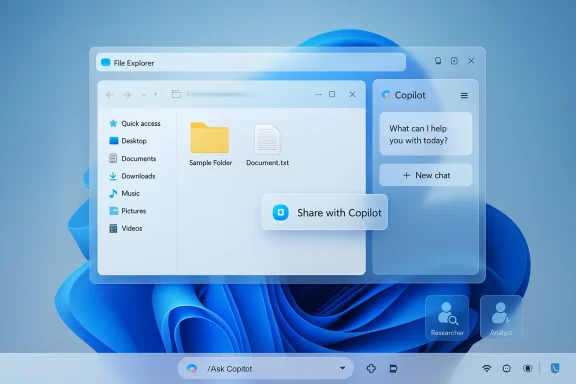
Microsoft’s Copilot is moving from a corner of Windows into the places people actually work: recent Insider previews and Microsoft demonstrations reveal new Copilot entry points on the Windows 11 taskbar and inside File Explorer, including an “Ask Copilot” composer, taskbar-visible AI agents that run in the background, a floating “Share with Copilot” affordance for handing open windows to Copilot Vision, and a docked (and detachable) Copilot chat surface inside File Explorer itself.
Microsoft has steadily folded Copilot into Windows and Microsoft 365 over the last two years, but the newest experiments mark a qualitative shift. Rather than treating Copilot as a separate app or sidebar you open when you need it, Microsoft’s design intent—visible in Dev-channel artifacts and demos—is to make Copilot a first-class assistant that lives where users spend most of their time: the taskbar and the file manager. Those surfaces are highly discoverable and often which makes them powerful places to run short, targeted AI tasks or longer background agents.
This isn’t purely speculative. Insider builds and preview packages have revealed inert UI hotspots, resource strings, and context-menu entries such as “Chat with Copilot,” “D“Share with Copilot” control on the taskbar window preview. These artifacts are clear signals that Microsoft is actively testing tighter Copilot integration in Explorer and the taskbar before a broader rollout.
Key behavioral details reported by preview testers:
That upside, however, comes with unavoidable trade-offs. The combination of visual handoffs (Copilot Vision), in-place file summarization, and persistent agents increases the attack surface for accidental data sharing and raises complex compliance questions for regulated industries. Administrators must treat Copilot’s arrival as a governance project: pilot carefully, update DLP and audit workflows, standardize on whether cloud or on-device processing is required for sensitive workloads, and prepare user training and confirmation UI to prevent inadvertent shares.
If you’re an IT leader: don’t flip all the switches at once. Deploy Copilot features to a controlled pilot group, collect logs and user feedback, and implement policy controls before a broader rollout.
If you’re a power user: enjoy the shortcuts—but make sure you understand whether your file summaries and screen captures are processed on-device or by cloud services, and use registry or app uninstall options where you need stronger privacy guarantees. Practical instructions and registry GUIDs to block context-menu entries are already circulating among Windows community guides, but apply them cautiously and back up your system before making changes.
The Copilot era for Windows is no longer hypothetical. It’s here in preview form, and it will reshape daily workflows—provided Microsoft, IT teams, and end users work together to keep convenience aligned with control.
Source: PCMag Australia Copilot Creeps Into File Explorer and the Taskbar on Windows 11
 Background: why this matters now
Microsoft has steadily folded Copilot into Windows and Microsoft 365 over the last two years, but the newest experiments mark a qualitative shift. Rather than treating Copilot as a separate app or sidebar you open when you need it, Microsoft’s design intent—visible in Dev-channel artifacts and demos—is to make Copilot a first-class assistant that lives where users spend most of their time: the taskbar and the file manager. Those surfaces are highly discoverable and often which makes them powerful places to run short, targeted AI tasks or longer background agents.This isn’t purely speculative. Insider builds and preview packages have revealed inert UI hotspots, resource strings, and context-menu entries such as “Chat with Copilot,” “D“Share with Copilot” control on the taskbar window preview. These artifacts are clear signals that Microsoft is actively testing tighter Copilot integration in Explorer and the taskbar before a broader rollout.
What was shown and what testers are seeing
Taskbar: Ask Copilot, the “@” composer and agent lifecycle
Microsoft has demoed a compact taskbar composer, sometimes referred to in preview materials as Ask Copilot, that replaces or augments the classic search box. Typing “@” inside that composer exposes a menu of agents—specialized Copilot personas such as Researcher or Analyst—that you can summon with text, voice, or visual captures. Once launched, an agent runs as a monitored background task: it appears in the taskbar, shows live progress (borrowed visually from download or transfer indicators), and can run for many minutes while you continue other work. When finished, the agent surfaces a notification and delivers a long-form result or a compiled report.Key behavioral details reported by preview testers:
- Agents can run for extended periods (measured in minutes), not just instant queries.
- The taskbar shows status cards for agent progress, with controls to pause, cancel, or reopen the conversation.
- The composer accepts typed prompts, voice, and small visual captures that Copilot Vision can analyze.
File Explorer: Chat with Copilot, inline file act Explorer is getting multiple Copilot touchpoints:
- A small Copilot icon or Ask Copilot entry appears next to eligible files and in modern context menus, permitting quick summaries without opening the file.
- Hidden strings and UI placeholders reference a Chat with Copilot trigger and a Detach Copilot affordance—strong signals that Microsoft is testing a docked Copilot pane that can be popped out into a floating window. That would let users ask file-specific questions, run cross-file comparisons, or request edits and micro-actions (for images or documents) from within Explorer.
- Click the Copilot button beside a document to get an instant summary, extract action items, or ask a focused question about the contents.
- Hover over a taskbar app’s thumbnail and choose Share with Copilot to let Copilot Vision scan the visible window, then ask the assistant to summarize, extract, or transform the visible content.
How these features work (technical and licensing details)
Local vs cloud processing: Copilot+, M365 tiers and on-device models
Microsoft’s rollout strategy uses a tiered model:- Copilot+ PCs (devices with NPUs or other on-device acceleration) can perform more processing locally, reducing cloud exposure for sensitive data and improving responsiveness.
- Microsoft 365 Copilot customers often receive more advanced file-aware actions and enterprise-grade integrations, including connectors to SharePoint and OneDrive with compliance controls.
- Consumer Copilot builds may be limited to lighter experiences and will often call cloud services for heavy lifting.
Copilot Vision: handing a window to an AI
The Share with Copilot affordance effectively performs a contextual screen capture of an app window and feeds it into Copilot Vision, Microsoft’s multimodal analysis engine. Copilot Vision can scan text, UI elements, and images to produce context-aware summaries or to drive follow-up actions. Early previews show this working across common productivity apps (e.g., Outlook, Excel, Word) but the exact list of supported apps and file types will vary as the feature matures.Data flow and transparency hooks
Microsoft’s preview notes and some admin documentation show early controls to restrict Copilot’s reach—tenant gating, DLP-aware behavior, and policies to limit when an agent can access emails, files, or SharePoint content. However, the granularity and operational completeness of these controls are still evolving in Insider builds. Administrators should test Group Policy/Intune options and updates to DLP policies as part of any pilot.Benefits and productivity case
Embedding Copilot where users already work yields several clear benefits:- Faster triage: Summarize long documents, emails, or meeting notes directly from Explorer or the taskbar without opening multiple apps.
- Reduced context switching: Hand a window to Copilot Vision from the taskbar, get a summary or conversion, and paste results back into an email or chat.
- Background automation: Long-running research tasks—compiling references, comparing documents, or extracting datasets—can run as visible agents while users continue other tasks.
- Accessibility gains: Copilot-powered descriptions and summarization integrated with Narrator and other assistive features can make complex documents more approachable for users with disabilities.
Privacy, compliance and security: the unavoidable trade-offs
The productivity upside is real, but so are the risks. There are three categories organizations and privacy-minded users must weigh carefully.1. Data exposure from visual handoffs
The Share with Copilot taskbar affordance and the Explorer Copilot button make it trivial to hand the contents of an open window or file to an AI. Depending on how the feature is implemented on a given machine, that capture may be processed locally or uploaded to cloud models. Either way, accidental or inadvertent sharing of sensitive screens—email threads, HR cases, financial dashboards—is a real risk. Early commentary from testers recommends conservative defaults and clear confirmations before handing sensitive content to Copilot.2. Telemetry, logging and retention
Enterprises will demand explicit guarantees about what Copilot logs, how long conversational context is retained, and whether outputs or intermediate data are stored in tenant-controlled locations. Microsoft’s multi-tier approach (Copilot+ on-device vs cloud Copilot) helps, but the current preview tooling still requires administrative work to reach operational parity with typical enterprise auditing and retention requirements. If policy and logging aren’t robust, Copilot could become a blind spot in a compliance audit.3. Surface area for accidental data loss
More entry points means more places where users can accidentally trigger AI actions. The proliferation of affordances—taskbar composer, context menus, File Explorer buttons, right-click options—improves discoverability but also increases the chance that someone will invoke Copilot on a sensitive file without realizing the implications. From an IT point of view, that multiplies the number of controls and tests needed to ensure DLP policies actually block or review calls to Copilot services.Administrative controls and mitigations
IT teams should prepare five practical steps before broad deployment:- Audit and pilot: Run a controlled pilot on a representative set of user machines and tenant settings; measure what Copilot accesses and what logs are produced.
- Update DLP rules: Extend DLP and conditional access policies to cover Copilot-related endpoints and agent workflows; test both on-device and cloud processing paths.
- Group Policy and Registry: Use the Group Policy (Administrative Templates) and Registry options to disable or limit Copilot where needed. For example, the TurnOffWindowsCopilot policy and the RemoveMicrosoftCopilotApp policy give admins levers to restrict the Copilot app and taskbar entry in managed environments. Test these during the pilot.
- User training and confirmations: Make sure Copilot’s visual share flows show clear, persistent confirmation prompts before a screen or file is transferred for analysis. Train staff on what those prompts mean and how to reverse accidental shares.
- Prefer on-device processing for sensitiveible and practical, require Copilot+ hardware or on-device processing for departments handling regulated data. This reduces cloud exposure but requires compatible devices and additional licensing.
How to opt out or dial back the feature (practical tips)
Power users and administrators have several practical ways to limit Explorer or taskbar Copilot behaviors:- Uninstall or hide the Copilot app: In consumer scenarios, uninstalling the Copilot desktop client removes many explorer integrations and context-menu entries. Some system updates and bugs have in the past unpinned or uninstalled Copilot accidentally, and Microsoft provided fixes and guidance for reinstalling or restoring the app—but admins should not rely on accidental regressions as a control strategy.
- Registry and Group Policy: Several guides and community-tested tweaks show how to block the “Ask Copilot” entry in Explorer’s context menu by adding the Copilot shell extension GUID ({CB3B0003-8088-4EDE-8769-8B354AB2FF8C}) to the Shell Extensions\Blocked registry key. For enterprise rollouts, the TurnOffWindowsCopilot registry/Group Policy and the RemoveMicrosoftCopilotApp policy provide managed controls. Use caution and test registry edits before deploying widely.
- Intune and MDM: Some management consoles already include toggles for Copilot preview features; if you deploy via Intune, configure and push the appropriate policy profile to limit the taskbar composer or remove the Copilot icon from pinned taskbar items.
- Decide policy posture (pilot, restrict, block).
- Apply Group Policy/Registry for the chosen posture.
- Update DLP rules to include Copilot endpoints.
- Communicate to users and provide rollback steps.
Usability critique and UX risks
Microsoft’s strategy—flood the OS with convenient AI entry points—has a usability rationale: making AI easy to discover and use lowers friction and increases adoption. But it also creates classic UX and cognitive-load risks:- Affordance overload: Multiple Copilot triggers across context menus, ribbons, the taskbar, and file thumbnails can be overwhelming. Users may be confused about which Copilot surface gives what capabilities, and inconsistent behavior across device types (Copilot+ vs cloud-only) will compound frustration.
- False expectations: If a user asks Copilot to perform an action that requires a licensed Microsoft 365 tenant capability, the UI must surface that dependency clearly. Providing a summary that omits licensing nuance risks eroding trust.
- Overreliance on AI: As Copilot becomes more integrated, users may start to rely on it for tasks requiring human judgment. Organizations should maintain guardrails—review cycles, human-in-loop checks—for decisions with legal or financial consequences.
What’s still unclear or unverified
The current evidence primarily comes from Insider preview builds, demo videos and reporter reconstructions. There are several moving parts that still need explicit confirmation:- The exact security model for Copilot Vision captures inside enterprise networks: are captures always sent to cloud services, or can they be fully blocked or routed to on-premise processing? Microsoft’s published guidance is evolving.
- The definitive list of file formats and apps supported for in-Explorer summarization and whether third-party file types will be supported.
- Behavioral differences between consumer builds, Microsoft 365 Copilot customers, and Copilot+ hardware: feature availability and data handling can differ significantly across these tiers.
Final assessment: a useful feature that requires discipline
Microsoft’s push to embed Copilot into the Windows 11 taskbar and File Explorer is a logical and potentially high-value evolution: it reduces context switching, speeds triage of documents, and introduces a new model for background automation via agents that can run and be monitored from the taskbar. For knowledge workers, these capabilities can yield real productivity wins.That upside, however, comes with unavoidable trade-offs. The combination of visual handoffs (Copilot Vision), in-place file summarization, and persistent agents increases the attack surface for accidental data sharing and raises complex compliance questions for regulated industries. Administrators must treat Copilot’s arrival as a governance project: pilot carefully, update DLP and audit workflows, standardize on whether cloud or on-device processing is required for sensitive workloads, and prepare user training and confirmation UI to prevent inadvertent shares.
If you’re an IT leader: don’t flip all the switches at once. Deploy Copilot features to a controlled pilot group, collect logs and user feedback, and implement policy controls before a broader rollout.
If you’re a power user: enjoy the shortcuts—but make sure you understand whether your file summaries and screen captures are processed on-device or by cloud services, and use registry or app uninstall options where you need stronger privacy guarantees. Practical instructions and registry GUIDs to block context-menu entries are already circulating among Windows community guides, but apply them cautiously and back up your system before making changes.
The Copilot era for Windows is no longer hypothetical. It’s here in preview form, and it will reshape daily workflows—provided Microsoft, IT teams, and end users work together to keep convenience aligned with control.
Source: PCMag Australia Copilot Creeps Into File Explorer and the Taskbar on Windows 11
