

Microsoft’s Copilot for Windows can now reach beyond the Microsoft ecosystem—if you opt in—and search your OneDrive and Outlook alongside Gmail, Google Drive, Google Calendar and Google Contacts, while also letting you export chat outputs directly into editable Word, Excel, PowerPoint and PDF files in one click.
Copilot’s new Connectors feature is an opt‑in capability added to the Copilot app for Windows that links the assistant to selected personal cloud accounts so a single natural‑language query can return grounded results from multiple providers. The official rollout to Windows Insiders began as a staged update tied to Copilot app package builds beginning with 1.25095.161.0, and includes both cross‑account search (Connectors) and a Document Creation & Export flow that converts chat output into native Office files. That combination — indexable, permissioned access to mail, calendar, contacts and files across Microsoft and Google consumer accounts plus one‑click export to .docx/.xlsx/.pptx/.pdf — is the practical change: Copilot moves from purely conversational help to a single‑pane productivity surface on Windows. Early rollout is preview‑scoped and staged for Insiders; availability varies by ring and device.
Copilot Connectors make cross‑cloud search and quick document creation genuinely useful on a daily basis, but responsible rollout requires attention: enable only what you need, test how Copilot handles your specific content, and ask for the technical guarantees your organization requires before trusting sensitive datasets to the new flows.
Source: Windows Central How to set up Connectors in Copilot for Windows 11 — search across Microsoft and Google services with natural language
 Background / Overview
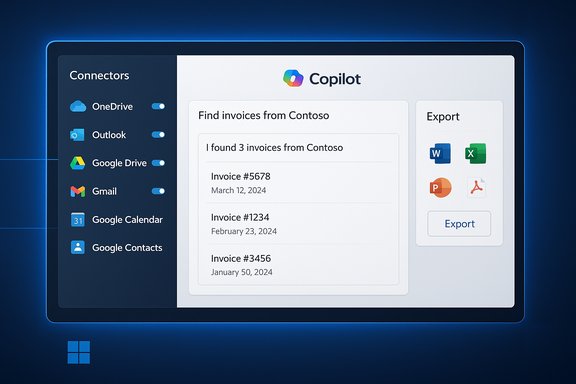
Copilot’s new Connectors feature is an opt‑in capability added to the Copilot app for Windows that links the assistant to selected personal cloud accounts so a single natural‑language query can return grounded results from multiple providers. The official rollout to Windows Insiders began as a staged update tied to Copilot app package builds beginning with 1.25095.161.0, and includes both cross‑account search (Connectors) and a Document Creation & Export flow that converts chat output into native Office files. That combination — indexable, permissioned access to mail, calendar, contacts and files across Microsoft and Google consumer accounts plus one‑click export to .docx/.xlsx/.pptx/.pdf — is the practical change: Copilot moves from purely conversational help to a single‑pane productivity surface on Windows. Early rollout is preview‑scoped and staged for Insiders; availability varies by ring and device. What Connectors are and what they can access
Supported services (initial preview)
- OneDrive (Microsoft)
- Outlook.com (email, calendar, contacts)
- Google Drive
- Gmail
- Google Calendar
- Google Contacts
Types of data Copilot can use
Once you authorize a connector, Copilot can search and retrieve:- File metadata and file contents (for permitted OneDrive/Drive files)
- Email bodies, senders, subjects and attachments
- Calendar events and event details
- Contact entries and contact details
How to set up Connectors in Copilot for Windows 11 — step‑by‑step
Below is a practical, consolidated walkthrough that matches Microsoft’s instructions and the hands‑on guidance circulating in early coverage.- Update Copilot (Insider preview)
- Ensure the Copilot app is updated via the Microsoft Store. The preview that introduced Connectors is identified with package versions starting at 1.25095.161.0; Insiders must be on a supported build to see the feature.
- Open the Copilot app
- Launch Copilot from the taskbar or Start menu. Click the profile icon (top‑left or top‑right depending on UI updates) to open the left pane and access Settings.
- Go to Settings → Connectors
- In the Copilot Settings page, locate Connectors (sometimes labeled Connected apps). The page lists available services with individual toggle switches.
- Enable the connector(s) you want
- For Microsoft services (OneDrive, Outlook), toggling the switch will typically not require credential input if you’re already signed into Windows/Copilot with the same Microsoft account. For Google services (Gmail, Drive, Calendar, Contacts), click the Connect button and follow the Google OAuth sign‑in/consent flow to grant Copilot scoped access.
- Complete the OAuth consent flows
- Each third‑party connector uses standard OAuth. You’ll be redirected to the provider’s consent screen where you can review and accept the requested scopes. These are per‑service and per‑account — you choose which accounts and services to link.
- Start querying with natural language
- After connection, ask Copilot natural phrases like: “Show my last three invoices,” “Find the meeting notes from last Wednesday,” or “What’s Sarah’s email address?” Copilot will search the connected stores and surface results inline.
Document Creation & Export — what to expect
Copilot on Windows can now generate editable Office files from chat outputs:- Export formats: .docx (Word), .xlsx (Excel), .pptx (PowerPoint), and .pdf.
- Convenience affordance: an Export button is surfaced automatically for responses of roughly 600 characters or more, offering a one‑click path to convert chat content into a file. You can also explicitly prompt: “Export this to Word” or “Create an Excel file from this table.”
Permissions, token handling and revocation
- Standard OAuth: Connectors rely on standard OAuth consent flows. When you authorize Copilot, the provider issues a scoped token that permits the Copilot service to search and retrieve permitted items.
- Per‑service consent: You choose which connectors to enable; there’s no blanket, automatic access across all accounts. Microsoft emphasizes the opt‑in nature in both the Support documentation and the Insider announcement.
- Revocation: You can disable or remove a connector both from the Copilot Settings page and from the provider’s account/security settings (e.g., Google Account → Security → Third‑party access). If you revoke consent at the provider, Copilot loses access.
Privacy, security and governance — practical analysis
Microsoft’s stated privacy posture
Microsoft’s support page explicitly notes:- Copilot does not store a separate copy of your connected service data.
- Connected data is not used to train Copilot.
- Copilot responses that include your data will remain in conversation history unless you delete the conversation.
What to verify before broad rollout (recommended checklist)
- Confirm where Copilot does processing for exports (on‑device vs cloud) for your tenant or device fleet.
- Ask for documentation on indexing and metadata caching: does Copilot build transient indexes to speed cross‑account search? If so, where are those indexes stored, for how long, and who can access them?
- Validate token lifetimes and refresh behavior for linked Google accounts — confirm revocation behaviors and whether residual metadata remains after revocation.
- For enterprise environments, confirm admin controls and policy hooks (SSO, allowed connectors, tenant‑level enable/disable) before enabling connectors widely. Early messaging indicates governance hooks are planned, but admins should wait for explicit enterprise guidance if regulatory compliance matters.
Practical privacy recommendations for users
- Only link the accounts you need for day‑to‑day tasks.
- Use a separate, lower‑privilege Google or Microsoft account for connectors if you routinely handle highly sensitive material in other accounts.
- Periodically review and revoke connected apps you no longer use via the provider’s security settings.
- Delete Copilot conversations that contain sensitive data, because conversation history may persist until removed by the user.
Enterprise considerations
Connectors in the consumer preview are primarily targeted at personal Microsoft and Google consumer accounts, and the staged Windows Insider rollout reflects that consumer focus. For organizations considering Copilot with connectors:- Expect additional enterprise controls (tenant policy, allowed connectors list, SSO integration) to appear in Microsoft 365 governance settings before a broad enterprise roll‑out.
- Validate data residency and processing location requirements with Microsoft for regulated industries.
- Consider a phased, pilot‑only enablement paired with device inventory, endpoint protection checks, and explicit user training on which connectors are allowed. Some community reporting indicates Microsoft plans to include admin governance, but specific enterprise features and timelines remain to be finalized publicly. Treat those timelines as subject to change.
Troubleshooting — common issues and fixes
- If a connector toggle is missing: verify Copilot app version (must be on preview builds for initial rollout), and ensure Windows Insider channel enrollment where required. The staged rollout means not every Insider will see the feature immediately.
- If OneDrive/Outlook content isn’t returning results: confirm the Microsoft account used to sign into Copilot matches the account used for OneDrive/Outlook. Copilot requires account matching for Microsoft services.
- If Google connectors fail during OAuth: ensure you’re using a supported Google consumer account and complete all consent prompts; if you use enterprise Google Workspace accounts, behavior may differ depending on org policies.
- To revoke access: disable the connector in Copilot Settings, and then remove Copilot’s app access from the provider’s account security page to ensure tokens are revoked.
Real‑world examples and workflow ideas
- Meeting recaps: ask Copilot to summarize meeting notes gathered in chat, then use the Export button to create a Word document for distribution in seconds.
- Multi‑source research: “Gather the recent invoices from Gmail and Outlook from the last month and convert them into an Excel reconciliation.” Copilot can search both mailboxes and produce a table export for Excel.
- Quick contact lookups: “What’s Sarah’s email address?” will pull from Outlook or Google Contacts (whichever contains the entry) and return a single-line result.
Strengths — why this is useful
- Reduced context switching: One natural‑language query can span Gmail, Google Drive, OneDrive and Outlook, saving multiple app switches.
- Faster idea → artifact: Exporting chat output to native Office formats removes repetitive copy/paste work and yields files ready for editing or sharing.
- Permissioned model: Connectors are explicitly opt‑in, per service, and use standard OAuth consent flows — giving users control over which services Copilot may access.
Risks and limitations
- Privacy and data handling questions remain for some implementation details. Microsoft states Copilot does not store separate copies of connected data and does not use it for model training, but specifics about transient caching or server‑side processing are not exhaustively documented in the preview materials. Organizations with strict compliance requirements should request detailed technical documentation before enabling connectors broadly.
- Staged availability: The feature is initially rolling out to Insiders; expect bugs and UX changes during the preview.
- Potential for accidental data exposure: As with any cross‑account integration, mis‑configured connectors, shared devices, or deletion oversights in conversation history can increase exposure risk. Use least privilege and account segmentation where necessary.
Quick reference — checklist before enabling Connectors
- Update Copilot to a supported version (Insider builds may be required).
- Confirm which accounts you will link and whether you need to use separate accounts for sensitive work.
- Read the OAuth consent screens carefully before granting scopes.
- Test with a small, non‑sensitive dataset to confirm desired behavior (search fidelity, export formatting).
- For organizations: request technical documentation on indexing, caching, token lifetimes, and admin controls from Microsoft before enabling widely.
Final assessment — practical verdict for Windows users
Copilot Connectors are a meaningful step in making Copilot a practical, everyday productivity assistant on Windows. The feature delivers a clear usability win for people who split workflows between Microsoft and Google consumer accounts: natural‑language lookups that span inboxes and drives, plus one‑click export to editable Office files, remove repetitive steps that have long cost knowledge workers time. Microsoft’s opt‑in, scoped approach and explicit statements about not using connected data for model training are positive signals for privacy and control. However, the preview leaves important operational questions open — notably around metadata caching, processing location for exports, and the exact governance tools enterprises will receive. These gaps matter for regulated environments and privacy‑conscious users; they should be validated with concrete Microsoft documentation or a controlled pilot before broad adoption. Treat the rollout as a productivity experiment with notable upside and a need for careful risk management.Copilot Connectors make cross‑cloud search and quick document creation genuinely useful on a daily basis, but responsible rollout requires attention: enable only what you need, test how Copilot handles your specific content, and ask for the technical guarantees your organization requires before trusting sensitive datasets to the new flows.
Source: Windows Central How to set up Connectors in Copilot for Windows 11 — search across Microsoft and Google services with natural language
