

Microsoft Excel no longer needs to be a spreadsheet puzzle reserved for power users — with Copilot built into Excel, beginners can lean on AI to generate formulas, clean data, create charts, and even run multi‑step analyses while still learning the core skills that make spreadsheets reliable and auditable.
Excel has always been the default workhorse for organizing, analyzing, and presenting tabular information. Historically, learning Excel meant memorizing formulas, mastering lookups, taming PivotTables, and learning ETL with Power Query. The arrival of an integrated AI assistant changes the learning curve: Copilot reduces friction by converting plain‑English requests into working formulas and workflows, while exposing rationale and intermediate steps so users can learn by inspection rather than rote memorization. This shift is documented across recent product notes and community write‑ups describing formula completion, conversational prompts, and the new Agent Mode that can chain multi‑step tasks inside workbooks.
Microsoft positions Copilot not as a replacement for Excel expertise, but as an accelerant: it suggests full formulas, previews results, explains what it did, and can create charts or PivotTables from a single prompt. Those capabilities are already rolling out across Excel for the web and desktop in staged releases, and many Copilot features require cloud‑saved workbooks and a qualifying license.
This guide synthesizes the beginner‑oriented instructions and examples from the shared Teacher’s Tech / Geeky Gadgets material while verifying product availability, feature behavior, and licensing with current Microsoft documentation and independent reporting so readers know both how to get started and where to be cautious.
Source: Geeky Gadgets Unlock Excel's Copilot AI Super Powers : 2025 Beginners Guide
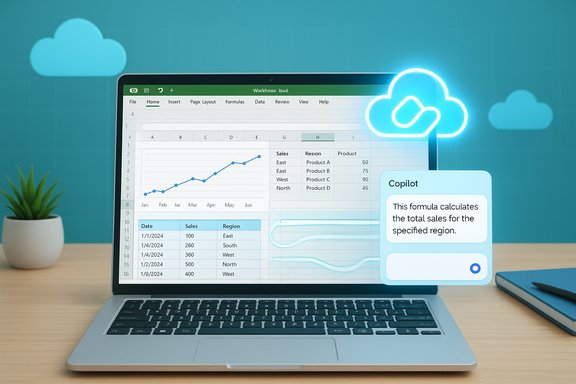 Background: why this matters now
Excel has always been the default workhorse for organizing, analyzing, and presenting tabular information. Historically, learning Excel meant memorizing formulas, mastering lookups, taming PivotTables, and learning ETL with Power Query. The arrival of an integrated AI assistant changes the learning curve: Copilot reduces friction by converting plain‑English requests into working formulas and workflows, while exposing rationale and intermediate steps so users can learn by inspection rather than rote memorization. This shift is documented across recent product notes and community write‑ups describing formula completion, conversational prompts, and the new Agent Mode that can chain multi‑step tasks inside workbooks.Microsoft positions Copilot not as a replacement for Excel expertise, but as an accelerant: it suggests full formulas, previews results, explains what it did, and can create charts or PivotTables from a single prompt. Those capabilities are already rolling out across Excel for the web and desktop in staged releases, and many Copilot features require cloud‑saved workbooks and a qualifying license.
What Copilot in Excel actually does (2025 snapshot)
Below are the practical features beginners will rely on immediately; each item pairs the functionality with a short note on how Copilot changes the work.- Natural‑language formula generation — Ask Copilot in plain English (e.g., “calculate percent change month over month”) and it will propose a formula with range selection and a one‑line explanation you can inspect before inserting. This feature reduces syntax friction and shows you the formula components.
- Inline formula completion & previews — When typing formulas, Copilot-enhanced completion can propose a full formula and a tiny preview of results so users can validate before committing. That preview-and-explain pattern helps beginners avoid off‑by‑one and range errors.
- Conversational analysis (Copilot chat) — A sidebar chat lets you ask questions like “Show top 5 customers by revenue and make a bar chart,” and Copilot will create the chart and the supporting sheets. It supports iterative follow‑ups so you can refine outputs and ask for explanations.
- Agent Mode (multi‑step automation) — Agent Mode can plan and execute multi‑step workflows: create sheets, run validations, format outputs, and surface the execution plan. It’s designed to produce auditable steps rather than a black‑box result. Agent Mode initially appears in web previews and limited programs before wider desktop rollout.
- Guided Power Query and data ingestion — Copilot can suggest Power Query steps or generate refreshable queries from natural language prompts, shortening the learning path for ETL tasks while reminding users to understand model assumptions for forecasting and anomaly detection.
- Auto visualizations and dashboards — Ask Copilot to “create a sales dashboard” and it can assemble charts, summary tables, and formatted sheets; you’ll still review and tune visual choices, but Copilot handles the repetitive setup.
Verified technical requirements and availability
Beginners need a short checklist to know if Copilot will work in their environment. Independently verified documentation and product posts show consistent requirements:- You must be signed in with a Microsoft account that has a Copilot‑eligible subscription (personal, family, or the paid Microsoft 365 Copilot / Microsoft 365 Premium tiers). Copilot features visible in Excel depend on whether your account and tenant have licenses enabled.
- Workbooks must be saved to OneDrive or SharePoint with AutoSave on for many Copilot actions to be available; local files often do not expose the Copilot button. This is an intentional design to let Copilot access cloud‑based services and to ensure refreshable queries and cross‑document integration work properly.
- Some features are rolling out first to web previews, Insider or Frontier programs, or to customers with specific Copilot licenses; Agent Mode began in preview programs before broader rollout to desktop. Expect staged availability and regional gating.
- Product builds and feature gates matter. Published notes reference Windows Insider builds like Version 2503 (Build 17729.20000) and Mac Version 16.87 (Build 24053110) as examples where the new Copilot button appeared in previews — if you don’t see the button, verify your build, license, and cloud storage. These build numbers are useful signposts but are subject to change as Microsoft updates the deployment.
- To enable or troubleshoot the Copilot button, Microsoft documentation advises checking subscription, enabling Connected Experiences, refreshing the license (File → Account → Update License), and updating Office to the latest build.
Pricing and licensing — what beginners should expect
Copilot’s commercial packaging evolved through 2024–2025, and there are two important points beginners must know:- Microsoft distinguishes between a free/web‑grounded Copilot chat and paid, tenant‑aware Copilot seats for deeper integration. The paid “Microsoft 365 Copilot” for business remains at about $30 per user per month (annual billing) for enterprise customers who need work‑grounded reasoning and Graph access. Microsoft’s pricing page and earlier product announcements confirm this enterprise SKU and its capabilities.
- For consumers and individuals, Microsoft launched Microsoft 365 Premium in late 2025 as a consolidated plan that bundles Office apps and advanced Copilot features at $19.99 per month. This move folded previous consumer Copilot Pro options into a single Premium tier and simplified licensing for individual users who want higher Copilot usage limits and extra security features. Independent reporting and the Microsoft announcements corroborate the $19.99 Premium launch. Beginners using a Personal or Family subscription should check whether their plan includes Copilot capabilities or whether an upgrade is required.
A beginner’s step‑by‑step quick start (your first 30–60 minutes)
This sequence blends classical Excel fundamentals with Copilot prompts so you build skills while gaining results.- Prepare your environment
- Confirm you’re signed in with the Microsoft account tied to your Microsoft 365 subscription. If you’re using a work or school account, check with IT for Copilot licenses.
- Save your workbook to OneDrive or SharePoint and enable AutoSave. Copilot will have more capabilities with cloud‑saved files.
- Structure your data
- Convert raw ranges into Excel Tables (Insert → Table). Structured tables help Copilot pick correct ranges and reference column names naturally. This small step reduces errors and improves Copilot accuracy.
- Ask Copilot to summarize the data
- Open the Copilot pane (Home → Copilot) and type: “Summarize this dataset and highlight the top 3 KPIs.” Accept the summary, then ask for the formulas used to compute those KPIs. Inspect explanations to learn the steps.
- Generate a formula and inspect it
- Prompt: “Create a formula that calculates month‑over‑month percentage change for the Sales column.” Copilot will propose a formula and allow you to view an explanation. Insert it into a scratch column, then try to manually rewrite it to reinforce learning.
- Build a quick visualization
- Ask: “Create a line chart showing monthly sales and month‑over‑month change.” Copilot can create the chart and place it on a new sheet; then review axis labels, titles, and formatting — tweak them manually to learn chart customization.
- Try Agent Mode for a multi‑step ask (if available)
- Example prompt: “Run a full analysis on this sales dataset: create pivot table of top products, build a summary sheet with top 5 customers, and produce a dashboard.” Agent Mode will plan, execute, and expose intermediate sheets. Walk through each step and validate calculations. If Agent Mode is not available in your build, simulate the steps manually and use the standard Copilot chat to assist stepwise.
Best practices, governance, and safety (non‑negotiables)
AI helps, but spreadsheets underpin decisions. Adopting these safeguards keeps your results trustworthy.- Always verify AI outputs — Copilot generates plausible answers probabilistically; a suggested formula can be syntactically correct but semantically wrong for your business rule. Independently confirm totals, ratios, and key assertions.
- Maintain an audit trail — Use version history, record Copilot-generated sheets in a clear folder, and add comments explaining assumptions Copilot used. Agent Mode’s plan/execution view helps with traceability but preserve manual records for audit.
- Protect sensitive data — Avoid sending personally identifiable information or regulated data to web‑grounded AI experiences unless your tenant and policies explicitly permit it. Paid Copilot seats include enterprise controls and Graph grounding that respect tenant permissions; free web chat variants do not have the same tenant governance.
- Set and test guardrails — For finance, compliance, legal, or safety‑critical spreadsheets, implement independent validation rules (checksums, reconciliation rows, and peer review) before the AI‑assisted results are treated as final.
- Understand refresh and external data — If Copilot creates refreshable queries from external sources, ensure the source formatting and credentials are correct. Test scheduled refresh behavior and error handling to avoid silently stale dashboards.
Known limits and realistic expectations
Copilot is powerful, but not omnipotent. Beginners should be aware of practical limitations:- Probabilistic outputs — AI suggestions come from models that infer intent; they are not guaranteed to encode your business rules. Verification is essential.
- Not a replacement for advanced modeling — Complex statistical modeling, rigorous forecasting, or bespoke VBA/Python automation still require human-driven design, review, and testing. Copilot can assist but not replace domain expertise.
- Feature gating and rollout variability — Agent Mode, multi‑document ingestion, and some automation features may be preview‑only or region‑gated as Microsoft iterates. If you don’t see a feature, verify your build, license, and whether you’re in an Insider or Frontier program.
- Subscription changes happen — Microsoft’s consumer packaging changed with the Microsoft 365 Premium launch, and pricing/usage limits have evolved. Always check the current product pages for the latest plan and quota details.
Practical examples — three short, copyable prompts for beginners
These prompts are intentionally simple and teachable.- Formula help:
- Prompt: “Create a formula to calculate the percent change from column B (previous month) to column C (current month) and explain each part of the formula.”
- Outcome: Copilot will suggest an appropriate formula, show a preview, and provide a one‑line explanation you can inspect before inserting.
- Data cleanup:
- Prompt: “Clean this table: remove exact duplicates, standardize dates to YYYY‑MM‑DD, and flag missing values in the Amount column.”
- Outcome: Copilot can generate Power Query steps or suggest formulas to standardize dates and add a helper column for missing data. Inspect and run each step to learn how Power Query transforms work.
- Quick dashboard:
- Prompt: “Make a one‑page dashboard: show monthly sales line chart, top 5 products bar chart, and a KPI card with total sales and average order value.”
- Outcome: Copilot will create sheets and visuals; then adjust formatting and labels to suit your needs. Use the artifacts to learn chart best practices.
The teaching moment: how to learn while using Copilot
Treat Copilot outputs as annotated examples. For best retention:- Accept a Copilot suggestion in a scratch column, then recreate it manually without AI help.
- Ask Copilot to explain each formula token and then write the explanation in your workbook as documentation.
- Use Agent Mode’s plan view to follow the sequence of steps and then practice performing a subset of them manually.
This cycle — AI suggestion → inspection → manual reproduction — turns short‑term efficiency gains into long‑term skill acquisition.
Final assessment: strengths, risks, and recommended next moves
Copilot in Excel is a genuine productivity lever for beginners and power users alike. Its strengths are clear: it lowers the barrier to entry for analysis, speeds routine workflows, and serves as an interactive tutor when used deliberately. Industry and product documentation show rapid progress in formula assistance, conversational workflows, and agentic multi‑step automation. Risks persist and merit attention: AI outputs can be plausibly wrong, feature availability depends on your license and cloud storage configuration, and pricing/packaging evolved throughout 2025 (notably with Microsoft 365 Premium bringing consumer Copilot features into a single $19.99/month offering). Verify your subscription and rely on enterprise Copilot seats for tenant‑aware, governed access if you work with sensitive organizational data. Actionable next moves:- If you’re new to Excel: open a small, cloud‑saved workbook and follow the step‑by‑step beginner sequence above.
- If you’re an admin: confirm license entitlements and configure Copilot governance in your tenant before broad rollout.
- If you handle regulated data: use paid Copilot seats with enterprise Graph integration and retain human review for critical outputs.
This guide synthesizes the beginner‑oriented instructions and examples from the shared Teacher’s Tech / Geeky Gadgets material while verifying product availability, feature behavior, and licensing with current Microsoft documentation and independent reporting so readers know both how to get started and where to be cautious.
Source: Geeky Gadgets Unlock Excel's Copilot AI Super Powers : 2025 Beginners Guide
