

Microsoft’s Copilot has moved Excel past a novelty into a practical, productivity-first assistant that can generate formulas, build professional charts, clean messy data, and even run multi‑step workflows that used to take hours. The tool combines conversational chat, task-specific App Skills, and a new Agent Mode that can plan and execute multi-step spreadsheet work — and for advanced users, Copilot’s integration with Python unlocks an entirely different class of analysis and custom visuals. This feature-led expansion promises real time-savings for everyday users while raising important questions around licensing, data residency, and auditability that every professional should understand before they hand repetitive spreadsheet work to an AI.
Excel has been the world’s default tool for ad‑hoc analysis, budgeting, and reporting for decades. The recent Copilot work is a deliberate pivot: instead of teaching everyone every formula, Microsoft is letting natural language and AI lower the entry barrier so users can get practical results faster while still seeing the formulas and steps Copilot used. That balance — produce results, but keep outputs inspectable and editable — is the core design promise. Early public previews, community write‑ups, and Microsoft’s own documentation show Copilot can suggest full formulas with previews, create charts on command, and run guided Power Query workflows, but many advanced features require cloud‑saved workbooks and qualifying subscriptions.
Adopt Copilot deliberately: start with non‑critical workbooks, document prompts and assumptions, and codify validation checks for any AI‑generated outputs used in reporting or compliance. When used with sensible guardrails, Copilot is not a replacement for Excel skills — it’s an accelerator and teacher that can convert hours of spreadsheet drudgery into minutes of insight.
Source: Geeky Gadgets Learn How to Use Excel Copilot for Professional Charts, Formulas and More
 Background
Excel has been the world’s default tool for ad‑hoc analysis, budgeting, and reporting for decades. The recent Copilot work is a deliberate pivot: instead of teaching everyone every formula, Microsoft is letting natural language and AI lower the entry barrier so users can get practical results faster while still seeing the formulas and steps Copilot used. That balance — produce results, but keep outputs inspectable and editable — is the core design promise. Early public previews, community write‑ups, and Microsoft’s own documentation show Copilot can suggest full formulas with previews, create charts on command, and run guided Power Query workflows, but many advanced features require cloud‑saved workbooks and qualifying subscriptions.Overview: What Copilot in Excel actually does
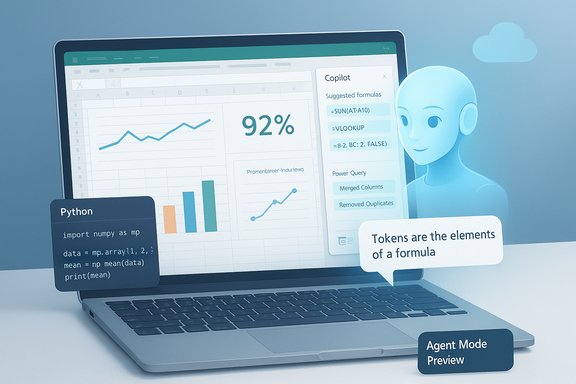
Copilot’s in‑app experience in Excel breaks into three practical layers:- Chat Mode (Copilot chat): A sidebar where you ask questions about your workbook in plain English — “Show top 5 customers by revenue and make a bar chart” — and Copilot replies with analysis, suggested formulas, or artifacts it can create for you.
- App Skills / Inline assistance: Quick tasks such as single formula generation, conditional formatting rules, or a suggested chart are surfaced inline as you type or via the Copilot UI. These include previewed results and explanations you can inspect before committing changes.
- Agent Mode (multi‑step automation): A higher‑level agent that can plan, create sheets, insert formulas, build PivotTables and charts, validate outputs, and iterate based on follow-ups — effectively chaining Excel’s native capabilities into an auditable automation. Agent Mode is available in preview channels and via the Microsoft Frontier program, and it’s explicitly built to keep workbook contents editable and versioned.
- Natural‑language formula generation and explainability (Copilot suggests formulas and explains each token).
- Auto visualizations and dashboard assembly from prompts.
- Guided Power Query generation and standard data-cleaning steps (remove duplicates, standardize date formats).
- Cross‑document ingestion in many builds (extracting tables from PDFs, combining Word/PowerPoint data into an Excel sheet in supported scenarios).
Getting started: practical setup checklist
Copilot accelerates work, but it expects a tidy environment. Follow these quick setup steps to avoid surprises:- Sign in with the Microsoft account tied to your Microsoft 365 subscription and confirm Copilot entitlement for that account. Enterprise tenants may need admin enablement.
- Save your workbook to OneDrive or SharePoint and enable AutoSave. Many Copilot features (especially those that change the workbook) require cloud‑saved files with AutoSave on. Copilot will not run against unsaved local files in Excel.
- Convert ranges to Excel Tables (Insert → Table) where possible. Structured tables improve Copilot’s range detection and prompt reliability.
- If you need Agent Mode, opt into the Frontier program or Insiders Beta channel where Agent Mode is previewed; alternatively, use the Excel Labs add‑in while features are being rolled out. Agent Mode availability and models used (OpenAI vs Anthropic) vary by setting and preview.
Core workflows: charts, formulas, and cleanup — how Copilot changes the work
Chart and dashboard generation, fast
Copilot can suggest the best chart type for a dataset, create a chart or a one‑page dashboard, and place visuals into a new sheet with labels and formatting. It will often propose a set of visuals (line for trend, bar for rank, KPI card for totals) and let you iterate to adjust axes, date ranges or color palettes. Use these steps:- Select the table or tell Copilot which columns to use.
- Prompt: “Create a one‑page sales dashboard: monthly sales trend, top 5 products, and a KPI card for total sales.”
- Review artifacts Copilot creates, then refine with follow‑ups like “Add percentage labels” or “Sort products by gross margin.”
Formula generation and explainability
Copilot turns plain English into Excel formulas and explains what each part does. Typical flow:- Prompt: “Create a formula to calculate month‑over‑month percent change for the Sales column and explain each part.”
- Copilot previews the formula and result sample before insertion, so you can validate ranges and off‑by‑one risks.
- After insertion, ask Copilot to explain specific tokens (e.g., XLOOKUP or LAMBDA components) as a learning moment.
Data cleanup and Power Query assistance
Copilot can generate Power Query steps, suggest transformation pipelines, and flag anomalies. Prompts like “Clean this table: remove exact duplicates, standardize dates to YYYY‑MM‑DD, flag missing Amounts” will return a sequence of steps and (when applicable) a Power Query script you can preview and run. Copilot’s guidance helps users who previously avoided ETL because the UI felt complex. Always examine the generated steps and test them on a copy of the workbook.Advanced applications: trend analysis, what‑if scenarios, and Python integration
Trend analysis and scenario modeling
Copilot can build trend summaries, detect seasonality, and set up what‑if scenarios using built‑in Excel tools (Goal Seek, Data Table, Scenario Manager) or by creating worksheets with parameter inputs. For example, ask: “Show me the revenue impact if price increases by 5% across product line A and B.” Copilot will insert helper columns, calculate impacts, and visualize outcomes. However, validate assumptions and check units — Copilot infers units from headers and patterns and can be wrong where labels are ambiguous.Python in Excel — what it unlocks
For analysts who need custom modeling or advanced visuals, Python in Excel is a significant upgrade. Microsoft has integrated Python into the Excel grid so you can use Python formulas, call Pandas, Matplotlib/Seaborn, and other supported libraries inside workbooks. Copilot Premium extends this by using Copilot to generate Python code and even run higher‑compute scenarios. Highlights:- Run Python formulas directly in cells to produce tables or charts that spill into the grid.
- Use Copilot to generate the Python script from a plain‑English prompt (e.g., “Create a heatmap of customer churn by cohort and month”).
- Microsoft runs Python in secure cloud containers and provides a tiered compute model: standard compute for general use, and premium compute quotas for higher performance; admins can purchase add‑on compute for heavy workloads.
Agent Mode in detail: how it works and where to use it
Agent Mode is Copilot’s orchestration layer for multi‑step spreadsheet tasks. It accepts an objective in plain language and returns a plan outlining the sheets, formulas, pivots, and visuals it will create. The sequence typically looks like this:- User prompt describes the deliverable (e.g., “Build a monthly close report with YoY comparisons and charts”).
- Agent Mode responds with a plan and asks clarifying questions if needed.
- It executes the plan, edits the workbook, and creates supporting artifacts.
- It runs validation checks and surfaces assumptions so you can review and roll back if needed.
Licensing, availability, and pricing — what professionals must know
Copilot availability depends on both platform and subscription:- Many consumer and individual features are included with Microsoft 365 Personal, Family, and the new Microsoft 365 Premium subscription; the Premium tier bundles higher Copilot usage limits and exclusive features and is priced at about $19.99/month in the U.S. for the subscription owner. This consolidation replaced earlier Copilot Pro packaging in Microsoft’s consumer roadmap. Pricing and feature boundaries vary by region and billing cycle.
- Agent Mode and Frontier features are being rolled out as a preview; enterprise Copilot licensing and admin enablement may be required for tenant‑wide access. Desktop Agent Mode followed web availability in preview channels.
- Python in Excel eligibility expanded progressively through 2024–2025, with standard compute generally available to eligible commercial (business/enterprise) users and gradual expansion to web and consumer tiers; premium Python compute quotas and add‑ons exist for high‑volume usage. Plan for admin communications if you’ll enable Python across a tenant.
Governance, security, and auditability — the non‑negotiables
AI in spreadsheets amplifies both productivity and risk. Practical guardrails:- Always validate AI outputs. Copilot generates plausible answers; it can be syntactically correct but semantically off for your business rules. Reconcile totals and use independent checks for financial or regulatory calculations.
- Preserve an audit trail. Use version history, document Copilot prompts and assumptions in workbook comments, and keep copies of the pre‑Copilot state for sensitive reports. Agent Mode’s plan view is useful but don’t rely on it as the sole audit artifact.
- Control sensitive data. Avoid sending regulated personal data to web‑grounded AI experiences unless your tenant policies and enterprise Copilot seats explicitly permit it. Paid Copilot seats include tenant Graph grounding and enterprise controls; free or consumer web variants do not offer the same guarantees.
- Test refresh and external data behavior. If Copilot generates refreshable queries, validate the refresh schedule, credentials, and error handling to avoid silently stale dashboards.
Practical tips and best practices
- Use Copilot in a scratch copy first. Let the agent prove itself before touching canonical workbooks.
- Optimize prompts: specify column names and time windows for deterministic results. Short, ambiguous prompts cause Copilot to guess.
- Use the preview and explanation features—always read the formula explanation before replacement. This is an opportunity to learn and to catch hidden assumptions.
- For reproducible results, convert Copilot outputs into deterministic native formulas and documented steps (especially for audits). Copilot’s generative outputs are helpful for exploration but should be hardened for production.
- Track compute usage for Python workloads — heavy compute tasks may exhaust premium quotas; schedule heavier runs during off‑peak windows or purchase add‑on compute where available.
Strengths, limits, and realistic expectations
Strengths:- Dramatic reduction of setup time for charts, dashboards, and routine formula tasks. Copilot is especially powerful for rapidly prototyping dashboards and teaching users why a formula works.
- Agent Mode’s auditable, stepwise automation is a major step toward delegating multi‑sheet reporting tasks to AI while preserving human control.
- Python in Excel democratizes advanced analysis without local environment setup.
- Probabilistic outputs are not infallible. Copilot can misinterpret ambiguous headers, and generated formulas can produce subtly incorrect business logic. Human validation is mandatory for high‑stakes work.
- Feature availability and compute quotas vary by subscription, region, and preview program. Don’t assume parity between web and desktop or between personal and enterprise entitlements; verify in your admin portal.
- Some advanced creative charting or bespoke macros/VBA still require manual expertise; Copilot assists but does not yet replace domain specialists for critical modeling.
Quick start: three copyable prompts that work today
- Formula help: “Create a formula to calculate percent change from column B (previous month) to column C (current month) and explain each part of the formula.”
- Data cleanup: “Clean this table: remove exact duplicates, standardize dates to YYYY‑MM‑DD, and flag missing values in the Amount column.”
- Quick dashboard: “Make a one‑page dashboard: show monthly sales line chart, top 5 products bar chart, and a KPI card with total sales and average order value.”
Conclusion
Copilot in Excel has matured from an experimental convenience to a practical assistant that can create charts, generate and explain formulas, clean data, and orchestrate multi‑step workflows via Agent Mode. Python integration broadens Excel’s analytical reach, allowing analysts to combine the familiarity of the grid with Python’s power — all within Microsoft’s cloud‑run environment. The productivity gains are real, but they arrive with trade‑offs: licensing boundaries, cloud requirements (OneDrive/AutoSave), compute quotas for Python, and the need for rigorous human validation and governance.Adopt Copilot deliberately: start with non‑critical workbooks, document prompts and assumptions, and codify validation checks for any AI‑generated outputs used in reporting or compliance. When used with sensible guardrails, Copilot is not a replacement for Excel skills — it’s an accelerator and teacher that can convert hours of spreadsheet drudgery into minutes of insight.
Source: Geeky Gadgets Learn How to Use Excel Copilot for Professional Charts, Formulas and More
