

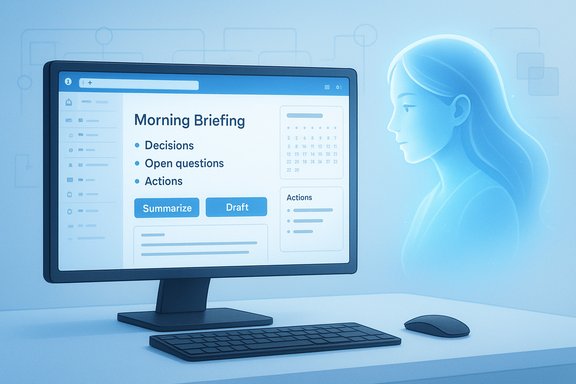
What if Outlook stopped being a passive inbox and started acting like an executive assistant that reads, prioritizes, drafts, and schedules on your behalf? Microsoft Copilot is doing exactly that — embedding large-language-model intelligence into Outlook so your morning begins with a concise briefing, your inbox triage is largely automated, and repetitive follow-ups are handled by rules and scheduled prompts. The result is not just faster email handling; it’s a fundamental change in how knowledge workers reclaim attention and make decisions. This article walks through what Copilot brings to Outlook, how it connects to Microsoft’s broader automation stack, what you can realistically expect today, and where the trade-offs and governance issues still demand attention. The analysis draws on published product documentation, Microsoft support guidance, and recent reporting to verify features, limits, and pricing — and it flags claims that need careful implementation or further validation.
Background / Overview
Microsoft Copilot is a generative-AI assistant embedded across Microsoft 365 applications (Word, Excel, PowerPoint, Outlook, Teams, SharePoint and more). Rather than a separate chatbot, Copilot appears inside the apps you already use and uses Microsoft Graph to access files, emails, chats, and calendars — but only the items a user has permission to see. This integration allows Copilot to summarize threads, draft replies with tone controls, prepare meeting briefs, and create automations that act across apps. Microsoft positions Copilot as both a personal productivity companion and an enterprise tool that administrators can govern. At the consumer tier, Microsoft consolidated earlier Copilot pricing into the new Microsoft 365 Premium bundle (launched in October 2025) and rolled Copilot into Microsoft 365 Personal and Family plans with tiered usage limits. The Premium plan bundles higher usage limits and exclusive agent features for US$19.99/month, while Personal and Family provide built-in Copilot access at lower usage thresholds. Official Microsoft pages and independent reporting confirm this pricing and the new packaging.How Copilot turns Outlook into a true AI assistant
The core experience: summaries, drafts, and inbox briefings
Copilot in Outlook is built around three practical operations:- Summarize: Condense long email threads into a short bulleted brief that highlights decisions, open questions, and action items. This becomes a first glance for triage and meeting prep.
- Draft: Generate reply drafts tailored to tone and length settings; you can ask for a concise scheduling reply, a firm escalation, or a friendly follow-up.
- Daily/Weekly briefings: Deliver scheduled digests that summarize unread or unresponded messages, upcoming meetings, and suggested priorities to start your day organized.
Example workflows Copilot can automate in Outlook
- Morning inbox digest: “Summarize unread messages and highlight two items I must address today.”
- Meeting prep: “Prepare talking points and relevant attachments for my 10am project sync.”
- Batch replies: “Draft short confirmations for all three vendor invoices.”
- Action extraction: “List all open action items where I am tagged or asked for deliverables.”
Workflow automation: Copilot, Copilot Studio, and the Power Platform
Low-code automation becomes AI-native
Copilot isn’t limited to conversational help; it can also participate in automation authoring. Microsoft’s Power Platform (Power Automate, Power Apps, Dataverse) and Copilot Studio provide connectors and agent frameworks that let Copilot extend actions into workflows.- Copilot Studio and Power Platform offer connectors that map APIs and services into Copilot agents, enabling the assistant to call external services or perform in-tenant operations.
- Agent Flows and Workflows let makers generate or repair automations using natural language, and Copilot can be embedded in apps to trigger flows or take approval actions.
- Copilot-driven automations can be used to generate recurring reports, watch project trackers, or wire up notifications when a key inbox message arrives.
Practical examples of automation you can build
- Create an automated weekly project digest that reads recent emails and Teams highlights, then posts a short progress report to a project channel.
- Configure a vendor invoice workflow that extracts attachments and places them in a SharePoint library, notifies finance via Teams, and escalates overdue items.
- Build a brand-monitoring agent that queries social channels (via a supported connector or a third-party monitoring service) and summarizes mentions for the comms team.
Custom prompts, scheduled runs, and personalization
Customize Copilot to match how you work
One of Copilot’s strengths is customizable prompts: you can craft recurring prompts to run daily, weekly, or at custom intervals; personalize the assistant’s style; and create templates for routine responses. Those features make Copilot behave more like a persistent staffer — repeating your briefing, gathering relevant files, and nudging you about overdue actions.Limits and a factual correction
Some early commentary suggested scheduled prompts could run up to 15 times before reconfiguration. Official Microsoft support documentation specifies different, concrete limits: for example, you can create up to 10 different scheduled prompts. Always consult Microsoft Support or your tenant admin for the exact limits in your environment and subscription tier. This discrepancy highlights why checking official docs matters before planning production workflows.Contextual analysis: monitoring, brand mentions, and real-world intelligence
What Copilot can reliably analyze
Copilot shines at extracting context from the Microsoft Graph — your emails, calendar, SharePoint docs, Teams chats and meeting transcripts — and turning that into briefings, action-item lists, or slides. For tasks that rely on corporate data, Copilot can provide well-grounded answers and working drafts because it uses content you and your organization already store in Microsoft 365. Microsoft’s technical guidance and product blogs document this Graph-based grounding.What requires extra plumbing (and where claims overreach)
The idea that Copilot will proactively crawl Reddit and Discord for brand mentions is attractive — but it is not a simple, built-in Outlook feature. Tracking social channels outside Microsoft 365 usually requires:- A third-party social listening service (Sprinklr, Brandwatch, Octolens, etc., or
- A custom connector and an automation that ingests those feeds into Dataverse or a SharePoint list for Copilot to analyze, or
- An external workflow (e.g., Power Automate calling APIs) that surfaces the results inside Microsoft 365.
Integration across Microsoft apps: Meetings, Teams, Files and more
Copilot’s power increases when the same assistant sees your calendar, meeting transcripts, and documents. Notable integrations:- In Teams, Copilot summarizes meetings, extracts action items and can work from the transcript and shared content during the call.
- In PowerPoint, Copilot can generate translated slide decks while preserving layout across dozens of languages.
- The Files companion and Windows taskbar companions allow Copilot to summarize documents directly from previews without opening full clients.
- Copilot Pages and Agents let teams collaborate on persistent AI-generated artifacts that live inside Microsoft 365.
Limits, risks and governance — what to watch for
Accuracy and hallucination risk
Language models can produce fluent but incorrect statements, especially when prompts are vague or when Copilot attempts to infer missing facts. For email drafts and data-sensitive summaries, always:- Verify dates, amounts, and contact details.
- Open cited source items before acting on high-stakes output.
- Use the built-in citations Copilot provides to trace the answer back to original content.
Privacy, compliance and admin control
Copilot uses Microsoft Graph and respects tenant permissions, but admin controls are central to safe operation. IT can restrict Copilot access, manage connectors, and limit agent capabilities. Organizations handling regulated data must apply DLP rules, sensitivity labels, and environment policies before deploying Copilot automations. Microsoft’s Copilot admin controls, Graph APIs, and Power Platform governance docs describe the controls and recommended practices.Operational and subscription constraints
- Usage caps vary by subscription tier. Microsoft 365 Premium provides higher usage limits and exclusive features compared to Personal and Family tiers. Check your subscription plan for exact quotas.
- Connectors and custom agents may require admin consent or tenant configuration; some connectors are in preview or limited regionally. Test automation safely and use the Power Platform admin center to manage environments.
Practical checklist: How to get the most from Copilot in Outlook
- Confirm licensing: Verify whether your account is on Microsoft 365 Personal, Family, Premium, or an enterprise Copilot license. This determines usage limits and access to advanced features.
- Work with IT: If you plan connectors or automated workflows, involve tenant admins early to set DLP and consent for connectors.
- Start with manual prompts: Train a small set of templates (e.g., “Morning digest”, “Prepare for meeting X”, “Draft follow-up”) and use Copilot’s coaching features to refine tone.
- Add scheduled prompts cautiously: Use scheduled prompts for recurring triage, but confirm the platform’s limits and behavior in your tenant (Microsoft Support documents the scheduling UI and limits).
- Build automation incrementally: Convert a reliable manual prompt into a Power Automate flow or Copilot Studio agent only after validating accuracy and access. Test in a development environment first.
Strengths: Where Copilot in Outlook delivers immediate ROI
- Time saved on triage: Summaries and extracted actions sharply reduce time spent scanning threads.
- Consistency and tone: Drafts with tone controls ensure better, faster responses that align with your style.
- Cross-app continuity: Meeting notes, calendar context, and file summaries all work together because Copilot can use Graph context.
- Automation potential: Copilot Studio and Power Platform let you convert repetitive routines into scheduled or triggered workflows that free human time for creative work.
Risks and caveats: What can go wrong
- Hallucinations: Fluent but inaccurate replies remain a practical risk; human verification is essential.
- Governance misconfiguration: Poorly scoped connectors or lax DLP can expose sensitive data through an agent. Admins must manage consent and environment routing.
- Over-reliance: Treat Copilot as an assistant, not the final owner of decisions — it speeds work but does not replace domain expertise.
- Expectations vs reality: Some published examples overstate native web-monitoring capabilities; external social listening generally requires additional connectors or services.
A few realistic prompt examples you can use today
- “Summarize unread emails from my manager and list any action items assigned to me.”
- “Draft a short reply to accept the meeting and propose two alternative slots next Tuesday.”
- “Prepare a 5-bullet brief for the 11am product meeting using the last three emails and the attached slide deck.”
- “Create a weekly status update from all messages tagged #project-x and export it to a SharePoint file for the team.”
Conclusion
Microsoft Copilot is not a minor plug‑in — it’s a reimagining of Outlook and the Microsoft 365 workflow as a continuously helpful assistant. For users and teams willing to invest the time to design precise prompts, validate outputs, and enforce governance, Copilot can reclaim hours previously lost to email triage and routine admin. The best returns come from combining Copilot’s summarization and drafting strengths with Power Platform automation: let Copilot do the thinking, and let your tested workflows do the work.At the same time, practical limits and governance requirements matter. Confirm your subscription entitlements and scheduled-prompt quotas with Microsoft documentation; plan connector and agent deployments with tenant admins; and treat social-mention or external-web monitoring use cases as integration projects rather than out‑of‑the‑box Outlook features. When used deliberately, Copilot moves Outlook from a passive inbox into a proactive, context-aware assistant — but the human in the loop still directs the mission and validates the results.
Source: Geeky Gadgets Turn Outlook into an AI Personal Assistant with Microsoft Copilot
