

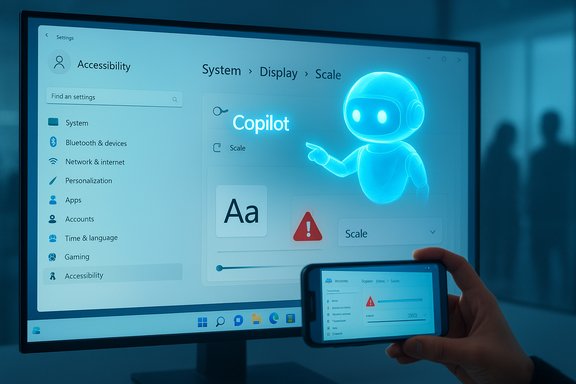
Microsoft’s newest Copilot ad — a short influencer clip meant to showcase the convenience of Copilot on Windows 11 — instead became a high-profile demonstration of what happens when an AI assistant misreads context, points to the wrong control, and recommends an action that’s already been taken, prompting widespread ridicule and renewed questions about Copilot’s readiness for everyday users.
Microsoft has pushed Copilot as a central feature of the Windows 11 experience, positioning it as a conversational, screen-aware assistant that can guide users through settings, automate multi-step tasks, and act as an on-device productivity companion. That messaging is now colliding with user expectations and basic usability requirements: a viral ad intended to demonstrate how Copilot helps make on-screen text larger instead surfaced a series of practical failures — Copilot opened the wrong settings path, suggested a scaling percentage that was already selected, and failed to surface the dedicated accessibility control designed specifically for text enlargement. Microsoft’s official guidance for Windows 11 distinguishes between two different controls for changing on-screen size: Display Scale (Settings > System > Display > Scale), which scales text, apps, and UI elements broadly, and Text size (Settings > Accessibility > Text size), which adjusts only textual content and is the accessibility-aware control users should use when they only want larger fonts. The ad’s misdirection — steering a user away from Accessibility > Text size toward System > Display > Scale — is therefore not a harmless quirk but a functional mismatch with Microsoft’s own documentation.
Microsoft has the pieces to fix the problem: clearer intent parsing, stronger UI state verification, and stricter marketing controls. The company also needs to recognize the reputational harm that comes when an ad designed to sell convenience highlights the tool’s limitations instead. Short-term fixes are straightforward and would restore credibility; long-term success requires deeper engineering work to make Copilot genuinely context‑aware and demonstrably respectful of user‑chosen accessibility flows. Until those improvements land, every influencer clip that shows Copilot doing what a human could do faster and more accurately will reinforce the same conclusion: an AI‑first Windows is an attractive headline, but execution, accessibility, and trust are the hard problems that must be solved before Copilot becomes a feature users willingly adopt rather than a default they disable.
Source: Neowin Insane: Microsoft's latest ad proves how useless Copilot on Windows 11 actually is
 Background / Overview
Microsoft has pushed Copilot as a central feature of the Windows 11 experience, positioning it as a conversational, screen-aware assistant that can guide users through settings, automate multi-step tasks, and act as an on-device productivity companion. That messaging is now colliding with user expectations and basic usability requirements: a viral ad intended to demonstrate how Copilot helps make on-screen text larger instead surfaced a series of practical failures — Copilot opened the wrong settings path, suggested a scaling percentage that was already selected, and failed to surface the dedicated accessibility control designed specifically for text enlargement. Microsoft’s official guidance for Windows 11 distinguishes between two different controls for changing on-screen size: Display Scale (Settings > System > Display > Scale), which scales text, apps, and UI elements broadly, and Text size (Settings > Accessibility > Text size), which adjusts only textual content and is the accessibility-aware control users should use when they only want larger fonts. The ad’s misdirection — steering a user away from Accessibility > Text size toward System > Display > Scale — is therefore not a harmless quirk but a functional mismatch with Microsoft’s own documentation. What the ad shows — a step‑by‑step recount
The clip, as widely reported and discussed across tech sites and social platforms, unfolds in a few short beats that reveal both UX and state‑awareness problems:- The user says: “Hey Copilot, I want to make the text on my screen bigger.”
- Copilot opens Settings and highlights a starting location, but it does not guide the user directly to the Text size accessibility control intended for text-only changes.
- When the user asks “Can you show me where to click next?” Copilot points to Scale (the broader display scaling option) and explains that changing it affects text, apps, and other UI elements.
- Asked “what percentage should I click?” Copilot replies “150%,” even though the ad’s visible Scale control already shows 150% selected; the user manually chooses 200% instead.
Background technical context: Text size vs. Scale in Windows 11
Understanding why this matters requires a quick primer on Windows settings:- Text size (Accessibility > Text size) — changes the size of text only (menus, labels, title bars); designed for users who need larger type without altering layout proportions. This is the accessibility-first control for font enlargement.
- Scale (System > Display > Scale & layout) — scales everything on the display (text, icons, apps, UI chrome), and is the correct path when a user wants a broader UI enlargement or is addressing high-DPI layout issues. Microsoft’s documentation explicitly describes both and explains when to use each.
Why this ad matters: trust, accessibility and marketing risk
The clip is more than an embarrassingly inept demo; it crystallizes three overlapping problems that can stall adoption and damage perception of Copilot on Windows 11.- Erosion of user trust. AI assistants survive on trust: the more reliably they map intent to action and accurately reflect system state, the more users will accept their guidance. When a high-profile ad shows an assistant making a basic misdirection, it feeds narratives that Copilot is intrusive and unreliable rather than helpful.
- Accessibility harm. People who rely on text-only enlargement are not an edge case. Steering a visually impaired user toward system-level scaling can change layout and interaction semantics in unexpected ways, potentially degrading — not improving — an experience that should be made accessible. That’s a concrete, measurable risk when a demo inaccurately demonstrates an accessibility workflow.
- Marketing vs. reality gap. Influencer-led ads are supposed to demonstrate product value; when they spotlight a failure mode instead, they create negative PR that spreads faster than most positive messaging. That paradox — paying to show your product doing the very thing it shouldn’t — is costly in reputational terms.
Technical analysis — what likely went wrong
Three plausible technical failures could explain the ad’s misdirection. Each points at different parts of the Copilot stack and offers different remediation paths.1. Intent‑detection and disambiguation failures
Large language models (LLMs) often map user utterances to the most frequent or highest-ranked task for a domain. When a user says “make text bigger,” the model may have statistically associated that request with display scaling workflows rather than accessibility text-size changes. Copilot should, however, ask one clarifying question when ambiguity exists: “Do you want only the text to appear larger, or everything on the screen?” The absence of that simple confirmation step is a UX failure.2. UI parsing and state‑awareness mismatch
Copilot’s screen-aware features rely on extracting UI structure, reading values, and reflecting visible state back to the user. If Copilot tells a user to select “150%” while the dialog already shows 150% selected, it implies the assistant is either (a) parsing the UI incorrectly, (b) using cached or lagging state, or (c) failing to surface the state to the model that generates the instruction. All are solvable engineering problems, but they require more robust UI instrumentation and synchronous state verification.3. Demo editing or staging artifacts
Marketing clips are often edited for brevity. That editing can create the perception of failure by compressing time, changing on-screen state between cuts, or staging steps out of sequence. Reporters attempted to find the original clip and struggled, so the possibility remains that a post-production edit widened the gap between the live interaction and the published ad. Even if editing amplified the impression of failure, it doesn’t absolve the product team from the duty to ensure demos are accurate.Broader product issues: fragmentation, performance and branding confusion
The ad mistake sits inside a longer list of Copilot grievances that users and reviewers have raised:- Fragmented Copilot ecosystem. There are multiple “Copilot” experiences — standalone Copilot app, Microsoft 365 Copilot, in‑app copilots — and inconsistent naming has left users unsure which assistant is active and which functionality is being promoted. That confusion makes troubleshooting and expectations management harder.
- “Native” vs. WebView discussions. Critics have repeatedly observed that Copilot on Windows still behaves like a WebView or web-based wrapper rather than a fully native, resource-efficient app. That architectural choice has implications for performance and perceived polish.
- Performance and resource use. High RAM usage and background auto-launch options have also been flagged as concerns, particularly on lower‑spec machines where Copilot’s footprint can be noticeable. Those tradeoffs reduce the number of users who will adopt an always-on assistant.
Strengths and potential: why Copilot still matters (and why Microsoft is pushing)
It’s important not to over-index on a single viral misstep. Copilot’s ambition is real, and several aspects of the vision have genuine value:- Unified assistant model. A single Copilot that can move across Edge/Bing, Microsoft 365, and Windows system contexts has the potential to reduce friction and speed common tasks when it works reliably.
- Agentic automation possibilities. Copilot Actions and screen-aware features, when properly implemented, can automate repetitive, multi-step tasks in ways that save time and reduce mistakes.
- On‑device privacy and NPU acceleration roadmap. Microsoft’s push for Copilot+ machines with local NPU acceleration promises lower latency and improved privacy options for heavy inference workloads. That path, if realized broadly and clearly signposted, could be a competitive differentiator.
Practical recommendations for Microsoft (product, engineering, and marketing)
To recover from this marketing misfire and reduce the risk of similar incidents, Microsoft can take concrete actions:- Prioritize clarifying questions for ambiguous requests. A one-line follow-up (“Text only, or full UI scale?”) prevents many missteps.
- Harden state‑awareness checks. Before advising an action, Copilot should read visible UI state and explicitly confirm it (“I see Scale is already set to 150% — would you like me to change it to 200%?”).
- Make accessibility default in accessibility contexts. If the user mentions “text,” route first to Accessibility > Text size unless the user explicitly asks for broader scaling.
- Audit and gate marketing demos. Require live-capture footage or verified logs for influencer demos that showcase system-level guidance.
- Clarify Copilot product names and scopes. Add brief in-app labels (for example, “System Copilot — Windows settings” vs “Productivity Copilot — Microsoft 365”) and consolidate where possible.
- Improve developer docs and telemetry so that product teams can iterate faster on screen-aware parsing and reduce false positives.
How to test what Copilot is actually doing on your PC (practical steps)
For readers who want to verify Copilot’s guidance in person, follow these steps:- Ask a precise prompt. Say or type: “Make the text bigger — only the text, not the rest of the UI.” This forces intent disambiguation up-front.
- Watch the Settings navigation. If Copilot opens Settings, note whether it highlights Accessibility > Text size (correct for text-only requests) or System > Display > Scale (broader change).
- Verify visible state. If Copilot recommends a percentage under Scale, check the on-screen selection; if it asks you to select 150% while 150% is already selected, record the sequence and submit feedback via Feedback Hub.
- Disable Copilot if unwanted. If you prefer a quieter system, you can toggle Copilot off in Taskbar settings or uninstall it from Installed apps; enterprise admins can use Group Policy to enforce a global disable.
Risks that remain even after fixes
Even with improvements, two structural risks remain:- Perception lag. Public perception moves slowly; a single high-profile misstep can anchor narratives that are hard to reverse. Microsoft will need repeated, consistent, and accurate demos to rebuild trust.
- Default-ency vs. user agency. If Copilot features remain opt-out rather than opt-in, users will continue to feel the product is being pushed into their workflows. Making agentic behaviors clearly opt-in and persistent preferences resilient to updates is critical.
Final analysis and conclusion
The viral Copilot ad should be read as both a PR miscalculation and a revealing bug in a system that’s still learning how to sense context and surface state reliably. The technology’s promise — conversational, screen-aware assistance that reduces friction — is real, but the bar for parity with existing accessibility flows and basic UI honesty is low: an assistant that can’t consistently guide a user to the right Settings page is failing at a core expectation.Microsoft has the pieces to fix the problem: clearer intent parsing, stronger UI state verification, and stricter marketing controls. The company also needs to recognize the reputational harm that comes when an ad designed to sell convenience highlights the tool’s limitations instead. Short-term fixes are straightforward and would restore credibility; long-term success requires deeper engineering work to make Copilot genuinely context‑aware and demonstrably respectful of user‑chosen accessibility flows. Until those improvements land, every influencer clip that shows Copilot doing what a human could do faster and more accurately will reinforce the same conclusion: an AI‑first Windows is an attractive headline, but execution, accessibility, and trust are the hard problems that must be solved before Copilot becomes a feature users willingly adopt rather than a default they disable.
Source: Neowin Insane: Microsoft's latest ad proves how useless Copilot on Windows 11 actually is
