

Artificial intelligence is no longer a niche tool reserved for coders or power users; on modern Windows PCs, it is increasingly the default way people search, write, organize, and communicate. Microsoft’s Copilot strategy now stretches from the browser to Windows 11 to Microsoft 365, giving everyday users multiple entry points into AI without requiring specialized hardware or advanced technical knowledge. For consumers, that means a lower barrier to trying AI. For Microsoft, it is a bet that AI will become as routine as email or cloud storage.
The most important shift in the Windows ecosystem is that AI has moved from being a feature you install to being a capability you encounter everywhere. Microsoft has spent the last two years embedding Copilot into the places people already work: the Windows desktop, Edge, the web, mobile apps, and Microsoft 365. That integration matters because it makes AI feel less like a separate product and more like part of the operating system itself. Microsoft’s own positioning now frames Copilot as an AI companion available across tools and platforms users already rely on, including Microsoft 365 apps, browsers, and mobile devices. (microsoft.com)
Historically, the PC world treated “AI” as something that ran remotely in the cloud or lived in expensive workstation hardware. That model worked, but it also made AI feel abstract, slow, and optional. Microsoft’s Copilot+ PC push changed the tone by promising local, device-level AI experiences that could reduce latency and keep more data on the machine. Microsoft said Copilot+ PCs would leverage multiple AI models locally on the device, and it highlighted privacy, speed, and productivity as the practical reasons to move some workloads off the cloud. (blogs.microsoft.com)
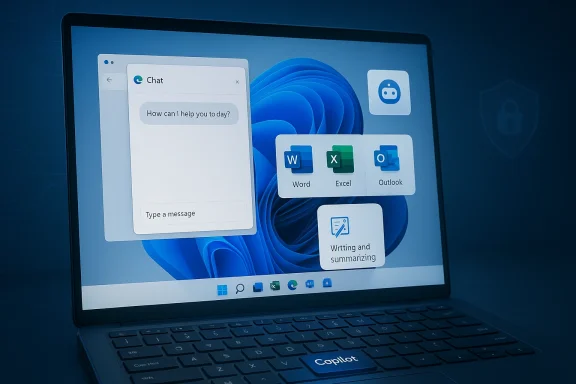
That distinction is important because Microsoft is now selling AI at three layers at once. First, there is Copilot in the browser, which makes AI easy to test with no install friction. Second, there is the Copilot app, which creates a dedicated assistant experience on desktop and mobile. Third, there is Copilot inside Microsoft 365, where the assistant is embedded into Word, Excel, PowerPoint, Outlook, and OneNote. Microsoft says Copilot is built into those apps for subscribers, and that the experience is designed to help users write, plan, and organize more quickly. (microsoft.com)
The result is that “using AI on your computer” now means something much broader than downloading a chatbot. It can mean asking for a summary of a PDF, generating an email draft, finding a file faster, getting help with a budget, or using AI to navigate what is on your screen. The practical takeaway is simple: on many Windows devices, AI is not an add-on anymore. It is becoming part of the expected user experience. (microsoft.com)
There is also a psychological advantage here. Many people hesitate to “install AI,” but they are comfortable opening a web page. That subtle shift may be one of the biggest reasons Copilot can expand beyond enthusiasts. The easier the first interaction, the more likely users are to ask follow-up questions and eventually build habits around AI assistance. Ease of access is adoption strategy.
For everyday users, the app experience can be more natural than a browser tab because it feels persistent. The assistant is there when you need it and less buried among other tasks. That persistence matters for productivity, especially if the goal is not just answering questions but keeping a running thread of planning, drafting, and refining. A dedicated interface reduces cognitive switching.
That approach also helps Microsoft compete against third-party AI tools because it places Copilot inside the default user path. If the feature is already there when a user signs into a PC, Microsoft gets a better shot at becoming the first AI tool they try. In consumer computing, first contact matters. In enterprise computing, default tooling often becomes habitual tooling.
The real strength here is not that Copilot writes perfectly. It is that it can produce a starting point quickly, which users can then edit. That is often enough for students, office workers, and home users who are overwhelmed by repetitive communication. In practice, the assistant becomes a drafting partner rather than a replacement for judgment. Human editing still matters.
For users, this means the assistant can turn long material into something actionable. Students can pull out key ideas from readings. Professionals can compress meeting notes. Parents can scan long school communications. The advantage is not just speed; it is comprehension. A good summary changes what you notice next.
This is where the tool becomes less about automation and more about amplification. Users still choose the final direction, but Copilot can accelerate the messy, exploratory stage. That is especially valuable for people who do not think of themselves as “creative” but still need to produce something under pressure.
Local processing is not a cure-all, but it is a major UX upgrade. Even partial on-device processing can make AI feel more responsive, especially for tasks like search, image work, or quick assistance. From a market perspective, it also gives Microsoft a way to sell premium hardware without making the AI experience feel locked to the cloud. That is a subtle but powerful product positioning shift.
That is a fascinating design direction because it changes how we think about search. Traditional search depends on filenames, folders, or exact keywords. AI-assisted search can rely on relationships, context, and remembered visual cues. In a world where people routinely lose track of documents, browser tabs, and chat threads, that could be genuinely transformative.
Hardware integration also helps Microsoft influence the broader Windows ecosystem. PC makers, accessory vendors, and app developers all have to account for this new interaction model. Over time, that could make AI support feel as normal as volume controls or search keys.
Consumers are also more likely to judge AI by how little effort it takes to get a useful answer. They care less about model architecture and more about whether the assistant actually saved them 10 minutes. That means success will depend on reliability, tone, and ease of access more than flashy demos. Simple wins beat complex promises.
That distinction matters because enterprise AI is never just about productivity. It is also about auditability, permissions, and data boundaries. If employees can generate text but not expose confidential material, AI becomes useful. If the controls are weak, adoption stalls. The enterprise market will therefore judge Copilot on policy compatibility as much as on speed.
The downside of that advantage is expectation management. Users will assume AI should work seamlessly across all of those layers, and any inconsistency will be noticed immediately. If one part of the stack feels polished and another feels bolted on, the whole strategy loses some of its force.
That transparency is helpful, but it also means users need to understand the system rather than assume it is invisible. AI assistants are not magic boxes; they are services with policies, logs, and settings. The more Microsoft explains those mechanics clearly, the more likely it is to earn trust over time.
That caution is worth repeating because many users still treat chatbots like private notebooks. They are not. Even if a service is secure, users should assume anything they type into AI has a lifecycle, a policy, and a storage model. Good habits matter more than good intentions.
Image-based features increase both utility and risk. Once a user uploads a screenshot or photo, AI is no longer just reading text; it is interpreting context that may include private information. That is why Microsoft’s emphasis on user control and safe sharing is not marketing fluff. It is the difference between broad adoption and reluctance.
This could accelerate a broader refresh cycle as buyers begin to see AI support as future-proofing. It also gives OEMs a clearer reason to promote higher-end devices, especially in a market where traditional specs can feel commoditized. AI becomes a differentiator when raw speed alone is no longer enough.
Developers who build around that reality can make their apps more valuable. Those who ignore it may find their products feeling dated even if the core functionality remains solid. In that sense, AI is not merely a feature race; it is a design paradigm shift.
That shift will probably happen unevenly. Power users will test the edges, enterprise customers will scrutinize controls, and casual users will care mostly about whether the assistant saves them time. If Microsoft can keep improving utility while maintaining trust, Copilot could become one of the most important interface changes in the Windows era. If it stumbles on privacy, confusion, or quality, it risks becoming just another feature that sounded more transformative than it felt.
Source: Microsoft How to Use AI on Your Computer | Microsoft Copilot
 Background
The most important shift in the Windows ecosystem is that AI has moved from being a feature you install to being a capability you encounter everywhere. Microsoft has spent the last two years embedding Copilot into the places people already work: the Windows desktop, Edge, the web, mobile apps, and Microsoft 365. That integration matters because it makes AI feel less like a separate product and more like part of the operating system itself. Microsoft’s own positioning now frames Copilot as an AI companion available across tools and platforms users already rely on, including Microsoft 365 apps, browsers, and mobile devices. (microsoft.com)Historically, the PC world treated “AI” as something that ran remotely in the cloud or lived in expensive workstation hardware. That model worked, but it also made AI feel abstract, slow, and optional. Microsoft’s Copilot+ PC push changed the tone by promising local, device-level AI experiences that could reduce latency and keep more data on the machine. Microsoft said Copilot+ PCs would leverage multiple AI models locally on the device, and it highlighted privacy, speed, and productivity as the practical reasons to move some workloads off the cloud. (blogs.microsoft.com)
That distinction is important because Microsoft is now selling AI at three layers at once. First, there is Copilot in the browser, which makes AI easy to test with no install friction. Second, there is the Copilot app, which creates a dedicated assistant experience on desktop and mobile. Third, there is Copilot inside Microsoft 365, where the assistant is embedded into Word, Excel, PowerPoint, Outlook, and OneNote. Microsoft says Copilot is built into those apps for subscribers, and that the experience is designed to help users write, plan, and organize more quickly. (microsoft.com)
The result is that “using AI on your computer” now means something much broader than downloading a chatbot. It can mean asking for a summary of a PDF, generating an email draft, finding a file faster, getting help with a budget, or using AI to navigate what is on your screen. The practical takeaway is simple: on many Windows devices, AI is not an add-on anymore. It is becoming part of the expected user experience. (microsoft.com)
The New AI Entry Points on Windows
Microsoft’s current approach is less about one single app and more about a distributed AI layer. That is a strategic choice. If users can reach AI from the taskbar, from Edge, from Microsoft 365, and from the Copilot app, the assistant becomes harder to ignore and easier to adopt. Microsoft says Copilot on Windows 11 can be accessed directly from the taskbar or with the Copilot key on many new PCs. (microsoft.com)Browser-first access lowers the barrier
The browser is the easiest place to start because it requires almost no setup. Microsoft says users can simply go to Copilot on the web and begin chatting once signed in with a Microsoft account. That matters for beginners, because it turns AI into a low-risk experiment rather than a new software project. If someone already uses a browser for email, school, shopping, or research, AI arrives in the same workflow. (microsoft.com)There is also a psychological advantage here. Many people hesitate to “install AI,” but they are comfortable opening a web page. That subtle shift may be one of the biggest reasons Copilot can expand beyond enthusiasts. The easier the first interaction, the more likely users are to ask follow-up questions and eventually build habits around AI assistance. Ease of access is adoption strategy.
- Browser access removes install friction.
- A web-first model makes AI feel familiar.
- It fits naturally into research and writing workflows.
- It allows immediate testing without new hardware.
- It encourages casual users to try AI earlier.
The Copilot app creates a dedicated assistant
The Copilot app gives Microsoft a more focused interface for users who want something closer to a standalone assistant. Microsoft describes Copilot as available on desktop and mobile, and its official materials emphasize text chat, voice input, image analysis, and more conversational workflows. That is significant because it moves AI beyond a simple query box and into a broader assistant role. (microsoft.com)For everyday users, the app experience can be more natural than a browser tab because it feels persistent. The assistant is there when you need it and less buried among other tasks. That persistence matters for productivity, especially if the goal is not just answering questions but keeping a running thread of planning, drafting, and refining. A dedicated interface reduces cognitive switching.
Windows integration makes AI feel native
The deepest shift is Windows itself. Microsoft says Copilot on Windows 11 is available from the taskbar and via the Copilot key, and that it can help users revisit and refine their work from the desktop. This is the type of integration that turns AI into a system feature rather than a separate service. (microsoft.com)That approach also helps Microsoft compete against third-party AI tools because it places Copilot inside the default user path. If the feature is already there when a user signs into a PC, Microsoft gets a better shot at becoming the first AI tool they try. In consumer computing, first contact matters. In enterprise computing, default tooling often becomes habitual tooling.
What Copilot Actually Does for Everyday Users
Microsoft’s strongest argument is not that Copilot is magical; it is that it is useful for ordinary tasks. That sounds modest, but it is exactly what most users want. Most people are not asking an AI assistant to solve theoretical problems. They want help drafting a note, comparing options, summarizing text, or organizing a messy week. Microsoft positions Copilot around those practical wins. (microsoft.com)Writing, rewriting, and drafting
Copilot is heavily framed as a writing assistant. Microsoft says it can help with cover letters, emails, reports, outlines, schedules, and itineraries, and that it can generate suggestions or content directly inside productivity apps. This is where AI has the clearest immediate value: it saves time on first drafts, reduces blank-page anxiety, and helps users move faster from idea to usable text. (microsoft.com)The real strength here is not that Copilot writes perfectly. It is that it can produce a starting point quickly, which users can then edit. That is often enough for students, office workers, and home users who are overwhelmed by repetitive communication. In practice, the assistant becomes a drafting partner rather than a replacement for judgment. Human editing still matters.
Summaries and information compression
Summarization may be the most broadly valuable consumer AI use case. Microsoft says Copilot can summarize content, and Microsoft Support documents that users can summarize files such as PDFs, PowerPoint decks, Word documents, and spreadsheets, including multiple files in some cases. That is powerful because information overload is one of the main problems of modern computer use.For users, this means the assistant can turn long material into something actionable. Students can pull out key ideas from readings. Professionals can compress meeting notes. Parents can scan long school communications. The advantage is not just speed; it is comprehension. A good summary changes what you notice next.
Brainstorming and decision support
Copilot also works as a brainstorming engine. Microsoft says it can help generate ideas for study topics, content, marketing concepts, creative inspiration, and plans. That matters because many people get stuck not at execution, but at the initial phase of deciding what to do. AI can widen the menu of options and help users compare paths more quickly. (microsoft.com)This is where the tool becomes less about automation and more about amplification. Users still choose the final direction, but Copilot can accelerate the messy, exploratory stage. That is especially valuable for people who do not think of themselves as “creative” but still need to produce something under pressure.
- Draft emails and documents faster.
- Summarize long files into key takeaways.
- Generate brainstorming lists and alternatives.
- Create step-by-step explanations.
- Compare purchase options and features.
- Organize schedules and task lists.
How Microsoft Is Reframing the PC
Microsoft’s long game is not only to sell AI features. It is to redefine the modern PC as an AI-enabled productivity surface. That is a larger strategic move than a single product cycle, because it affects Windows, hardware partners, Microsoft 365 subscriptions, and the broader expectations users have of a computer. Copilot+ PCs are the clearest example of this shift. (blogs.microsoft.com)Local AI is a performance and privacy story
Microsoft says Copilot+ PCs run new AI experiences locally on the device, which reduces latency, cost, and privacy concerns. That claim is important because it tackles two of the biggest barriers to AI adoption: speed and trust. Users tend to like AI more when it feels immediate, and they trust it more when they believe sensitive data is not leaving the device unnecessarily. (blogs.microsoft.com)Local processing is not a cure-all, but it is a major UX upgrade. Even partial on-device processing can make AI feel more responsive, especially for tasks like search, image work, or quick assistance. From a market perspective, it also gives Microsoft a way to sell premium hardware without making the AI experience feel locked to the cloud. That is a subtle but powerful product positioning shift.
Recall and search are about memory, not just AI
Microsoft has framed Recall as a way to access content you have seen before on your PC by browsing a timeline of snapshots. The company says those snapshots are stored locally and can be filtered, deleted, or paused by the user. Whether users embrace that model will depend on trust, but the ambition is clear: Microsoft wants the PC to become a memory system as much as a computing device. (blogs.microsoft.com)That is a fascinating design direction because it changes how we think about search. Traditional search depends on filenames, folders, or exact keywords. AI-assisted search can rely on relationships, context, and remembered visual cues. In a world where people routinely lose track of documents, browser tabs, and chat threads, that could be genuinely transformative.
The Copilot key signals a new hardware standard
The Copilot key is not just a shortcut; it is a branding move. By putting AI directly on the keyboard, Microsoft gives the feature a physical identity. That means Copilot is no longer something users only discover through software menus. It is visible, tangible, and embedded in the PC’s daily interaction model. (microsoft.com)Hardware integration also helps Microsoft influence the broader Windows ecosystem. PC makers, accessory vendors, and app developers all have to account for this new interaction model. Over time, that could make AI support feel as normal as volume controls or search keys.
Consumer Impact Versus Enterprise Impact
The consumer story and the enterprise story overlap, but they are not identical. Consumers want convenience, creativity, and speed. Enterprises want control, compliance, consistency, and return on investment. Microsoft’s Copilot ecosystem tries to address both, but it does so through different products and expectations. (microsoft.com)Consumer use is about convenience
For home users, the appeal of Copilot is immediate and intuitive. Microsoft says users can ask for help with grocery lists, travel itineraries, family schedules, emails, and general productivity tasks. That is the kind of everyday utility that drives stickiness because it fits naturally into life instead of demanding a new workflow. (microsoft.com)Consumers are also more likely to judge AI by how little effort it takes to get a useful answer. They care less about model architecture and more about whether the assistant actually saved them 10 minutes. That means success will depend on reliability, tone, and ease of access more than flashy demos. Simple wins beat complex promises.
Enterprise use is about governance
In the workplace, AI features become more complicated. Microsoft’s enterprise-facing materials emphasize privacy, compliance, and security controls, because companies need to know how data is handled. Microsoft says Copilot operates within its privacy and security framework, and that Microsoft 365 Copilot adheres to the relevant security standards and controls for business environments.That distinction matters because enterprise AI is never just about productivity. It is also about auditability, permissions, and data boundaries. If employees can generate text but not expose confidential material, AI becomes useful. If the controls are weak, adoption stalls. The enterprise market will therefore judge Copilot on policy compatibility as much as on speed.
Microsoft’s advantage is distribution
Microsoft’s deepest competitive advantage is that it owns the stack where AI is being inserted. It has the browser, the desktop OS, the productivity suite, and a major consumer assistant all working together. That gives Microsoft enormous distribution power, especially when users are already signed into the same ecosystem. (microsoft.com)The downside of that advantage is expectation management. Users will assume AI should work seamlessly across all of those layers, and any inconsistency will be noticed immediately. If one part of the stack feels polished and another feels bolted on, the whole strategy loses some of its force.
Safety, Privacy, and Trust
Every consumer AI feature eventually meets the same question: what happens to my data? Microsoft has clearly recognized that trust is not a side issue but a central product requirement. Its public Copilot privacy materials are designed to reassure users that their conversations are protected while still explaining the limits of what the company can and cannot do. (microsoft.com)Microsoft’s privacy position is explicit
Microsoft says Copilot conversations are saved by default, but users can view past chats and control certain privacy settings. The company also says it uses conversations for limited purposes like performance monitoring, troubleshooting, bug diagnosis, abuse prevention, and improvement of the service. It further states that users can control whether conversations are used for personalization or model training. (microsoft.com)That transparency is helpful, but it also means users need to understand the system rather than assume it is invisible. AI assistants are not magic boxes; they are services with policies, logs, and settings. The more Microsoft explains those mechanics clearly, the more likely it is to earn trust over time.
Sensitive data should still be handled carefully
Microsoft’s privacy guidance is also clear that users should not share confidential or highly sensitive personal data they would not want Microsoft to use for the purposes described in its privacy statement. The company explicitly mentions categories such as race, religion, sexual orientation, and health status when warning users about sensitive data. (microsoft.com)That caution is worth repeating because many users still treat chatbots like private notebooks. They are not. Even if a service is secure, users should assume anything they type into AI has a lifecycle, a policy, and a storage model. Good habits matter more than good intentions.
File handling and image features deserve attention
Microsoft also says that if users share a file with Copilot, it can be stored securely for up to 30 days and then deleted, and that uploaded files are not used to train Copilot’s generative models. That is a meaningful distinction for users who want to summarize documents or work with screenshots, but it still requires confidence in the service and a careful reading of the feature behavior.Image-based features increase both utility and risk. Once a user uploads a screenshot or photo, AI is no longer just reading text; it is interpreting context that may include private information. That is why Microsoft’s emphasis on user control and safe sharing is not marketing fluff. It is the difference between broad adoption and reluctance.
Why This Matters for the Wider PC Market
Microsoft’s AI push is not happening in isolation. It is reshaping what users expect from PCs, what OEMs need to ship, and what software vendors must support. A few years ago, a laptop’s selling points were battery life, weight, screen quality, and CPU speed. Now AI capability is becoming part of the specification sheet. (blogs.microsoft.com)Hardware makers now have an AI checklist
By tying AI experiences to Copilot+ PCs and the Copilot key, Microsoft has effectively created a new hardware category. That influences how PC makers design keyboards, choose NPUs, and market devices. Even if a user never opens Recall or Cocreator, the presence of AI-ready hardware changes the narrative around premium Windows machines. (blogs.microsoft.com)This could accelerate a broader refresh cycle as buyers begin to see AI support as future-proofing. It also gives OEMs a clearer reason to promote higher-end devices, especially in a market where traditional specs can feel commoditized. AI becomes a differentiator when raw speed alone is no longer enough.
Software developers will have to adapt
If Windows becomes AI-native, app developers will need to think differently about workflow, content, and assistance. Microsoft’s own materials already hint at this by pointing to built-in integration with Microsoft 365 apps and screen-aware assistance on Windows. That suggests a future where applications are not just tools but contexts in which AI operates. (microsoft.com)Developers who build around that reality can make their apps more valuable. Those who ignore it may find their products feeling dated even if the core functionality remains solid. In that sense, AI is not merely a feature race; it is a design paradigm shift.
Competition will focus on convenience and trust
Microsoft is not the only company pushing AI assistants, but its advantage is that it can place AI exactly where users already spend time. Competitors will likely respond by emphasizing privacy, speed, vertical specialization, or lower cost. The fight is not just about which model is smartest. It is about which assistant is present, helpful, and trusted at the moment of need.Practical Ways to Start Using AI on Your Computer
For readers who want the shortest path from curiosity to usefulness, the answer is simpler than many expect. You do not need to overhaul your machine or learn a new workflow. The best approach is to begin with one small task and evaluate the result. Microsoft’s own guidance suggests the AI experience works best when it is used naturally, inside tools users already know. (microsoft.com)A sensible beginner workflow
The fastest way to learn is to start with a real, ordinary problem. That could be drafting an email, summarizing a document, planning a schedule, or asking for help understanding a concept. The key is to pick something low stakes, where you can compare the AI’s output to your own judgment.- Open Copilot in the browser or app.
- Ask for a simple, specific task.
- Review the output for accuracy and tone.
- Edit it to match your needs.
- Repeat with a slightly more complex task.
Where Copilot fits best
Copilot is especially useful when you already have the material but need help shaping it. That includes turning notes into an email, long text into a summary, or scattered ideas into an outline. It is also helpful when you want a second pass on something you have already written. AI is strongest as an accelerator, not a substitute for thinking.- First drafts
- Summaries
- Outlines
- Comparisons
- Scheduling help
- Step-by-step explanations
Where caution is still wise
Users should be careful with confidential or sensitive material, verify important facts, and avoid treating AI output as automatically correct. That is true for students, professionals, and casual users alike. The more important the task, the more essential human review becomes.Strengths and Opportunities
Microsoft’s current AI approach has several real advantages. It is distributed across familiar products, supported by a strong brand, and designed to lower the friction between curiosity and usefulness. The biggest opportunity is not a flashy demo but a steady habit: making AI feel like part of ordinary computer life.- Low barrier to entry through browser access.
- Built-in integration with Windows 11 and Microsoft 365.
- Clear consumer use cases like writing, planning, and summarizing.
- Hardware differentiation through Copilot+ PCs and the Copilot key.
- Potential productivity gains for both home and office users.
- Local AI experiences that can improve speed and privacy.
- Cross-device continuity across desktop, web, and mobile.
Risks and Concerns
The biggest risks are not technical wizardry problems; they are trust, consistency, and overpromise. If users are unsure what data is stored, how features work, or when AI is reliable, enthusiasm can turn into hesitation. Microsoft has made strong privacy claims, but perception will still depend on clear behavior in real-world use.- Privacy concerns around saved conversations and file handling.
- Sensitive-data exposure if users over-share.
- Feature confusion when AI behaves differently across apps and devices.
- Expectation gaps if Copilot outputs feel generic or inconsistent.
- Regional availability differences that complicate the user experience.
- Hardware fragmentation across older PCs and newer Copilot+ systems.
- Trust issues if users do not understand training and personalization settings.
Looking Ahead
The next phase of AI on Windows will be less about introducing the concept and more about proving everyday reliability. Microsoft has already done the easy part: making Copilot visible in the browser, the desktop, and Microsoft 365. The harder part is making the experience feel indispensable, accurate, and safe enough that users stop thinking of it as an “AI feature” and start thinking of it as the normal way their PC works. (microsoft.com)That shift will probably happen unevenly. Power users will test the edges, enterprise customers will scrutinize controls, and casual users will care mostly about whether the assistant saves them time. If Microsoft can keep improving utility while maintaining trust, Copilot could become one of the most important interface changes in the Windows era. If it stumbles on privacy, confusion, or quality, it risks becoming just another feature that sounded more transformative than it felt.
- Watch for deeper Windows 11 integration.
- Watch for broader Copilot+ PC adoption.
- Watch for changes in Microsoft 365 feature availability.
- Watch for updates to privacy and training controls.
- Watch for third-party app support and ecosystem expansion.
Source: Microsoft How to Use AI on Your Computer | Microsoft Copilot
