

Microsoft’s Copilot is no longer just a chat box you open in a browser — it’s increasingly an operating‑system feature on Windows 11 and a tightly gated set of on‑device experiences that Windows 10 simply can’t match. The difference isn’t cosmetic: it changes what the assistant can do on your machine. If you’re stubbornly sticking with a non‑upgradeable Windows 10 laptop, here’s a deep, practical look at what you’re actually missing, how Microsoft’s product and hardware strategy drives that gap, the security and management trade‑offs, and realistic workarounds that preserve productivity without a full platform upgrade. This is the definitive guide for Windows power users, admins, and readers who want an evidence‑based view of Copilot’s capabilities and limits across Windows 10 and Windows 11.
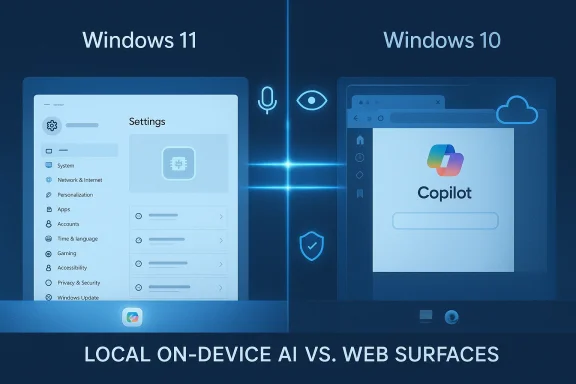
Windows Copilot started life as a hosted web experience and has been repeatedly reworked — sidebar, PWA, native shell integrations and agentic experiments. Microsoft’s engineering direction has been to move the more systemic Copilot features into the OS on Windows 11 while keeping Windows 10 as a host for browser‑based or packaged web clients. That product decision creates a functional split: Windows 11 can expose system APIs and local context to Copilot in ways Windows 10 cannot, while Windows 10 remains broadly tied to web surfaces and Edge‑hosted functionality. This distinction is explicit in recent technology briefings and product pages and underpins where Microsoft places features like Copilot Vision, Copilot Actions, and Copilot + hardware optimizations. Windows 11’s Copilot is evolving into three interlocking pieces:
(Selected public references and documentation were consulted while preparing this feature, including Microsoft product pages and support documentation, Windows Insider release notes and reporting from mainstream outlets documenting Copilot’s platform behavior.
Source: Virtualization Review Copilot AI: What You're Missing on Windows 10 PCs -- Virtualization Review
 Background: why the Copilot divide matters
Windows Copilot started life as a hosted web experience and has been repeatedly reworked — sidebar, PWA, native shell integrations and agentic experiments. Microsoft’s engineering direction has been to move the more systemic Copilot features into the OS on Windows 11 while keeping Windows 10 as a host for browser‑based or packaged web clients. That product decision creates a functional split: Windows 11 can expose system APIs and local context to Copilot in ways Windows 10 cannot, while Windows 10 remains broadly tied to web surfaces and Edge‑hosted functionality. This distinction is explicit in recent technology briefings and product pages and underpins where Microsoft places features like Copilot Vision, Copilot Actions, and Copilot + hardware optimizations. Windows 11’s Copilot is evolving into three interlocking pieces:- Voice and Vision: permissioned, session‑bound capabilities for audio and screen context.
- Actions / Agentic Flows: sandboxed automations that can execute multi‑step workflows with visible step logs.
- OS integration: the ability to open Settings pages, toggle allow‑listed system switches, and route users into managed configuration surfaces.
How the architectures differ: web surface vs. shell integration
Windows 10: browser‑derived Copilot
On Windows 10, Copilot usually runs as a web experience — the Edge sidebar, the Copilot web app, or the packaged (WebView‑based) Copilot app. That means:- Copilot runs on a web stack and has no direct access to Windows shell APIs.
- Context about your local system (installed apps, Settings state, managed device policies) is unavailable.
- Actions that require invoking local UIs or changing system state cannot be executed; Copilot can only provide textual guidance or step‑by‑step instructions.
Windows 11: OS‑anchored Copilot
On Windows 11, Copilot is increasingly implemented as a shell‑integrated assistant. Practical consequences:- Copilot can open specific Settings pages and act as a hand‑off to the relevant OS UI.
- It can perform limited, allow‑listed toggles (dark mode, Bluetooth on/off in supported builds, focus/notification adjustments).
- It can remain persistent across apps and present a single entry point in the taskbar, enabling contextual flows that combine web knowledge with local system state.
Feature comparison — what Copilot can (and can’t) do on each OS
Below are the most load‑bearing functional differences readers care about, with what current public documentation and hands‑on reports show.- Open specific Settings pages (e.g., Bluetooth, Display, Windows Update)
- Windows 11: Yes — Copilot can open the relevant Settings page in many builds. Copilot’s OS integration routes the user directly to the UI.
- Windows 10: No (practical) — Copilot can explain how to navigate there but cannot open the Settings page directly from a local command.
- Toggle selected system settings (dark mode, Bluetooth, Focus/Notifications)
- Windows 11: Limited yes — a short, allow‑listed set of system toggles is supported in protected flows.
- Windows 10: No — Copilot can only provide manual instructions.
- Launch built‑in Windows apps (Settings, Calculator, Notepad)
- Windows 11: Yes — Copilot can invoke built‑in apps via shell integration when allowed.
- Windows 10: No — browser‑hosted Copilot cannot directly launch local apps.
- Guided OS workflows with UI handoff
- Windows 11: Yes — Copilot can both explain and open the UI so the user can complete tasks.
- Windows 10: No — Copilot can provide static instructions only.
- Persist as an OS‑anchored assistant across apps
- Windows 11: Yes.
- Windows 10: No — experiences are confined to web app/shell windows and are not truly persistent.
- Reason about Windows UI structure and managed settings
- Windows 11: Bounded system awareness — Copilot can reference settings, whether enforced by Intune or managed cloud policies, and route users to them. This is important for enterprises.
- Windows 10: No local awareness — explanations are generic and not aware of policy‑locked settings on the device.
Why hardware (Copilot + PCs, NPUs) matters
Microsoft’s Copilot roadmap also introduces a two‑tier hardware story. The company promotes Copilot+ PCs — machines with a dedicated NPU capable of 40 + TOPS — as the devices that will run the richest Copilot features locally. That matters because:- On‑device inference reduces latency and keeps more data local (voice spotters, some Vision and Actions processing).
- Some advanced flows (rapid vision analysis, offline summarization, faster responses) are either limited to or perform best on Copilot+ hardware.
- Even if Microsoft back‑ports a Copilot client to Windows 10, many on‑device capabilities rely on modern NPUs or Windows 11 runtime support and will remain Windows 11 - centric.
- The 40+ TOPS metric is vendor‑reported and a good indicator of on‑device AI capability, but real‑world performance depends on silicon, drivers, firmware and OS integration; don’t treat the TOPS number as a precise predictor of all user experiences.
Security, privacy and governance: where Windows 11 gains control — and risk
Microsoft is introducing agentic automation and screen‑aware features that change the security model of the desktop. These features come with design controls, but they also expand the attack surface in ways both consumer and enterprise admins must consider.- Opt‑in gating and session bounds: voice wake‑word detection is locally bounded; Vision sessions require explicit user permission to share screen content. Actions are off by default and require visible step approvals. These defaults reduce continuous exposure but don’t eliminate risk.
- Data flow and cloud fallbacks: even on Copilot+ devices some heavy reasoning and model updates use cloud services. Organizations with strict data‑residency or compliance needs must validate which flows run locally versus in Microsoft cloud. This is variable by hardware and account entitlements.
- Enterprise controls: Microsoft provides Intune/Group Policy hooks, AppLocker options, and conditional enablement routes so admins can default these features off, pilot with restricted groups, or require approvals for agent connectors. These management controls are central for safe rollouts.
- New audit and DLP needs: agentic automation (Actions) can click, fill and orchestrate cross‑app flows. That makes DLP, audit logs, and SIEM integration more important than ever. Enterprises should treat Copilot Actions as a new endpoint automation vector and plan accordingly.
Operational impacts for IT and Administrators
For organizations managing mixed fleets, the Copilot divide creates real operational and policy questions.- If you manage endpoints with Microsoft Intune and Entra ID, Windows 11 Copilot can surface and route users into locally enforced, cloud‑managed settings. That makes Copilot a potential entry point to managed configuration and support workflows. Windows 10’s Copilot cannot do this, creating inconsistent user experiences and support flows.
- Migration choices: the consumer ESU bridge and Windows 11 migration paths matter. If Copilot features are critical to productivity, prioritize upgrading eligible devices to Windows 11 or consider Cloud PC/VDI as an interim strategy for incompatible hardware. Inventory hardware, pilot Copilot on a small group, and tune Intune policies to default voice, vision and Actions off until logging and DLP are validated.
- Procurement: if you plan to provision Copilot+ experiences broadly, include NPU capability verification, driver/firmware SLAs and independent benchmarking in procurement contracts. The Copilot+ hardware gating otherwise risks creating a two‑tier productivity experience across the fleet.
What Windows 10 users can do now — pragmatic workarounds
If your laptop won’t meet the Windows 11 upgrade checks and you can’t replace it immediately, you can still preserve much of your workflow. These pragmatic options reduce the feature gap without throwing away the device.- Use Copilot via the Edge sidebar or Copilot web app for chat, summarization, drafting, and cloud knowledge work. The web experience gives the same conversational model as Windows 11 for generic tasks.
- For tasks that require local UI handoff on a Windows 11 machine (opening Settings, toggles):
- Keep a small Windows 11 test or family device for configuration tasks.
- Use remote tools (RDP, Remote Assistance, Cloud PC) to access a Windows 11 session from your Windows 10 device when needed.
- Consider a lightweight Linux or WinPE USB environment only for emergency admin tasks — but recognize this is not a substitute for integrated Copilot functionality.
- Consider Cloud PC or virtual desktops for legacy apps: if the app requirement prevents hardware refresh, run your productive environment on a centrally managed Windows 11 virtual desktop that exposes full Copilot integration while keeping the local laptop as a thin client. This approach buys time and feature parity for knowledge work.
- Accept limits for local automation: where Copilot Actions would have automated UI flows, script short PowerShell or AutoHotkey snippets under controlled conditions until you can migrate devices. Keep automation audited and signed. Do not give web‑hosted Copilot access to local admin operations on non‑trusted devices. This mitigates security risk.
A balanced look: strengths, trade‑offs and what to expect next
Strengths of the Windows 11 approach
- Tighter OS integration makes Copilot more useful for device configuration and day‑to‑day system tasks.
- On‑device NPU acceleration improves latency and local inference for voice/vision on Copilot+ PCs.
- Enterprise hooks (Intune, AppLocker) allow admins to control and audit agentic features.
Trade‑offs and risks
- Fragmentation risk: hardware and OS gating create a multi‑tier experience that complicates administration and user expectations.
- Privacy and compliance: Vision and Actions expand the telemetry surface and require careful policy, DLP and audit configuration.
- Hype vs reality: some marketing claims about “doing everything” are tempered by preview gating, staged rollouts, and per‑device entitlements; real world availability varies by region and account.
What to expect in the near term
- Continued staged rollouts in Insider channels and selective production builds, with incremental expansion of features to more devices and accounts.
- More tooling for admins (logs, policy controls) as enterprise pilots scale.
- Progressive improvement of the Copilot app (native wrapper improvements, quick view mode) while balancing memory/Edge dependency trade‑offs.
Practical checklist — what to do this week
- Inventory devices: mark Windows 11 eligibility and check for Copilot+ hardware (NPU / TOPS).
- Pilot Copilot features on a small user group with voice, vision and Actions disabled by default. Test DLP and audit logging.
- For Windows 10 teams, create a Cloud PC or remote Windows 11 pool for users who need Copilot OS‑anchored workflows.
- Update procurement language to require independent AI workload benchmarks and NPU support for future refreshes.
- Train helpdesk staff: document the difference between web Copilot guidance versus OS‑anchored actions so support flows remain consistent.
Final assessment and cautionary notes
The headline is simple: if you need Copilot to act on and interact with the local OS — open Settings pages, toggle certain system features, launch built‑in apps, or route into centrally managed policy surfaces — Windows 11 provides capabilities Windows 10 practically cannot. If you use Copilot primarily as a chat and writing assistant, the conversational quality is comparable across both OSes because the underlying generative service is shared. But the productivity multiplier for device configuration and guided OS workflows belongs to Windows 11 and, in particular, to Copilot+ hardware where on‑device inference reduces latency and improves privacy for some flows. A final caution: many demos, blog posts and vendor claims demonstrate promising flows, but feature availability is highly dependent on OS build, Insider channel participation, Copilot licensing, device hardware (NPU presence), and regional entitlements. Treat any single article or demo as a signpost, not a guarantee; validate the specific behavior on your target devices and in your management environment before committing to broad enablement. For Windows 10 users who can’t upgrade, the practical course is to use Copilot’s web capabilities for knowledge tasks, adopt remote/virtual Windows 11 sessions for system workflows you can’t do locally, and treat the remaining time on Windows 10 as a finite bridge — plan device refreshes, cloud desktop migrations, or validated ESU strategies as necessary. The Copilot era rewards platform parity and hardware that supports on‑device AI; where those aren’t available, the assistant remains useful but strictly advisory rather than action‑oriented.(Selected public references and documentation were consulted while preparing this feature, including Microsoft product pages and support documentation, Windows Insider release notes and reporting from mainstream outlets documenting Copilot’s platform behavior.
Source: Virtualization Review Copilot AI: What You're Missing on Windows 10 PCs -- Virtualization Review
