

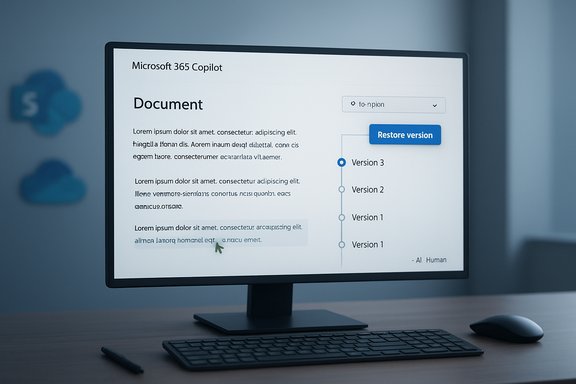
Microsoft 365 Copilot Pages now include a built-in version history that lets you browse, compare, and restore earlier drafts of AI-generated or collaboratively edited Pages without digging through external backups or pulling files out of SharePoint or OneDrive.
Background
Microsoft has been steadily folding traditional document and page-management features into the Copilot experiences to reduce friction when users iterate on content assisted by AI. Copilot Pages — the lightweight, prompt-driven pages inside the Microsoft 365 Copilot app — were designed for fast ideation and iterative editing. That iterative workflow, however, created a real-world need: AI or collaborator edits can sometimes overwrite earlier text you want back, and before this change there wasn't a straightforward, integrated way to roll a Page back to a previous draft. Microsoft’s recent rollout of version history for Copilot Pages addresses that gap. This update aligns Copilot Pages with the underlying content management expectations of Microsoft 365: content still lives on SharePoint or OneDrive storage, and now Copilot Pages expose a version trail you can navigate and restore from directly in the Copilot UI. That change is small on the surface but significant for productivity and governance, particularly in teams that mix rapid AI-generated drafts and manual editing.What changed — the feature in practical terms
How version history appears in the Copilot Pages UI
When you open a Copilot Page in the Microsoft 365 Copilot app on Windows, Mac, or the web, you’ll see new arrow controls in the top-right corner of the Page interface. Those arrows let you step backward and forward through past versions. As you move between versions you can review changes and copy text from older drafts into the current Page without performing a full restore. If you need an entire earlier draft back, a Restore version control will revert the Page to the selected snapshot instantly. This approach mirrors the experience users expect from other Microsoft 365 apps while making sure AI-generated content is included in the same timeline as manual edits and collaborator changes. It’s not a separate “AI log” — it’s the Page’s version trail.Platforms and availability
The version history capability is available in the Microsoft 365 Copilot app across desktop and web clients. Microsoft’s rollout schedule placed the feature into public preview and general availability phases around October–November 2025, and it’s enabled by default for tenants that have access to Copilot Pages. Administrators do not need to enable it and — importantly — cannot disable it at the tenant level.Why this matters: real user benefits
- Safer experimentation with AI: Copilot-assisted edits can be substantial. Having an integrated version history reduces the risk of losing a preferred phrasing or accidentally accepting an edit you later regret.
- Faster recovery after collaborative edits: When multiple people iterate quickly, a well-placed Restore makes it easy to recover from accidental overwrites without contacting an admin or searching SharePoint version logs.
- Selective reuse of prior material: You don’t have to fully roll back to use something from an older draft — you can copy pieces from past versions while keeping your current work intact.
- Cleaner audit trail for experimentation: Teams can keep a visible, understandable history of how a Page evolved, which helps when tracking the rationale behind content changes during collaborative projects.
Enterprise implications — governance, storage, and admin controls
Underlying storage and administrative context
Copilot Pages persist content to standard Microsoft 365 storage — SharePoint or OneDrive — and versioning is handled using the existing versioning mechanisms in those services. Admins who control versioning at the SharePoint or OneDrive library level can therefore influence how many historical copies are kept and for how long. Microsoft notes that tenants can manage versioning using existing SharePoint/OneDrive settings rather than a Copilot-specific toggle. Message-center guidance published by Microsoft about the rollout clarifies several critical admin-facing points:- The feature is enabled by default; admins do not need to take action to enable it.
- IT admins cannot disable Copilot Pages version history globally — control is exercised via the underlying document library versioning policy, not by switching the feature off.
On version retention and limits
Microsoft’s rollout notes also call out the interaction between Copilot Pages and library version settings. In the public communications around the feature, Microsoft indicated a default configuration for Copilot Pages' version retention behavior and that admins can manage counts through SharePoint/OneDrive settings. Some message summaries published across the admin community referenced an initial configuration that preserved a limited number (for example, up to 50) of versions per file — but that number and retention behavior can be affected by tenant-level and library-level versioning policies. Administrators should verify the version limits applied to the SharePoint/OneDrive libraries used by Copilot Pages in their tenant. Flag: The precise default version-count (for example, “50 versions”) appears in some communicated notes; tenants should confirm what their environment currently retains because Microsoft’s messaging and tenant defaults can change and administrators may have preexisting versioning policies in place.Security, compliance, and data-residency considerations
Data residency and storage model
Because Copilot Pages are saved to SharePoint/OneDrive, they inherit the compliance posture and data residency commitments of those services. That means content subject to retention, e-discovery, sensitivity labels, or data loss prevention (DLP) policies continues to be governed by the tenant’s policies. For organizations with strict regulatory or residency requirements, this is important: Copilot Pages are not an isolated, unmanaged store — they use Microsoft 365’s controlled storage.Audit trails and forensics
Version history improves forensics because it leaves a navigable record for Pages that have been modified by Copilot or by users. That record should make internal investigations easier and reduce dependence on backup restores for simple rollbacks. However, organizations that require immutable audit trails for legal reasons should confirm that their retention and auditing settings meet regulatory requirements; version history alone is not a substitute for designed-for-compliance retention policies.Admins, privacy, and Copilot licensing
Microsoft’s guidance makes two practical notes that affect administrators:- Using Copilot Pages’ version history does not require a Microsoft 365 Copilot license for the version-history capability itself; the version trail is available in the contexts where Copilot Pages are available.
- Admin-level ability to disable Copilot Pages’ version history is not provided; instead, administrators should manage storage-level versioning settings if they need to control retention.
How to use it — workflow tips for everyday users
Browsing and restoring versions (quick steps)
- Open the Microsoft 365 Copilot app on Windows, Mac, or the web and load the Copilot Page you want to inspect.
- Use the left and right arrow controls in the top-right corner of the Page to step through available versions.
- When you land on a version you want to revert to, select Restore version to replace the current Page with that snapshot. If you only want part of the text, copy it from the older draft instead of restoring.
Best practices for collaboration
- Use incremental saves and descriptive comments when collaborating on Pages so the version trail has clear context for future reviewers.
- When accepting a Copilot suggestion, treat it like a substantive edit: review and, if necessary, select “keep” or “discard” (depending on the available UI affordances) before finalizing. This reduces the number of “noisy” intermediate versions.
- If your organization has strict version-retention requirements, confirm library settings and inform teammates about where to find and restore versions.
Risks and limitations — what to watch out for
1. Version proliferation and cost
If your tenant preserves many versions at the library level, Copilot Pages can increase the number of stored versions and therefore storage consumption. Excessive versioning may raise storage costs or complicate retention schedules. Admins should consider setting sensible version limits and educating teams on how to reuse content from previous drafts instead of creating unnecessary saves.2. Misunderstanding what “restore” does
A full Restore version replaces the current Page content with the chosen snapshot. That’s useful for recovery but dangerous if done accidentally. Encourage collaborators to copy content selectively when they only need a fragment from an older version instead of restoring wholesale.3. Governance vs. convenience trade-offs
Admins who reduce version retention to conserve storage could make recovery harder for teams that rely on frequent experimentation. Conversely, keeping many historical versions increases recoverability at the expense of storage and potential audit complexity. Organizations should balance these trade-offs with documented policies.4. The “AI-edit” attribution gap
While the version trail records changes made by Copilot, the metadata around why Copilot suggested a change (prompts, context) may not be preserved in the same way as the change itself. Teams that need to reconstruct the decision chain behind AI edits should combine version history with disciplined prompt logging and internal documentation. This is particularly important where auditability of AI actions is required. Flag: the UI preserves the edits, but comprehensive prompt‑level provenance is not automatically surfaced as a standard version metadata field.Admin checklist — tangible items to verify today
- Confirm which SharePoint or OneDrive libraries are used for Copilot Pages in your tenant and audit their versioning settings.
- If needed, set sensible version limits or implement an automatic version-expiration strategy to avoid unbounded version growth.
- Update internal guidance for teams on how and when to use Restore versus selective copying from older versions.
- Verify retention, e-discovery, and sensitivity label policies still meet legal and compliance obligations now that Copilot Pages are part of your managed content estate.
What this reveals about Microsoft’s Copilot strategy
Adding version history to Copilot Pages is a quiet but strategic move: it signals that Microsoft intends to treat Copilot outputs as first-class organizational content rather than ephemeral suggestions. By integrating versioning, Microsoft is making it easier for users to treat AI-assisted artifacts as part of the official content lifecycle — editable, auditable, and recoverable inside the same M365 governance envelope. That approach reduces friction for enterprise adoption of AI tools while maintaining alignment with existing compliance and storage systems. From a product-design perspective, the change also lowers the cognitive friction of experimentation. Users can try aggressive rewrites with Copilot knowing they can step back. That iterative safety net is fundamental to getting teams comfortable with AI editing workflows.Limitations, outstanding questions, and items to confirm
- Exact default version-count settings and whether “50 versions per file” is a universal default or only a suggested configuration in some communications should be validated inside each tenant; Microsoft’s message center updates and tenant-level settings may differ. Administrators should confirm current behavior in their environments.
- The degree to which prompt history and Copilot conversation context are stored as part of the Page’s audit trail is not fully spelled out in consumer-facing documentation; organizations that require full prompt provenance should confirm how prompts are logged and whether separate records are needed.
Final assessment — strengths and risks summarized
Strengths- Integrated recovery: Version history in Copilot Pages removes friction for users who need to recover older drafts quickly.
- Aligns with governance: Because Copilot Pages use SharePoint/OneDrive storage, the feature inherits existing compliance controls.
- Improves adoption: Lowering the cost of experimentation makes teams more likely to leverage AI confidently.
- Storage and retention trade-offs: Improper versioning policies can cause storage bloat or interfere with retention compliance.
- Potential for accidental overwrites: Restore is powerful; misuse could introduce regressions if users don’t understand its effect.
- Incomplete provenance for AI reasoning: The version trail captures the what, but organizations may need additional controls to capture the why behind AI edits.
Conclusion
The addition of version history to Microsoft 365 Copilot Pages is an important usability and governance improvement. It brings the comforts of SharePoint/OneDrive versioning directly into the Copilot workflow, reduces the risk associated with AI-driven edits, and integrates Copilot outputs into existing compliance frameworks. For organizations and individuals who use Copilot Pages for drafting, collaboration, and experimentation, this feature reduces the friction of iteration and recovery.Administrators should verify library-level version policies and retention settings, and teams should adopt simple practices — copy fragments when possible, reserve full restores for genuine rollbacks, and record prompt-level context when auditability of AI edits is required. With those precautions in place, Copilot Pages’ version history can make AI-assisted writing both safer and more productive.
Source: Windows Report Microsoft 365 Copilot Pages Now Let You Jump Back to Older Versions
