

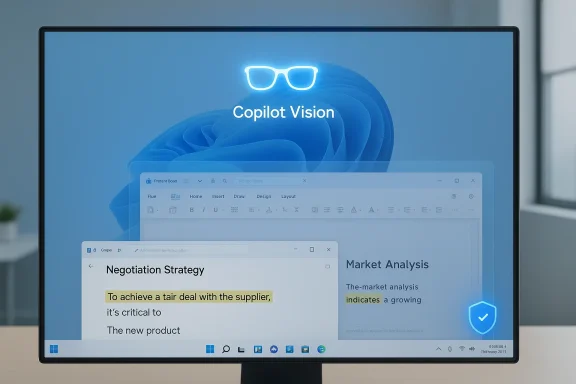
Microsoft is now testing a permissioned ability to share your entire desktop with Copilot Vision on Windows 11, letting the AI “see” everything visible on your screen during a session and respond in real time — a change Microsoft says is opt‑in, visible while active, and stoppable at any time.
Microsoft has steadily expanded Copilot on Windows from a sidebar chat helper into a system‑level, multimodal assistant that can listen, see, and — in controlled ways — act. Copilot Vision began by letting users share a single app window and receive voice‑first coaching. Over a series of Insider previews, Microsoft added two‑app sharing, live highlights that point to UI elements, and now a desktop‑share option that hands Copilot a view of the full desktop. The Windows Insider team documents the desktop‑share capability as part of a staged Copilot app update (package version 1.25071.125 and higher) rolling out to Insiders in markets where Windows Vision is enabled. This expansion follows earlier Copilot Vision changes that added text‑in/text‑out modes and voice activation, and it comes amid persistent debate about the privacy limits of screen capture and contextual indexing features such as Microsoft’s earlier Recall concept. Coverage across independent outlets confirms the feature is in preview, gated by region and server flags, and being delivered in waves to Windows Insider channels rather than appearing globally at once.
But the platform risk is real: poorly configured screen‑aware features can become a vector for data leakage and erode trust. The future posture of Copilot on Windows will depend on three things:
Microsoft’s desktop‑share addition is the logical next step toward an assistant that understands a user’s complete visual context. Its promise is tangible; so are the caveats. The coming months of Insider testing, partner feedback, and Microsoft documentation updates will determine whether the feature becomes a trusted productivity enhancer or another battleground in the platform privacy debate.
Source: BetaNews Microsoft rolls out whole desktop sharing to Copilot on Windows 11
 Background
Microsoft has steadily expanded Copilot on Windows from a sidebar chat helper into a system‑level, multimodal assistant that can listen, see, and — in controlled ways — act. Copilot Vision began by letting users share a single app window and receive voice‑first coaching. Over a series of Insider previews, Microsoft added two‑app sharing, live highlights that point to UI elements, and now a desktop‑share option that hands Copilot a view of the full desktop. The Windows Insider team documents the desktop‑share capability as part of a staged Copilot app update (package version 1.25071.125 and higher) rolling out to Insiders in markets where Windows Vision is enabled. This expansion follows earlier Copilot Vision changes that added text‑in/text‑out modes and voice activation, and it comes amid persistent debate about the privacy limits of screen capture and contextual indexing features such as Microsoft’s earlier Recall concept. Coverage across independent outlets confirms the feature is in preview, gated by region and server flags, and being delivered in waves to Windows Insider channels rather than appearing globally at once. What the desktop‑share feature does — practical summary
When you update the Copilot app to the stated package and the feature is enabled for your account and region, the workflow is:- Click the Copilot composer and press the glasses (Vision) icon.
- Choose to share a specific window, multiple windows, or your entire desktop.
- Copilot receives the visual feed for the shared session and can:
- OCR and extract text from what’s visible.
- Summarize documents and web pages shown on screen.
- Provide step‑by‑step coaching and visual highlights (where supported).
- Answer contextual questions about the visible content in real time, either by voice or text depending on mode.
- End the session at any time by pressing Stop or the X control in the composer.
Why Microsoft built this (product rationale)
The desktop share option solves clear friction points in multimodal assistance:- Context completeness: Sharing the whole desktop removes the need to pick individual windows or copy/paste content into the chat. Copilot can consider multiple overlapping cues — an email window, an open PDF, and a browser tab — to produce richer, coherent responses.
- Speed and convenience: Users save time by letting Copilot parse what’s already visible rather than manually assembling context.
- Multimodal help: For tasks that cross apps (reviewing a resume in Word while checking LinkedIn in a browser), the assistant can synthesize information without repeated manual context switching.
- Accessibility and guidance: Voice or text coaching plus highlights can help users accomplish complex UI tasks without trial and error.
Immediate benefits for users and businesses
- Faster, context‑rich assistance for creative work, document editing, and troubleshooting.
- Improved data extraction workflows (tables from on‑screen PDFs, contact info from emails).
- Step‑by‑step UI guidance using visual highlights, which reduces support overhead and speeds onboarding.
- Multimodal flexibility: voice‑activated coaching, typed text queries inside the same session, and the ability to switch modalities mid‑session.
The privacy and security debate — why controversy persists
The desktop‑share announcement inevitably revives concerns that followed the Recall feature controversy, where automatic screenshotting and indexing triggered strong privacy backlash and developer criticism. Recall’s pushback led to technical and policy changes, and some third‑party developers (including privacy‑focused apps and browsers) implemented mitigations to block or restrict background screen capture. That history means any expansion of screen‑aware AI will be scrutinized. Key risk vectors:- Accidental exposure: Sharing the whole desktop increases the chance that private content (chat windows, credentials, banking data, personal photos) becomes visible in a session.
- Misconfiguration and human error: Users may forget to stop a session or might mis‑select a window and unintentionally share sensitive screens.
- Data flow opacity: Even if sessions are permissioned, questions remain about what imagery is transmitted to cloud services, how long transient artifacts are retained, whether on‑device processing is used, and what telemetry or logs are kept for diagnostics.
- Third‑party app interactions: Apps that rely on screen privacy (encrypted chat clients, DRM video players) have had to implement screen‑security flags or workarounds when platform‑level captures are enabled. Some developers have blocked Recall or made opt‑outs necessary because they lacked fine‑grained OS‑level controls.
What Microsoft says about control and telemetry — and what to verify
Microsoft’s Insider post and release notes state:- Desktop sharing is opt‑in and session‑bound: users must actively choose to share.
- The Copilot UI will indicate when Vision is active and which area is being shared.
- Stopping sharing via the composer’s Stop or X ends the session.
- The update is version‑gated (Copilot app 1.25071.125+ for this desktop‑share rollout) and region‑gated (markets where Windows Vision is enabled).
- Exactly what image data is transmitted to Microsoft cloud endpoints versus processed locally (on Copilot+ NPUs).
- Retention windows for any cached or logged image artifacts and whether any thumbnails or degraded representations remain after session end.
- Whether telemetry or diagnostic logs include screen image metadata or identifiers tied to user accounts.
- Whether enterprise configuration (Group Policy, Intune) can centrally disable Vision features or restrict it to approved user groups.
Enterprise risk matrix and mitigation checklist
Below is a practical matrix to guide IT teams when evaluating Copilot Vision desktop sharing for pilot or production use.- Risk: Accidental exposure of PII or intellectual property.
- Mitigation: Restrict feature availability to pilot groups; require mandatory user training; configure DLP on endpoints; use session‑time blockers for sensitive apps.
- Risk: Unclear data residency or retention policies.
- Mitigation: Require Microsoft to provide contractual commitments (or use feature only where Copilot+ on‑device processing is available and certified).
- Risk: Incompatible security posture for regulated workloads.
- Mitigation: Disallow desktop sharing for regulated user groups; implement Group Policy/Intune controls to block Copilot Vision where necessary.
- Risk: Third‑party app conflicts (screen capture blocking).
- Mitigation: Test critical apps (VPN, encrypted messaging, financial software) and coordinate with vendors on screen‑security flags and compatibility.
- Inventory user groups and classify by sensitivity.
- Pilot with a small, monitored group using clear SOPs for session use.
- Validate on‑device vs cloud processing for your hardware fleet.
- Confirm administrative controls to disable/enable the feature via MDM or Group Policy.
- Update DLP rules and incident response playbooks to cover Vision sessions.
Legal, compliance, and contractual questions
Enterprises must consider legal obligations before enabling desktop sharing broadly:- Data protection laws (e.g., GDPR, CCPA) may require disclosure of image data transmission and user consent management for telemetry and processing.
- Regulated industries (healthcare, finance, defense) frequently restrict screen captures by vendors; a legal review should determine whether Copilot Vision sessions constitute a controlled personal data processing activity.
- Contracts with Microsoft (or procurement agreements) should clarify data residency, subprocessors, auditability, and retention policies for any images or OCR‑extracted content.
Developer and third‑party reactions — signals to watch
The Recall episode shows that app developers will act when they see privacy risks:- Messaging apps and browsers implemented screen‑security and blocking behaviors when they judged Recall a threat to confidentiality.
- Brave, AdGuard, and other tools moved to block Recall or provide user toggles. That pattern suggests third‑party software will take defensive positions if platform controls don’t meet developer expectations.
Recommendations for Windows power users and privacy‑conscious individuals
- Treat desktop sharing as sensitive and use the minimum‑required scope: choose specific windows instead of the full desktop whenever possible.
- Learn the visual cues (glow/indicator) that show what Copilot can see and verify before asking Copilot to analyze content.
- Keep sensitive apps (banking, password managers, secure chats) in separate virtual desktops or use app‑level screen security if available.
- Update Copilot app only after reading the Insider/post release notes and test in a non‑production environment first.
- If concerned about background indexing features, check app and OS privacy settings and consider blocking organizations or apps from being visible to screen capture routines.
What’s still unclear — and where to be cautious
Microsoft’s public messaging addresses user control, version gating, and session visibility, but the following remain unanswered or partially described in available documentation:- The exact division of local vs cloud processing for Vision sessions on non‑Copilot+ hardware.
- Precise retention and deletion timelines for images, OCR outputs, and derived insights captured during a session.
- Whether enterprise admin controls exist now (and their granularity) to restrict Vision to designated users, disable desktop sharing OS‑wide, or log and audit all Vision sessions centrally.
- The scope of telemetry Microsoft collects when Vision is used (diagnostics vs content metadata).
Longer‑term implications for the Windows platform
If implemented with robust privacy controls and enterprise governance primitives, desktop sharing could materially change desktop productivity: assistants that truly “see” multiple apps simultaneously could eliminate tedious copy/paste work and speed cognitive tasks.But the platform risk is real: poorly configured screen‑aware features can become a vector for data leakage and erode trust. The future posture of Copilot on Windows will depend on three things:
- The technical guarantees Microsoft provides about local processing and retention.
- The administrative controls offered to enterprises and their granularity.
- The responsiveness of the developer and security community when gaps are found.
Final assessment
The desktop‑share rollout to Copilot Vision is a powerful, useful feature for individual productivity and support workflows. It is carefully framed as opt‑in and session‑bound, and Microsoft documents the expected UX flows and version requirements. Independent reporting confirms the staged Insider rollout and ties the update to copilot app version gating. However, the feature reawakens legitimate privacy concerns that surfaced with Recall. Until Microsoft publishes detailed, enterprise‑grade documentation covering data flows, retention, telemetry, and admin controls — and until organizations can effectively pilot the capability with DLP and policy guardrails — the prudent approach is cautious: evaluate in controlled pilots, require contractual and technical assurances for sensitive deployments, and favor window‑level sharing over full‑desktop sessions whenever possible.Practical next steps for readers
- If you’re a Windows Insider and want to try the feature: update the Copilot app from the Microsoft Store to the stated package or later and confirm Windows Vision is enabled in your region. Use the glasses icon in the composer to start a session and stop with the Stop/X controls.
- If you manage Windows fleets: pilot with a small user group, validate DLP and logging, and prepare Group Policy/MDM blocking rules before broad enablement.
- If you’re privacy‑conscious: prefer sharing specific app windows, keep sensitive apps in separate workspaces, and watch for updates from Microsoft clarifying data handling and retention.
Microsoft’s desktop‑share addition is the logical next step toward an assistant that understands a user’s complete visual context. Its promise is tangible; so are the caveats. The coming months of Insider testing, partner feedback, and Microsoft documentation updates will determine whether the feature becomes a trusted productivity enhancer or another battleground in the platform privacy debate.
Source: BetaNews Microsoft rolls out whole desktop sharing to Copilot on Windows 11
