

Keeping a close eye on CPU temperature is one of the simplest and most effective ways to protect performance and extend the life of a Windows 11 PC, and Core Temp remains a compact, reliable tool for real‑time, per‑core thermal monitoring.
Modern processors include on‑die temperature sensors that report the thermal state of each core and the CPU package. These Digital Thermal Sensors (DTS) are the authoritative source for core temperatures and are what monitoring utilities like Core Temp read to present live values in Windows. Understanding the difference between per‑core readings, package temperatures, and platform‑specific metrics (such as AMD’s Tctl/Tdie) is essential to interpret results correctly.
Core Temp is intentionally lightweight: it focuses on per‑core temperatures, provides convenient system‑tray readouts, and supports min/max logging and simple alerting. For day‑to‑day visibility without a heavy footprint, Core Temp is a practical choice. For deeper diagnostics and logging, tools such as HWiNFO64 and HWMonitor are often used alongside or instead of Core Temp.
Source: Windows Report How to Use Core Temp to Check CPU Temperature on Windows 11
 Background
Modern processors include on‑die temperature sensors that report the thermal state of each core and the CPU package. These Digital Thermal Sensors (DTS) are the authoritative source for core temperatures and are what monitoring utilities like Core Temp read to present live values in Windows. Understanding the difference between per‑core readings, package temperatures, and platform‑specific metrics (such as AMD’s Tctl/Tdie) is essential to interpret results correctly.Core Temp is intentionally lightweight: it focuses on per‑core temperatures, provides convenient system‑tray readouts, and supports min/max logging and simple alerting. For day‑to‑day visibility without a heavy footprint, Core Temp is a practical choice. For deeper diagnostics and logging, tools such as HWiNFO64 and HWMonitor are often used alongside or instead of Core Temp.
What Core Temp Does and Why It Matters
Core functionality
- Core Temp reads temperature values directly from the processor’s on‑die sensors and reports per‑core temperatures plus package-level information where available. This per‑core granularity helps pinpoint whether a specific core is running hotter than the others — a common sign of uneven thermal transfer, faulty cooling contact, or silicon variance.
- It can display temperatures in the notification area, record temperature logs over time, and trigger simple overheat actions (close applications or shut down) when you set thresholds. Those features make it useful whether you’re just monitoring or performing stress tests and troubleshooting.
Why monitoring matters on Windows 11
Windows 11 does not show CPU temperatures within its built‑in UI; the operating system exposes GPU temps in Task Manager only when the GPU driver supports it, but for CPU thermal telemetry you need firmware (BIOS/UEFI) or third‑party utilities. That gap makes tools like Core Temp essential for everyday monitoring, diagnosing sudden slowdowns, verifying cooler performance, or validating an overclock or undervolt.Installing Core Temp on Windows 11
Core Temp is distributed as an installer and sometimes a portable variant. Follow these concise steps to install it cleanly and safely.- Download Core Temp from the official site (avoid third‑party mirrors).
- Run the downloaded .exe and choose the installer or portable option depending on your preference. The installer is easier for most users.
- Carefully read each installer screen and uncheck any optional software bundles or toolbars if presented. Core Temp’s installer historically has shown optional offers on some hosts; deselect extras to keep the install minimal.
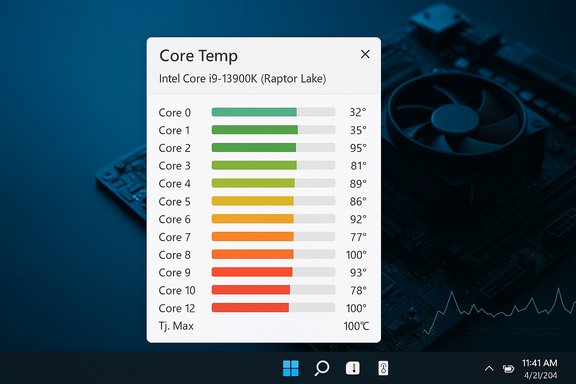
- Launch Core Temp from the Start menu once installation completes. The main window will show model, frequency, and live per‑core temperature readings.
How to Use Core Temp: Step‑by‑Step
1. Read real‑time temperatures
Open Core Temp and look at the main window where each processor core lists its current temperature. The UI also shows the CPU model, current frequency, and a Tj. Max value — the maximum junction temperature for the processor that indicates when the CPU’s thermal controls will throttle or protect the part. Monitoring per‑core values while running typical workloads reveals how the chip behaves under different loads.2. Enable a taskbar (system tray) temperature display
Core Temp supports a compact taskbar/tray readout so you can monitor temps without keeping the main window open.- Open Options → Settings → Notification Area.
- Enable “Windows 7 Taskbar features” (this enables the tray temperature feature) and choose the temperature metric you want shown.
- Confirm the tray now shows a live temp for quick glances during games, renders, or benchmarking.
3. Configure overheat protection
Set automatic actions for critical temperatures to protect hardware:- Open Options → Overheat Protection.
- Enable overheat protection, set a temperature threshold, and choose an action (close apps / hibernate / shut down).
- Use conservative thresholds (for example, set warnings around 80–85 °C and stricter actions nearer the documented limits for your CPU).
4. Enable logging for trend analysis
Core Temp can write a log file that records temperatures over time — invaluable for diagnosing intermittent spikes or validating cooling changes.- Options → Log File → Enable logging.
- Choose a location and interval (a 1–5 second interval is common).
- Use the log to generate min/max/average readings or to correlate workload events with temperature changes.
Interpreting Temperature Readings
Normal ranges (general guidance)
- Idle (desktop): ~30–50 °C.
- Light load: ~45–65 °C.
- Gaming / heavy load: ~65–85 °C.
- Danger zone: sustained >90 °C — act immediately.
Understanding Tj. Max, Tctl, and Tdie
- Tj. Max (Tjunction) is the thermal junction maximum: the temperature at which the CPU’s internal thermal controls (throttling or shutdown) engage. Many modern Intel desktop processors report Tj. Max values in the ~100–110 °C band, but that value is CPU‑specific — check the model’s spec sheet for the authoritative number. Never rely on a single quoted number without verifying your SKU’s documentation.
- AMD nuance — Tctl vs Tdie: Some AMD Ryzen parts expose a control temperature (Tctl) that can include an offset applied for consistent fan policies; Tdie is the actual die/junction temperature. Tools that aren’t aware of offsets can mislead — prefer monitors that label both values where available (HWiNFO does).
Why tools sometimes disagree
Different utilities may read different sensors or aggregate values differently: per‑core vs. package vs. control temperatures. Minor differences of 2–3 °C between reputable tools are normal due to polling intervals and averaging. If two tools disagree by a large margin, cross‑check in BIOS/UEFI and try a second monitoring app to rule out a reporting bug.Practical Diagnostics and Fixes When Temperatures Are High
Quick software checks (fast wins)
- Check Task Manager for runaway processes (indexers, background updates, or malware miners).
- Switch power plan to Balanced and disable unnecessary startup apps.
- Update chipset and GPU drivers; firmware can affect power draw and sensor reporting.
- Run an antimalware and anti‑cryptominer scan.
Hardware / airflow checks
- Ensure fans spin and airflow is unobstructed (intake front/bottom; exhaust rear/top).
- Clean dust filters, radiator fins, and heatsinks. Dust is the most common real‑world cause of rising temps.
- Verify cooler mounting and reapply thermal paste if the cooler was removed or is several years old.
Advanced options (proficiency required)
- Undervolt via vendor tools (Intel XTU or AMD Ryzen Master) to reduce heat, but stress test thoroughly afterward.
- Tune fan curves in BIOS or vendor utilities to improve response to temperature increases.
- Replace stock coolers with a higher‑capacity air cooler or a 240/360 mm AIO for persistent high load temps.
Alternatives and Complementary Tools
Core Temp is focused on per‑core temps and low overhead. For deeper telemetry and professional diagnostics, pair or replace it with:- HWiNFO64 — the gold standard for comprehensive sensor coverage, CSV logging, and alerting. Ideal for deep analysis and long‑term logging.
- HWMonitor — concise snapshots of many sensors and portable options for one‑time checks.
- Open Hardware Monitor — open‑source alternative with web server and remote access options.
- Vendor utilities — Intel XTU and AMD Ryzen Master enable tuning (undervolt/overclock) but carry additional risk and should be used only when you need control beyond monitoring.
Security, Privacy, and Installer Cautions
- Always download Core Temp (and other monitoring tools) from the official developer site or trusted vendor pages. Some mirrors and third‑party hosts historically bundle optional offers; deselect those offers during installation.
- Monitoring tools that read MSRs or use kernel drivers operate at a low level. While reputable utilities have broad community trust, consider the source and prefer portable or signed installers from official sites when available. Kernel‑level drivers increase visibility and capability but raise the stakes if the code were malicious.
- Core Temp’s runtime impact is minimal: modern monitoring utilities are lightweight, and continuous monitoring is safe for daily use. However, logging at very short intervals for long durations can generate many log entries; choose an interval appropriate to your diagnostic goals.
Critical Analysis: Strengths, Limitations, and Risks
Strengths
- Per‑core accuracy: Core Temp reads on‑die sensors for per‑core data, which is essential for targeted troubleshooting.
- Lightweight and unobtrusive: Small memory footprint and a convenient tray indicator make it ideal for everyday use.
- Useful feature set: Logging, overheat protection, and tray display provide a practical toolbox for both casual users and enthusiasts.
Limitations
- Not a full diagnostic suite: Core Temp focuses on CPU temperatures — it does not replace HWiNFO64 for VRM, motherboard, or multi‑sensor logging. For system‑level investigations, a more comprehensive tool is required.
- Platform nuances: AMD Tctl offsets and different vendor reporting conventions can confuse users who expect a single universal temperature number. Tools that do not label metrics clearly may mislead.
Risks
- Installer bundling: Some download hosts may offer additional software during installation; users must uncheck optional packages. This is a recurring caution with many small utilities.
- Kernel drivers: Tools that install kernel‑level components to read MSRs should be obtained from trusted sources; the risk is low with established projects but non‑zero if using unknown forks or unverified builds.
- Overconfidence in single numbers: Treat per‑tool readings as part of a broader diagnostic workflow — cross‑check with BIOS and a second utility if results are unexpected. Vendor documentation is the final authority for thermal limits.
Quick Practical Checklist (Actionable)
- Boot to BIOS/UEFI and note the idle CPU temperature as a baseline.
- Install Core Temp (official site), deselect any bundled offers, and verify tray readout.
- Install HWiNFO64 (Sensors only) for logging during heavy workloads.
- Run a typical heavy workload for 30–60 minutes while logging; review max temps. If temps approach 85–90 °C, investigate cooling and airflow.
- If needed, test Prime95 or a vendor stress tool for a conservative worst‑case check, but monitor and stop if temps exceed your safety margin.
Final Thoughts
Core Temp remains a useful, no‑frills application for anyone who needs reliable per‑core temperature visibility on Windows 11. It fills the gap left by the OS by providing unobtrusive, real‑time telemetry and basic alerting while pairing well with heavier tools such as HWiNFO64 for long‑term logging and deep diagnostics. Always treat reported temperatures as part of a broader diagnostic picture: verify unusual readings in BIOS, cross‑check with a second utility, and consult the CPU vendor’s documentation for exact thermal limits. These steps will keep systems stable, safe, and performing as intended.Source: Windows Report How to Use Core Temp to Check CPU Temperature on Windows 11

