

In mixed-platform workplaces the ability to reach across the Windows–Mac divide without losing performance, keyboard fidelity, or security is no longer a convenience—it's a business requirement, and the right remote access strategy can make the difference between a seamless distributed workflow and a day of frustrated support tickets.
Modern offices rarely, if ever, run a single operating system. Creative teams favor macOS for color-accurate screens and GPU-accelerated creative suites, while engineering and finance often run Windows for legacy applications and enterprise tools. That heterogeneity forces IT to choose remote access software that is both performant and interoperable: fast screen streaming, accurate keyboard/mouse mapping, reliable file transfer, and enterprise-grade security controls such as MFA, SSO, and logging. This article examines five widely used options—Splashtop, Microsoft Remote Desktop, TSplus, ConnectWise ScreenConnect (ConnectWise Control), and Chrome Remote Desktop—and evaluates each for cross-platform fidelity, security posture, manageability, and suitability for different organization sizes. Wherever possible, claims are verified against vendor documentation and independent analyses.
Source: Insider Paper Top Remote Access Software for Smooth Windows and Mac Connections
 Background
Modern offices rarely, if ever, run a single operating system. Creative teams favor macOS for color-accurate screens and GPU-accelerated creative suites, while engineering and finance often run Windows for legacy applications and enterprise tools. That heterogeneity forces IT to choose remote access software that is both performant and interoperable: fast screen streaming, accurate keyboard/mouse mapping, reliable file transfer, and enterprise-grade security controls such as MFA, SSO, and logging. This article examines five widely used options—Splashtop, Microsoft Remote Desktop, TSplus, ConnectWise ScreenConnect (ConnectWise Control), and Chrome Remote Desktop—and evaluates each for cross-platform fidelity, security posture, manageability, and suitability for different organization sizes. Wherever possible, claims are verified against vendor documentation and independent analyses.What a good cross‑platform remote access solution must deliver
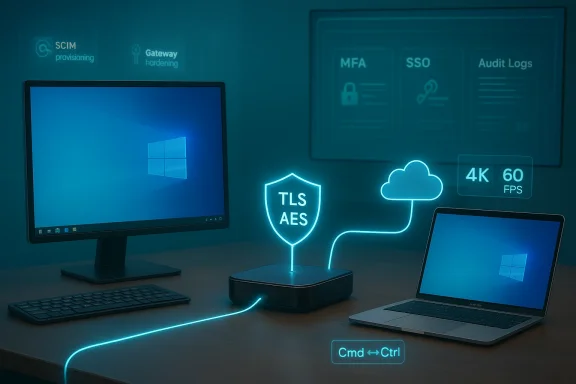
- Pixel‑accurate, low‑latency display for designers and video editors who need high frame-rate streaming and 4K support.
- Keyboard and modifier mapping that preserves muscle memory across macOS and Windows (Command ↔ Ctrl mapping).
- Robust endpoint security: MFA, device authentication, encryption (TLS + AES), and SSO integration.
- Granular admin controls and logging for auditability and compliance.
- Scalability and deployment choices: cloud SaaS, on‑premise gateway, or hybrid.
- Support for unattended access and support workflows so technicians can fix problems without disrupting users.
Splashtop — best-in-class performance for mixed Windows and Mac environments
Why Splashtop stands out
Splashtop’s product messaging and release notes emphasize GPU acceleration, high frame rates, and explicit feature work to exploit both macOS and Windows graphics stacks. Recent support documentation confirms hardware acceleration and an “Ultra High” FPS option (up to 60 FPS) in modern Splashtop Business clients and streamers, with specific platform requirements called out for Windows and macOS. Splashtop also publishes performance benchmark claims including 1080p at 60fps and 4K at 60fps on Windows, and high‑fps results on Mac with slightly different numbers—evidence the vendor optimizes per‑OS capture and encoding paths.Strengths
- High frame rate / high‑fidelity streaming (critical for video, CAD, and GPU workloads). Splashtop exposes FPS controls and hardware acceleration settings administrators can tune.
- Enterprise security features: TLS + AES‑256 encryption, device authentication, two‑step verification, SSO and SCIM provisioning for automated user lifecycle, and administrative enforcement of 2FA and device trust. Those controls make Splashtop viable for regulated industries.
- Flexible deployment with cloud and on‑prem options (Splashtop On‑Prem and Enterprise), plus per‑product scaling for help‑desk, performance remote access, and on‑prem hosting.
Risks and caveats
- Differing 4K performance by OS: Splashtop’s public benchmarks show Windows 4K at 60fps but Mac 4K at lower fps in some configurations—meaning ultra‑high‑res Mac workflows may require tuning or stronger hardware. Administrators should test relevant Mac/Windows device combinations before wide rollout.
- Enterprise features gated by plan: device whitelisting, MAC address policies, and some advanced SSO/SCIM features are Enterprise‑tier options that add cost; IT should confirm licensing aligns with compliance requirements.
Deployment guidance
- Prioritize streamer/client updates to the versions that enable GPU acceleration (Splashtop v3.5.2.0+ where noted).
- Test real‑world sessions for creative workflows (60fps vs. acceptable frame drops) using representative MacBook Pro and Windows workstation hardware.
- Enforce SSO and 2FA at team level; use device authentication and session logs for compliance audits.
Microsoft Remote Desktop — cost-effective for Windows‑centric shops with some Mac clients
What it offers
Microsoft Remote Desktop (RDP) is the natural choice when the target machines are Windows servers or workstations. Microsoft provides macOS clients with Retina scaling and multi‑monitor support and continues to iterate on Mac client features. The RDP stack is optimized for Windows rendering (DirectX, GPU passthrough in some configurations) and integrates tightly with Windows authentication and Group Policy.Strengths
- Native Windows performance: If your remote targets are Windows, RDP generally offers low overhead and efficient desktop remoting. Microsoft’s macOS client supports Retina scaling and conventional Windows features.
- Cost: There’s no per‑seat fee to use built‑in RDP on Windows Server / Pro hosts (though server CALs and Windows editions matter).
- Direct integration with Windows identity and RD Gateway: Works well with RD Gateway, NLA, and corporate PKI setups.
Limitations and security concerns
- One‑way by design: Microsoft’s RDP client lets macOS users access Windows hosts—it does not allow Windows clients to control macOS hosts. For bi‑directional Mac→Windows and Windows→Mac workflows you need a third‑party tool.
- RDP exposure risk: RDP’s popularity makes exposed RDP endpoints high‑value targets. Security vendors and practitioners advise against publishing RDP (port 3389) directly to the internet. Use RD Gateway, VPNs, or a Zero‑Trust gateway, and enforce MFA and IP restrictions. Fortinet and other industry analyses list weak credentials, open ports, and unpatched systems as common RDP attack vectors.
Practical checklist
- Require RD Gateway or VPN for internet access; do not expose port 3389 to the public internet.
- Enforce NLA, strong passwords, MFA at gateway, and log RDP activity.
TSplus — an economical, Windows‑centric application delivery and remote access suite
Overview
TSplus bundles remote desktop access, published application delivery, remote support, server monitoring, and an HTML5 gateway into a single suite—positioning itself as a Citrix alternative for SMBs. TSplus sells both perpetual licenses and subscription plans and offers advanced security add‑ons like two‑factor authentication. Pricing and edition tiers are clearly laid out on the vendor site, including a perpetual license model with first‑year support included.Strengths
- All‑in‑one for SMBs: Remote desktop + application delivery + web portal + monitoring reduces vendor sprawl.
- Flexible licensing: Perpetual license option appeals to organizations that prefer CAPEX and want to avoid recurring SaaS fees.
- Advanced security add‑ons: Two‑factor authentication, gateway, and farm manager features are offered as add‑ons for Enterprise deployments.
Risks and limitations
- Windows focus: TSplus targets Windows application delivery and remote desktops, so cross‑platform host control of macOS devices is not its forte. If your support requirement includes remote control of macOS endpoints by Windows technicians, TSplus alone won’t solve the whole problem without pairing it with Mac‑aware remote tools.
- Operational discipline required: Perpetual licensing can create “shadow” servers where updates and support lapses occur—plan maintenance cycles and support renewals deliberately.
When to choose TSplus
- Organizations that want published Windows apps and desktops without Citrix complexity, and that value predictable, perpetual licensing. Confirm integration points for MFA, auditing, and SSO for compliance use cases.
ConnectWise ScreenConnect (ConnectWise Control) — deep technician tooling and backstage access
What ConnectWise Control excels at
ConnectWise Control is a technician‑centric remote support platform with advanced session controls, scripting, a “Backstage” (logon session) mode for hidden troubleshooting on Windows, and automation tooling. Backstage mode allows technicians to interact with a machine’s system tools without disrupting the end user—valuable for after‑hours maintenance and silent remediation. ConnectWise documents the Backstage workflow, requirements, and limitations clearly for admins.Strengths
- Technician productivity features: Backstage mode, toolbox automation, PowerShell integration, and file manager accelerate remediation.
- Granular role‑based permissions: Admins can disable Backstage or tightly control which roles can use it—useful for compliance.
Cross‑platform quirks
- macOS security model: On macOS, screen recording and accessibility permissions must be approved in System Settings; remote printing and some advanced flows may behave differently depending on macOS versions and Apple’s privacy protections. Many support workflows require the user or an MDM to approve ConnectWise client permissions for full control. This is a macOS platform reality rather than vendor deficiency, but it does mean technicians need clear enrollment steps and MDM policies for unattended Mac access.
Risks
- Feature variability by OS: Some user‑facing features (for example, remote printing or screen blanking) may vary across macOS versions because of Apple privacy/permission changes. Administrators should maintain a compatibility matrix of supported macOS builds and required privacy approvals.
Chrome Remote Desktop — zero‑cost, point‑to‑point access for lightweight use cases
What it is and where it fits
Chrome Remote Desktop (CRD) is a free, browser‑driven remote desktop option where sign‑in is tied to Google accounts and a local PIN. It works across Windows, macOS, ChromeOS, and Linux, and is especially useful for freelancers, ad‑hoc support, and quick one‑off connections. For Chrome Enterprise and managed ChromeOS devices, Google provides admin controls and audit logging via the Admin console for ChromeOS Remote Access sessions—however, that enhanced management applies primarily to managed ChromeOS fleets, not the standalone CRD extension used in consumer contexts.Strengths
- Trivial setup: Sign in, enable remote access, set a PIN—done. It’s cross‑platform and browser‑centric.
- Zero cost for basic use and adequate for occasional remote desktop needs.
Limitations
- Not an enterprise RMM: CRD lacks advanced grouping, delegated admin, role‑based feature controls, centralized policy enforcement and the depth of audit logs and SIEM integration most enterprise security programs require (unless you manage ChromeOS devices and leverage Google Admin tooling). That makes CRD unsuitable as a primary enterprise remote access platform.
- Limited administrative controls in consumer use: CRD does not offer features like global policy enforcement across unmanaged devices, nor the fine‑grained session controls MSPs need.
Use case
- Great as a complementary tool for contractors, quick remote access, or personal devices—never a replacement for enterprise‑grade remote support platforms where compliance and auditability matter.
Security: the single non-negotiable in 2026 deployments
RDP and remote access remain among the most abused vectors for ransomware and lateral movement. Multiple vendor and security analyses point to the same baseline controls:- Never publish RDP (port 3389) to the internet without a hardened gateway. Use RD Gateway, a VPN, or a modern Zero‑Trust access broker. Fortinet and security practitioners emphasize hiding RDP behind identity‑aware appliances or VPN termination.
- Enforce multi‑factor authentication at the gateway and for remote access consoles; prefer phishing‑resistant methods (FIDO2/smartcard) where feasible. Splashtop and other vendor docs show support for TOTP and YubiKey‑typed methods in their 2FA flows.
- Centralize logging and monitoring: collect session, file transfer, and authentication logs into your SIEM; monitor for unusual patterns such as mass failed logins or off‑hours access.
- Patch and harden gateways: vendor RD Gateway, VPN, and remote access servers must be patched and configured for modern TLS, certificate hygiene, and limited administrative exposure.
Ease of deployment and operational tips
- Pilot with the most demanding users first: test Splashtop or other high‑performance tools with creative teams or GPU workloads before broader rollout. Measure frame rate, color fidelity, and latency.
- Standardize on client/streamer versions: remote access vendors often introduce performance/security improvements in specific releases—keep a baseline version matrix and an upgrade cadence.
- Consider mixed tooling: it is realistic to use multiple tools—e.g., Splashtop for high‑bandwidth creative workflows, ConnectWise for helpdesk sessions, and Chrome Remote Desktop for ad‑hoc contractor access—while enforcing unified identity and logging via SSO and a gated network path.
- Spend time on keyboard mapping: test Command/Ctrl, Option/Alt, and function key behaviors across Windows ↔ macOS sessions and document any user-level workarounds. Many commercial tools automatically map these keys, but behavior can still vary by client and OS version.
Decision guide: which tool for which organization?
- Small teams, freelancers, or ad‑hoc access: Chrome Remote Desktop for zero‑cost simplicity—supplement with enterprise tools where needed for auditability.
- Primarily Windows infrastructure with a few Mac clients: Microsoft Remote Desktop + RD Gateway and MFA is a sensible, low‑cost approach for Windows hosts. Be strict about gateway protection.
- SMBs needing published Windows apps and controlled licensing: TSplus offers a competitive all‑in‑one stack and perpetual licenses to reduce ongoing spend. Validate SSO/MFA integration for compliance.
- MSPs and helpdesk teams that need deep technician tooling, remote scripting, and backstage repairs: ConnectWise Control remains a top choice—plan for macOS permission workflows and MDM enrollment to enable unattended Mac support.
- Mixed‑platform organizations where high‑fidelity, low‑latency sessions are essential (creative agencies, VFX, simulation): Splashtop (Enterprise/On‑Prem or Business with Performance options) gives the best combination of GPU acceleration, high FPS, and enterprise security controls. Confirm 4K/Retina behavior on your exact hardware mix and budget for Enterprise features if you require SCIM/SSO enforcement.
Implementation checklist (technical leaders)
- Inventory endpoints by OS, GPU, and display resolution; identify needs for 60fps/4K.
- Choose primary remote access platform aligned to the most performance‑sensitive user group.
- Enforce identity controls: SSO with SCIM provisioning where possible; mandatory MFA.
- Place RDP and other remote access behind a gateway (RD Gateway, VPN, or Zero‑Trust broker); do not expose 3389/TCP to the internet.
- Deploy endpoint policies: require client/streamer auto‑updates; use MDM for Macs to pre‑approve screen and accessibility permissions for unattended support.
- Centralize logging to SIEM and configure alerts for abnormal login patterns and failed MFA attempts.
Final analysis — strengths, gaps, and a pragmatic recommendation
- Strengths across the market: Vendor competition has pushed real gains in GPU acceleration, frame‑rate control, and enterprise security integration. Splashtop demonstrates how targeting both macOS and Windows capture paths produces measurable performance advantages for creative and GPU‑heavy workloads.
- Persistent gaps: No single product perfectly solves every cross‑platform requirement. Microsoft Remote Desktop is ideal for Windows hosts but is one‑way; Chrome Remote Desktop is easy but lacks enterprise controls; ConnectWise offers deep support features but requires extra work for macOS unattended access. Many enterprise features (SSO, SCIM, device whitelisting) are tied to higher tiers or on‑prem offerings, so budget and compliance needs materially affect vendor choice.
- Security takeaway: RDP exposure is an ongoing, verifiable danger. The baseline is clear: hide RDP, require MFA, centralize logs, and treat gateways as first‑class appliances. Fortinet and other industry analyses confirm this posture.
FAQ (short, practical answers)
- Can I control a Mac from a Windows PC?
Yes—third‑party remote access solutions (Splashtop, ConnectWise, TeamViewer‑style products) support Windows→Mac control; Microsoft Remote Desktop does not. Verify macOS permissions (Screen Recording, Accessibility) and MDM flows for unattended access. - Why do Mac keyboard shortcuts sometimes fail on Windows sessions?
Mac keyboards use Command where Windows expects Ctrl. Many commercial remote apps automatically map these modifiers (e.g., Command‑C → Ctrl‑C) but behavior can vary by client and OS version—test and document expected mappings for users. - Is remote access slower on high‑res Macs?
It can be. Retina displays produce more pixels and require more encoding bandwidth. Use profile settings to lower resolution or enable hardware‑accelerated encoding to preserve interactivity; Splashtop exposes options for FPS and profiles that help tune performance.
Conclusion
The Windows–Mac divide is operational, not ideological. Modern businesses win by choosing a pragmatic mix of tools that match workloads: use GPU‑optimized remoting for creative tasks, Windows‑native remoting for server administration, and lightweight consumer tools only for ad‑hoc access. Above all, secure every remote path with gateways, MFA, and centralized logging—because the technology choices that accelerate productivity are the same ones attackers target when left improperly hardened. The vendors profiled here each bring clear strengths; your job as an IT leader is to match those strengths to user needs, compliance constraints, and the realities of your environment—and to treat deployment and security as inseparable parts of the same decision.Source: Insider Paper Top Remote Access Software for Smooth Windows and Mac Connections
