

DBAN still works as a blunt, effective tool for wiping whole hard disks, but it’s important to understand what it does, what it cannot do, and the safer, modern alternatives for SSDs and compliance-sensitive scenarios.
DBAN (Darik’s Boot And Nuke) has been a go‑to utility for years when someone needs to remove all recoverable data from a spinning hard disk drive (HDD) before resale, recycling, or disposal. The tool runs outside Windows from bootable media and performs multi‑pass overwrites using algorithms such as DoD styles and Gutmann‑style patterns to make software recovery extremely difficult on magnetic media. Many Windows‑focused guides still show the DBAN workflow: download the ISO, write it to USB or CD, boot the target PC from that media, run a wipe, then reinstall Windows from installation media. This practical flow and the basic limitations of DBAN are described by community and how‑to resources that document each step of the process and the tradeoffs involved.
DBAN’s appeal is its simplicity: it wipes an entire disk, requires no in‑OS installation, and has clear, conservative wipe profiles. That makes it useful for HDDs—but that same simplicity creates important constraints on modern hardware and regulatory‑grade data sanitization workflows. The rest of this feature explains how to use DBAN safely on Windows systems where appropriate, shows a step‑by‑step bootable USB workflow, and provides a critical analysis of risks and better options for SSDs and compliance needs.
For Windows users seeking a practical workflow today:
Source: Windows Report How to Use DBAN on Windows to Wipe a Hard Drive Safely
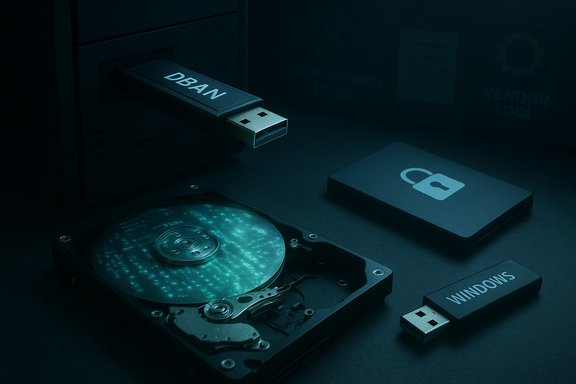 Background / Overview
DBAN (Darik’s Boot And Nuke) has been a go‑to utility for years when someone needs to remove all recoverable data from a spinning hard disk drive (HDD) before resale, recycling, or disposal. The tool runs outside Windows from bootable media and performs multi‑pass overwrites using algorithms such as DoD styles and Gutmann‑style patterns to make software recovery extremely difficult on magnetic media. Many Windows‑focused guides still show the DBAN workflow: download the ISO, write it to USB or CD, boot the target PC from that media, run a wipe, then reinstall Windows from installation media. This practical flow and the basic limitations of DBAN are described by community and how‑to resources that document each step of the process and the tradeoffs involved.DBAN’s appeal is its simplicity: it wipes an entire disk, requires no in‑OS installation, and has clear, conservative wipe profiles. That makes it useful for HDDs—but that same simplicity creates important constraints on modern hardware and regulatory‑grade data sanitization workflows. The rest of this feature explains how to use DBAN safely on Windows systems where appropriate, shows a step‑by‑step bootable USB workflow, and provides a critical analysis of risks and better options for SSDs and compliance needs.
What DBAN is and how it works
What DBAN does
- Full‑disk overwrites: DBAN writes patterns across the entire physical surface of a hard disk to remove file system references and the underlying bits that could be recovered by consumer recovery tools.
- Multiple wipe methods: It offers profiles ranging from quick single‑pass zeros to DoD‑style multi‑pass routines that were historically recommended for higher assurance on magnetic media.
What DBAN does not do
- It does not run from inside Windows. DBAN is a bootable environment; it wipes the disk you boot from only when launched externally. That distinction is central: DBAN isn’t a Windows app you can run while logged into the target system.
- It is not suitable for SSDs. Flash storage behaves differently: wear‑levelling, overprovisioning, and TRIM mean overwrites do not reliably affect specific flash cells. For SSDs, vendor secure‑erase or cryptographic‑erase methods are the recommended approach. Multiple guides and community analyses emphasize that overwriting an SSD with DBAN or similar tools is unreliable and may give a false sense of security.
- DBAN wipes whole disks only. It cannot selectively erase single folders or partitions while leaving others intact; it is an all‑or‑nothing utility.
- Project maintenance and updates: DBAN’s development has been largely dormant; community discussions warn that DBAN has not received recent official updates and may not boot or behave reliably on all modern UEFI/Secure Boot configurations. Treat that status as a risk factor when planning wipe workflows.
When to use DBAN (and when not to)
Good use cases
- Old HDDs before resale or recycling. If the disk is a traditional spinning drive and you don’t need a vendor certificate of destruction, DBAN is an effective, zero‑cost way to ensure typical consumer recovery tools cannot restore files.
- Preparing drives for non‑sensitive reuse. For home users disposing of an older desktop HDD, DBAN’s full‑disk wipe is practical and simple.
Poor choices (avoid DBAN here)
- Any SSD or NVMe drive. Use manufacturer secure‑erase tools (Samsung Magician, Intel Memory and Storage Tool, Crucial Storage Executive, etc., or perform a cryptographic erase by destroying the encryption key for an encrypted drive, rather than running DBAN. The differences between magnetic and flash media are documented in Windows‑oriented secure‑delete guidance.
- Regulated or certified destruction needs. If you require documented proof (chain‑of‑custody, certificate of destruction, or NIST/DoD compliance), DBAN alone is insufficient. Use accredited destruction services or vendor‑supported sanitization procedures and keep records.
- Modern PCs with UEFI/Secure Boot only. Because DBAN was built around legacy boot models, it may not boot on some newer systems without requiring firmware changes or workarounds. Community notes document the need to understand your firmware’s boot options before relying on a DBAN USB.
Step‑by‑step: How to use DBAN on Windows (HDD only)
The following procedure summarizes the widely referenced DBAN workflow used by Windows users preparing a machine for reuse or disposal. Each numbered step includes practical tips to avoid common mistakes.- Backup anything you need. Wipe is irreversible.
- Verify backups and test restore media. If you will reinstall Windows, ensure you have installation media and license keys ready.
- Download the DBAN ISO.
- DBAN must be booted from external media. Download the DBAN ISO and save it to a working PC to create installation media later. (DBAN does not run inside Windows.
- Create a bootable DBAN USB.
- Use a reliable imaging tool such as Rufus to write the DBAN ISO to a USB stick.
- Steps with Rufus:
- Insert a blank USB flash drive (any data on it will be erased).
- Open Rufus, select the USB device, and select the DBAN ISO as the source.
- Choose the appropriate partition scheme for the target system (MBR for legacy BIOS, or GPT for UEFI if supported).
- Click Start and wait for the write to complete. Eject the USB safely. Community guides routinely recommend Rufus for creating both DBAN and Windows installation media.
- Boot the target PC from the DBAN USB.
- Insert the DBAN USB into the machine you want to erase.
- Reboot and enter the firmware/boot menu (common keys: F2, F12, Esc, DEL — consult the machine vendor).
- Select the USB drive and boot DBAN. If a system only supports UEFI Secure Boot, you may need to disable Secure Boot or use a different boot approach because DBAN’s older boot image may not be signed for Secure Boot.
- Choose the target drive and wipe method.
- At the DBAN prompt, press Enter to load the interactive interface.
- Select the drive(s) you intend to wipe. Double‑check the drive model and size before proceeding. DBAN will erase everything on the selected disk.
- Select a wipe method: Quick Erase (single pass) for speed, DoD Short or multi‑pass for higher assurance on HDDs. Beware that multi‑pass wipes can take many hours depending on drive size and interface.
- Start the wipe and wait.
- Begin the operation (commonly via F10 in DBAN). Leave the machine powered and connected to a stable power source.
- Interrupting a multi‑pass wipe partway will leave the drive partially overwritten and could complicate later forensic analysis or reuse; if you must stop the operation, be aware of the risk of a partially corrupted disk.
- Reinstall Windows.
- After a successful wipe, the disk is blank. Boot from a Windows installation USB to reinstall Windows.
- Use the Windows installer to partition and format the disk, then install drivers and updates. Community guides recommend keeping vendor drivers and recovery media at hand.
Critical analysis: strengths, risks, and practical caveats
Strengths
- Simplicity and effectiveness on HDDs. DBAN reliably overwrites magnetic media using proven patterns, and for many home users that remains sufficient to prevent consumer‑grade recovery tools from finding files.
- No need to boot into the target OS. Because it runs from bootable media, DBAN can deal with the disk as a raw device without filesystem interference.
- Free and widely documented. DBAN’s procedures are well‑covered in community resources and forums, providing straightforward guidance for typical use cases.
Risks and limitations
- Not suitable for SSDs. Overwriting an SSD may not remove data due to controller remapping; use vendor secure erase or cryptographic key destruction for SSD sanitization. Multiple Windows‑focused guides and Sysinternals resources highlight this fundamental difference.
- Firmware boot compatibility. DBAN predates modern UEFI/Secure Boot norms; it may fail to boot on new hardware without disabling Secure Boot or using legacy boot modes. That can add complexity and risk to the wipe workflow.
- No official updates. The project’s maintenance status is uncertain; relying on an unmaintained boot environment has security and compatibility implications. Flag this as a concern for organizations that must document supported tooling.
- Forensics and compliance caveats. DBAN does not produce certified audit trails or tamper‑evident records required by many regulatory frameworks. For legal or compliance needs, use certified destruction or vendor‑backed sanitize methods and keep documented evidence.
- Potential to destroy boot sectors and firmware areas inadvertently. Wiping an entire disk removes all partitions and boot records; that is intentional for sanitation but means you must reinstall OS and restore any vendor‑specific recovery partitions manually.
Alternatives and complementary tools (recommended)
When DBAN is inappropriate or you need a stronger guarantee, the following alternatives are widely recommended by Windows community experts and vendor documentation.- Vendor Secure Erase / Sanitize tools (SSDs):
- Samsung Magician, Intel Memory and Storage Tool, Crucial Storage Executive and similar tools implement controller‑level secure‑erase or sanitize commands specifically for flash drives. These are preferred over overwrites for SSDs.
- Cryptographic erase for encrypted drives:
- If the drive was fully encrypted (BitLocker or hardware FDE), destroying the encryption keys (or performing crypto‑erase) renders remaining ciphertext unusable, which is often the fastest and safest way to render data irrecoverable. This method is commonly recommended in Windows data hygiene guidance.
- Sysinternals SDelete and Windows built‑ins (HDDs and free space):
- For selective secure deletion or free‑space sanitization on HDDs, Sysinternals sdelete provides single‑machine, in‑OS secure delete operations; Windows’ cipher /w can also overwrite free space. These are complementary tools when you do not want to wipe an entire disk.
- Professional destruction and certified services:
- For regulated or high‑sensitivity disposals, use a certified destruction provider that supplies documentation and chain‑of‑custody records. DBAN’s lack of official audit trails makes it unsuitable as the only evidence for certifications.
- Partition/drive manager tools for selective operations:
- If you need to sanitize certain areas or repair disk layout after a wipe, tools like GParted and vendor diagnostic utilities are often used in conjunction with wipe operations. Community notes emphasize the need to test installer and recovery media after low‑level wipes.
Verification and post‑wipe checks
After any wipe, validating the outcome is good practice—especially when the wipe is performed for resale or compliance reasons.- Boot the target system from known installation media and confirm the disk shows as blank/unallocated in the installer. That demonstrates the wipe removed partitions and boot records.
- Run a quick forensic scan from a separate system (boot a live environment and use a recovery tool to look for recoverable files). For HDDs, a successful multi‑pass overwrite should show no recoverable data to consumer recovery tools. For SSDs, if you relied on overwrite techniques, a quick scan may still find remnants due to controller behavior—this is why vendor erase or crypto‑erase is preferred.
- Document everything: date/time, tool name and version (note DBAN’s version and its maintenance caveats), wipe profile used, drive model and serial, and who performed the operation. While DBAN does not produce formal certificates, a careful log helps in traceability and internal audits.
Real‑world tips and safety checklist
- Always backup first. The most common regret after a wipe is losing a necessary file. Verify your backups before you boot DBAN.
- Label physical media. Keep a dedicated USB drive for DBAN or install media and label it clearly to avoid accidental use on the wrong machine.
- Use the right tool for the right drive. HDDs = DBAN or sdelete; SSDs = vendor secure‑erase or cryptographic erase.
- Avoid running DBAN on machines that must remain in warranty or under vendor management without checking support terms—some vendors may interpret firmware modifications or disabling Secure Boot as unsupported.
- Plan reinstall media and drivers in advance. After a full wipe you will need installation media and drivers to return the machine to working order. Community how‑tos stress verifying Windows installation media and having vendor drivers available.
Final verdict and practical recommendation
DBAN remains a straightforward, capable tool for wiping HDDs when you need a no‑frills, local solution. Its strengths are simplicity and proven overwrite methods, and it remains useful for home users and small organizations disposing of older magnetic drives. However, DBAN’s lack of updates, inability to handle SSDs reliably, absence of selective‑erase features, and lack of audit logging make it an imperfect choice for modern, compliance‑sensitive, or SSD‑based environments. Community guidance consistently recommends pairing DBAN knowledge with modern alternatives: vendor secure‑erase for SSDs, cryptographic erase for encrypted disks, Sysinternals sdelete or cipher for selective wipes, and professional destruction when certification is required.For Windows users seeking a practical workflow today:
- Use DBAN only for legacy HDDs and when you can boot the tool reliably.
- For SSDs or when you need provable sanitization, use vendor utilities or certified destruction.
- Document the entire operation and verify the outcome with independent checks.
Source: Windows Report How to Use DBAN on Windows to Wipe a Hard Drive Safely
