

A one‑stop utility that promises to strip Windows 11 of its new AI surfaces with a single click has re‑ignited a long‑running debate: is aggressive debloating a legitimate way for users to reclaim control, or a risky hack that can leave systems fragile and unsupported?
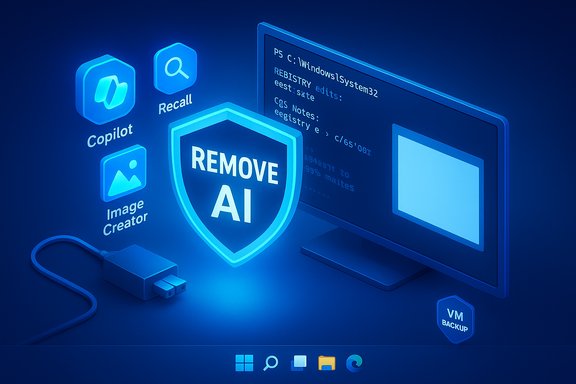
Windows 11’s recent releases have pushed a family of AI features into the core of the operating system — branded elements such as Copilot, Recall, AI Actions, and a growing set of AI‑powered hooks inside built‑in apps like Paint, Notepad, and File Explorer. Microsoft positions these as productivity and accessibility improvements, but the practical reality is that many of those components are distributed as Appx/MSIX packages and are also represented in Windows’ servicing store (Component‑Based Servicing, CBS), which makes simple uninstalls ephemeral — updates or provisioning steps can reintroduce them. In response, community developers have surfaced a range of “debloat” projects that go further than toggling a setting: they remove package manifests, flip registry gates, delete scheduled tasks, and even attempt to neutralize servicing artifacts so features don’t reappear after Windows Update. The most talked‑about of these recent tools is an open‑source PowerShell project that packages these tactics together into an interactive GUI and non‑interactive mode — promising to “remove ALL” Windows 11 AI features. The project’s repository documents registry and policy flips, Appx/MSIX removals, CBS manipulations and an optional blocker package intended to prevent re‑provisioning. This article examines how these tools work, what they actually remove, the technical and support risks involved, and practical, safer alternatives for users or administrators who want a less AI‑heavy Windows 11.
If you value a clean, fast, and privacy‑lean Windows 11, debloat tools can help — but they are a maintenance commitment. The essential choice is between convenience and long‑term stability; users and IT teams should choose the path that matches their risk tolerance and operational needs.
Source: Neowin https://www.neowin.net/news/this-ap...ai-bloat-from-windows-11-with-a-single-click/
 Background / Overview
Windows 11’s recent releases have pushed a family of AI features into the core of the operating system — branded elements such as Copilot, Recall, AI Actions, and a growing set of AI‑powered hooks inside built‑in apps like Paint, Notepad, and File Explorer. Microsoft positions these as productivity and accessibility improvements, but the practical reality is that many of those components are distributed as Appx/MSIX packages and are also represented in Windows’ servicing store (Component‑Based Servicing, CBS), which makes simple uninstalls ephemeral — updates or provisioning steps can reintroduce them. In response, community developers have surfaced a range of “debloat” projects that go further than toggling a setting: they remove package manifests, flip registry gates, delete scheduled tasks, and even attempt to neutralize servicing artifacts so features don’t reappear after Windows Update. The most talked‑about of these recent tools is an open‑source PowerShell project that packages these tactics together into an interactive GUI and non‑interactive mode — promising to “remove ALL” Windows 11 AI features. The project’s repository documents registry and policy flips, Appx/MSIX removals, CBS manipulations and an optional blocker package intended to prevent re‑provisioning. This article examines how these tools work, what they actually remove, the technical and support risks involved, and practical, safer alternatives for users or administrators who want a less AI‑heavy Windows 11.What the new tools claim to do
At a glance — the advertised feature list
- Disable registry keys and Group Policy/CSP equivalents that surface or gate AI UI (Copilot taskbar button, Recall activation, Input Insights, AI Actions).
- Uninstall Appx/MSIX packages for Copilot, Recall, Image Creator components in Paint, Notepad rewrite hooks, and related first‑party AI modules (both per‑user and provisioned copies).
- Purge or neutralize hidden CBS packages that normally survive user‑level removals and would otherwise be used by servicing to re‑provision the features.
- Delete scheduled tasks and local Recall snapshot indices, removing historical timeline data.
- Optionally install a custom “blocker” package into the servicing store to try to prevent Windows Update or provisioning from re‑adding the removed components.
- Provide backup and revert modes, a GUI for less technical users, and a non‑interactive mode for automation.
How it works, step by step (technical breakdown)
Understanding the mechanics is essential to understanding both the benefit and the risk.1. Registry and policy edits (lowest‑risk layer)
The script flips a number of registry keys and writes Group Policy/CSP equivalents that hide UI toggles and block activation paths for Copilot, Recall, Input Insights, and related features. These operations are the least invasive and are generally reversible when properly documented and backed up. However, some keys gate deeper service behavior; changing them can create inconsistent states if dependent components expect the keys to be present.2. Appx/MSIX package removal
Removing per‑user Appx packages is straightforward (Remove‑AppxPackage), but the script also targets provisioned packages (Remove‑AppxProvisionedPackage) that are applied to new user accounts or used by servicing. Removing provisioned packages changes the provisioning baseline for the machine and can have knock‑on effects if other features share package families.3. Component‑Based Servicing (CBS) manipulation (highest‑risk)
This is the most consequential and controversial part. The CBS store is Windows’ authoritative repository of servicing metadata. The project attempts to remove or neutralize hidden packages stored in CBS, and optionally inject a custom blocker package so Windows Update does not re‑provision the same components. These edits are powerful — they make the removals durable — but they also change the servicing inventory Microsoft expects. That divergence can cause feature‑update failures, repair rollbacks, or other upgrade fragility. Multiple community writeups and experts identify CBS manipulation as the single largest risk vector.4. Data and scheduled task cleanup
For features like Recall that rely on local snapshot indices and scheduled tasks, the script deletes the tasks and removes local data. That is effective at removing traces of the feature but destructive: deleted snapshot history cannot be reconstructed unless separately backed up. The project offers explicit warnings about this behavior.5. Blocking packages to prevent re‑provisioning
To make removals persist across updates, the script can install a “blocker” package into the servicing store that tells Windows that the AI packages are not to be reinstalled. This makes the change durable but is the same operation that can cause servicing disagreements when future updates expect the original inventory.Independent testing and real‑world results
Multiple outlets and community tests have reproduced the main functional claim: on targeted stable Windows 11 builds, running the tool with administrator rights hides or removes visible Copilot/Recall UI and unprovisions many AI Appx packages. However, the results are not uniform. Factors that influence outcome include:- Windows build version (25H2 vs later or Insider channels)
- OEM provisioning or OEM‑supplied apps and manifests
- Whether the machine has previously had feature updates applied or is mid‑servicing
- Whether the script is run in “backup” mode or with the blocker package enabled
Benefits — why experienced users are drawn to these tools
- Reclaim privacy and local control. For privacy‑conscious users, removing on‑device AI hooks and services reduces potential telemetry endpoints and removes features that some consider “always on.”
- Reduce background resource usage. Removing unused services and packaged apps can reduce background CPU and memory footprint, particularly on lower‑spec machines.
- Cleaner UI and less clutter. Users annoyed by new Copilot UI elements, persistent contextual suggestions, or AI menu items can restore a leaner shell.
- Automation for repeatable builds. System integrators, labs, and enthusiasts benefit from a scripted process to create standardized images without having to manually edit each registry key and package manifest.
- Transparency and open source. The project’s code and documentation are public, permitting audits and community contributions.
Risks and the case against “one‑click” removal
- Servicing and update fragility. Editing CBS and installing blocker packages changes what Windows Update expects. That can lead to upgrade failure or forced repair actions that are difficult to resolve without offline servicing tools. Several community reports identify CBS edits as the single largest cause of upgrade breakage in heavy debloat workflows.
- Support and warranty implications. A machine that has had its servicing inventory altered may be outside the expectations of OEM repair channels or Microsoft’s support flow. Production fleets should never run such scripts without staged testing and official approval.
- Destructive data loss. Recall’s snapshot indices and scheduled tasks are removed by the cleanup steps; unless users create separate backups beforehand, that timeline data is lost permanently.
- Unintended breakage. Some Appx/MSIX packages share dependencies. Removing a supposedly “nonremovable” package might break unrelated features that rely on shared components or manifests.
- Partial coverage and future drift. The script targets stable builds and is maintained by community contributors. Microsoft may add AI features in future updates or change how they’re provisioned — meaning the script may need frequent updates and might not cover Insider builds.
- False sense of permanence. Even with a blocker package, Microsoft may change provisioning flows or require repair steps that reintroduce functionality; administrators must plan for ongoing maintenance.
Practical safety checklist before you consider running an aggressive debloat tool
- Create a full image backup (system image) and verify the backup can be restored.
- Use the tool’s backup mode where available — but don’t rely exclusively on it for critical data like Recall indices.
- Test on a disposable machine or VM first, not on a production device.
- Keep an offline copy of any removed packages and a record of changed registry keys and Group Policy settings.
- Have a recovery plan for servicing problems: a recovery USB, offline servicing tools, and instructions to rebuild or undo CBS changes.
- For enterprise deployments, never run these tools outside a lab‑tested process; use supported configuration management instead (MDM, Group Policy, or official Microsoft deployment tools).
Safer alternatives and mitigation strategies
If your main goal is to de‑AI Windows 11’s surface without taking the servicing risk, consider these options first:- Use supported Settings and Group Policy controls. Microsoft exposes many toggles for Copilot and other privacy settings; exhaust those before running forceful scripts.
- Remove per‑user Appx packages only. Uninstalling user packages is reversible and far less likely to cause upgrade breakage than modifying provisioning or CBS.
- Disable scheduled tasks and services rather than deleting them. Disabling preserves the possibility of easy re‑enablement without removing installations or provisioning artifacts.
- Apply selective debloat on fresh images. Build a customized image or use official deployment tools so your organization controls the provisioning baseline rather than modifying the servicing store post‑install.
- Audit community code before running. Read the script line‑by‑line or have an administrator do so. Community projects are easier to trust when they publish clear documentation, a revert path, and a conservative default mode.
How enthusiasts are using these tools in the wild
Hobbyists and enthusiasts use debloat projects in several patterns:- Build a minimal image (Tiny11 / custom builds) and apply aggressive removal before the first boot so servicing is aligned to a custom baseline.
- Run per‑user removal utilities (BloatyNosy, Talon and others) to strip inbox apps and UI elements while leaving servicing intact.
- Use the “blocker” approach only on isolated test rigs where upgrade fragility is acceptable.
- Maintain a private mirror of required updates and roll‑forward scripts to reapply removed packages if needed.
What vendors and neutral outlets are saying
Technical press coverage tends to be cautious: reviewers reproduce that the scripts work on tested builds but warn users about servicing risks and the variability of outcomes across OEM‑customized systems. Multiple publications flagged the same trade‑offs highlighted above: functionally effective, but potentially destabilizing for feature updates and warranty/support channels. Reviewers also call attention to the reality that not every AI surface can be disabled programmatically and that manual follow‑up steps are often necessary.A closer look at the “one‑click” promise: marketing vs. reality
The phrase “one click removes all AI bloat” is potent marketing — it sells control and simplicity — but it glosses over critical technical details:- “All AI features” is a moving target: Microsoft continues to add features and may alter packaging, so a single script reflects a snapshot in time, not a permanent solution.
- The one‑click part usually masks a multi‑layered process: beneath the GUI are destructive operations (CBS edits, removal of provisioned packages, deletion of local data) that warrant multiple confirmations and backups.
- Reversal is not guaranteed: while the script may offer a revert mode, some deleted data and servicing edits are very difficult to fully restore without official media or offline servicing interventions.
Recommendations for typical users, power users and IT admins
Typical users
- Avoid running aggressive, servicing‑level scripts on your daily‑use PC.
- Use built‑in toggles, uninstall per‑user apps via Settings, and consider minimal removal utilities that do not touch CBS.
- If privacy is the concern, review Microsoft’s documented privacy settings and opt‑outs first.
Power users / enthusiasts
- Test the script on a VM or spare machine first.
- Use backup mode and keep an offline system image.
- Prefer disabling or uninstalling per‑user packages before touching provisioned packages or CBS.
IT administrators
- Do not run these scripts on production fleets.
- If the organization needs a different baseline, build a custom, tested image and deploy via supported channels (Windows Deployment Services, Autopilot, MDT, or commercial tools).
- If you must remove particular features, formalize the process in a lab, test upgrade scenarios, and document rollback paths.
Conclusion
The recent wave of “one‑click” debloat tools — typified by a well‑documented open‑source PowerShell project and echoed by other debloat utilities — crystallizes a real user demand: more control and fewer unwanted AI integrations in Windows 11. These tools deliver tangible results for users who want to remove Copilot, Recall and other packaged AI features, and they automate a long list of tedious manual steps. The code is public, the feature list is explicit, and independent tests confirm the claims on many configurations. But the durability of that removal is where the debate lies. The most potent measures — CBS edits and blocker packages — are also the ones most likely to make a machine fragile in future updates. The tradeoffs are real: control and permanence today versus potential upgrade failure and lost support tomorrow. For most users the safest route is a measured approach: exhaust supported toggles, prefer per‑user uninstalls, and reserve servicing‑level modifications for lab environments or disposable test rigs where recovery is trivial. Community tools are valuable — but they are not a substitute for a robust, tested deployment strategy or for reading the script before clicking “run.”If you value a clean, fast, and privacy‑lean Windows 11, debloat tools can help — but they are a maintenance commitment. The essential choice is between convenience and long‑term stability; users and IT teams should choose the path that matches their risk tolerance and operational needs.
Source: Neowin https://www.neowin.net/news/this-ap...ai-bloat-from-windows-11-with-a-single-click/
