

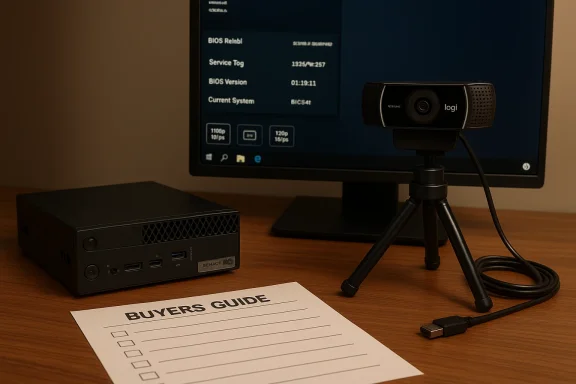
The listing on Hard|Forum for a Dell OptiPlex 7060 Micro paired with a Logitech C922 Pro Stream webcam is the kind of pragmatic garage‑sale bundle that attracts both bargain hunters and IT pros looking for a compact, serviceable desktop with an immediately usable webcam. In this feature I walk through exactly what that combination delivers in real‑world terms, verify the key technical claims, explain how to test and evaluate the hardware before you buy, outline upgrade and deployment options, and highlight the risks and negotiation levers every buyer should use. This is intended as a one‑stop reference for anyone considering buying this specific FS pair or a very similar used/refurbished set.
The Dell OptiPlex 7060 Micro is Dell’s tiny business desktop introduced in the late 2010s as a compact, highly serviceable "micro" form factor. It’s commonly configured with Intel 8th‑generation Core processors (including the i7‑8700T variant), up to 32 GB of DDR4 SODIMM memory across two slots, and M.2 NVMe or M.2 SATA boot/storage options—everything you need for office productivity, conferencing, and light content work in a package that measures roughly 1.4" x 7.0" x 7.2" and weighs only a couple of pounds. Retail and refurb listings (standard SKUs) match these core specs.
The Logitech C922 Pro Stream is the perennial streaming/webcam favorite for budget‑minded creators and remote workers: it supports Full HD 1080p at 30 fps and HD 720p at 60 fps, includes autofocus and built‑in stereo mics, and ships with a small tripod and universal clip for easy mounting. Logitech’s product pages and major resellers list the exact same feature set and physical dimensions. These characteristics make the C922 a strong match for conference calls, recording short how‑tos, and entry streaming without a discrete capture card.
Putting the two together—an OptiPlex 7060 Micro as a compact, manageable PC plus a reliable 1080p webcam—creates a capable, low‑cost remote‑work/streaming desktop that’s easy to hide behind a monitor or mount behind a conference display. But as with any used hardware sale, the listing headline only tells part of the story. Below I verify the most important specs, provide step‑by‑step validation and testing you should demand before handing over money, and analyze the risks and upgrade paths.
This Dell OptiPlex 7060 Micro plus Logitech C922 Pro Stream bundle can be an excellent low‑cost pickup for a home office, tutoring setup, or small studio if you verify the unit’s provenance and run the quick tests above. The OptiPlex micro gives you a manageable, upgradeable base while the C922 provides dependable 1080p capture that still holds up for meetings and casual streaming. But the keys to a smart purchase are simple: verify the Service Tag and hardware details, demand working local recordings and drive health checks, and keep expectations aligned with the equipment’s era—this is a practical, not premium, combination.
Source: [H]ard|Forum https://hardforum.com/threads/fs-dell-optiplex-7060-micro-logitech-c922-pro-webcam.2046368
 Background / Overview
The Dell OptiPlex 7060 Micro is Dell’s tiny business desktop introduced in the late 2010s as a compact, highly serviceable "micro" form factor. It’s commonly configured with Intel 8th‑generation Core processors (including the i7‑8700T variant), up to 32 GB of DDR4 SODIMM memory across two slots, and M.2 NVMe or M.2 SATA boot/storage options—everything you need for office productivity, conferencing, and light content work in a package that measures roughly 1.4" x 7.0" x 7.2" and weighs only a couple of pounds. Retail and refurb listings (standard SKUs) match these core specs. The Logitech C922 Pro Stream is the perennial streaming/webcam favorite for budget‑minded creators and remote workers: it supports Full HD 1080p at 30 fps and HD 720p at 60 fps, includes autofocus and built‑in stereo mics, and ships with a small tripod and universal clip for easy mounting. Logitech’s product pages and major resellers list the exact same feature set and physical dimensions. These characteristics make the C922 a strong match for conference calls, recording short how‑tos, and entry streaming without a discrete capture card.
Putting the two together—an OptiPlex 7060 Micro as a compact, manageable PC plus a reliable 1080p webcam—creates a capable, low‑cost remote‑work/streaming desktop that’s easy to hide behind a monitor or mount behind a conference display. But as with any used hardware sale, the listing headline only tells part of the story. Below I verify the most important specs, provide step‑by‑step validation and testing you should demand before handing over money, and analyze the risks and upgrade paths.
What the hardware actually is (verified specs)
Dell OptiPlex 7060 Micro — key hardware you can expect
- Typical CPUs: Intel Core i5 or Core i7 8th‑Gen family (i7‑8700T commonly shown in market listings). These are 6‑core processors in the Micro SKU with Intel UHD Graphics 630 for integrated display output.
- Memory: Two SO‑DIMM slots with DDR4 support; commonly sold/refurbished units list 8–32 GB; maximum supported configurations for the Micro are typically up to 32 GB depending on the board revision.
- Storage: One or more M.2 slots (2280/2230 variants) with support for both SATA M.2 and PCIe NVMe SSDs; many refurb units come with 128–512 GB SSDs but vendors may mix M.2 or 2.5" drives in refurb flows.
- I/O: Multiple USB Type‑A ports (front and rear), at least one USB‑C (on many SKUs), two DisplayPort outputs for dual‑monitor setups, Gigabit Ethernet, and a headset/mic combo jack. Compact dimensions and a low power brick are standard.
Logitech C922 Pro Stream — what it delivers
- Video modes: 1080p at 30 fps and 720p at 60 fps (the two capture modes are useful for either full‑resolution recording or smoother motion for gameplay/fast action).
- Optics & audio: glass lens, 78° diagonal field of view, autofocus, built‑in stereo microphones with about 1 m pickup range. The C922 ships with a tripod and a 1.5 m cable.
- Compatibility: UVC (USB Video Class) plug‑and‑play on Windows, macOS, and ChromeOS; vendor software and accessory integrations exist but are optional.
What to verify in the listing and during purchase
When the seller lists “OptiPlex 7060 Micro + C922” you should confirm the following, in order, before paying:- Exact OptiPlex SKU and Service Tag: ask for the Dell Service Tag and verify the configuration on Dell’s support page if the seller can provide it. That confirms CPU model, original RAM, warranty status if any, and factory options. Don’t accept vague "i7" language without the tag.
- Storage type and health: ask whether the SSD is NVMe or SATA M.2 and whether the drive has been wiped. For used devices, request SMART screenshots (CrystalDiskInfo or a simple smartctl output) or a short Video demonstrating BIOS/UEFI that shows the drive and its free space. Many refurb units have mixed drive types installed.
- Memory size and configuration: ask how many SODIMMs are installed and their capacity/speed. Micro units commonly have two slots—knowing each module’s size matters for future upgrades.
- Physical condition & accessories: ask for close photos of ports (to check for bent pins), the underside (for missing feet or glue), and whether the original power adapter is included. Also confirm whether any mounting bracket, Wi‑Fi antennae, or proprietary dongles are part of the sale.
- C922 condition & bundle: request a short webcam test video showing the unit at 1080p/30 (recorded locally, not a screenshare stream) and photos of the included tripod/clip and cable length. If the seller claims extra software or licenses (XSplit premium, etc.), ask for proof.
- Return policy / local pickup: prefer meetings in person where possible (local pickup) or insist on a short return window if buying remotely; refurbished sellers can and do mix parts, so you want the option to return if hardware fails basic tests. Community threads highlight that return windows save buyers from receiving units with missing accessories or swapped components.
In‑person or remote testing checklist (do this before you pay)
If you can test in person, bring a USB thumb drive and these quick test steps. If remote, ask the seller to record each step on video and timestamp it.- Power on and show BIOS/UEFI boot (confirm Service Tag and CPU model). Note the CPU and firmware version.
- Boot into Windows and show System → About (confirm installed RAM, OS edition, and whether Windows is activated). If Windows is not present or seller claims factory reset, insist on a clean install or image before payment.
- Open Device Manager → Display adapters / Disk drives / Network adapters. Show the SSD and networking device names. This exposes swapped parts or missing wireless modules.
- For storage: run a simple benchmark (CrystalDiskMark) or at least show sequential read/write on a short test. If the seller resists, ask for SMART output instead.
- USB & Display test: attach an external monitor to DisplayPort, then plug in the Logitech C922 and show video in Windows Camera app at 1080p/30 and/or 720p/60, plus microphone input line in Sound settings. Ask the seller to switch capture modes if possible. If the C922 shows a clear 1080p local recording, that’s a good sign.
- Physical check: inspect the USB cable and webcam clip, look for hairline cracks around connectors, and check the power brick for Dell‑OEM markings. Bent power pins or frayed cables are return reasons.
Software, compatibility and setup on Windows
Both pieces of hardware are plug‑and‑play in modern Windows builds, but know what to expect.- The OptiPlex 7060 Micro runs Windows 10 or Windows 11 Pro cleanly in most configurations. Dell places management and recovery tools on the factory image, but many buyers prefer a clean Windows reinstall when redeploying used hardware. If you want to join it to a domain or use BitLocker, Windows 11 Pro is often preinstalled on refurbished business units.
- The C922 uses standard UVC drivers; Windows will typically enumerate it as a “USB Video Device” and the Camera app will confirm a working feed. For vendor extras (like background replacement or advanced tuning), Logitech’s software packages exist but aren’t required for basic operation. If the seller claims advanced or proprietary features, verify them directly.
- If you encounter a black preview or no mic, the most reliable first step is switching to the Microsoft in‑box UVC driver via Device Manager → Update Driver → Let me pick → “USB Video Device”. Community troubleshooting guides emphasize that the generic driver restores basic functionality in the majority of cases.
- Plug the webcam into a rear panel USB 3.0 port (avoid unpowered hubs) for the best chance of full bandwidth and stable power.
- In Windows Settings → Privacy & security → Camera ensure desktop and store apps are permitted to access the camera before testing in conferencing apps.
- If you need better audio, use the C922’s mic for convenience but pair it with a dedicated USB mic for podcasting/streaming to get clearer voice pickup. Review the C922’s mic range (approx. 1 meter) and adjust expectations accordingly.
Upgrade pathways and limitations
One big advantage of the OptiPlex 7060 Micro platform is that it’s modular within its micro constraints. Consider these upgrades and their trade‑offs:- Memory: Upgrading to 32 GB (2x16 GB SODIMMs) is straightforward and cheap; confirm whether the seller’s unit still has an open slot or is already dual‑populated. The platform usually tops out at 32 GB for the Micro SKU—check your SKU/service tag to confirm.
- Storage: Swapping to a PCIe NVMe M.2 SSD can dramatically improve boot and app load times versus SATA M.2 or a 2.5" SATA drive. Many refurb units shipped with slower M.2 SATA or small capacity NVMe; an aftermarket NVMe is a high‑value upgrade.
- GPU: The micro form factor does not accept full‑size discrete GPUs. If you need GPU acceleration for rendering or gaming, buy a small SFF/tower variant instead or use an external GPU enclosure only if you accept extra complexity. The 7060 Micro is best for business/office workloads, not for high‑end gaming.
- Networking: Some Micro units included internal Wi‑Fi/Bluetooth modules or used external USB dongles. If wireless matters, confirm the included module or plan to add a small M.2 wireless card (if your SKU supports it).
Pricing expectations and negotiation tactics
Used or refurbished OptiPlex 7060 Micro units with i5/i7 CPUs and 8–16 GB of RAM commonly trade in modest, fluctuating price bands depending on condition and included accessories. A ballpark approach:- Bare Micro unit (8–16 GB, 128–256 GB SSD): expect modest prices in the refurb channel; shop multiple listings and check the seller’s return window.
- Upgraded memory/SSD increases resale value significantly; negotiate using clear evidence of aftermarket parts (stickers, receipts, photos).
- For the C922, used units with tripod and cable typically carry a low premium—demand a short test recording to confirm functionality. The C922 is resilient but watch for dead pixels, stuck autofocus, or missing mics.
- If the listing lacks a Service Tag, demand a price reduction or walk away—it's hard to verify exact parts and warranty without it.
- If the webcam is an older Logitech unit with visible wear or no test video, ask for a discounted bundle price or a return option.
- If buying remotely, insist on tracked shipping and a short refund window (48–72 hours) to allow for functional testing.
Security, privacy and long‑term maintenance
Two practical security notes for used bundles:- Clean OS install: insist on a clean Windows install or perform one yourself before entering any accounts. Used/refurb units often retain vendor images or residual accounts. Reinstalling Windows removes leftover software, drivers, and potential unwanted settings.
- Webcam privacy: physical covers (post‑purchase) are cheap and effective if you don’t trust residual firmware or software. Also check whether the webcam firmware supports vendor updates; older webcams sometimes have deprecated vendor utilities. Community threads warn that legacy camera utilities are sometimes no longer maintained. If a seller claims active firmware support for an older model, verify it.
- Keep drivers trimmed: for basic webcam and OptiPlex functions, the Microsoft in‑box UVC driver and Windows drivers are usually enough; install vendor tools only when you need advanced features. Community guidance cautions against installing unsigned or third‑party drivers from unknown repositories.
- Inventory & documentation: record the Service Tag, installed serial numbers (SSD), and any driver package versions. This is invaluable should you need to escalate a warranty claim or track down firmware updates later.
Risks and red flags specific to this bundle
- Misleading webcam ads: marketplace titles sometimes inflate older webcam models by using “1080p” in ad copy even when the optical sensor or firmware doesn’t sustain true 30 fps 1080p capture under normal conditions. Ask for native recording evidence.
- Mixed/refurb parts: OptiPlex refurb flows occasionally mix non‑OEM parts (generic SSDs, cheap power bricks). That’s not always a deal‑breaker, but verify drive health and the presence of OEM power to avoid immediate failures.
- Vendor software/deprecated utilities: older Logitech QuickCam or similar lines may have deprecated firmware tools. If the seller promises advanced features that require vendor utilities, confirm the vendor still supports those utilities on current Windows builds before relying on them.
- Business deployment risk: If you plan to buy multiple units for a business or classroom, you should insist on consistent SKUs and test a single unit before rolling out dozens. Community guidance repeatedly flags the risk of inconsistent behavior when mixing older webcams across many machines.
Final recommendation — when to buy, when to pause
Buy this bundle if:- The price reflects used/refurb condition and the seller supplies a Service Tag, recent local test recordings for the C922, and a short return window.
- You need a compact, well‑supported business desktop for office workloads and a dependable 1080p webcam for conferencing or casual streaming. The OptiPlex micro plus C922 combination is practical and cost‑effective.
- The seller cannot produce a Service Tag, refuses to show a BIOS boot or local recording of the webcam, or offers no return/refund option.
- You need GPU acceleration or have strict imaging/firmware needs that require vendor support for newer Windows builds; the 7060 Micro and C922 are not cutting‑edge hardware and may not meet advanced media or AI workloads.
Quick buyer’s checklist (copy/paste)
- Ask for the Dell Service Tag and verify configuration.
- Request a 30–60 second local webcam recording at 1080p/30 or 720p/60 from the seller.
- Demand SMART output for the SSD or a short CrystalDiskInfo screenshot.
- Verify physical condition (close port photos) and confirm included power adapter.
- Insist on a short return window or test during local pickup.
This Dell OptiPlex 7060 Micro plus Logitech C922 Pro Stream bundle can be an excellent low‑cost pickup for a home office, tutoring setup, or small studio if you verify the unit’s provenance and run the quick tests above. The OptiPlex micro gives you a manageable, upgradeable base while the C922 provides dependable 1080p capture that still holds up for meetings and casual streaming. But the keys to a smart purchase are simple: verify the Service Tag and hardware details, demand working local recordings and drive health checks, and keep expectations aligned with the equipment’s era—this is a practical, not premium, combination.
Source: [H]ard|Forum https://hardforum.com/threads/fs-dell-optiplex-7060-micro-logitech-c922-pro-webcam.2046368
