

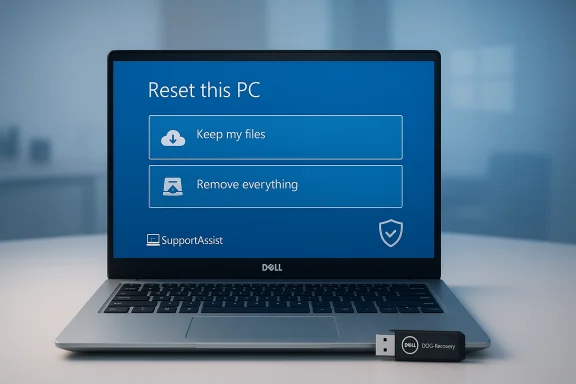
If you need to wipe, refresh, or completely restore a Dell laptop running Windows 10, there are multiple safe, supported ways to do it — from the Settings app and Windows Recovery Environment to BIOS/SupportAssist tools and command-line tricks — and each path has trade‑offs you should understand before you proceed. The Windows Report “7 Ways to Factory Reset Your Dell Laptop on Windows 10” guide lays out the common user-facing options, but there are important technical details, gotchas, and safety steps every Windows user should follow before pressing the reset button.
Overview
Factory resetting a Dell laptop running Windows 10 restores the operating system to a clean state by reinstalling Windows and optionally removing all user files, apps, and settings. You can:- Keep your personal files while reinstalling Windows, or
- Remove everything (recommended when selling or transferring ownership), and
- Choose whether to reinstall using the local recovery image or download a fresh image from Microsoft’s servers (Cloud Download).
Background: what “Reset this PC” actually does
The Windows “Reset this PC” mechanism performs a reinstall of Windows while offering two high-level outcomes:- Keep my files — reinstalls Windows, removes apps and settings, but preserves documents, pictures and other user data.
- Remove everything — deletes user data, apps, and settings and reinstalls Windows, returning the machine to a factory-like state.
- Local reinstall — uses the recovery files stored on the device (fast, offline, but may reuse corrupted OEM files).
- Cloud download — downloads a fresh Windows image from Microsoft (ensures a cleaner, up-to-date install; requires internet and several GBs of data). The exact Cloud download size can vary by build and updates, so treat any single figure as approximate.
Preparing safely: checklist before any reset
Resetting is often irreversible. Follow this checklist to avoid data loss, activation headaches, and post‑reset workarounds.- Backup personal files to an external drive or cloud (OneDrive, Google Drive) and verify backups. Don’t assume “Keep my files” will always work.
- Export or note license keys and de‑authorize software (Adobe, iTunes, some DAWs) if required by license terms.
- Save BitLocker recovery keys and sign out of accounts: resets can require the BitLocker key during WinRE steps. Store keys in your Microsoft account or print them.
- Ensure AC power is connected — interrupted resets can corrupt the drive.
- Create bootable Windows installation media (USB) and download vendor drivers if you foresee needing a clean install option. This is a reliable fallback if Reset fails.
- For resale and privacy: prefer Remove everything + select full drive clean/secure wipe where available; for SSDs use the manufacturer’s secure‑erase tool for best results. Microsoft and vendor docs caution that Reset’s erase is consumer‑grade only.
The seven supported methods (expanded, verified, and analyzed)
Below is an expanded, practical walkthrough of the seven methods commonly recommended for Dell laptops running Windows 10, with verification and notes about limitations.1) Settings → Update & Security → Recovery (Reset this PC)
This is the most user-friendly method.Steps (Windows 10):
- Start → Settings → Update & Security → Recovery.
- Under Reset this PC, click Get started.
- Choose Keep my files or Remove everything.
- Choose Cloud download or Local reinstall.
- Follow on‑screen prompts and click Reset.
- Cloud download depends on a reliable internet connection and may consume several GB; size varies by build and patch level.
- Local reinstall may reapply OEM apps (bloatware) unless you opt out during the flow.
- If you’re on a metered connection, choose Local reinstall.
2) Reset from the sign‑in screen (Shift + Restart into WinRE)
Use this when you can’t fully boot into Windows or prefer a pre‑login path.Steps:
- On the login screen, click the Power button.
- Hold Shift and click Restart.
- When WinRE appears: Troubleshoot → Reset this PC.
- Choose Keep my files or Remove everything, confirm account and password if requested, then click Reset.
- If BitLocker is enabled, you may be asked for the recovery key. Save keys beforehand.
3) Use Windows Recovery Environment (WinRE) → Factory Image Restore (OEM)
This flows through WinRE but uses the OEM factory image option when available.Steps:
- From Settings or Shift+Restart enter Advanced startup or WinRE.
- Troubleshoot → Advanced options → Factory Image Restore (or “Factory Image Restore” shown by OEM Recovery).
- Follow on‑screen instructions.
Caveat:
- If the OEM factory image partition is corrupt or deleted, this option won’t work. Use USB recovery media or cloud options instead. Dell documentation specifically notes that a missing factory image disables that restore option.
4) Reset from boot (F8 / F12 and Dell Backup & Recovery / Datasafe)
This is useful if you can’t log in and prefer manufacturer recovery keys at boot.Legacy steps (older Dell models):
- Power on and when Dell logo appears press F8 (or F12 on many models) to access Advanced Boot Options.
- Choose Repair Your Computer.
- Choose keyboard language and administrator — sometimes leave password blank if none.
- Select Dell DataSafe Restore and Emergency Backup or Dell Backup and Recovery then Restore My Computer or Factory Image Restore.
Limitations:
- Key mappings and exact options vary by model and year.
- Modern Dell systems increasingly use SupportAssist OS Recovery and BIOSConnect; the legacy Datasafe flow is less common on new laptops. If the section is missing, use SupportAssist or USB recovery.
5) Command Prompt — systemreset --factoryreset
A quick CLI-triggered reset when you can run elevated commands.Usage:
- Open Command Prompt as admin and run:
systemreset --factoryreset
Verification & caveats:
- The command is widely used in community and how‑to guides and works on many Windows 10 systems, but it’s not always available in all recovery contexts (WinRE vs normal Windows) or if recovery components are damaged. Microsoft community responses confirm the command’s utility but also that it can fail if recovery tools are missing. Use it as a convenience, not a guaranteed fallback.
- Run SFC /scannow and DISM /RestoreHealth to repair components, or use bootable media to perform a clean install.
6) BIOS + SupportAssist OS Recovery (F2/F12 → SupportAssist)
Dell’s modern recovery path for many Inspiron, XPS, Alienware, Vostro, and other consumer models.How to access:
- Boot and press F2 for BIOS (to change Secure Boot settings temporarily if necessary) or F12 to open the one‑time boot menu.
- Choose SupportAssist OS Recovery (if present).
- In SupportAssist, select Restore System or Factory Image Restore and follow prompts. You can also create a recovery USB using Dell OS Recovery Tool from another PC.
- Restore the original factory image,
- Offer a “Reset and update” option that downloads a newer OS image when the local factory image is missing, and
- Provide diagnostics and backup helpers before wiping.
- The local factory image must exist; if it’s been deleted or overwritten the “Reset to factory settings” option may be unavailable and you’ll need the Dell OS Recovery Tool to create a USB recovery key. Dell’s manual documents this behavior and provides a support matrix of models that support each feature. Community reports also show SupportAssist sometimes displays greyed‑out options when the image is missing.
7) Dell Backup and Recovery Application / Dell OS Recovery Tool
Downloadable Dell tools can create recovery USB media or assist with the reset process.How it works:
- Install the Dell Backup and Recovery (or SupportAssist / Dell OS Recovery Tool) application from Dell.
- Use the tool to create recovery media or to invoke recovery functions on the device.
- Boot to Advanced options and choose the recovery tool, then follow prompts to reset.
- The tool may require the system service tag or a working internet connection to download the correct image. Some models do not support the “reset and update” flow. Always verify compatibility in Dell documentation.
Post‑reset essentials (what to do after Windows is reinstalled)
After the reset finishes and Windows OOBE completes, do these things immediately:- Run Windows Update until no important updates remain. Microsoft recommends checking for updates after a reset.
- Reinstall drivers from Dell’s Support site if necessary; check Device Manager for “Unknown devices.” OEM drivers sometimes deliver hardware-specific functionality not included in the generic Microsoft package.
- Reinstall applications, reapply license keys, and reconnect to your cloud backups.
- Re‑enable BitLocker only after you have saved new recovery keys and confirmed activation status.
Troubleshooting common reset failures
- Reset option missing or greyed out: recovery files may be damaged or deleted. Create USB installation media and perform a clean install.
- Reset stalls or rolls back: run SFC /scannow and DISM /RestoreHealth to repair the image, then retry; consider Cloud download if Local reinstall fails.
- BitLocker blocks reset: retrieve your BitLocker recovery key from your Microsoft account, Azure AD, or printed copy. Failure to have the key can make the encrypted drive inaccessible.
- SupportAssist options greyed out: the factory image may be missing or corrupted. Use the Dell OS Recovery Tool to create a recovery USB or do a clean install with Microsoft media. Dell’s documentation and community threads document this common scenario.
Security and data‑sanitization: what really removes data?
Resetting and the “Clean the drive fully” option reduce the chance of file recovery but are not certified secure‑erase methods. For truly unrecoverable erasure (corporate disposal, HIPAA, or government standards), use:- Drive vendor secure‑erase tools for SSDs (NVMe manufacturers provide utilities),
- Certified erasure software (Meets NIST 800‑88 or other required standards), or
- Physical destruction for drives that must be rendered irretrievable.
Quick FAQ (concise, vetted answers)
- How long does a factory reset take?
- Typically between 30 minutes and 2 hours, depending on hardware, whether you choose Cloud download, and whether you select a full drive clean. Cloud options generally take longer due to download size.
- Will a factory reset remove Windows 10?
- No. Reset reinstalls Windows (either local image or a downloaded copy) — it does not remove Windows itself.
- Can I factory reset without a password?
- Yes. You can use WinRE (Shift+Restart or automatic repair flows), Boot menu, or Dell SupportAssist to reset without logging into the desktop — useful when you forget the password.
- Do I need internet to reset?
- Not for Local reinstall. For Cloud download you need a stable internet connection to fetch the image.
- Is the systemreset --factoryreset command official?
- It is widely used and works on many Windows 10 systems, but behavior depends on installed recovery components; it’s supported as a convenient CLI trigger but may fail if recovery components are missing. If it fails, fall back to Settings, WinRE, or clean install media.
Final analysis: strengths, risks, and recommended approach
Strengths:- Windows’ built‑in Reset this PC is integrated, flexible, and user friendly — it fixes most software issues without external media. Cloud download helps recover from local image corruption by fetching a fresh copy.
- Dell’s SupportAssist OS Recovery can simplify a factory-image restore on supported models and provides backup/diagnostic tools before wiping.
- Reset is a consumer recovery tool — its data erasure is not certified for regulated disposal.
- Local reinstall may reapply OEM bloatware unless you explicitly decline preinstalled apps during the flow.
- If recovery partitions are damaged or deleted, OEM restore options will fail and you’ll need USB media or vendor recovery tools. Dell’s manuals and community threads document such failures and the necessary fallbacks.
- Backup everything externally and save license keys.
- If you can sign in and the system is only flaky, use Settings → Recovery → Reset this PC → Keep my files.
- If preparing to sell, choose Remove everything → clean drive (and prefer vendor secure‑erase on SSDs if strict sanitization is required).
- If Reset fails, create a bootable Windows USB (Media Creation Tool) and either perform a clean install or use it to access WinRE and run offline repairs (DISM/SFC).
- For Dell models that support it, use SupportAssist OS Recovery or Dell OS Recovery Tool to create recovery media when the factory image is missing or damaged.
Factory resetting a Dell laptop on Windows 10 is a solvable problem with multiple supported methods — but success depends on preparation: backups, BitLocker keys, and understanding whether you want a consumer-grade clean or a compliant secure erase. Use the Settings and WinRE flows for routine resets, reserve SupportAssist or Dell OS Recovery tools for model‑specific factory restores, and keep bootable install media ready as a final fallback. When in doubt, back up, document license keys, and create recovery media first — that’s the single best way to make any reset predictable and recoverable.
Source: Windows Report 7 Ways to Factory Reset Your Dell Laptop on Windows 10
