DirectX on Windows 11: Check Update and Troubleshoot Guide

  • Thread Author
DirectX is the Windows subsystem that controls how games and multimedia talk to your graphics and audio hardware, and keeping it current (and healthy) is one of the simplest ways to avoid crashes, poor visuals, and lag on Windows 11. This practical, step‑by‑step guide shows how to check your DirectX version, how DirectX actually gets updated on Windows 11, when you should use the DirectX End‑User runtime, how to update GPU drivers that affect DirectX behavior, and how to troubleshoot the most common problems — with clear warnings about risks and best practices.

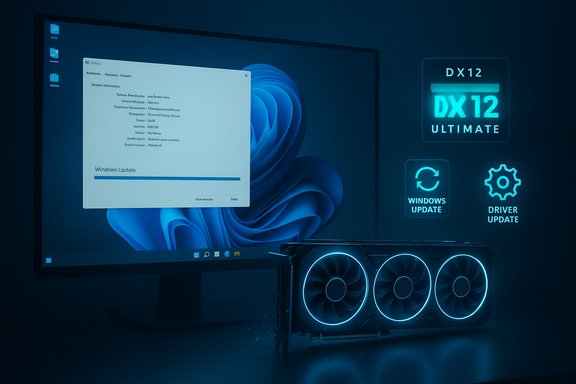
DX12 Ultimate branding on a monitor showing system info beside a GPU card.Background / Overview​

DirectX is not a single downloadable program you patch like an app. On modern Windows releases (Windows 10 and Windows 11) DirectX 12 is included in the operating system and receives updates through Windows Update and driver packages; older libraries needed by legacy games (DirectX 9-era DLLs) are distributed via the DirectX End‑User Runtime Web Installer. The DirectX Diagnostic Tool (dxdiag) is the built‑in way to inspect what’s installed and to capture diagnostics you can share with support agents. Microsoft’s support pages and platform documentation are explicit: use dxdiag to check versions and Windows Update to get the latest DirectX components for your Windows version.

Why this matters for Windows 11 users​

DirectX is the mediator between games/apps and your GPU, and several things depend on it:
  • Performance and stability: New DirectX fixes or driver updates often address crashes, rendering bugs, and performance regressions.
  • Feature support: Modern techniques like hardware‑accelerated ray tracing, mesh shaders, and variable rate shading are part of the DirectX ecosystem (DirectX 12 Ultimate). If your system supports those APIs, games can look better and run faster.
  • Compatibility with older games: Some classic games still require DirectX 9 runtime components that are not part of modern DirectX—but can be installed via the DirectX End‑User runtime package.
Knowing how DirectX is delivered and how to check its state avoids wasted time searching for fake “DirectX updaters” online and helps you target the actual root cause (usually drivers, Windows updates, or missing legacy DLLs).

How to check your DirectX version (fast)​

Use dxdiag — it’s quick, built into Windows, and reliable.
  • Press Windows + R to open the Run box.
  • Type dxdiag and press Enter.
  • On the System tab, look for DirectX Version in the System Information block. That shows the version number installed for your OS.
If you need to share diagnostics with support or a forum, click Save All Information... and attach the generated text file. Microsoft recommends running dxdiag when troubleshooting DirectX sound or video issues because the tool shows driver versions and key device details.

How to confirm DirectX 12 Ultimate support (if you care about next‑gen features)​

DirectX 12 Ultimate is a superset of APIs — DXR (ray tracing), Variable Rate Shading, Mesh Shaders, and Sampler Feedback — and whether you can use those features depends on GPU hardware and driver support.
  • Open dxdiag, switch to the Display tab, and inspect feature strings (some drivers will indicate DirectX 12 or DirectX 12 Ultimate support).
  • The Xbox Game Bar has a gaming features area that sometimes reports DirectX 12 Ultimate readiness on compatible systems. Independent vendor pages (NVIDIA/AMD/Intel) also list which cards support DX12 Ultimate features — useful cross‑checks.

How DirectX updates are actually delivered on Windows 11​

This is one of the most important clarifications: on Windows 11, there is no separate, standalone “DirectX 12 installer” you run to upgrade the core OS shipping of DirectX. Instead:
  • The OS ships DirectX components, and updates to those components come through Windows Update as part of OS servicing. There is no standalone package for the latest DirectX on Windows 11; Windows Update handles it.
  • For legacy DirectX components (mainly DirectX 9-era helper DLLs some old games require), Microsoft provides the DirectX End‑User Runtime Web Installer which installs those legacy libraries without changing the OS’s DirectX version. Use this only when a specific game or app needs it.
  • Many DirectX‑related problems are actually GPU driver issues, not DirectX itself. Keeping GPU drivers up to date is essential because drivers implement the hardware side of DirectX.
Because these facts are frequently misunderstood, follow the step instructions below rather than hunting for a mythical standalone DirectX patch.

Step‑by‑step: Check and update DirectX on Windows 11 (practical)​

Step 1 — Check DirectX version and driver basics​

  • Press Windows + R → type dxdiag → Enter. Note the DirectX Version on the System tab. Save the report if you need to escalate.
  • On the Display tab, check the Display Device name and the Driver line (version and date). If the driver is old, update it (see Step 3).

Step 2 — Use Windows Update (the official route)​

  • Open Settings → Windows Update → Check for updates.
  • Install any available updates and reboot if prompted. Windows Update delivers OS‑level DirectX component updates and optional driver packages; it’s the safest, supported route.

Step 3 — Update GPU drivers (the most common fix)​

  • Use one of these trusted methods:
  • Use Windows Update Optional Updates → Optional updatesDriver updates to see vendor‑supplied drivers.
  • Visit your GPU vendor (NVIDIA, AMD, Intel) and download the latest driver for your precise GPU and OS build.
  • Use the vendor’s installer (GeForce Experience, AMD Adrenalin, Intel Driver & Support Assistant) if you prefer a guided experience.
  • If you have an OEM laptop/desktop (Dell, HP, Lenovo), also check the OEM support page for a validated driver build; OEM drivers sometimes include device‑specific fixes.
Practical tip: If you’re troubleshooting a new problem, install the latest vendor driver rather than an older Windows Update driver — vendors often ship game‑ready fixes ahead of Windows Update.

Step 4 — Install legacy DirectX (only when a program requests it)​

  • If a game reports missing DLLs like d3dx9_xx.dll, download and run the DirectX End‑User Runtime Web Installer from Microsoft. This package installs only the older helper DLLs required by legacy titles and does not replace DirectX 12 or upgrade the OS’s DirectX.

Step 5 — Reboot and re‑check​

  • After driver or update installs, reboot and run dxdiag again to ensure the driver/date and DirectX state look correct. If a game still fails, save the dxdiag report and check for per‑game patches or vendor FAQ pages.

Troubleshooting common DirectX problems (practical recipes)​

Problem: Game says “DirectX 12 is not supported” or crashes on launch​

  • Check GPU model and driver: run dxdiag → Display tab. Confirm GPU is modern enough to support DX12. If the GPU is older, the only fix is hardware upgrade.
  • Update drivers: install the latest OEM or vendor driver; avoid beta drivers unless you need a specific fix.
  • Ensure Windows Update has applied the latest OS updates. If Windows Update is failing, run the Windows Update troubleshooter. Community guides also recommend resetting SoftwareDistribution and catroot2 if updates fail.
  • If older game components are missing, run the DirectX End‑User Runtime Web Installer to get legacy DLLs.

Problem: Missing d3dx9_xx.dll or other legacy DLLs​

  • Run the DirectX End‑User Runtime Web Installer. Do not download individual DLLs from random websites; that’s a malware vector. If a game ships its own DirectX installer (common for older discs), use that instead of third‑party downloads.

Problem: After an update, games stutter or crash​

  • Roll back the GPU driver via Device Manager if the new driver causes regressions.
  • If a cumulative Windows Update caused the regression, consider uninstalling the discrete update from Update History or booting to Safe Mode and rolling back drivers. Keep a system image or restore point for mission‑critical systems. Community troubleshooting and enterprise guidance emphasize pilot rings and staged rollouts to avoid mass regressions.

Advanced: Repair DirectX system files (when something is corrupt)​

  • While DirectX core is part of the OS, file corruption can be addressed by the standard Windows image and file repairs:
  • Open elevated Command Prompt: run DISM /Online /Cleanup-Image /RestoreHealth then sfc /scannow.
  • These steps repair the Windows component store and system files and often fix bad DirectX DLLs caused by corruption. If that fails, consider an in‑place repair upgrade (mount ISO and run Setup → keep files/apps).

Best practices and safety notes​

  • Always get drivers from vendor or Microsoft Update. Avoid third‑party “driver updaters” that bundle junkware or wrong drivers. OEM and GPU vendor sites are the authoritative sources.
  • Back up before major updates. Create a restore point or system image if you run bleeding‑edge drivers or preview Windows builds.
  • Use the DirectX End‑User Runtime only for legacy needs. It will not upgrade modern DirectX and is intended to supply missing legacy DLLs for older titles.
  • Be wary of “DirectX 13” claims. There is no legitimate Windows Update or Microsoft release called “DirectX 13” available to consumers as of recent checks; sites advertising such downloads are likely malicious or misleading. If you see such claims, verify them against Microsoft’s support pages or reputable tech outlets.

Deep dive: When DirectX appears to update but problems persist​

Because DirectX is part of the OS, installing a new GPU driver or Windows cumulative update can change behavior without changing the DirectX version number shown by dxdiag. That’s why a dxdiag value of “DirectX 12” only indicates the installed API family; the actual runtime behavior depends on the installed GPU drivers and OS patches. When diagnosing, treat the problem as a triad:
  • The game or app itself (some titles require runtime redistributables).
  • The GPU driver, including vendor wrappers and optional features.
  • The OS (Windows Update cumulative or SSU/LCU ordering problems).
For persistent issues, collect the dxdiag report, Windows Update logs, and GPU driver version details and consult vendor support or community forums that track specific driver + game interactions. The Windows servicing ecosystem can be fragile — manual MSU installs sometimes fail when prerequisites are missing — so when applying offline MSUs use DISM with all required files in the same folder to let it resolve dependencies.

What DirectX 12 Ultimate means for you (short analysis)​

DirectX 12 Ultimate bundles several modern features that change how games render graphics:
  • Ray Tracing (DXR) — real‑time reflections, shadows, and global illumination.
  • Variable Rate Shading (VRS) — improves performance by shading less important regions at lower rates.
  • Mesh Shaders — a more flexible geometry pipeline that allows more complex scenes with better efficiency.
  • Sampler Feedback — smarter texture streaming for reduced stutter and faster level loads.
Strengths: These APIs let developers extract more realistic visuals and performance on modern GPUs; when supported, you’ll see tangible improvements in image quality and smoother large scenes.
Risks & caveats: Hardware must support these features and drivers must expose them correctly. Early support windows occasionally produce driver regressions; vendors (NVIDIA/AMD/Intel) regularly update drivers to improve compatibility and performance, so staying current — while keeping a rollback plan — is prudent.

Quick reference — commands and places (handy list)​

  • Run dxdiag: Windows + R → dxdiag → Enter.
  • Check Windows Update: Settings → Windows Update → Check for updates.
  • Install DirectX End‑User Runtime: download the Microsoft Web Installer and run it only if a legacy game asks for missing DLLs.
  • Update GPU drivers: vendor websites (NVIDIA, AMD, Intel) or Windows Update optional driver area.
  • Reset Windows Update cache (advanced): stop update services → rename SoftwareDistribution and catroot2 → restart services (use elevated CMD). Community guides provide script blocks to do this safely.

When to escalate and what to collect before posting on forums or contacting support​

If you need help from vendor support or community forums, gather:
  • dxdiag report (Save All Information…).
  • GPU model and driver version (from Device Manager or dxdiag).
  • Windows build (winver).
  • Exact game/app error message and timestamps.
  • A short description of steps already taken (Windows Update, driver installs, DirectX End‑User runtime).
Providing this upfront speeds troubleshooting and reduces back and forth. Community and vendor guides often request the dxdiag output first because it shows the most relevant runtime and driver information.

Final analysis — strengths, weaknesses, and realistic expectations​

DirectX on Windows 11 is a mature, well‑integrated platform that benefits from Windows Update and regular vendor driver improvements. Its strengths are clear: modern APIs enable cutting‑edge rendering techniques and the OS model avoids fragmenting runtime installs across many standalone packages.
However, three recurring pain points persist:
  • Driver regressions: A large share of DirectX problems are caused by buggy GPU drivers. Always prefer vendor or validated OEM drivers and keep rollback options available.
  • Confusion about “updating DirectX”: Many users search for a “DirectX installer”; the correct path on Windows 11 is Windows Update plus vendor drivers. Use the DirectX End‑User Runtime only for legacy DLLs.
  • Servicing complexity: Manual package installs (.msu/.cab) and SSU ordering can trip up even experienced users; when in doubt, use Windows Update or follow vendor guidance for offline installs (DISM folder method).
If you follow the steps in this guide — check dxdiag, use Windows Update, update GPU drivers from trusted sources, and only install the DirectX End‑User Runtime for legacy needs — you’ll resolve the vast majority of DirectX‑related problems on Windows 11.

This guide distilled the practical steps and the engineering reality: DirectX itself ships with Windows, major changes arrive through Windows Update, and GPU drivers are the most impactful factor in how games behave. Use dxdiag for diagnostics, keep drivers and Windows up to date from trusted sources, and treat legacy runtime installers as a targeted solution for old games rather than a general update mechanism.
Source: Analytics Insight How to Check and Update DirectX on Windows 11 Easily
 

DirectX is not a separate app you install and forget — it’s the Windows graphics and multimedia layer that shapes how games and creative apps talk to your GPU and sound hardware, and on Windows 11 the safest, supported way to check and update it is far simpler than many guides make it sound. This article explains, verifies, and expands the Analytics Insight walkthrough with step‑by‑step instructions, practical troubleshooting recipes, and clear warnings about when to use legacy installers — all verified against Microsoft documentation and industry vendor guidance.

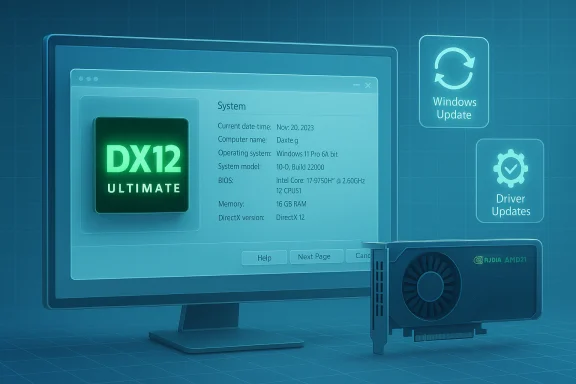
Blue-lit gaming PC with a triple-fan GPU, Windows Update on screen, and DX12 Ultimate branding.Background / Overview​

DirectX is a set of APIs in Windows that provides low‑level access to graphics, audio, and input hardware for games and multimedia applications. It sits between software and the GPU/driver stack, enabling features from basic accelerated 3D to modern ray tracing and mesh shaders. On modern Windows releases (Windows 10 and Windows 11), DirectX 12 and its feature sets are part of the operating system; updates to those components are delivered via Windows Update and GPU driver packages rather than a standalone “DirectX installer.” That’s the single most important fact to understand before you attempt any manual “DirectX update.”
Why this matters
  • Performance and stability for games often hinge on the combination of the OS DirectX components and the installed GPU driver.
  • New features such as ray tracing, Variable Rate Shading (VRS), mesh shaders, and sampler feedback are delivered through the DirectX 12 ecosystem (DirectX 12 Ultimate) and require hardware + driver support to actually work.
  • Legacy games (DirectX 9 era) sometimes need old helper DLLs that are not part of the core OS DirectX; these are handled separately via the DirectX End‑User Runtime when necessary.
This article verifies the user‑facing steps (how to check DirectX, how updates are applied, and what to do if something breaks) against Microsoft guidance and industry sources, and provides practical troubleshooting paths for common failure modes.

How Windows 11 handles DirectX (short technical verification)​

  • Windows 11 ships with DirectX 12 family APIs as part of the OS; there is no supported, separate “DirectX 12 installer” you can run to upgrade the OS DirectX. Updates to the DirectX components included in Windows 11 are delivered through Windows Update (OS servicing) and via GPU vendor drivers. This is explicitly stated in Microsoft’s support materials.
  • The DirectX End‑User Runtime (web/offline installers) exists to supply older DirectX helper DLLs (mainly DirectX 9-era D3DX files) that some legacy games expect. Running this runtime installs those legacy libraries but does not replace or upgrade the OS DirectX core version. Use it only when an application explicitly reports missing legacy DLLs.
  • DirectX 12 Ultimate is the current consumer DirectX feature set which bundles DXR ray tracing, VRS, mesh shaders and sampler feedback. Whether a PC can use those features depends on the GPU hardware and the driver exposing those capabilities — you often need a recent GPU generation (GeForce RTX 30/40/50 series, AMD RDNA2/RDNA3, Intel Arc, etc. and vendor drivers that advertise DX12 Ultimate support. Vendor documentation confirms which model lines fully expose DX12 Ultimate features.

Quick: How to check your DirectX version (the built‑in way)​

  • Press Windows + R to open the Run box.
  • Type dxdiag and press Enter.
  • In the DirectX Diagnostic Tool that opens, select the System tab and look for DirectX Version in the System Information block.
  • To share a full diagnostic packet with support, click Save All Information... to generate a DxDiag.txt file you can attach to a forum post or support ticket.
Notes and quick tips
  • The Display tab shows the GPU name, driver version/date, and feature strings that sometimes indicate DirectX 12 or DirectX 12 Ultimate readiness; use this to confirm hardware/driver capability beyond the basic version line.
  • You can run dxdiag from PowerShell or Command Prompt by typing dxdiag and pressing Enter; it produces the same UI and the same saved report option.

How to update DirectX on Windows 11 — the supported, safe path​

Short answer: Use Windows Update and keep your GPU drivers current.
  • Open Settings → Windows Update.
  • Click Check for updates and install any pending updates.
  • Reboot if prompted.
Windows Update delivers OS‑level DirectX component updates and optional driver packages for devices. For most users, this is the only necessary action to ensure the OS’s DirectX components are current. Why you should also update GPU drivers
  • The GPU driver implements the hardware side of DirectX functionality. Many “DirectX” problems people see are actually driver issues, regressions, or missing vendor features — not the OS DirectX version itself.
  • Visit your GPU vendor (NVIDIA, AMD, Intel) or your OEM support page to download the latest validated driver for your exact GPU and Windows build. Vendors publish driver notes that indicate added DirectX or feature support.
Practical driver‑update options
  • Windows Update → Optional updates → Driver updates.
  • Vendor utilities: NVIDIA GeForce Experience, AMD Adrenalin, Intel Driver & Support Assistant.
  • OEM support pages for laptops and pre‑built desktops (sometimes OEM drivers include device‑specific fixes).
Best practice: for troubleshooting new problems, prefer the latest vendor driver from the GPU maker’s site. For mission‑critical systems, use OEM‑validated drivers or keep a rollback plan.

Step‑by‑step: A practical workflow to check and update DirectX (recommended)​

  • Quick diagnostics
  • Run dxdiag → System tab → note DirectX Version and Windows build (winver).
  • Switch to Display tab → note GPU, driver version, driver date, and any feature strings.
  • Save All Information for later use.
  • Update the OS
  • Settings → Windows Update → Check for updates → Install all updates → Reboot.
  • After reboot, re-run dxdiag to confirm no unexpected regressions.
  • Update GPU drivers
  • If Windows Update doesn’t show a vendor driver you expect, download the latest driver from NVIDIA/AMD/Intel.
  • Use clean install options if the installer offers one (this helps avoid leftover driver cruft).
  • Reboot and re-check dxdiag.
  • Install legacy DirectX components only if needed
  • If an old game reports missing DLLs (e.g., d3dx9_43.dll), run the DirectX End‑User Runtime installer to add legacy DLLs; this does not change the OS DirectX version. Use the Microsoft runtime package when a game specifically requests it.
  • If things still fail, run system repairs
  • Open an elevated Command Prompt and run:
  • DISM /Online /Cleanup-Image /RestoreHealth
  • sfc /scannow
  • These repair the Windows component store and system files, which can fix corrupted DirectX DLLs that are part of the OS. If that fails, consider an in‑place repair upgrade using an ISO.

Troubleshooting common scenarios and practical recipes​

“My game complains about DirectX 12 not supported / crashes on launch”​

  • Confirm GPU model and driver via dxdiag → Display tab.
  • Verify hardware support for DX12 Ultimate features if the game requires them (consult vendor pages — e.g., NVIDIA/AMD lists). If the GPU is older, the only reliable fix is a hardware upgrade.
  • Update or roll back drivers: if a new vendor driver causes regressions, roll back via Device Manager → Display adapters → Properties → Driver → Roll Back Driver.
  • Check the game’s redist/common‑redistributables folder — some installers ship legacy DirectX runtime files; prefer the game’s legitimate installer or the Microsoft End‑User Runtime for legacy DLLs.

“Missing d3dx9_xx.dll / older games refuse to start”​

  • Run the DirectX End‑User Runtime Web Installer to add the old D3DX DLLs. This installer supplies legacy helper DLLs required by older games but does not upgrade DirectX 12 in Windows 11. Use it only for legacy needs.
  • Warning: do not download individual DLL files from random websites — that’s a common malware vector. If the web installer fails, check the game installer for a bundled runtime or install the specific redistributable the game ships. Community posts show the web installer can fail occasionally; keep a recovery plan and verify installer integrity if you must use it.

“Windows Update won’t show a DirectX upgrade”​

  • That’s by design. There’s no standalone DirectX 12 upgrade: Windows Update delivers the OS servicing and vendor drivers provide hardware glue. Confirm you have all cumulative updates installed and check Optional updates for driver packages. If Windows Update is failing, run the Windows Update Troubleshooter and, as a last resort, reset the SoftwareDistribution and catroot2 folders.

Advanced repair: use DISM + SFC and in‑place repair​

  • DISM and SFC often fix broken system files that affect DirectX. If they don’t, an in‑place repair (run Setup from a Windows 11 ISO and choose to keep files/apps) refreshes OS components while preserving data. This is safer than a full clean reinstall for most users.

Confirming DirectX 12 Ultimate support (what to look for)​

DirectX 12 Ultimate is a feature set — having the DirectX “version” reported as 12 in dxdiag isn’t the whole story. To use DX12 Ultimate features you need:
  • A GPU that implements the DX12 Ultimate feature set (ray tracing, VRS, mesh shaders, sampler feedback). Vendor pages (NVIDIA, AMD, Intel) list model lines that expose those features.
  • A current vendor driver that exposes those features.
  • A game or app built to use those features.
How to check:
  • Open dxdiag → Display tab → inspect Feature Levels and driver details.
  • Use vendor tools (NVIDIA Control Panel / GeForce Experience, AMD Adrenalin, Intel Software) or third‑party utilities like GPU‑Z to see DirectX feature level and supported capabilities.
  • The Xbox Game Bar sometimes reports gaming readiness, but vendor documentation is the authoritative cross‑check.

Risks, gotchas, and safety notes (critical analysis)​

  • The most common misconception: searching for and running a standalone “DirectX 12 installer” will upgrade Windows — this is false. DirectX components are part of Windows and updated through Windows Update; the separate End‑User Runtime only installs legacy files for older apps. Users chasing a mythical DirectX patch risk downloading malware.
  • Driver regressions are real: updating GPU drivers can both fix and cause problems. Always have a restore point or driver backup and be prepared to roll back if a new driver introduces instability. Enterprise and community best practice is to stage driver updates before mass deployment.
  • The End‑User Runtime is targeted: installing it can resolve legacy DLL errors, but it won’t expose new modern API features. Use it only when the app explicitly asks for older DLLs. In some cases the web installer has transient failures; if that happens, use the game’s bundled runtime, or consult vendor support.
  • Claims about “DirectX 13” or non‑Microsoft DirectX upgrades are almost certainly scams or misinformation. If you encounter such claims, verify against Microsoft’s official documentation and vendor sites; don’t download unverified installers.

Practical checklist — what to do now (concise, copyable)​

  • Run dxdiag → Save All Information → keep the file for support tickets.
  • Settings → Windows Update → Check for updates → install everything and reboot.
  • Update GPU drivers from vendor (NVIDIA/AMD/Intel) if you need feature support or game fixes. Use vendor tools or the vendor’s download page.
  • If an old game needs d3dx9_xx.dll, run DirectX End‑User Runtime — only for legacy DLLs.
  • If problems persist, run DISM /Online /Cleanup-Image /RestoreHealth and sfc /scannow, then consider an in‑place repair if system files remain damaged.

Final analysis and practical verdict​

Keeping DirectX “updated” on Windows 11 is largely about keeping Windows Update healthy and your GPU drivers current. The core OS DirectX family (DirectX 12) is included with Windows 11 and receives servicing through Windows Update; modern DirectX features such as those in DirectX 12 Ultimate require both compatible hardware and vendor drivers to be present. For legacy games, the DirectX End‑User Runtime is a targeted tool to restore older helper DLLs — it does not change the OS DirectX core. These operational facts are confirmed by Microsoft documentation and vendor guidance. Strengths of the current model
  • Centralized servicing via Windows Update reduces fragmentation and lowers the risk of users applying dangerous third‑party “updaters.”
  • Vendor drivers deliver the hardware capabilities needed for advanced DirectX features, allowing GPU makers to tune and optimize.
Risks and trade‑offs
  • Driver regressions remain the principal practical risk for gamers and creative professionals; always keep a rollback plan.
  • Confusion about legacy redistributables leads users to download unsafe DLLs from third‑party sites — avoid that path.
If you follow the practical workflow in this article — check dxdiag, use Windows Update, update GPU drivers from trusted vendors, and install the legacy runtime only when specifically required — you’ll resolve the vast majority of DirectX issues on Windows 11 while keeping your system safe and stable. The Analytics Insight guide is a concise user‑facing primer; this article expands and verifies its steps with Microsoft’s official guidance and vendor documentation so you can act confidently.

Quick reference — commands and places​

  • Run dxdiag: Windows + R → dxdiag → Enter.
  • Windows Update: Settings → Windows Update → Check for updates.
  • Repair system files: Open elevated Command Prompt, run:
  • DISM /Online /Cleanup-Image /RestoreHealth
  • sfc /scannow.
Conclusion: DirectX management on Windows 11 is simpler and safer than many third‑party guides suggest — rely on dxdiag to inspect the runtime, use Windows Update for OS components, update GPU drivers from vendors for hardware features, and run the DirectX End‑User Runtime only when legacy games demand it. These steps match Microsoft’s official guidance and vendor documentation and will keep your games and multimedia applications running at their best.
Source: Analytics Insight How to Check and Update DirectX on Windows 11 Easily
 

Back
Top