

Windows 11 ships with a lot of background services, but not all of them deserve to live at boot. Some are genuinely foundational, some are legacy holdovers from the Windows 2000 era, and a few sit in a gray zone where they are useful on the right machine but unnecessary on a modern personal PC. The practical question is no longer whether Microsoft can keep these services around; it is whether you should keep paying the tiny but real complexity cost of running them. The answer, in many cases, is no.
Windows has always been a platform that tries to serve everyone at once. That means a home laptop, a corporate desktop, a print-heavy office workstation, a domain-joined enterprise machine, and a kiosk running specialty software can all share the same underlying service framework. The upside is compatibility. The downside is accumulation: features that once solved real problems can linger long after the average user has stopped needing them.
That is why Windows 11 still contains services with names that sound like museum exhibits. Distributed Link Tracking Client was designed to keep shortcuts and file references alive after files are moved. Fax exists to support a technology that is still relevant in some regulated industries but basically irrelevant for most households. SysMain is a memory prefetching feature built for a time when spinning hard drives were common. These services were not invented as bloat; they were created to solve actual problems of their era.
The problem is that modern PCs no longer look like the machines these services were built for. Fast SSDs have changed startup and application loading behavior. Cloud storage, email, chat, and signed PDFs have replaced many old office workflows. And the average Windows user is far more likely to print occasionally, if at all, than to maintain a fax line. When a service outlives its use case, it becomes dead weight in the strictest sense: not necessarily a performance disaster, but a piece of infrastructure you no longer benefit from.
Microsoft knows this tension well. Its own guidance for system services on Windows IoT Enterprise often marks some services as safe to disable in specific scenarios, while others are explicitly not to be touched. That distinction matters, because Windows is not a one-size-fits-all operating system in any practical sense. What is sensible on a locked-down kiosk or a personal desktop may be disastrous on an enterprise domain controller or a print server. The job, then, is not to indiscriminately strip services away, but to identify the ones that make no sense on your own machine.
On a consumer PC, that usually means thinking in terms of purpose, not just resource use. If a service serves no legitimate purpose on your setup, leaving it enabled only increases your attack surface, your background noise, and your mental overhead when troubleshooting. Even if the resource savings are modest, the cleanliness and clarity can still be worth it.
There is also a security angle. Every service is another piece of code with permissions, dependencies, and potential bugs. Not every service is risky in the same way, but trimming the ones you do not need is a classic least privilege habit applied to system administration.
The key distinction is this:
That history explains why these services still exist. It does not automatically justify keeping them active on a machine that never leaves a home office and has not seen a fax machine in years. Modern computing is full of such leftovers, and Windows is simply one of the most visible examples.
That was a smart problem to solve when users regularly shuffled documents between local disks, network shares, and removable media. It is much less compelling when most people work in browser-based apps, cloud-synced folders, or carefully organized local directories where moving files is already deliberate. On a home PC, broken shortcuts are usually easy enough to repair manually, and the cost of leaving the service running is mostly conceptual rather than measurable.
There is also a domain-era assumption embedded in the design. The service can interact with Distributed Link Tracking Server on domain controllers, which makes sense in enterprise environments that use NTFS volumes and shared infrastructure. On a standalone personal PC, that ecosystem usually does not exist, which is why the client service often sits there doing almost nothing.
The main upside is not speed but simplicity. Less background complexity means fewer moving parts when you troubleshoot storage, USB devices, or startup behavior. And because the service exists to preserve convenience rather than protect system integrity, turning it off is low drama.
That does not mean fax is dead everywhere. It is still used in healthcare, law, and other regulated sectors where transmission habits, compliance rules, and vendor lock-in keep the workflow alive. But for a home user with no fax modem and no shared fax infrastructure, the service is effectively inert.
For the average Windows 11 user, however, those industry exceptions do not matter. If you do not have a fax device attached and do not send faxes through your PC, the service is not creating value. It is simply occupying a service slot and remaining available for a scenario that will never happen.
That matters because many people confuse “rarely used” with “harmless.” A dormant service is not a zero-risk object; it is just a lower-priority one. If the service has no business existing on your machine, the cleanest choice is to remove it from the boot path.
For most home users, navigation lives on the phone. Google Maps, Apple Maps, Waze, and similar apps have displaced desktop mapping for everyday use. The Windows Maps app is often a forgotten tile in the Start menu, which makes its supporting service easy to classify as optional.
The trade-off is tiny, and the benefit is mainly reduced clutter. That is often the pattern with Windows service cleanup: not a dramatic performance gain, but a more honest configuration where only the services that matter remain active.
The privacy debate is not imaginary. Diagnostic data can reveal system configuration, app usage patterns, update behavior, and error reports. Even when data is anonymized, researchers have long shown that anonymized datasets can sometimes be re-identified when combined with other information. That does not mean Windows is secretly exposing every keystroke; it does mean the average user may reasonably want to limit what gets sent.
Users, on the other hand, often hear “we collect diagnostic data” and translate it into “my PC is chatting constantly.” The truth is more nuanced, but the concern is understandable. Privacy is not only about the content of data; it is about the ongoing relationship between the device and the vendor.
At the same time, disabling the service is not a magical total-off switch for all Windows data collection. Some components can still send limited information, and enterprise policy layers can affect behavior too. In other words, the service matters, but it is only one layer in a larger telemetry system.
Today the picture is mixed. On SSD-based systems, app launch times are already so fast that the benefit often becomes marginal. Microsoft still documents scenarios where SysMain is relevant, but it also provides guidance for disabling it in specialized real-time performance setups. That alone tells you the feature is not universally sacred.
SysMain also made sense in low-RAM situations where the system needed help balancing what stayed cached and what got loaded on demand. In those environments, the prefetch logic could improve perceived speed enough to be worthwhile.
That is why SysMain remains controversial. Some users report no issues and even prefer leaving it alone. Others see it as the source of strange disk spikes or unnecessary activity after boot. Both experiences can be true depending on hardware, memory, and workload.
You should still treat it as reversible. If you notice worse app launch behavior or no meaningful improvement, you can simply turn it back on. That makes SysMain a particularly good candidate for controlled testing rather than ideological removal.
The security history here is why the service gets special treatment. The PrintNightmare vulnerability in 2021 exposed a serious remote code execution problem in the Windows print spooler service, and CISA explicitly recommended disabling the spooler on systems that do not need to print, including domain controllers. Federal agencies were also directed to disable it in specific environments.
That distinction matters in practice. A home user with no printer can turn it off and reduce exposure. A small office that prints invoices daily should not. Security is contextual, not absolute.
Microsoft has patched the specific vulnerabilities, but the broader lesson remains. Complex, privileged legacy services attract attention because they are useful, ubiquitous, and historically hard to secure perfectly. If you do not need them, removing them from the boot path is prudent.
If the answer to the first two is no and the third is yes, the case for disabling is strong. If the service supports core system behavior or anything security-related that you do not fully understand, leave it alone.
That is why the articles that tell you to disable services often focus on a narrow group. They are not suggesting that Windows is full of junk. They are suggesting that a modern consumer PC probably does not need every inherited compatibility layer Microsoft still ships.
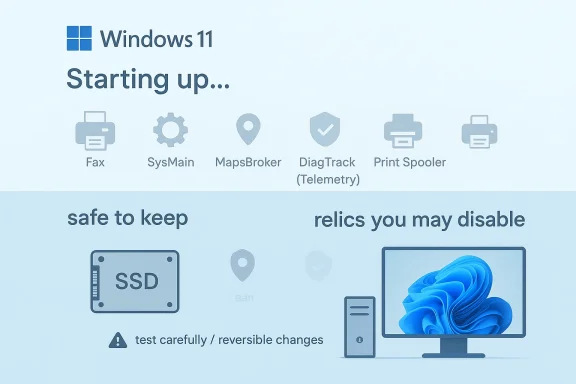
Windows 11 is not bloated because it is careless; it is bloated because it has to remember too many eras at once. That is also why service cleanup works best when it is selective and informed. If you disable the right relics—Fax, unnecessary telemetry, unused maps support, SysMain on the right hardware, and the Print Spooler on machines that never print—you do not make Windows smaller in some dramatic headline sense. You make it more honest about the machine it is actually running on, and that is often the most useful optimization of all.
Source: MakeUseOf Windows 11 still runs dinosaur services like Fax at boot — here's what you should disable
 Background
Windows has always been a platform that tries to serve everyone at once. That means a home laptop, a corporate desktop, a print-heavy office workstation, a domain-joined enterprise machine, and a kiosk running specialty software can all share the same underlying service framework. The upside is compatibility. The downside is accumulation: features that once solved real problems can linger long after the average user has stopped needing them.That is why Windows 11 still contains services with names that sound like museum exhibits. Distributed Link Tracking Client was designed to keep shortcuts and file references alive after files are moved. Fax exists to support a technology that is still relevant in some regulated industries but basically irrelevant for most households. SysMain is a memory prefetching feature built for a time when spinning hard drives were common. These services were not invented as bloat; they were created to solve actual problems of their era.
The problem is that modern PCs no longer look like the machines these services were built for. Fast SSDs have changed startup and application loading behavior. Cloud storage, email, chat, and signed PDFs have replaced many old office workflows. And the average Windows user is far more likely to print occasionally, if at all, than to maintain a fax line. When a service outlives its use case, it becomes dead weight in the strictest sense: not necessarily a performance disaster, but a piece of infrastructure you no longer benefit from.
Microsoft knows this tension well. Its own guidance for system services on Windows IoT Enterprise often marks some services as safe to disable in specific scenarios, while others are explicitly not to be touched. That distinction matters, because Windows is not a one-size-fits-all operating system in any practical sense. What is sensible on a locked-down kiosk or a personal desktop may be disastrous on an enterprise domain controller or a print server. The job, then, is not to indiscriminately strip services away, but to identify the ones that make no sense on your own machine.
On a consumer PC, that usually means thinking in terms of purpose, not just resource use. If a service serves no legitimate purpose on your setup, leaving it enabled only increases your attack surface, your background noise, and your mental overhead when troubleshooting. Even if the resource savings are modest, the cleanliness and clarity can still be worth it.
The Case Against Legacy Services
Legacy services persist because Windows is designed to avoid breaking old workflows. That is a feature, not a flaw, but it also means many users inherit machinery they will never use. The tricky part is that these services can look benign, so people leave them running simply because they assume Microsoft must have a reason.Why "unused" still matters
An unused service is not always a useless service in the abstract. It may still be important in enterprise scenarios, in hybrid environments, or in specialized software stacks. But if you are using a personal Windows 11 PC with no fax hardware, no NTFS shortcut dependence, no offline map downloads, and no need for constant telemetry, the service is often just a resident reminder of older design assumptions.There is also a security angle. Every service is another piece of code with permissions, dependencies, and potential bugs. Not every service is risky in the same way, but trimming the ones you do not need is a classic least privilege habit applied to system administration.
The key distinction is this:
- Some services are essential and should remain untouched.
- Some services are situational and should only run when required.
- Some services are effectively relics on a modern home PC.
- A few services are useful, but only on the right hardware or in the right workflow.
The historical baggage behind Windows services
Many of the services people target today were introduced when storage was slow, networking was less seamless, and office hardware still reflected analog workflows. Windows 2000-era design priorities included reliability across shared drives, compatibility with old peripherals, and central logging or tracking for enterprise IT.That history explains why these services still exist. It does not automatically justify keeping them active on a machine that never leaves a home office and has not seen a fax machine in years. Modern computing is full of such leftovers, and Windows is simply one of the most visible examples.
Distributed Link Tracking Client: A Shortcut Safety Net from Another Era
Distributed Link Tracking Client is one of those services whose purpose sounds helpful until you realize how rarely it matters in everyday use. Microsoft’s documentation explains that the distributed link tracking service helps clients track link sources that have moved, preserving references for shortcuts and OLE links when a file or folder changes location. In practice, it is a compatibility layer for keeping broken links from staying broken.That was a smart problem to solve when users regularly shuffled documents between local disks, network shares, and removable media. It is much less compelling when most people work in browser-based apps, cloud-synced folders, or carefully organized local directories where moving files is already deliberate. On a home PC, broken shortcuts are usually easy enough to repair manually, and the cost of leaving the service running is mostly conceptual rather than measurable.
What it actually does
The service relies on object identifiers and link tracking metadata to help Windows find a moved target. Microsoft notes that when a shell shortcut or OLE link can no longer be resolved, the tracking service may be called automatically to search for the file. That means the feature is genuinely functional, not fake; it just serves a workflow that many people no longer use.There is also a domain-era assumption embedded in the design. The service can interact with Distributed Link Tracking Server on domain controllers, which makes sense in enterprise environments that use NTFS volumes and shared infrastructure. On a standalone personal PC, that ecosystem usually does not exist, which is why the client service often sits there doing almost nothing.
When you should disable it
If you rarely move files in ways that should preserve old shortcuts, the service offers little value. If you are the kind of user who knows where everything lives, or who is comfortable fixing a broken link instead of relying on Windows to do it for you, disabling it is a perfectly reasonable choice.The main upside is not speed but simplicity. Less background complexity means fewer moving parts when you troubleshoot storage, USB devices, or startup behavior. And because the service exists to preserve convenience rather than protect system integrity, turning it off is low drama.
- Best suited for enterprise shortcut continuity
- Unnecessary for most home desktops
- Safe to disable if manual shortcut repair is fine
- More about convenience than performance
- Slightly reduces background service count
Practical guidance
If you want to test the change, set the service to Manual first instead of immediately disabling it. That gives you a reversible middle ground and makes it easier to tell whether you notice any workflow disruption. On a personal PC, most users probably will not.Fax: A Legacy Transport for a Legacy Workflow
The Fax service is a perfect example of why old Windows services linger. Microsoft’s own documentation describes it as a fax functionality service that lets users send and receive faxes from desktop applications using a local or shared fax device, with routing, configuration, and archiving features. It is a fully capable system service for a technology most consumers no longer own.That does not mean fax is dead everywhere. It is still used in healthcare, law, and other regulated sectors where transmission habits, compliance rules, and vendor lock-in keep the workflow alive. But for a home user with no fax modem and no shared fax infrastructure, the service is effectively inert.
Why fax still exists
Fax survived digital transformation for the same reason a lot of old infrastructure survives: inertia, compatibility, and compliance. Some sectors still trust fax because the workflow is familiar and the data path is constrained enough to feel controlled. That may be outdated thinking, but it is widespread thinking.For the average Windows 11 user, however, those industry exceptions do not matter. If you do not have a fax device attached and do not send faxes through your PC, the service is not creating value. It is simply occupying a service slot and remaining available for a scenario that will never happen.
Security and maintenance perspective
Fax is not especially notorious in the way Print Spooler became infamous, but there is still a general principle at work: legacy services often bring older assumptions and older code paths with them. Even if a service is not actively vulnerable, it still adds surface area. In security terms, less surface is usually better than more.That matters because many people confuse “rarely used” with “harmless.” A dormant service is not a zero-risk object; it is just a lower-priority one. If the service has no business existing on your machine, the cleanest choice is to remove it from the boot path.
- Useful in certain regulated industries
- Irrelevant for most consumer PCs
- Needs fax hardware or fax infrastructure
- Adds unnecessary service footprint
- Easy to disable and re-enable later
Home users versus business users
This is one of the clearest examples of where consumer advice must be separated from enterprise reality. In a business environment with legacy processes, the Fax service may still support real workflows and should be evaluated carefully. On a personal Windows 11 machine, the same service is generally just clutter.Download Maps Manager: Background Convenience You Probably Never Asked For
Download Maps Manager appears in Services as MapsBroker, and its role is to download and update offline map data for the built-in Windows Maps app. Microsoft configures it to start automatically, often with a delayed start, so it can quietly check for map updates after boot. That is a sensible design if you use Windows Maps and offline navigation data. It is much less useful if you never open the app.What it enables
The service exists to support offline maps, which can still matter on travel laptops, rugged devices, or machines used in low-connectivity environments. In those cases, it helps keep map data fresh and available even when a network is not. That is a legitimate feature, just not a universally relevant one.For most home users, navigation lives on the phone. Google Maps, Apple Maps, Waze, and similar apps have displaced desktop mapping for everyday use. The Windows Maps app is often a forgotten tile in the Start menu, which makes its supporting service easy to classify as optional.
Why it is usually safe to turn off
If you have never downloaded offline maps through Settings and do not use Windows Maps for routing or location lookup, the service probably has no meaningful job to do. Disabling it means map downloads and updates will stop in the background, but it does not affect core Windows functionality.The trade-off is tiny, and the benefit is mainly reduced clutter. That is often the pattern with Windows service cleanup: not a dramatic performance gain, but a more honest configuration where only the services that matter remain active.
A good candidate for minimalism
The reason MapsBroker is worth mentioning is that it illustrates the broader principle perfectly. Windows often preloads support for features users may never touch. That is convenient for the user who needs the feature tomorrow, but noise for everyone else.- Supports offline Windows Maps data
- Useful on travel or field devices
- Unnecessary if you never use Windows Maps
- Low risk to disable on a personal PC
- Good example of feature-specific service bloat
Connected User Experiences and Telemetry: The Privacy Trade-Off
Connected User Experiences and Telemetry, often identified as DiagTrack, is the service most likely to draw attention from privacy-conscious users. Microsoft says telemetry and diagnostic data help improve Windows and enable various experiences, and its documentation shows the service being tied to configuration downloads and diagnostic feedback. That description is broad by design, which is one reason the service remains controversial.The privacy debate is not imaginary. Diagnostic data can reveal system configuration, app usage patterns, update behavior, and error reports. Even when data is anonymized, researchers have long shown that anonymized datasets can sometimes be re-identified when combined with other information. That does not mean Windows is secretly exposing every keystroke; it does mean the average user may reasonably want to limit what gets sent.
What Microsoft says, and what users hear
Microsoft frames telemetry as a tool for improving reliability, fixing bugs, and adapting Windows to real-world hardware and software combinations. That is plausible and, in some cases, obviously useful. If enough systems report the same failure pattern, Microsoft can diagnose a problem faster.Users, on the other hand, often hear “we collect diagnostic data” and translate it into “my PC is chatting constantly.” The truth is more nuanced, but the concern is understandable. Privacy is not only about the content of data; it is about the ongoing relationship between the device and the vendor.
What disabling it changes
Turning the service off reduces some background diagnostic activity and may align your PC with a more conservative privacy posture. Microsoft’s own policy documentation still makes clear that the service plays a role in sending data through default proxy behavior unless policy controls intervene. That suggests the service is not merely decorative; it is part of the machinery that moves telemetry along.At the same time, disabling the service is not a magical total-off switch for all Windows data collection. Some components can still send limited information, and enterprise policy layers can affect behavior too. In other words, the service matters, but it is only one layer in a larger telemetry system.
Consumer versus enterprise impact
On a business-managed PC, telemetry can be useful for fleet health and troubleshooting. On a personal machine, the balance often shifts toward user preference and privacy. That is why service-level changes are so attractive: they let power users make a statement about what they want their operating system to do.- Reduces some diagnostic uploads
- Improves privacy posture for cautious users
- Can slightly reduce Microsoft’s visibility into bugs
- Does not eliminate every form of Windows telemetry
- Best viewed as one part of a broader privacy strategy
A careful caveat
It is worth being precise here: disabling the service may not break everyday Windows use, but it may affect some diagnostic and personalization behavior. That is the trade-off, and it is intentional. If you are comfortable trading a little convenience for less background reporting, this is one of the most defensible changes you can make.SysMain: Preloading for a Hard Drive World
SysMain, formerly known as Superfetch, is probably the most misunderstood service in the group. Microsoft describes it as a feature that improves performance over time by monitoring app usage and preloading commonly used data into memory. In older Windows eras, particularly on machines with mechanical drives, that could genuinely improve responsiveness.Today the picture is mixed. On SSD-based systems, app launch times are already so fast that the benefit often becomes marginal. Microsoft still documents scenarios where SysMain is relevant, but it also provides guidance for disabling it in specialized real-time performance setups. That alone tells you the feature is not universally sacred.
Why it was useful
On hard drives, random access was expensive. If Windows could learn what you were likely to open next and stage it ahead of time, the user experience felt smoother. That was an intelligent adaptation to the hardware of the day.SysMain also made sense in low-RAM situations where the system needed help balancing what stayed cached and what got loaded on demand. In those environments, the prefetch logic could improve perceived speed enough to be worthwhile.
Why SSDs changed the story
Modern SSDs flatten many of the delays that made prefetching valuable. An app that once took a noticeable beat to open can now appear almost instantly without SysMain’s help. Meanwhile, the service may still scan usage patterns, analyze startup behavior, and perform background work that some users notice as disk activity or transient slowdowns.That is why SysMain remains controversial. Some users report no issues and even prefer leaving it alone. Others see it as the source of strange disk spikes or unnecessary activity after boot. Both experiences can be true depending on hardware, memory, and workload.
When disabling is reasonable
If you are on an SSD and have plenty of RAM, disabling SysMain is often a low-risk experiment. Microsoft’s own IoT guidance identifies it as a service to disable in certain real-time performance setups, which reinforces the idea that it is not a universal requirement.You should still treat it as reversible. If you notice worse app launch behavior or no meaningful improvement, you can simply turn it back on. That makes SysMain a particularly good candidate for controlled testing rather than ideological removal.
- Designed for older storage behavior
- Can help some workloads, especially on slower disks
- Often redundant on modern SSD systems
- May contribute to background disk activity
- Easy to re-enable if needed
The right takeaway
SysMain is not “bad.” It is simply a service whose value depends heavily on hardware generation and user pattern. On a modern consumer PC, especially one with a fast SSD, the case for disabling it is more compelling than it once was.Print Spooler: Useful Until You Don’t Print
Print Spooler remains one of the most important services for anyone who prints, and one of the most dangerous if you do not. It queues print jobs, coordinates with printers, and handles driver-related workflow. If you regularly print documents, keep it on. If you never print, there is little reason to keep the service active.The security history here is why the service gets special treatment. The PrintNightmare vulnerability in 2021 exposed a serious remote code execution problem in the Windows print spooler service, and CISA explicitly recommended disabling the spooler on systems that do not need to print, including domain controllers. Federal agencies were also directed to disable it in specific environments.
Why this service stands out
Unlike Fax or MapsBroker, the Print Spooler is not merely outdated. It is both widely used and historically security-sensitive. That makes it a special case: you do not disable it because it is obsolete; you disable it because you do not need its functionality and therefore do not need its risk.That distinction matters in practice. A home user with no printer can turn it off and reduce exposure. A small office that prints invoices daily should not. Security is contextual, not absolute.
What the official guidance implies
CISA’s recommendation was not casual. The agency said administrators should disable the Print spooler service on systems that do not print and on domain controllers, because exploitation could lead to full system compromise. That is strong language, and it reflects how much privilege the service carries.Microsoft has patched the specific vulnerabilities, but the broader lesson remains. Complex, privileged legacy services attract attention because they are useful, ubiquitous, and historically hard to secure perfectly. If you do not need them, removing them from the boot path is prudent.
Consumer and enterprise split
For home users, the guidance is straightforward: no printer, no spooler. For enterprises, the decision is more complicated because print infrastructure can be deeply embedded in workflows. That is why organizations often control the service via policy rather than leaving it to individual users.- Essential for active printing
- Unnecessary on PCs that never print
- Security-sensitive due to historical vulnerabilities
- Explicitly recommended for disablement in non-printing systems
- Should be treated as a context-based decision
The simple rule
If the printer is not part of your real workflow, the service should not be part of your boot workflow either. That is one of the cleanest security wins available in Windows 11.How to Think About Service Cleanup Without Breaking Windows
The temptation, once you learn how many services Windows starts, is to disable them all and celebrate. That is the wrong lesson. Windows is a layered operating system, and many services that look suspicious are in fact essential for networking, security, updates, authentication, or device support.A practical decision framework
The smart way to approach service cleanup is to ask three questions. First, do I actively use this feature? Second, is the service supporting a hardware device or a legacy workflow I no longer have? Third, if I disable it, can I easily restore it?If the answer to the first two is no and the third is yes, the case for disabling is strong. If the service supports core system behavior or anything security-related that you do not fully understand, leave it alone.
Sequential approach to testing
- Identify the service and its actual function.
- Check whether you use the feature in real life.
- Set it to Manual if you want a safer first step.
- Reboot and observe whether anything breaks.
- If there is no impact, move to Disabled if appropriate.
Good candidates versus bad candidates
Safe or relatively safe candidates usually have one of three traits: they support obsolete hardware, they enable niche convenience features, or they duplicate functionality you already handle another way. Bad candidates are the opposite. They support networking, authentication, storage integrity, security enforcement, or core shell behavior.That is why the articles that tell you to disable services often focus on a narrow group. They are not suggesting that Windows is full of junk. They are suggesting that a modern consumer PC probably does not need every inherited compatibility layer Microsoft still ships.
- Focus on your actual workflow
- Prefer Manual before Disabled when uncertain
- Avoid touching networking and security essentials
- Re-enable if a feature unexpectedly matters
- Treat each service as a case-by-case decision
The real benefit
The biggest win from service cleanup is psychological as much as technical. A tighter configuration is easier to understand, easier to audit, and easier to trust. For many Windows users, that alone is worth the effort.Strengths and Opportunities
The argument for disabling these services is strongest when you look at the whole PC rather than each service in isolation. You are not chasing benchmark miracles; you are aligning Windows 11 with how you actually use it. That creates a cleaner, more intentional system with fewer moving parts.- Reduced background clutter on a PC that does not need legacy features.
- Lower attack surface when you remove services tied to printing or dormant workflows.
- Better privacy posture if telemetry is a concern.
- Clearer troubleshooting because fewer optional services are active.
- More predictable boot behavior on systems that suffer from service churn.
- Easier long-term maintenance when you know why each service exists.
- Flexible reversibility since most of these services can be turned back on if needed.
Why this matters now
Windows 11 is increasingly a platform of layered experiences: cloud integration, local compatibility, enterprise controls, and old-school device support all living together. That makes selective trimming more valuable than blanket “debloating.” The opportunity is to keep the compatibility you still need and remove the rest.Risks and Concerns
The biggest risk is overcorrection. Users who get enthusiastic about service trimming sometimes disable something they later discover was quietly supporting a real workflow or device. That can lead to unnecessary breakage and a misleading sense that Windows is unstable.- Breaking printing if the Print Spooler is disabled on a machine that still needs it.
- Losing shortcut automation if Distributed Link Tracking was actually helping a specific workflow.
- Disabling offline maps unexpectedly on travel or field devices.
- Reducing diagnostic quality when telemetry is turned off.
- Creating false confidence if users assume every disabled service improves performance.
- Causing avoidable support problems when a work machine relies on legacy features.
- Touching the wrong service and affecting networking, updates, or device management.
The most important caution
The safest rule is simple: do not disable what you do not understand. It is better to leave a harmless service running than to create a hard-to-diagnose problem by being too aggressive.What to Watch Next
The longer-term story here is not just about these six services. It is about how Microsoft continues to balance compatibility, security, privacy, and user expectations in Windows 11. Every release nudges that balance a little, and every enterprise policy layer adds another layer of nuance.Areas worth monitoring
- Whether Microsoft continues to modernize or retire older service dependencies.
- Whether telemetry controls become more transparent in consumer editions.
- Whether print-related security hardening further reduces reliance on the spooler.
- Whether SysMain remains relevant as SSD adoption and memory sizes continue to rise.
- Whether offline features like MapsBroker receive less prominence in future builds.
- Whether Microsoft expands clearer service guidance for home users as well as enterprise admins.
- Whether Windows 11 increasingly treats optional services as on-demand components rather than boot-time defaults.
Windows 11 is not bloated because it is careless; it is bloated because it has to remember too many eras at once. That is also why service cleanup works best when it is selective and informed. If you disable the right relics—Fax, unnecessary telemetry, unused maps support, SysMain on the right hardware, and the Print Spooler on machines that never print—you do not make Windows smaller in some dramatic headline sense. You make it more honest about the machine it is actually running on, and that is often the most useful optimization of all.
Source: MakeUseOf Windows 11 still runs dinosaur services like Fax at boot — here's what you should disable
